
Introduction
This document serves as a user manual for the Easytry123 Replacement Remote Control, model B07Z3KHFP3. This remote is designed as a replacement for various Stream Smart LCD LED HDTV televisions. Please note that as a replacement unit, it may not offer all functions present on your original television remote control. This manual provides general guidance for setup, operation, and basic maintenance.
Important: This replacement remote control does not include a dedicated instruction manual from the manufacturer. The information provided here is general guidance for typical remote control usage.
Important Considerations
- Compatibility: Ensure this remote control is compatible with your specific television model. Refer to the product listing for compatible models.
- Functionality: As a replacement item, this remote may not support all functions or advanced features of your original television remote. Some buttons may have different functions or no function depending on your TV model.
- Batteries: The remote control requires 2 AAA batteries, which are not included with the purchase.
- Visual Reference: The images provided in this manual and on the product listing are for reference only. The actual product may have minor cosmetic variations.
- Ease of Use: This remote is designed for straightforward operation for primary television functions.
Setup: Battery Installation
- Locate Battery Compartment: Turn the remote control over to its back. You will find a battery compartment cover.
- Open Cover: Gently slide the battery compartment cover downwards or press the latch and lift to open it.
- Insert Batteries: Insert two (2) AAA batteries into the compartment. Observe the polarity markings (+ and -) inside the compartment and align the batteries accordingly. Incorrect insertion can prevent the remote from functioning.
- Close Cover: Replace the battery compartment cover by sliding it back into place until it clicks securely.
After installing the batteries, the remote control should be ready for use with compatible televisions without further programming.

Image: Rear view of the remote control with the battery compartment open, illustrating where to insert the two AAA batteries.
Operation
This remote control operates using infrared (IR) technology. Ensure there is a clear line of sight between the remote control and the television's IR receiver for optimal performance.
Basic Functions:
- Power (POWER button): Press to turn the television on or off.
- Volume Control (VOL +/- buttons): Press VOL + to increase volume, VOL - to decrease volume.
- Channel Control (CH +/- buttons): Press CH + to go to the next channel, CH - to go to the previous channel.
- Mute (MUTE button): Press to temporarily silence the television audio. Press again to restore audio.
- Input/Source (INPUT button): Press to cycle through available input sources (e.g., HDMI 1, HDMI 2, AV).
- Number Buttons (0-9): Use to directly enter channel numbers.
- Navigation (Arrow buttons and OK): Use the arrow buttons to navigate menus and the OK button to confirm selections.
- Menu (MENU button): Access the television's main menu.
- Exit (EXIT button): Exit current menu or on-screen display.
Note: Specific button functions may vary depending on your television model. Refer to your television's original manual for detailed information on its features.
Maintenance
- Cleaning: Wipe the remote control with a soft, dry cloth. Do not use liquid cleaners or abrasive materials, as they may damage the surface or internal components.
- Battery Replacement: Replace batteries when the remote control becomes unresponsive or its range decreases significantly. Always replace both batteries at the same time with new AAA batteries. Do not mix old and new batteries, or different types of batteries.
- Storage: If the remote control will not be used for an extended period, remove the batteries to prevent leakage and potential damage.
- Environment: Avoid exposing the remote control to extreme temperatures, direct sunlight, moisture, or dust.
Troubleshooting
If you experience issues with your Easytry123 Replacement Remote Control, consider the following troubleshooting steps:
- Check Batteries: Ensure batteries are inserted correctly with the correct polarity (+/-). Replace old batteries with fresh AAA batteries.
- Line of Sight: Verify there are no obstructions between the remote control and the television's infrared receiver. Ensure you are pointing the remote directly at the TV.
- Remote Control Sensor: Check if the remote control's IR emitter (usually at the front tip) is clean and unobstructed.
- TV's IR Receiver: Ensure the television's IR receiver is not blocked or dirty.
- Compatibility: Reconfirm that the remote control is indeed compatible with your specific television model. Some advanced functions may not be supported by a generic replacement remote.
- Test with Camera: You can often test if the remote is emitting an IR signal by pointing it at a smartphone camera (most smartphone cameras can see IR light) and pressing a button. You should see a light flash on the camera screen.
If the issue persists after these steps, the remote control may not be fully compatible with your television or may be defective. Contact the seller for further assistance.
Specifications
| Feature | Detail |
|---|---|
| Brand | Easytry123 |
| Model Number (ASIN) | B07Z3KHFP3 |
| Compatible Devices | Television (Stream Smart LCD LED HDTV TV) |
| Connectivity Technology | Infrared (IR) |
| Controller Type | Button Control |
| Special Feature | Ergonomic design |
| Batteries Required | 2 x AAA (not included) |
| Manufacturer | Easytry123 |
| First Available Date | October 14, 2019 |
Product Overview
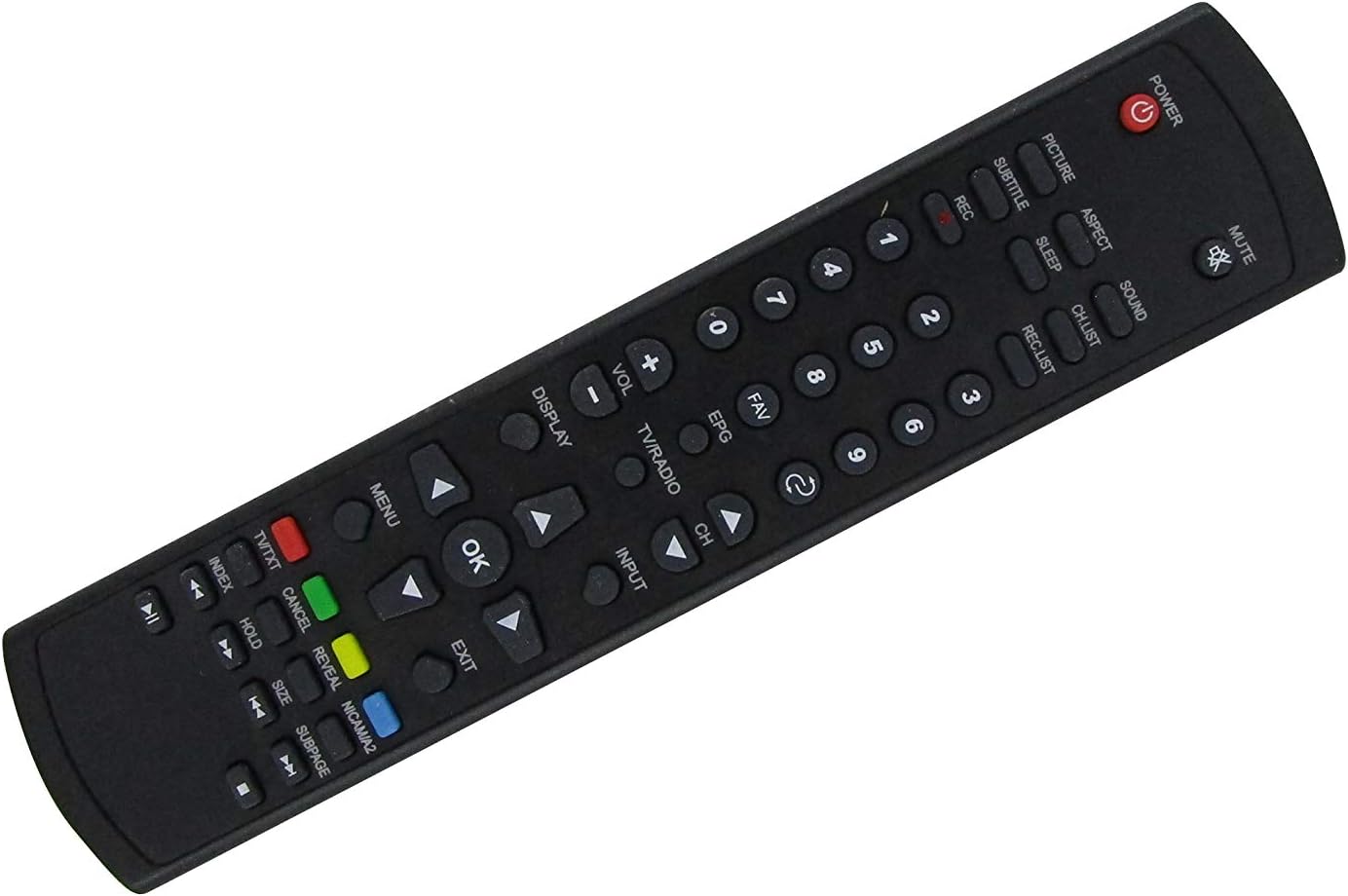
Image: Front view of the Easytry123 replacement remote control, displaying the layout of all control buttons.

Image: Angled perspective of the remote control, showcasing its ergonomic design and button placement.
Image: Rear view of the remote control with the battery compartment open, illustrating where to insert the two AAA batteries.
Warranty and Support
Specific warranty details for this Easytry123 Replacement Remote Control are not provided in the product information. For any warranty claims, technical support, or further inquiries regarding compatibility or functionality, please contact the seller directly through the platform where the purchase was made.
It is recommended to retain your proof of purchase for any support requests.