
1. Introduction
This manual provides instructions for the Easytry123 RC602S replacement remote control. This remote is designed to operate various TCL Smart UHD LED LCD HDTV models. Please note that as a replacement unit, some advanced or specific functions of your original remote may not be fully supported. Ensure your TV model is listed for optimal compatibility.
2. Setup
2.1 Battery Installation
The RC602S remote control requires two (2) AAA batteries (not included). Follow these steps to install the batteries:
- Locate the battery compartment on the back of the remote control.
- Press down on the tab and slide the battery cover downwards to open it.
- Insert two AAA batteries, ensuring the positive (+) and negative (-) terminals align correctly with the markings inside the compartment.
- Slide the battery cover back into place until it clicks securely.

Image 2.1: Front view of the RC602S remote control with the battery compartment detached, illustrating the battery insertion area. Ensure correct polarity when inserting batteries.
2.2 Compatibility Check
This remote is compatible with the following TCL Smart UHD LED LCD HDTV models:
- TCL 50P20US
- TCL 65P20US
- TCL 49C2US
- TCL U55P6046
- TCL 55C2US
- TCL U65P6046
- TCL U60P6046
If your TV model is not listed, this remote may not function correctly or provide full functionality. No programming is typically required for these compatible models; simply insert batteries and point the remote at your TV.
3. Operating Instructions
The RC602S remote control uses infrared (IR) technology. Ensure there is a clear line of sight between the remote's emitter and your TV's IR receiver for proper operation. Point the remote directly at the television.
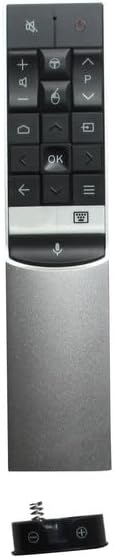
Image 3.1: Overview of the RC602S remote control, displaying its ergonomic design and button layout.
3.1 Key Functions
- Power Button (Red Circle): Turns the TV on or off.
- Mute Button (Speaker with X): Mutes or unmutes the TV audio.
- Volume Up/Down (+/-): Adjusts the volume level.
- Channel Up/Down (P^/P˅): Changes TV channels.
- Navigation Buttons (Arrows): Used to navigate menus and select options.
- OK Button (OK): Confirms selections in menus.
- Home Button (House Icon): Accesses the TV's smart home screen or main menu.
- Back Button (Left Arrow): Returns to the previous screen or menu.
- Input/Source Button (Rectangle with Arrow): Selects the input source (HDMI, AV, etc.).
- Menu/Options Button (Three Horizontal Lines): Opens context-sensitive menus or settings.
- Voice Control Button (Microphone Icon): Activates voice command features (if supported by your TV model and configured).
4. Maintenance
4.1 Cleaning the Remote
To clean your remote control, use a soft, dry cloth. For stubborn dirt, slightly dampen the cloth with water or a mild, non-abrasive cleaner. Avoid using harsh chemicals or excessive moisture, as these can damage the remote's electronics.
4.2 Battery Replacement
Replace batteries when the remote's response becomes sluggish or stops working. Always replace both batteries at the same time with new AAA batteries. Do not mix old and new batteries, or different types of batteries, as this can lead to leakage or malfunction.
4.3 Storage
When not in use for extended periods, it is recommended to remove the batteries to prevent potential leakage and damage to the remote control.
5. Troubleshooting
- Remote not responding:
- Check if the batteries are inserted correctly with the correct polarity.
- Replace old batteries with new AAA batteries.
- Ensure there are no obstructions between the remote and the TV's IR receiver.
- Point the remote directly at the TV.
- Limited functionality or certain buttons not working:
- As a replacement remote, some specific or advanced functions of your original TV remote may not be supported. This is normal for universal or replacement remotes.
- Verify that your TV model is listed in the compatibility section (Section 2.2).
- Buttons are sticky or unresponsive:
- Clean the remote control as described in Section 4.1.
6. Specifications
| Brand | Easytry123 |
| Model | RC602S |
| Connectivity Technology | Infrared (IR) |
| Compatible Devices | TCL Televisions |
| Max Number of Supported Devices | 1 |
| Batteries Required | 2 x AAA (not included) |
| Special Feature | Ergonomic Design |
7. Warranty and Support
This Easytry123 RC602S remote control is a replacement unit. Specific warranty information is not provided with the product. For any issues or support inquiries, please contact the seller directly through your purchase platform. Ensure you have your order details available when contacting support.