
1. Introduction
This manual provides instructions for the installation, operation, maintenance, and troubleshooting of the FORTINET FortiVoice Gateway GT02. This device is designed to expand the resources and connect different line types to your FortiVoice phone system, enhancing communication capabilities for business environments.
2. Product Overview
The FortiVoice Gateway GT02 works in conjunction with FortiVoice Enterprise systems (FVE-100E and larger) to provide scalable solutions for on-premises networks or centralized deployments. Its compact design and simple configuration facilitate network expansion.
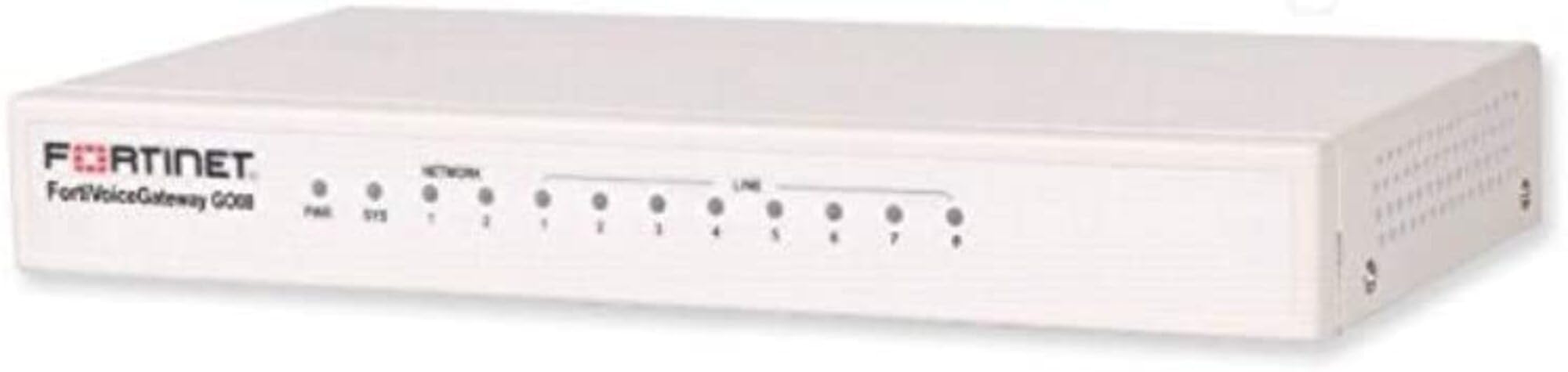
Image: Front view of the FortiVoice Gateway GT02 hardware unit, illustrating its compact form factor and typical connectivity ports.
Key Features:
- Expands resources and connects various line types to FortiVoice phone systems.
- Supported on FortiVoice Enterprise systems, specifically FVE-100E and larger models.
- Facilitates the integration of additional phone lines or analog extensions.
- Features a compact design and straightforward configuration for network growth.
- Stackable design allows for adding multiple gateways as network demands increase.
- Supports both local and remote installations for flexible deployment solutions.
3. Setup and Installation
3.1 Unpacking the Device
Carefully remove all components from the packaging. Ensure the following items are present:
- FortiVoice Gateway GT02 Unit
- USB Cable
- Power Adapter (typically included with hardware)
- Documentation (e.g., Quick Start Guide, Safety Information)
3.2 Physical Connection
- Connect Power: Plug the power adapter into the gateway's power input, then connect it to a suitable electrical outlet.
- Connect to Network: Use a standard Ethernet cable to connect the gateway's network port to your existing network infrastructure (e.g., a switch or router).
- Integrate with FortiVoice System: Ensure the gateway is connected to the same network segment as your FortiVoice Enterprise system for proper communication.
- USB Connection (Optional): If specific configurations or peripherals require it, connect the provided USB cable to the gateway and the relevant device.
For detailed network configuration and integration with your FortiVoice Enterprise system, refer to the respective FortiVoice system administration guide.
4. Operation
The FortiVoice Gateway GT02 functions as an integral extension of your FortiVoice Enterprise system. Once physically connected and configured within the FortiVoice system's interface, it will automatically manage the connected line types.
4.1 Status Indicators
Observe the LED indicators on the device for real-time operational status:
- Power LED: Indicates the power status (e.g., solid green for normal operation).
- Network LED: Shows network activity and connection status (e.g., blinking for data transfer).
- Status LED: Provides general device status; refer to the FortiVoice system documentation for specific indicator codes.
4.2 Integration with FortiVoice Enterprise
Configuration and ongoing management of the gateway are performed exclusively through the FortiVoice Enterprise system's administrative interface. This includes, but is not limited to:
- Adding and configuring new line types (e.g., analog lines, SIP trunks).
- Assigning and managing extensions associated with the gateway.
- Monitoring gateway performance and connection health.
5. Maintenance
The FortiVoice Gateway GT02 is engineered for minimal maintenance. Adhere to the following guidelines to ensure optimal performance and longevity:
- Keep Clean: Regularly dust the device using a soft, dry cloth to prevent accumulation that could obstruct airflow and cause overheating.
- Ventilation: Ensure the device is positioned in a well-ventilated area, free from any obstructions that might block its cooling vents.
- Firmware Updates: Periodically check for and apply firmware updates via your FortiVoice Enterprise system. These updates often include security patches and performance enhancements.
- Power Cycle: If the device becomes unresponsive or exhibits unusual behavior, perform a power cycle by disconnecting the power adapter for approximately 10 seconds, then reconnecting it.
6. Troubleshooting
This section addresses common issues you might encounter with the FortiVoice Gateway GT02 and provides potential solutions.
6.1 No Power
- Symptom: The Power LED is off.
- Solution: Verify that the power adapter is securely connected to both the gateway and a functional electrical outlet. Test the outlet with another device to confirm power availability.
6.2 No Network Connectivity
- Symptom: The Network LED is off or flashing erratically.
- Solution: Check the Ethernet cable connection at both the gateway and the network switch/router. Ensure the network port on the switch is active and properly configured.
6.3 Gateway Not Recognized by FortiVoice System
- Symptom: The FortiVoice Enterprise system does not detect the GT02 gateway.
- Solution: Confirm that the gateway is on the same network segment as the FortiVoice system. Verify all network settings. Perform a power cycle on the gateway. Consult the FortiVoice Enterprise administration guide for specific gateway registration procedures.
6.4 Poor Call Quality
- Symptom: Audio issues, dropped calls, or distorted sound.
- Solution: Evaluate network bandwidth and latency. Ensure Quality of Service (QoS) is correctly configured on your network devices. Verify that the connected line types are functioning properly and are not experiencing external issues.
7. Specifications
| Feature | Detail |
|---|---|
| Brand | FORTINET |
| Model Name | FVG-GT02-BDL-247-60 14775189 |
| Model Number | FVG-GT02-BDL-247-60 |
| Connectivity Technology | Ethernet, USB |
| Included Components | USB |
| Special Feature | WPS |
| Recommended Uses | Business |
| Color | Multicolor |
| UPC | 842382165348 |
| ASIN | B07Z1DP1B9 |
8. Warranty Information
According to the product specifications, there is No Warranty provided directly with the hardware unit itself. However, the product title indicates inclusion of "5 Year 24x7 FortiCare," which refers to a service contract.
For comprehensive details regarding the 5-Year 24x7 FortiCare service, including support and coverage terms, please refer to your specific FortiCare service agreement documentation or contact FORTINET support directly.
9. Support and Contact Information
For technical assistance, product inquiries, or further support related to your FortiVoice Gateway GT02, please contact FORTINET directly through their official support channels.
You can also visit the official FORTINET store on Amazon for additional information and resources: FORTINET Store
For questions specifically concerning your FortiCare service, please refer to your FortiCare contract details and contact the designated FortiCare support team.
10. Official Product Videos
No official product videos with 'creator_type: Seller' and m3u8 format were found in the provided product data. If available, relevant videos would be embedded here with a maximum width of 420px, along with a detailed text description explaining their content and utility.


