
1. Product Overview
The Acer Aspire 5 A515-43-R5RE is a slim laptop designed for everyday computing tasks, featuring a 15.6-inch Full HD IPS display. It is powered by an AMD Ryzen 5 3500U Quad-Core Processor with integrated AMD Radeon Vega 8 Mobile Graphics, providing a balance of performance and efficiency. This model includes 8GB DDR4 Memory and a fast 256GB PCIe NVMe SSD for quick boot times and responsive application loading. It comes pre-installed with Windows 10 Home.
Key features include:
- Processor: AMD Ryzen 5 3500U Quad-core processor (Up to 3.7GHz)
- Memory & Storage: 8GB DDR4 Memory | 256GB PCIe NVMe SSD
- Display: 15.6" Full HD (1920 x 1080) widescreen LED-backlit IPS display
- Graphics: AMD Radeon Vega 8 mobile graphics
- Connectivity: 1x USB 3.1 Gen 1 port, 2x USB 2.0 ports, 1x HDMI port with HDCP support, 802.11AC Wi-Fi, Gigabit Ethernet LAN, Bluetooth 4.0
- Keyboard: Backlit keyboard
- Battery Life: Up to 7.5 hours battery life
- Operating System: Windows 10 Home
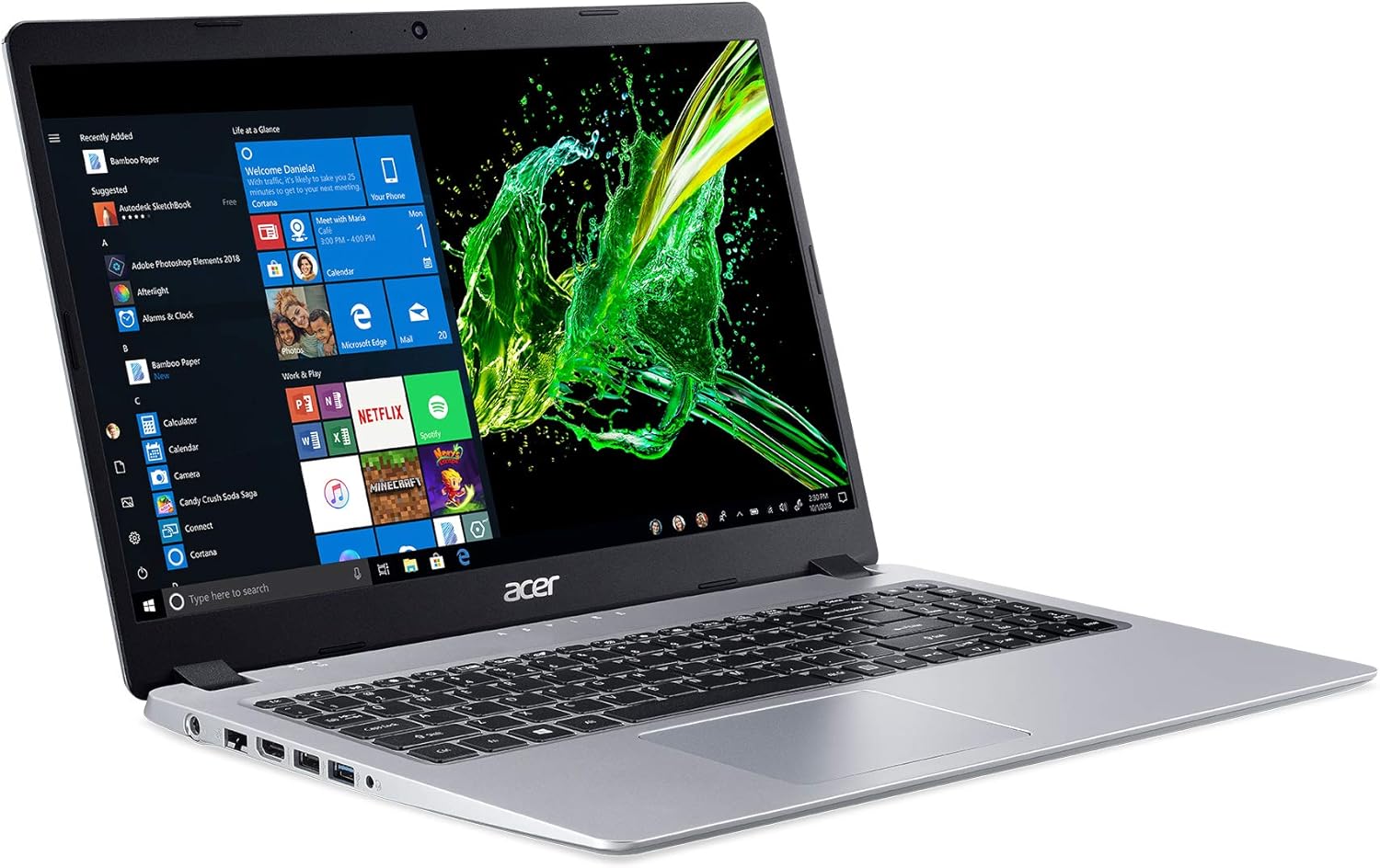
Image: The Acer Aspire 5 Slim Laptop, open with the Windows 10 desktop visible on its screen, showcasing its sleek design and full-size keyboard.
2. What's in the Box
Upon opening your Acer Aspire 5 Slim Laptop package, you should find the following items:
- Acer Aspire 5 Slim Laptop (Model A515-43-R5RE)
- AC Adapter
- Power Cord
Please ensure all components are present and undamaged before proceeding with setup.
3. Initial Setup
3.1. Connecting to Power
- Connect the AC adapter to the power jack on the side of your laptop.
- Plug the power cord into the AC adapter.
- Plug the other end of the power cord into a grounded electrical outlet.
- The battery indicator light will illuminate, indicating the laptop is receiving power and the battery is charging.
3.2. First Power On
- Open the laptop lid.
- Press the power button, typically located above the keyboard or on the side.
- The laptop will boot up, and you will be guided through the Windows 10 initial setup process. Follow the on-screen instructions to configure your region, language, network connection, and user account.
3.3. Connecting Peripherals
You can connect external devices such as a mouse, external keyboard, or USB drives to the available USB ports. For external displays, use the HDMI port.
4. Operating Your Laptop
4.1. Keyboard and Touchpad
The laptop features a full-size backlit keyboard and a precision touchpad. The touchpad supports multi-touch gestures for navigation, scrolling, and zooming. Refer to Windows settings for customizing touchpad gestures.

Image: A top-down view of the Acer Aspire 5 laptop's keyboard and large precision touchpad, highlighting the full layout and numeric keypad.
4.2. Connectivity
Your Acer Aspire 5 offers various connectivity options:
- Wi-Fi: Connect to wireless networks using the integrated 802.11ac Wi-Fi with 2x2 MIMO technology (Dual-Band 2.4GHz and 5GHz).
- Ethernet: For a wired network connection, use the 10/100/1000 Gigabit Ethernet LAN (RJ-45 port).
- Bluetooth: Pair wireless devices like headphones or speakers using Bluetooth 4.0.
- USB Ports: The laptop includes one USB 3.1 Gen 1 port for high-speed data transfer and two USB 2.0 ports for general peripherals.
- HDMI: Connect to external monitors or TVs using the HDMI port with HDCP support.

Image: A diagram illustrating the extensive connectivity options of the Acer Aspire 5, showing the placement of Ethernet, USB 2.0, HDMI, and USB 3.1 Gen 1 ports on the sides of the laptop.
4.3. Battery Management
The laptop is equipped with a Lithium-Ion Battery, providing up to 7.5 hours of battery life under optimal conditions. To maximize battery lifespan:
- Avoid fully discharging the battery frequently.
- Store the laptop in a cool, dry place when not in use for extended periods.
- Adjust power settings in Windows to optimize for battery life or performance.

Image: A person comfortably using the Acer Aspire 5 laptop, with an overlay indicating up to 7.5 hours of battery life, emphasizing its portability.
5. Maintenance
5.1. Cleaning
- Screen: Use a soft, lint-free cloth slightly dampened with water or a screen cleaner. Do not spray liquid directly onto the screen.
- Keyboard & Chassis: Use a soft, dry cloth. For stubborn dirt, a slightly damp cloth can be used, ensuring no liquid enters openings. Compressed air can help remove dust from between keys.
- Always power off and unplug the laptop before cleaning.
5.2. Software Updates
Regularly update your Windows operating system and device drivers to ensure optimal performance, security, and compatibility. Windows Update can be accessed via Settings > Update & Security > Windows Update.
5.3. Storage Management
Periodically review and delete unnecessary files to maintain sufficient free space on your 256GB PCIe NVMe SSD, which contributes to system responsiveness.
6. Troubleshooting
This section addresses common issues you might encounter with your Acer Aspire 5 laptop.
6.1. No Power / Laptop Not Turning On
- Ensure the AC adapter is securely connected to both the laptop and a working power outlet.
- Check if the power outlet is functional by plugging in another device.
- If the battery is completely drained, it may take a few minutes of charging before the laptop can power on.
6.2. Wi-Fi Connectivity Issues
- Verify that Wi-Fi is enabled in Windows settings (Settings > Network & Internet > Wi-Fi).
- Restart your router and modem.
- Ensure you are within range of your Wi-Fi network.
- Try forgetting the network and reconnecting.
6.3. Display Problems
- If the screen is black, try pressing Fn + F6 (or the key with a display icon) to toggle the display output.
- Ensure display drivers are up to date via Windows Update or Acer's support website.
- If using an external monitor, check the cable connection and ensure the correct input is selected on the monitor.
6.4. Slow Performance
- Close unnecessary applications running in the background.
- Check Task Manager (Ctrl+Shift+Esc) for processes consuming high CPU, memory, or disk usage.
- Ensure Windows and drivers are updated.
- Run a disk cleanup to free up space.
7. Specifications
Detailed technical specifications for the Acer Aspire 5 Slim Laptop (A515-43-R5RE):
| Feature | Specification |
|---|---|
| Model Name | A515-43-R5RE |
| Processor | AMD Ryzen 5 3500U Quad-core (Up to 3.7 GHz) |
| RAM | 8 GB DDR4 |
| Storage | 256 GB PCIe NVMe SSD |
| Display | 15.6 Inches Full HD (1920 x 1080) IPS LED-backlit |
| Graphics | AMD Radeon Vega 8 (Integrated) |
| Operating System | Windows 10 Home |
| Wireless Connectivity | 802.11ac Wi-Fi (Dual-Band 2.4GHz and 5GHz), Bluetooth 4.0 |
| Wired Connectivity | 10/100/1000 Gigabit Ethernet LAN (RJ-45) |
| Ports | 1x USB 3.1 Gen 1, 2x USB 2.0, 1x HDMI with HDCP support |
| Webcam | HD Webcam (1280 x 720) |
| Audio | True Harmony Technology, Two Built-in Stereo Speakers, Acer Purified Voice Technology with Two Built-in Microphones |
| Keyboard | Backlit Keyboard |
| Battery Life | Up to 7.5 hours (Lithium-Ion) |
| Weight | 3.97 lbs (1.8 kg) |
| Dimensions (LxWxH) | 11.72 x 8.27 x 0.87 inches |
| Color | Silver |

Image: The Acer Aspire 5 laptop displaying a vibrant image, with an overlay highlighting its 1920x1080 Full HD and IPS (In-Plane Switching) display technology.
8. Warranty and Support
8.1. Warranty Information
Your Acer Aspire 5 Slim Laptop comes with a standard manufacturer's warranty. Please refer to the warranty card included in your product packaging or visit the official Acer website for detailed terms and conditions regarding warranty coverage, duration, and service procedures.
8.2. Customer Support
For technical assistance, troubleshooting beyond this manual, or service inquiries, please contact Acer Customer Support. You can find contact information, FAQs, and driver downloads on the official Acer support website:
When contacting support, please have your laptop's model number (A515-43-R5RE) and serial number ready, as this will help expedite the support process.