
WIMAXIT M1560CTV2
WIMAXIT 15.6" Touch Screen Portable Monitor
Model: M1560CTV2
User Instruction Manual
Introduction
This manual provides detailed instructions for the proper setup, operation, and maintenance of your WIMAXIT 15.6" Touch Screen Portable Monitor. Please read this manual thoroughly before using the product to ensure safe and efficient operation. Keep this manual for future reference.

Figure 1: WIMAXIT 15.6" Touch Screen Portable Monitor with its magnetic cover.
The WIMAXIT 15.6" Touch Screen Portable Monitor offers Full HD 1080P resolution, an IPS panel for wide viewing angles, and versatile connectivity options including USB-C and HDMI. It is designed for enhanced productivity and immersive entertainment on the go.
Package Contents
Verify that all items listed below are included in your product package:
- WIMAXIT 15.6" Touch Screen Portable Monitor (with integrated leather cover)
- USB-C to USB-C Cable (for power, video, and touch signal)
- USB-A to USB-C Cable (for power and touch signal)
- HDMI to HDMI Cable (for video signal)
- Power Adapter (Charging Block)
- Screen Protector
- User Manual (this document)

Figure 2: Illustration of the monitor's ports and included cables.
The monitor comes with essential cables for various connections and a protective screen protector. The integrated leather cover also functions as a stand.
Features Overview
- 15.6-inch Full HD (1920x1080) IPS Display: Provides crisp, clear visuals with wide viewing angles.
- 10-Point Multi-Touch Screen: Enables intuitive interaction with compatible devices.
- Versatile Connectivity: Features USB-C (full-featured for power, video, touch) and HDMI Type-A ports.
- Built-in Dual Stereo Speakers: Offers integrated audio output.
- Portable Design: Slim and lightweight with a detachable magnetic cover for protection and use as a stand.
- VESA Mount Compatible: 75x75mm VESA holes for alternative mounting options.
- HDR Support: Enhances contrast and color for a more vibrant viewing experience.

Figure 3: The monitor supports 10-point multi-touch for interactive use.
The monitor's multi-touch capabilities allow for direct interaction, enhancing usability for various applications.

Figure 4: Integrated dual stereo speakers provide audio output.
For convenience, the monitor includes built-in speakers, eliminating the need for external audio devices in many scenarios.
Setup and Connections
The WIMAXIT portable monitor offers flexible connectivity options. Ensure the monitor receives sufficient power for optimal performance.
Powering the Monitor
- Using the Power Adapter: Connect the provided power adapter to the monitor's USB-C power input.
- Using a Full-Featured USB-C Port: If your device (laptop, smartphone) has a full-featured USB-C port that supports power delivery, video output, and touch signal, a single USB-C to USB-C cable can power the monitor and transmit data.
- Using a USB-A to USB-C Cable: For devices that do not provide sufficient power via USB-C or HDMI, use the USB-A to USB-C cable connected to a power source (e.g., laptop USB-A port, power bank, or the included power adapter) for power, and a separate video cable (HDMI or USB-C) for display.
Connecting to Devices
- Laptops/PCs (USB-C): Connect the monitor to your laptop/PC using a single full-featured USB-C to USB-C cable. This provides power, video, and touch functionality. Ensure your laptop's USB-C port supports DisplayPort Alternate Mode (Alt Mode) or Thunderbolt protocols.
- Laptops/PCs (HDMI): Connect the monitor to your laptop/PC using the HDMI cable for video. For touch functionality and power, connect the USB-A to USB-C cable from your laptop/PC to the monitor's USB-C data/power port.
- Gaming Consoles (PS5, PS4, Xbox, Nintendo Switch): Use the HDMI cable for video. Power the monitor using the included power adapter or a USB-A to USB-C cable connected to the console's USB-A port (if sufficient power is provided) or an external power source. Touch functionality is generally not supported with gaming consoles via HDMI.
- Smartphones/Tablets (USB-C): Connect your compatible smartphone/tablet to the monitor using a full-featured USB-C to USB-C cable. This enables video, power, and touch. Some phones may require an external power source for the monitor. Check your device's compatibility for DisplayPort Alt Mode.

Figure 5: The monitor is compatible with various devices including laptops, PCs, gaming consoles, and smartphones.
The monitor's broad compatibility makes it a versatile display solution for different computing and entertainment needs.

Figure 6: Use the WIMAXIT monitor as a secondary display to boost productivity.
Adding a second monitor can significantly enhance workflow efficiency for both work and gaming.
Operating Instructions
Basic Controls
- Power Button: Located on the side of the monitor. Press and hold to turn the monitor ON/OFF. A short press may access the OSD (On-Screen Display) menu or act as an 'Exit' button depending on the context.
- Volume/Menu Navigation: Use the rocker button (often combined with power/menu) to adjust volume or navigate through OSD menu options.
- 3.5mm Audio Jack: Connect headphones or external speakers for private listening or enhanced audio.

Figure 7: Overview of monitor dimensions and control button locations.
Familiarize yourself with the physical controls for easy operation.
Touch Screen Functionality
The touch screen function is primarily supported on Windows and Android devices that support DisplayPort Alt Mode over USB-C. It is generally not active when connected via HDMI, as HDMI does not transmit touch signals.
- Windows PC/Laptop: After connecting via a full-featured USB-C cable, the touch function should be automatically recognized. If not, you may need to configure Tablet PC Settings in Windows Control Panel.
- Android Devices: Touch functionality is available for compatible Android phones and tablets via USB-C. Some devices may offer a desktop mode (e.g., Samsung DeX) which optimizes the experience.
Display Settings (OSD Menu)
Access the OSD menu using the monitor's physical buttons to adjust various display settings:
- Brightness/Contrast: Adjust the display's luminance and contrast levels.
- Color Settings: Modify color temperature, hue, and saturation.
- HDR Mode: Enable or disable HDR (High Dynamic Range) for enhanced visual quality.
- Eye Protection Mode: Reduces blue light emission to minimize eye strain during prolonged use.
- Audio Settings: Control volume and audio modes (e.g., 3D sound).
Maintenance and Care
- Cleaning: Use a soft, lint-free cloth to gently wipe the screen and exterior. For stubborn marks, slightly dampen the cloth with water or a screen-cleaning solution. Avoid harsh chemicals or abrasive materials.
- Storage: When not in use, store the monitor in a cool, dry place. Utilize the magnetic leather cover to protect the screen from scratches and dust.
- Handling: Avoid applying excessive pressure to the screen or dropping the monitor.
Troubleshooting
If you encounter issues with your WIMAXIT monitor, refer to the following common problems and solutions:
- No Signal/Black Screen:
- Ensure all cables (power, video) are securely connected.
- Verify the power source is adequate (5V/2A or higher).
- Check if your device's video output is enabled or correctly configured (e.g., extended/duplicate display settings on PC).
- Try a different cable or port.
- Touch Function Not Working:
- Ensure you are using a full-featured USB-C cable for connection. HDMI does not transmit touch signals.
- Verify your device (PC/Android) supports DisplayPort Alt Mode over USB-C.
- For Windows, check 'Tablet PC Settings' in Control Panel and calibrate the screen if necessary.
- Restart both the monitor and the connected device.
- Flickering Screen:
- Ensure the monitor is receiving stable and sufficient power. Use the included power adapter if connecting to a low-power USB port.
- Check the video cable for damage or loose connections.
- Reduce the display brightness or refresh rate if possible.
- No Audio/Low Audio:
- Adjust the monitor's volume using the physical controls.
- Check your connected device's audio output settings to ensure sound is routed to the monitor.
- If using external speakers/headphones, ensure they are properly connected to the 3.5mm audio jack.
Specifications
| Screen Size | 15.6 Inches |
| Resolution | FHD 1080p (1920 x 1080) |
| Panel Type | IPS |
| Aspect Ratio | 16:9 |
| Image Brightness | 300 cd/m² |
| Screen Surface Description | Glossy |
| Connectivity | USB-C (Full-featured), HDMI Type-A |
| Audio | Dual Stereo Speakers, 3.5mm Audio Jack |
| VESA Mount | 75x75mm |
| Product Dimensions | 13.98 x 8.86 x 0.39 inches |
| Item Weight | 4.49 pounds |
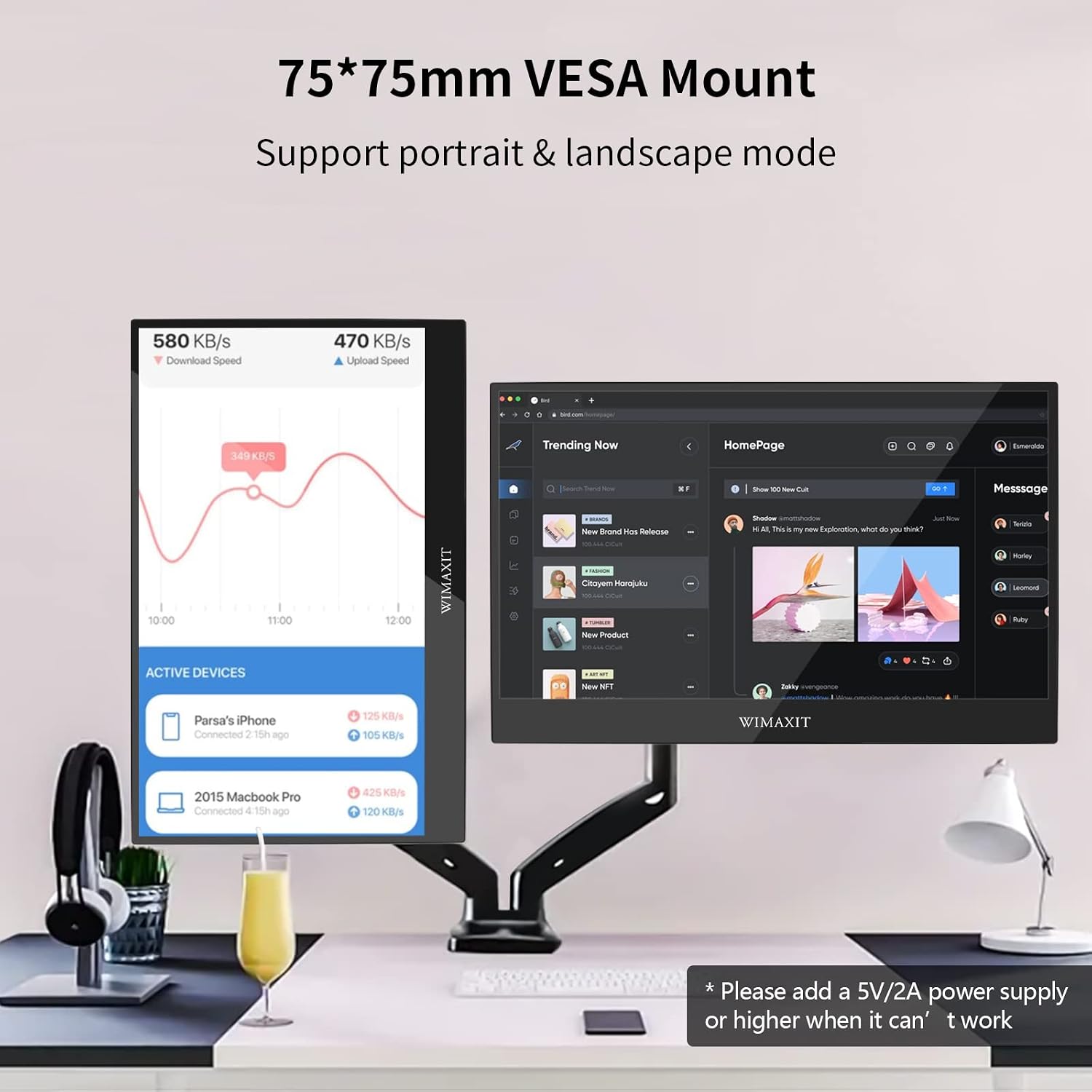
Figure 8: The monitor features a 75x75mm VESA mount for flexible setup.
The VESA mount allows for integration with monitor arms or wall mounts, supporting both portrait and landscape orientations.
Warranty and Support
For warranty information, technical support, or service inquiries, please refer to the contact details provided on the WIMAXIT official website or your purchase documentation. Keep your proof of purchase for warranty claims.
Related documentsM1560CTV2


Ask a question about this manual
Ask about setup, troubleshooting, compatibility, parts, safety, or missing instructions. Manuals+ will review the question and use this page’s manual context to help answer it.