
ALLFORBEST B07YW4DRR5
ALLFORBEST Full HD LED Projector User Manual
Model: B07YW4DRR5
Introduction
This manual provides comprehensive instructions for the ALLFORBEST Full HD LED Projector, Model B07YW4DRR5. This projector is designed to deliver a high-quality viewing experience with native 1080P resolution, support for 4K content, and a brightness of 5500 Lux. It is capable of projecting a display up to 300 inches, making it suitable for home theater and professional presentations. Please read this manual thoroughly before operating the device to ensure proper use and maintenance.

Image: The ALLFORBEST projector showcasing its capability to display high-resolution content, including 4K and native 1080P, suitable for dynamic visuals like sports.
Setup
Unpacking and Placement
Carefully remove all components from the packaging. Place the projector on a stable, flat surface. Ensure adequate ventilation around the projector to prevent overheating. Maintain a suitable distance from the projection surface to achieve the desired screen size.
Connecting Power
Connect the power cord to the projector's AC IN port and then plug it into a standard electrical outlet.
Input Connections
The projector supports various input sources. Use the appropriate cable to connect your device to the corresponding port on the projector.
- HDMI: For high-definition video and audio from devices like laptops, gaming consoles (Xbox, PlayStation), TV boxes, and Blu-ray players.
- VGA: For connecting older computers or laptops.
- USB: For playing media directly from a USB flash drive.
- AV: For standard definition video and audio from older devices.

Image: An illustration demonstrating the versatile connectivity options of the projector, allowing connection to a wide range of devices such as laptops, mobile phones, gaming consoles, and external storage.
Focus and Keystone Adjustment
After powering on, adjust the focus and keystone correction to achieve a clear and rectangular image.
- Focus: Rotate the lens ring until the projected image is sharp and clear.
- Keystone: Use the keystone adjustment dial to correct trapezoidal distortion if the projector is not perfectly perpendicular to the screen.
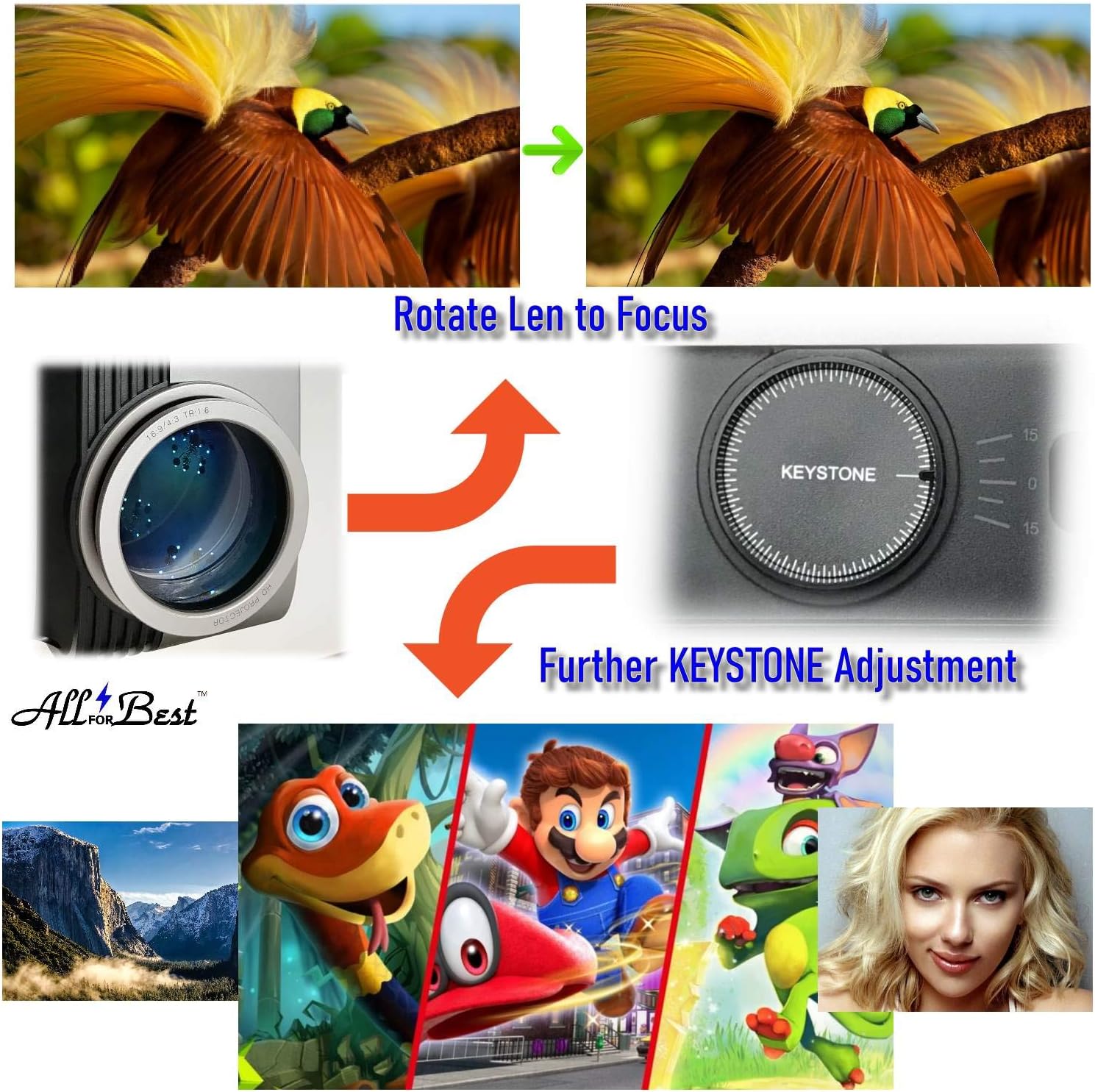
Image: Visual guide illustrating the process of adjusting the projector's focus by rotating the lens and correcting image distortion using the keystone dial.
Operating Instructions
Power On/Off
Press the power button on the projector or the remote control to turn the unit on or off. Allow the projector to cool down for a few minutes after turning it off before unplugging it.
Input Source Selection
Use the "Source" button on the remote control or the projector's control panel to cycle through available input sources (HDMI1, HDMI2, VGA, USB, AV) and select the desired one.
Menu Navigation
Use the arrow keys and "OK" button on the remote or control panel to navigate through the on-screen display (OSD) menu. Adjust settings such as picture mode, aspect ratio, sound, and advanced options.
Audio Output
The projector has a built-in speaker. For enhanced audio, connect external speakers or a sound system to the projector's audio output port (3.5mm jack or RCA audio out, if available).

Image: A detailed view of the projector's rear panel, highlighting the array of input and output ports available for connecting various multimedia devices and external audio systems.

Image: A projected movie scene demonstrating the projector's capability for a clear and vivid 3D home theater experience, supporting Full HD 1080P, 4K content, and large displays up to 300 inches.
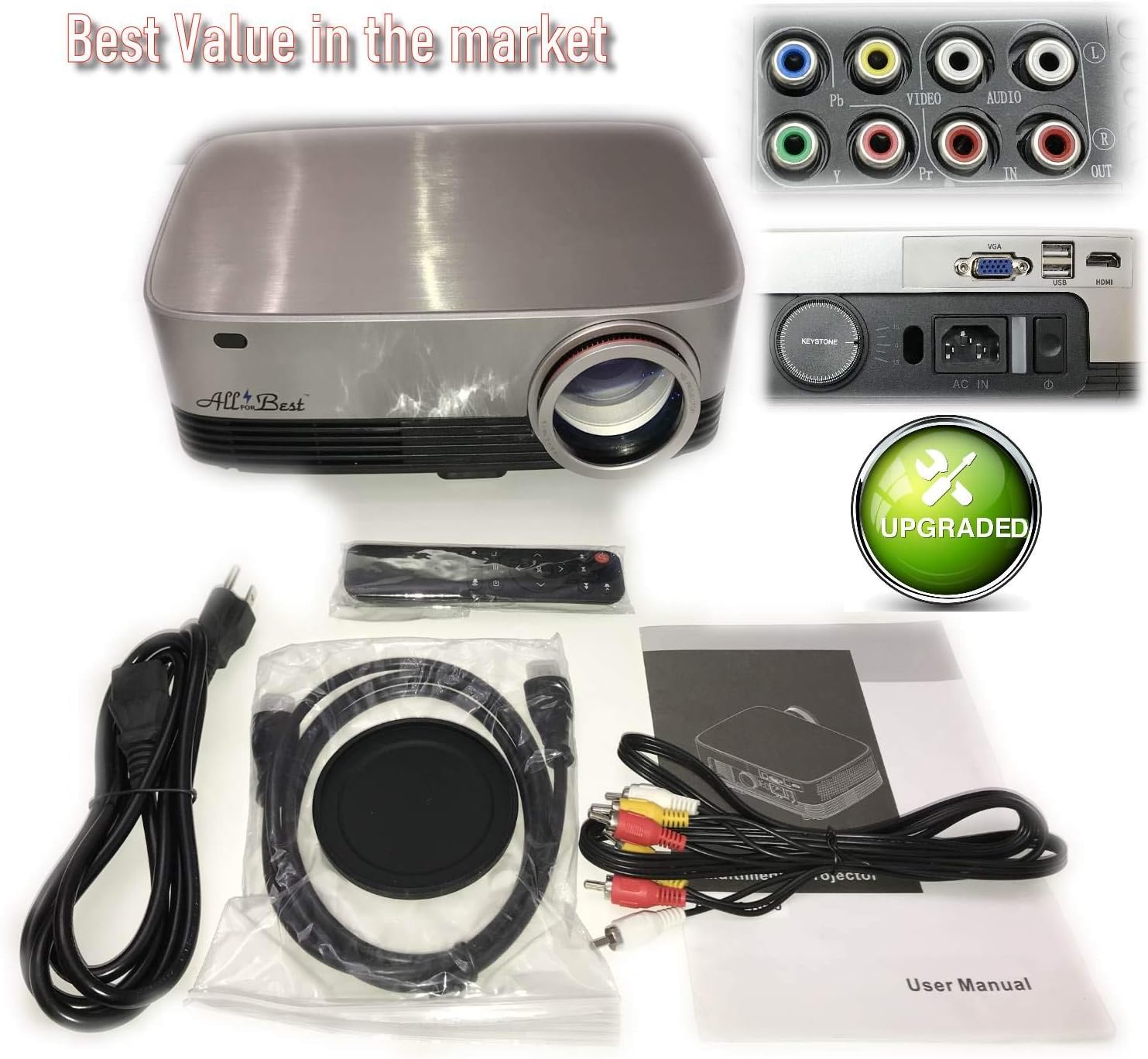
Image: A visual comparison illustrating the superior image quality of the ALLFORBEST projector, demonstrating its ability to produce sharper, clearer, brighter, and more vivid visuals compared to other projectors.

Image: The ALLFORBEST projector in a professional setting, demonstrating its high brightness (5500 Lumens) and contrast ratio (8000:1) for clear and impactful presentations.
Maintenance
Cleaning the Lens
Use a soft, lint-free cloth specifically designed for optical lenses to gently wipe the projector lens. Do not use abrasive cleaners or excessive force, as this can scratch the lens.
Cleaning the Exterior
Wipe the exterior of the projector with a soft, dry cloth. For stubborn dirt, a slightly damp cloth can be used, but ensure no moisture enters the ventilation openings.
Ventilation
Ensure that the projector's ventilation openings are not blocked. Dust accumulation can affect performance and lifespan. Periodically clean the vents with a soft brush or compressed air.
Troubleshooting
| Problem | Possible Cause | Solution |
|---|---|---|
| No image projected | Power not connected; Incorrect input source; Device not powered on. | Check power cable; Select correct input source; Ensure connected device is on. |
| Image is blurry | Focus not adjusted; Projector too close/far from screen. | Adjust the focus ring on the lens; Adjust projection distance. |
| Image is trapezoidal | Projector not perpendicular to screen. | Adjust the keystone correction dial. |
| No sound | Volume too low; Incorrect audio output selected; External speakers not connected/powered. | Increase volume; Check audio settings; Ensure external speakers are properly connected and powered. |
| Remote control not working | Batteries dead; Obstruction between remote and projector; Remote sensor blocked. | Replace batteries; Remove obstructions; Ensure remote sensor on projector is clear. |
Specifications
| Feature | Detail |
|---|---|
| Brand | ALLFORBEST |
| Model | B07YW4DRR5 |
| Display Resolution | Native 1920 x 1080 (Full HD) |
| Supported Resolution | Up to 4K Ultra HD |
| Brightness | 5500 Lux |
| Contrast Ratio | 8000:1 |
| Maximum Display Size | 300 inches |
| Connectivity Technology | MHL, VGA, USB, HDMI |
| Speaker Type | Surround (Built-in) |
| Item Weight | 6.7 pounds |
| Package Dimensions | 13.58 x 11.61 x 6.14 inches |
Warranty and Support
For warranty information and technical support, please refer to the contact details provided with your product packaging or visit the official ALLFORBEST website. Keep your purchase receipt as proof of purchase for warranty claims.
For further assistance, you may contact the seller directly through the platform where the product was purchased.
Ask a question about this manual
Ask about setup, troubleshooting, compatibility, parts, safety, or missing instructions. Manuals+ will review the question and use this page’s manual context to help answer it.