
Satechi ST-XLABKM
Satechi Bluetooth Extended Numeric Keypad ST-XLABKM User Manual
Introduction
This manual provides comprehensive instructions for the Satechi Bluetooth Extended Numeric Keypad, Model ST-XLABKM. This slim, rechargeable 34-key numberpad is designed to enhance productivity for users of MacBook Air/Pro, iPad Air/Pro, iPad mini, Mac mini, and iMac devices. It features a full numeric keypad, navigational arrows, and dedicated MacOS shortcut keys, connecting wirelessly via Bluetooth.
Package Contents
- Satechi Bluetooth Extended Numeric Keypad
- USB-C Charging Cable
- User Manual (this document)
Product Overview
Familiarize yourself with the components and layout of your Satechi Bluetooth Extended Numeric Keypad.
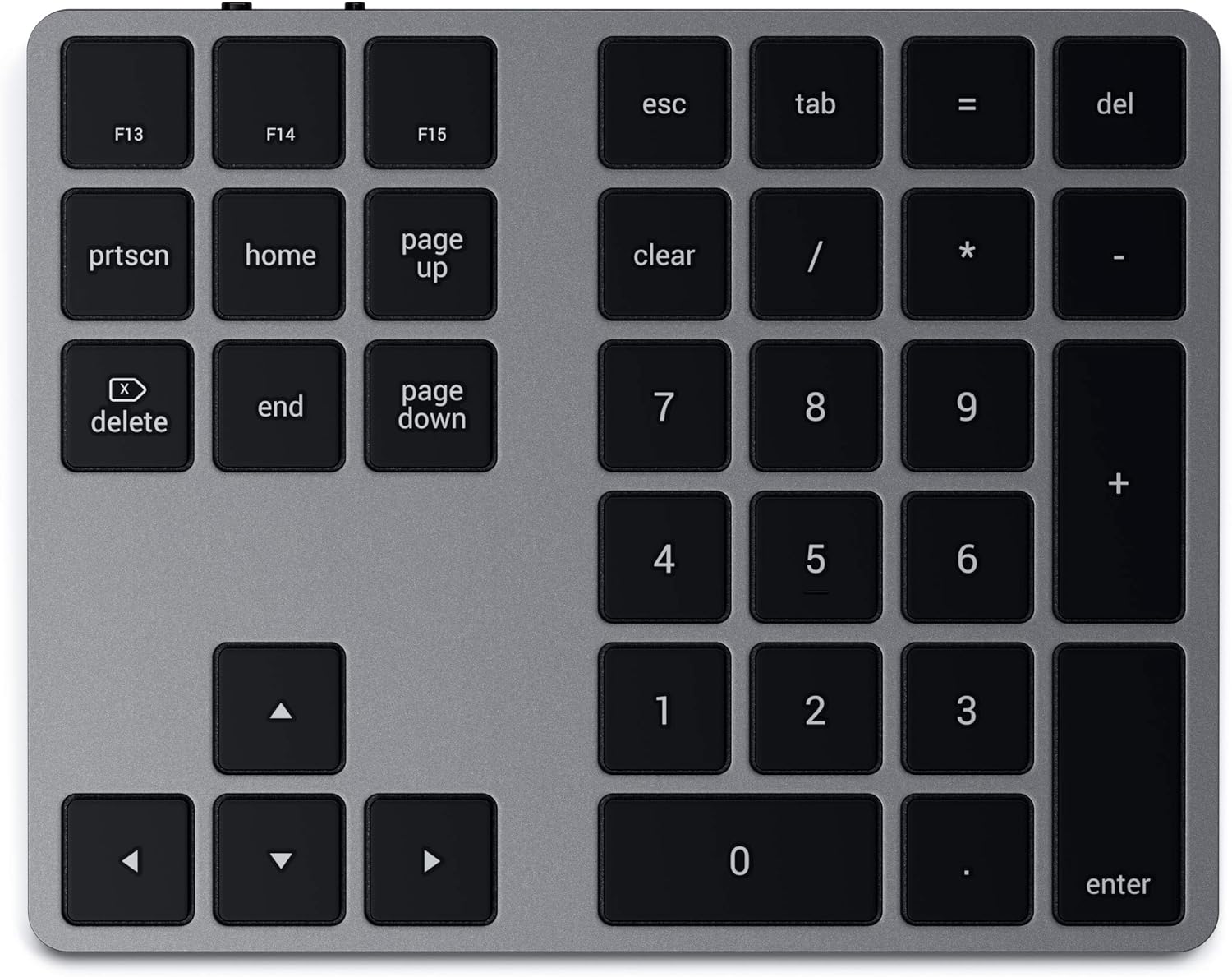
Image: Top-down view of the Satechi Bluetooth Extended Numeric Keypad, showcasing its full 34-key layout including the numeric pad, navigational arrows, and function keys.
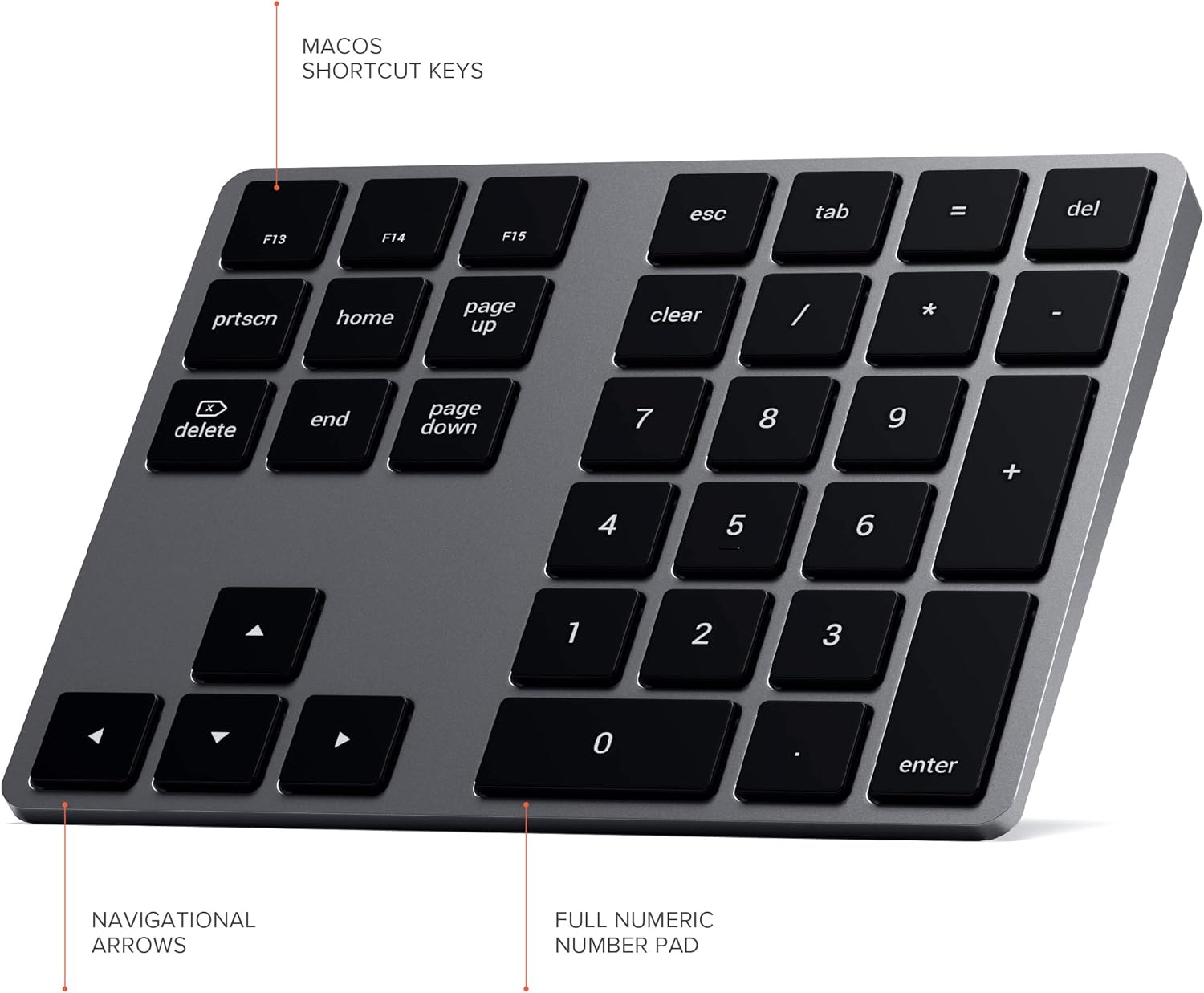
Image: Angled view of the Satechi Keypad, with labels pointing to the MacOS shortcut keys (F13-F15), navigational arrows, and the full numeric number pad, illustrating key functionalities.
Keypad Features:
- Full Numeric Number Pad: Standard 10-key layout for efficient data entry.
- Navigational Arrows: Dedicated arrow keys for precise cursor control.
- MacOS Shortcut Keys: Includes F13, F14, F15, PrtScn, Home, Page Up, End, Page Down, and Delete keys for enhanced productivity.
- USB-C Charging Port: For recharging the internal battery.
- Power/Pairing LED Indicator: Provides status updates for power and Bluetooth pairing.
- Pairing Button: Initiates Bluetooth pairing mode.
- On/Off Switch: Controls the power of the keypad.

Image: Close-up view of the side of the Satechi Keypad, clearly showing the USB-C charging port, the power/pairing LED indicator, the pairing button, and the on/off switch.
Setup
Bluetooth Pairing Instructions:
Follow these steps to connect your Satechi Bluetooth Extended Numeric Keypad to your device.
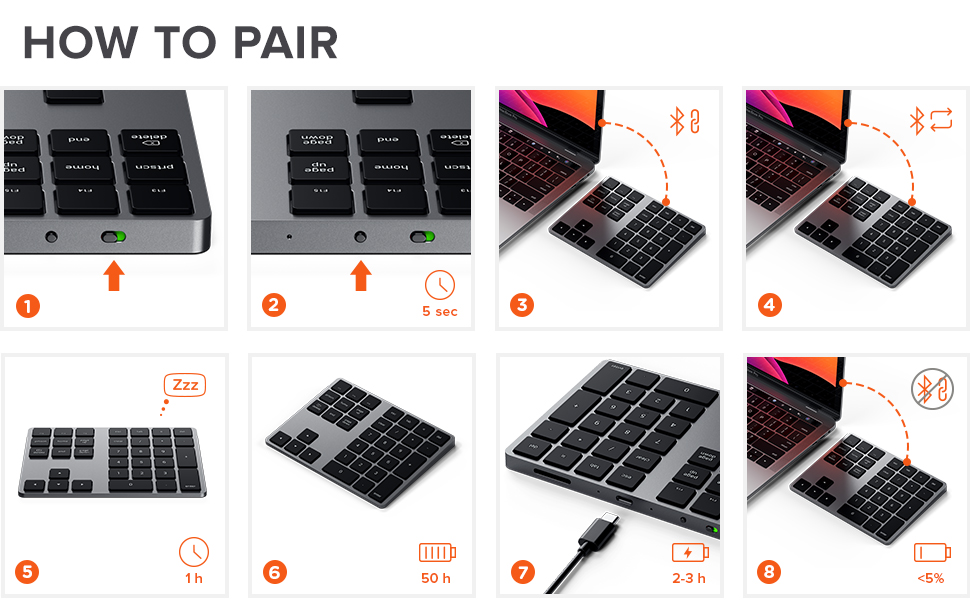
Image: A visual step-by-step guide demonstrating the Bluetooth pairing process for the Satechi Keypad, from powering on to successful connection and charging.
- Charge the Keypad: Before initial use, ensure the keypad is fully charged using the provided USB-C cable. The charging LED indicator will show charging status.
- Power On: Locate the On/Off switch on the side of the keypad and slide it to the 'On' position. The power LED indicator will illuminate.
- Enter Pairing Mode: Press and hold the 'Pairing Button' for approximately 5 seconds until the Power/Pairing LED indicator begins to flash rapidly. This indicates the keypad is in pairing mode.
- Enable Bluetooth on Your Device: On your Mac, iPad, or iPhone, navigate to System Settings (or System Preferences) > Bluetooth. Ensure Bluetooth is turned on.
- Select the Keypad: In the list of available Bluetooth devices, select 'Satechi Keypad' (or similar name).
- Confirm Connection: Once connected, the Power/Pairing LED indicator on the keypad will stop flashing and remain solid for a few seconds before turning off. The keypad is now ready for use.
- Automatic Reconnection: The keypad will automatically attempt to reconnect to the last paired device when powered on.
Operating Instructions
The Satechi Bluetooth Extended Numeric Keypad is designed for intuitive use with your Apple devices.

Image: The Satechi Bluetooth Extended Numeric Keypad positioned next to a MacBook Pro, demonstrating its compact size and how it integrates seamlessly into a workspace for extended functionality.
Using the Numeric Pad:
- Simply press the number keys (0-9) and arithmetic operators (+, -, *, /) for quick data entry and calculations.
- The 'Enter' key functions as a return key.
Navigational Arrows:
- Use the up, down, left, and right arrow keys for precise cursor movement within documents, spreadsheets, or web pages.
MacOS Shortcut Keys:
- The dedicated F13, F14, and F15 keys can be customized in MacOS settings for various functions or shortcuts.
- Other keys like 'Home', 'Page Up', 'End', 'Page Down', and 'Delete' provide quick navigation and editing capabilities.
- Note: Functionality of shortcut keys may vary or require configuration depending on the operating system and specific application.
Charging the Keypad:
- When the battery is low (typically indicated by a flashing LED), connect the keypad to a USB-C power source using the provided cable.
- A full charge takes approximately 2-3 hours and provides up to 50 hours of usage.
- The keypad can be used wirelessly while charging.
Maintenance
To ensure the longevity and optimal performance of your Satechi Numeric Keypad, follow these maintenance guidelines:
- Cleaning: Use a soft, lint-free cloth to gently wipe the surface of the keypad. For stubborn dirt, slightly dampen the cloth with water or a mild, non-abrasive cleaner. Avoid excessive moisture.
- Storage: When not in use for extended periods, store the keypad in a cool, dry place.
- Avoid Liquids: Do not expose the keypad to liquids, as this can cause damage to internal components.
- Handle with Care: Avoid dropping the keypad or subjecting it to strong impacts.
Troubleshooting
If you encounter issues with your Satechi Bluetooth Extended Numeric Keypad, refer to the following common solutions:
- Keypad Not Turning On:
- Ensure the keypad is charged. Connect it to a USB-C power source and allow it to charge for at least 30 minutes.
- Verify the On/Off switch is in the 'On' position.
- Unable to Pair with Device:
- Make sure the keypad is in pairing mode (Power/Pairing LED flashing rapidly). If not, press and hold the pairing button for 5 seconds.
- Ensure Bluetooth is enabled on your host device (Mac, iPad, iPhone).
- Move the keypad closer to your device to rule out range issues.
- Try turning off and on Bluetooth on your device, then re-attempt pairing.
- If previously paired, remove the keypad from your device's Bluetooth list and attempt to pair again.
- Keys Not Responding or Lagging:
- Check the keypad's battery level and recharge if necessary.
- Ensure there are no obstructions between the keypad and your device that might interfere with the Bluetooth signal.
- Restart your host device and the keypad.
- Charging Light Not Illuminating:
- Try a different USB-C cable and/or a different USB-C power adapter.
- Ensure the cable is securely connected to both the keypad and the power source.
- Shortcut Keys Not Working as Expected:
- Verify your device's operating system is MacOS. Some shortcut keys may not be fully supported on other operating systems.
- Check your MacOS System Settings for keyboard shortcuts and ensure they are configured as desired.
Specifications
| Feature | Detail |
|---|---|
| Model Number | ST-XLABKM |
| Connectivity | Bluetooth, USB-C (for charging) |
| Keyboard Type | Numeric Extended |
| Number of Keys | 34 |
| Material | Aluminum |
| Color | Space Gray |
| Product Dimensions | 5.8 x 4.5 x 0.4 inches (14.73 x 11.43 x 1.02 cm) |
| Item Weight | 4.4 ounces (124.74 grams) |
| Battery Type | 1 Lithium Metal battery (included) |
| Battery Life | Up to 50 hours between charges |
| Charging Time | Approx. 2-3 hours |
| Compatible Devices | MacBook Pro 14/16-inch (M2 & Max, 2023; M1 2021), MacBook Air M2 (2022), MacBook Air (2020), Mac Mini M2/M2 Pro (2023), Mac Mini (2020, 2018), iMac (2019, 2017), iMac Pro, iPad (M2/M1, 2022, 2021, 2020), iPad (10th-Gen, 2022), iPad Mini (2021), iPhone (15 Max/Pro/Plus, 14 Max/Pro/Plus, 13 Max/Pro/Mini, 12 Max/Pro/Mini, 11 Max/Pro) |
Warranty and Support
Warranty Information: The Satechi Bluetooth Extended Numeric Keypad is covered by a 2-year limited warranty against defects in materials and workmanship under normal use. Please retain your proof of purchase for warranty claims.
Customer Support: For further assistance, troubleshooting not covered in this manual, or warranty inquiries, please visit the official Satechi website or contact their customer support directly. Refer to the Satechi website for the most up-to-date support contact information.
Online Resources: Additional resources, including FAQs and updated drivers (if applicable), may be available on the Satechi support page.
Related documentsST-XLABKM


Ask a question about this manual
Ask about setup, troubleshooting, compatibility, parts, safety, or missing instructions. Manuals+ will review the question and use this page’s manual context to help answer it.