
JVC KD-T910BTS
JVC KD-T910BTS Car Stereo User Manual
Model: KD-T910BTS
Introduction
This manual provides detailed instructions for the installation, operation, and maintenance of your JVC KD-T910BTS Car Stereo. Please read this manual thoroughly before using the unit to ensure proper and safe operation. Keep this manual for future reference.
The JVC KD-T910BTS CD receiver features Bluetooth for wireless music streaming and hands-free calling. It is also Amazon Alexa compatible, allowing voice control for various functions. The unit supports USB and AUX inputs, and offers high-quality audio playback with FLAC compatibility and a 13-band equalizer.
Product Overview

Figure 1: Front view of the JVC KD-T910BTS Car Stereo, showing the display, control knob, and various buttons. The unit features a sleek black design with illuminated controls.

Figure 2: Rear view of the JVC KD-T910BTS Car Stereo, highlighting the wiring harness connector, antenna input, and RCA preamp outputs for rear and subwoofer connections. Also visible are the microphone input and a multi-pin connector.
The KD-T910BTS is designed for seamless integration into your vehicle's audio system. It features a CD player, front USB port for media playback and smartphone charging (up to 1.5A), and an auxiliary input. The unit's 2-line vertical alignment LCD provides clear visibility from various angles.
Setup and Installation
Package Contents
Before beginning installation, ensure all components are present:
- JVC KD-T910BTS CD Receiver Unit
- Wiring Harness
- Mounting Hardware (screws, brackets)
- Microphone
- Owner's Manual (this document)
Installation Guidelines
- Disconnect Battery: Before any wiring, disconnect the vehicle's negative battery terminal to prevent electrical shorts.
- Mounting: Install the unit securely in the dashboard opening. The installation size is approximately 7-3/16" (182mm) W x 2-1/8" (53mm) H x 6-3/16" (156mm) D.
- Wiring Connections:
- Connect the supplied wiring harness to the vehicle's wiring according to the color codes.
- Ensure proper connection of power (constant and switched), ground, and speaker wires.
- Connect the microphone for hands-free calling and Alexa voice commands. Position the microphone in a location that allows clear voice pickup.
- If using external amplifiers, connect the 2-channel preamp outputs (rear/subwoofer) to your amplifier inputs.
- USB and AUX Connections: The front panel features a USB port and an auxiliary input for easy access.
- Reconnect Battery: Once all connections are secure, reconnect the vehicle's negative battery terminal.
Note: Professional installation is recommended if you are unfamiliar with car audio wiring.
Operating Instructions
Basic Operation
- Power On/Off: Press the SRC button to turn the unit on. Press and hold the SRC button to turn it off.
- Volume Control: Rotate the large central knob to adjust the volume level.
- Source Selection: Press the SRC button repeatedly to cycle through available sources (CD, USB, AUX, Bluetooth Audio, Tuner, SiriusXM).
- Display: The 2-line vertical alignment LCD provides clear information.
Bluetooth and Smartphone Features
The KD-T910BTS offers advanced Bluetooth connectivity for hands-free calling and audio streaming.
- Pairing a Bluetooth Device:
- Ensure Bluetooth is enabled on your smartphone.
- On the KD-T910BTS, navigate to the Bluetooth menu.
- Select "Pairing" and search for available devices on your phone.
- Select "KD-T910BTS" from your phone's list. Confirm the pairing code if prompted.
- iPhone Bluetooth Automatic Pairing: For iPhones, the unit supports automatic pairing for simplified connection.
- Hands-Free Calling:
- When a call comes in, the unit will display the caller ID.
- Press the call button (typically green phone icon) to answer.
- Press the end call button (typically red phone icon) to end a call.
- Audio Streaming (A2DP):
- Once paired, select "Bluetooth Audio" as the source.
- Play music from your smartphone, and it will stream wirelessly to the car stereo.
- Use the unit's controls (play/pause, skip track) or your phone to manage playback.
- Streaming DJ: This feature allows music playback and control from up to five paired smartphones, enabling multiple users to contribute to the playlist.
- Pandora and Spotify Control: Control these internet radio services directly from the receiver when connected via Bluetooth (for Android) or USB (for iPhone).

Figure 3: The JVC KD-T910BTS demonstrating its Bluetooth connectivity, shown alongside two smartphones, illustrating wireless audio streaming and control capabilities.

Figure 4: The JVC KD-T910BTS integrated into a vehicle's dashboard, with a user's hand holding a smartphone, demonstrating the ease of controlling music playback wirelessly.
Amazon Alexa Compatibility
With Alexa built-in, you can use voice commands for various functions while driving.
- Activating Alexa: Press the dedicated Alexa button or use a voice command (e.g., "Alexa") if configured.
- Voice Commands: You can ask Alexa to play music, make calls, listen to audiobooks, get news updates, check weather, control smart home devices, get directions, and find parking.
- Ensure your smartphone is connected to the unit and has an active internet connection for Alexa functionality.
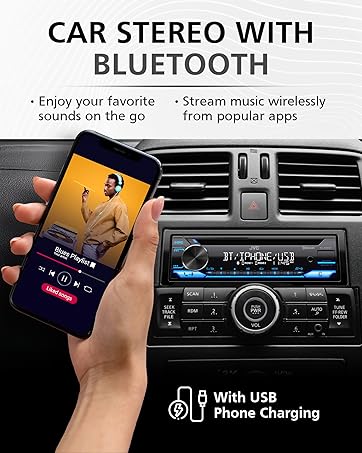
Figure 5: The JVC KD-T910BTS unit displaying "ALEXA" on its screen, indicating active Amazon Alexa compatibility. A smartphone screen is shown alongside, illustrating the integration with the Alexa application.
Audio Features
- Equalizer: Utilize the 13-band equalizer to fine-tune the audio output to your preference. Access equalizer settings through the audio menu.
- Digital Time Alignment: Adjust speaker output timing to create an optimal sound stage within your vehicle.
- K2 Technology: This technology enhances the digital sound quality for most music sources, restoring details lost during digital compression.
- Volume Link EQ: This feature automatically boosts specific frequencies to compensate for road noise, ensuring your music remains clear and audible.
- FLAC Compatibility: The unit supports FLAC (Free Lossless Audio Codec) playback from USB devices, providing high-resolution audio quality.
Maintenance
Cleaning the Unit
- Use a soft, dry cloth to wipe the front panel.
- For stubborn stains, dampen the cloth lightly with water or a mild, non-abrasive cleaner.
- Do not use harsh chemicals, abrasive cleaners, or solvents as they may damage the finish.
CD Player Care
- Handle CDs by their edges to avoid fingerprints and scratches.
- Keep the CD slot free of dust and debris. Do not insert foreign objects.
- If a CD becomes dirty, wipe it gently from the center outwards with a soft, lint-free cloth.
Troubleshooting
| Problem | Possible Cause | Solution |
|---|---|---|
| No power | Blown fuse; Incorrect wiring; Vehicle battery issues. | Check and replace fuse if necessary; Verify all power and ground connections; Check vehicle battery charge. |
| No sound | Volume too low; Mute activated; Speaker wires disconnected; Incorrect input source. | Increase volume; Deactivate mute; Check speaker connections; Select correct input source. |
| Bluetooth connection issues | Device not paired; Bluetooth off on phone/unit; Interference. | Ensure device is paired; Turn Bluetooth on for both devices; Move closer to unit; Restart phone/unit. |
| CD skips or does not play | Dirty or scratched CD; Unit not level; Foreign object in slot. | Clean CD; Ensure unit is securely mounted; Check for obstructions in CD slot. |
| Display is dim or unreadable | Brightness setting too low; Glare from sunlight. | Adjust display brightness in settings; Reposition vehicle to reduce glare if possible. |
If the problem persists after attempting these solutions, please contact JVC customer support or a qualified service technician.
Specifications
| Feature | Detail |
|---|---|
| Model Number | KD-T910BTS |
| Product Dimensions (WxHxD) | 7-3/16" x 2-1/8" x 6-3/16" (182 x 53 x 156mm) |
| Item Weight | 1 pound (454 Grams) |
| Connectivity Technology | Auxiliary, Bluetooth, USB |
| Controller Type | Amazon Alexa, Android |
| Special Features | 13-band Equalizer, Digital Time Alignment, K2 Technology, Volume Link EQ, FLAC Compatibility, Amazon Alexa Compatible, USB Charging (1.5A) |
| Compatible Devices | Smartphone, Speaker |
| Audio Output Mode | Stereo |
| Preamp Outputs | 2-channel (2.5-volt rear/subwoofer) |
| Tuner | AM/FM, SiriusXM Radio Ready |
| Display | 2 Line Vertical Alignment LCD |
Warranty and Support
Warranty Information
JVC products are manufactured to the highest quality standards. For specific warranty terms and conditions, please refer to the warranty card included with your product or visit the official JVC website. Keep your proof of purchase for warranty claims.
Customer Support
If you require further assistance or have questions not covered in this manual, please contact JVC customer support. Contact information can typically be found on the JVC official website or on the product packaging.
Online resources such as FAQs and software updates may also be available on the JVC support portal.
Related documentsKD-T910BTS


Ask a question about this manual
Ask about setup, troubleshooting, compatibility, parts, safety, or missing instructions. Manuals+ will review the question and use this page’s manual context to help answer it.