1. Introduction
This manual provides detailed instructions for the setup, operation, and maintenance of your Ant Esports GM300 RGB Wired Gaming Mouse. Please read this manual thoroughly before using the product to ensure optimal performance and longevity.
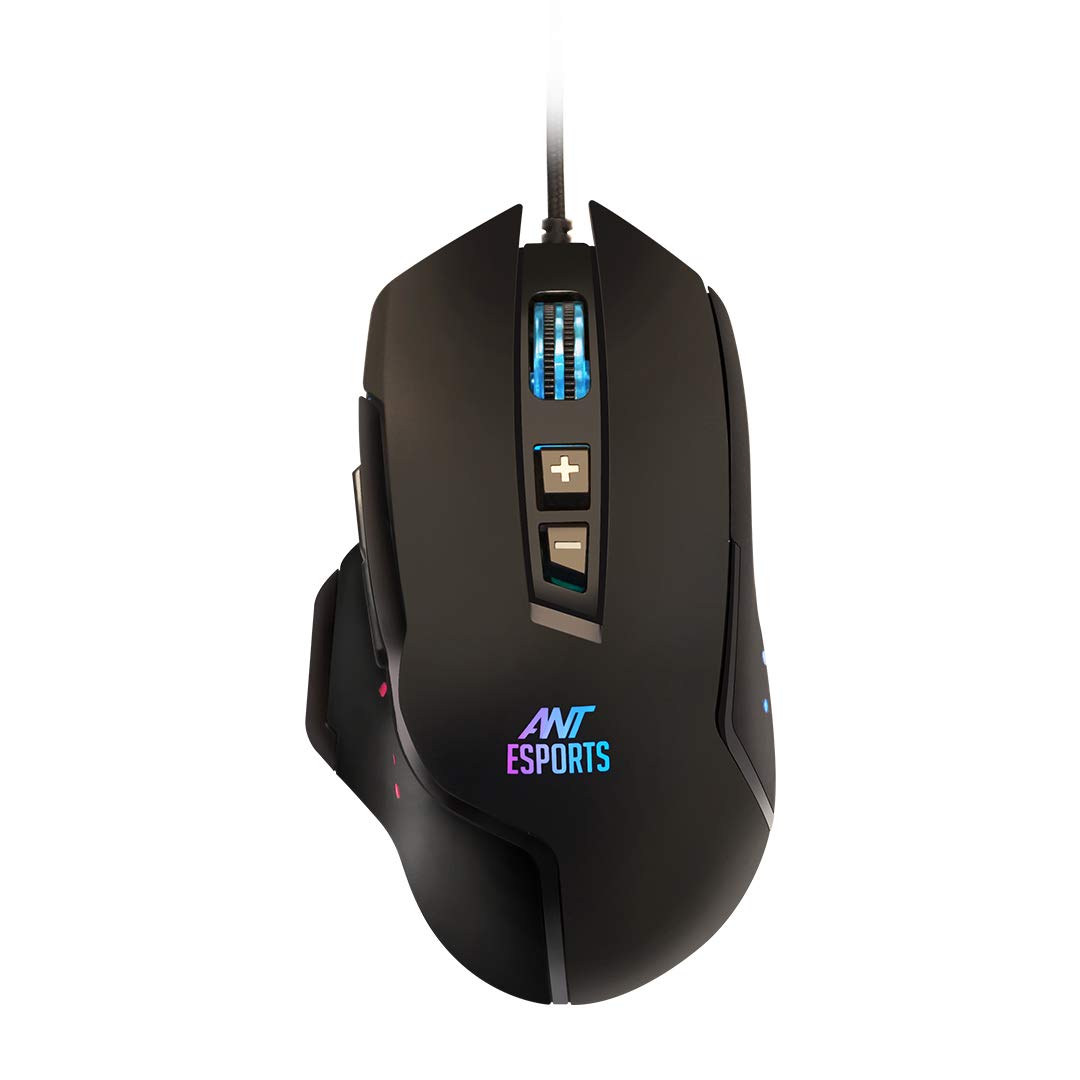
Figure 1: Top view of the Ant Esports GM300 RGB Wired Gaming Mouse, showcasing its ergonomic design and central scroll wheel.
2. Package Contents
Ensure all items are present in the package:
- 1 x Ant Esports GM300 RGB Wired Gaming Mouse
- 1 x User Manual (this document)

Figure 2: The retail packaging for the Ant Esports GM300 RGB Wired Gaming Mouse, indicating the model number and key features.
3. Setup Instructions
- Connect the Mouse: Plug the USB connector of the Ant Esports GM300 gaming mouse into an available USB port on your computer.
- Driver Installation: The mouse is plug-and-play. Your operating system (Windows 7 or later recommended) will automatically detect and install the necessary drivers. No additional software installation is typically required for basic functionality.
- Initial Test: Move the mouse and click the buttons to ensure it is functioning correctly. The RGB lighting should illuminate upon connection.
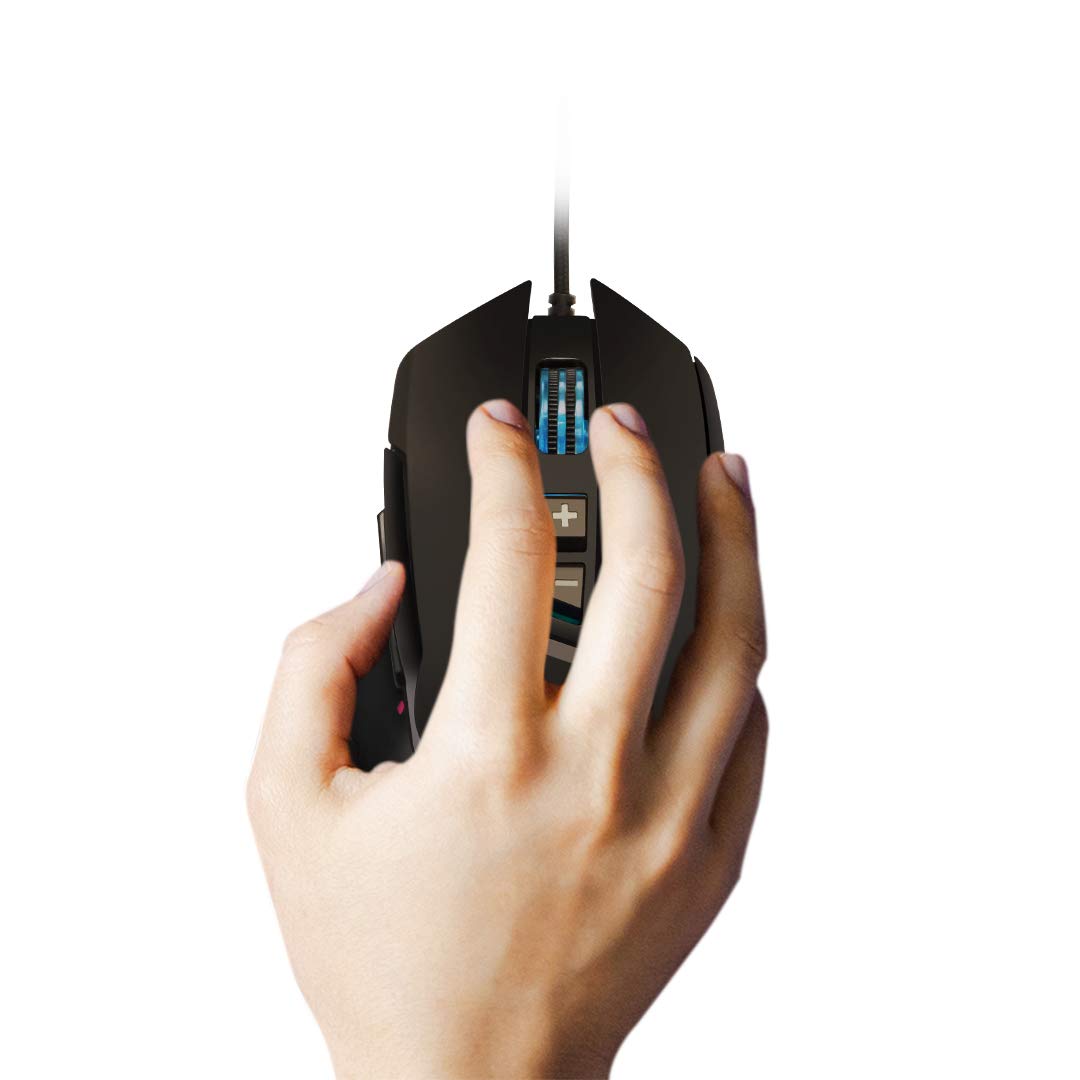
Figure 3: A hand demonstrating the ergonomic grip on the Ant Esports GM300 mouse, highlighting the placement of the main and side buttons.
4. Operating the Mouse
The Ant Esports GM300 features multiple buttons and adjustable DPI settings for an optimized gaming experience.
4.1. Button Functions
The mouse is equipped with 7 programmable buttons:
- Left Click Button: Standard primary action.
- Right Click Button: Standard secondary action.
- Scroll Wheel: Scrolls content up/down. Can also be pressed for a middle-click action.
- DPI + Button: Increases DPI sensitivity.
- DPI - Button: Decreases DPI sensitivity.
- Side Buttons (Forward/Backward): Typically used for navigation in web browsers or assigned to in-game actions.

Figure 4: Angled view of the GM300 mouse, clearly showing the two side buttons and the DPI adjustment buttons located near the scroll wheel.
4.2. DPI Adjustment
The GM300 mouse offers customizable DPI settings to match your preference and game requirements. Use the dedicated DPI + and DPI - buttons to cycle through the available sensitivity levels:
- DPI Levels: 1200 / 2400 / 3200 / 4800
Each change in DPI will typically be indicated by a change in the mouse's LED illumination color or pattern (if supported by the specific model's firmware).
4.3. RGB Illumination
The mouse features 5 preset multicolor illumination modes. These modes are controlled by a bottom button (refer to Figure 6 for location) or may cycle automatically. The RGB lighting enhances the aesthetic appeal of the mouse.

Figure 5: Side view of the GM300 mouse, illustrating the vibrant RGB lighting effects along its edges and logo.
5. Maintenance
- Cleaning: Use a soft, dry cloth to clean the mouse surface. For stubborn dirt, a slightly damp cloth can be used, ensuring no liquid enters the mouse. Do not use harsh chemicals or abrasive cleaners.
- Optical Sensor: Periodically check the optical sensor on the bottom of the mouse for dust or debris. Use a soft brush or compressed air to gently clean it. Avoid touching the sensor directly.
- Cable Care: Avoid sharp bends or excessive pulling on the braided USB cable to prevent damage.

Figure 6: The underside of the Ant Esports GM300 mouse, highlighting the central optical sensor and product information label.
6. Troubleshooting
| Problem | Solution |
|---|---|
| Mouse not responding |
|
| DPI settings not changing |
|
| RGB lighting not working |
|
7. Specifications
| Model Name | Ant Esports GM300 |
| Connectivity | Wired (USB) |
| Sensor Type | Optical |
| DPI Settings | 1200 / 2400 / 3200 / 4800 |
| Polling Rate | 1000 Hz (1ms response) |
| Tracking Speed | 60 IPS |
| Buttons | 7 Programmable Buttons |
| Illumination | 5-color RGB LED |
| Cable Type | Braided Cable with Magnetic Ring |
| Cable Length | 1.5 Meters |
| Item Weight | 185 g |
| Compatible OS | Windows 7 and above |
| Packaging Dimensions (LxWxH) | 22.7 x 14.7 x 5.2 cm |
8. Warranty Information
The Ant Esports GM300 RGB Wired Gaming Mouse comes with a 1-Year Limited Warranty from the date of purchase. This warranty covers manufacturing defects and workmanship under normal use. It does not cover damage caused by misuse, accident, modification, or unauthorized repair.
For warranty claims, please retain your proof of purchase and contact Ant Esports customer support.
9. Support
For further assistance, technical support, or inquiries regarding your Ant Esports GM300 gaming mouse, please visit the official Ant Esports website or contact their customer service department.
Ant Esports Official Website: www.antesports.com
Note: Product specifications and features are subject to change without prior notice.


