1. Introduction
This manual provides essential information for the proper setup, operation, maintenance, and troubleshooting of your Acer Predator Helios 300 PH315-52-710B Gaming Laptop. Please read this manual thoroughly to ensure optimal performance and longevity of your device. Keep this document for future reference.
2. Package Contents
Verify that all items listed below are present in your product packaging:
- Acer Predator Helios 300 PH315-52-710B Gaming Laptop
- AC Adapter
- Power Cord
3. Product Overview
Familiarize yourself with the key components and features of your gaming laptop.
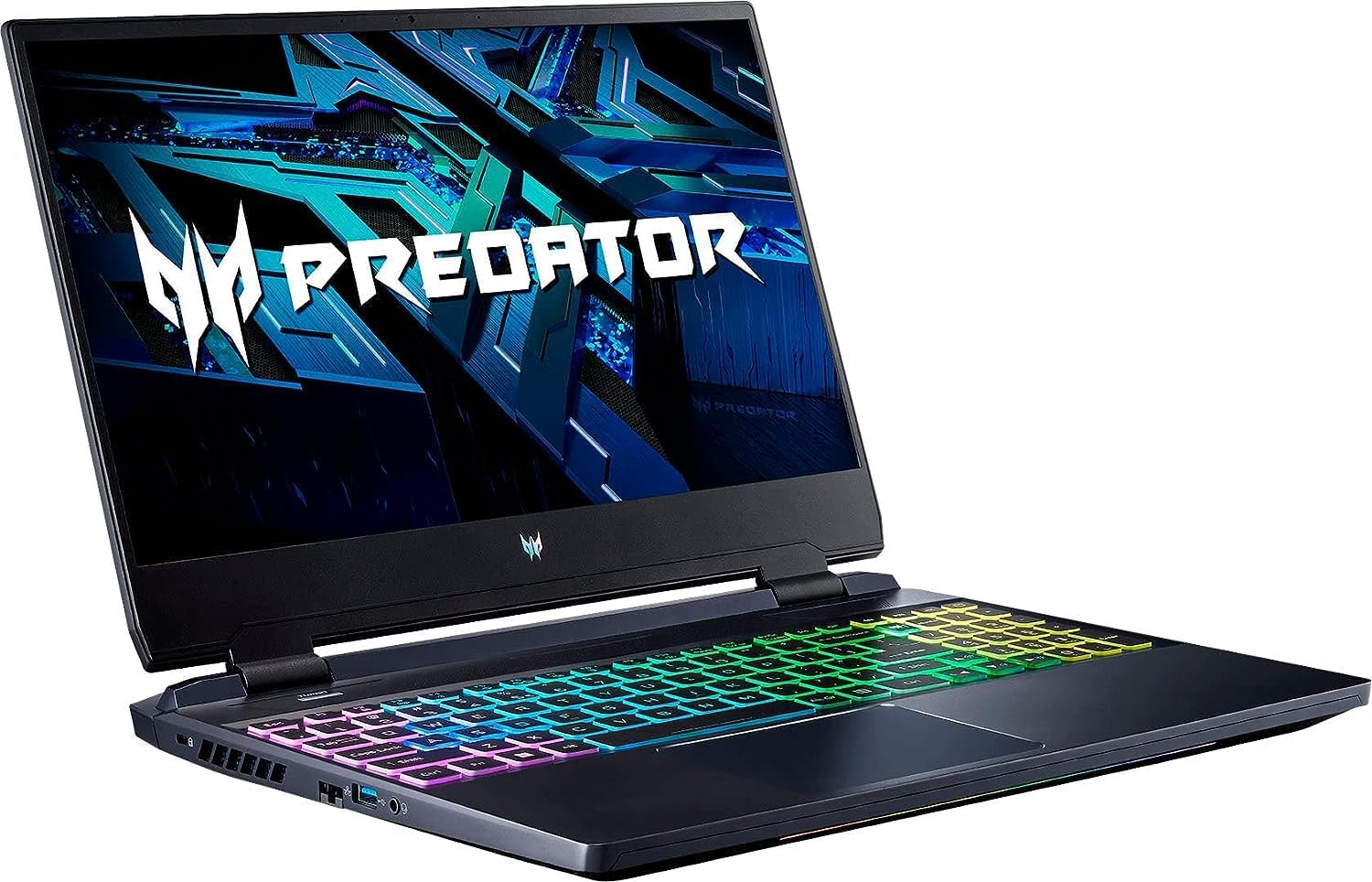
Figure 3.1: Front-left view of the Acer Predator Helios 300 laptop, showcasing its vibrant display and customizable RGB keyboard.

Figure 3.2: Top-down view highlighting the full-size RGB backlit keyboard and precision touchpad.

Figure 3.3: Left side of the laptop showing the power input, Ethernet port, USB 3.1 Type-C Gen 2 port, USB 3.1 Gen 1 port, and audio jacks.

Figure 3.4: Right side of the laptop featuring two USB 3.1 Gen 1 ports, an HDMI 2.0 port, and a Mini DisplayPort 1.4.

Figure 3.5: Rear view of the laptop, illustrating the advanced cooling system with prominent exhaust vents.
4. Setup
Follow these steps for initial setup of your Acer Predator Helios 300.
- Connect Power: Plug the AC adapter into the laptop's power input port and then into a wall outlet. Ensure the power indicator light illuminates.
- Initial Power On: Open the laptop lid and press the power button, typically located above the keyboard.
- Windows Setup: Follow the on-screen instructions to complete the Windows 10 Home operating system setup. This includes selecting your region, connecting to a network, and creating a user account.
- Software Updates: After initial setup, connect to the internet and allow Windows to download and install any pending updates. It is also recommended to update graphics drivers from the NVIDIA website and Acer's support page for optimal performance.
5. Operating Instructions
This section covers basic operation of your laptop.
5.1 Power Management
- Power On: Press the power button.
- Sleep Mode: Close the lid or select 'Sleep' from the Windows Start menu.
- Shut Down: Select 'Shut down' from the Windows Start menu.
- Restart: Select 'Restart' from the Windows Start menu.
5.2 Keyboard and Touchpad
- RGB Backlight: Use the dedicated function keys (Fn + Fx) or the PredatorSense software to customize keyboard backlight colors and effects.
- Function Keys: The 'Fn' key combined with the 'F' keys (F1-F12) provides access to special functions like volume control, screen brightness, and wireless toggling.
- Touchpad: Supports multi-touch gestures for navigation. Refer to Windows settings for customization.
5.3 Connecting Peripherals
Utilize the various ports to connect external devices:
- USB Ports: For mice, keyboards, external storage, and other USB devices.
- HDMI/Mini DisplayPort: For connecting external monitors or TVs.
- Audio Jacks: For headphones, headsets, or external speakers.
- Ethernet Port: For a wired network connection.
5.4 PredatorSense Software
The pre-installed PredatorSense software allows you to monitor system performance, customize RGB lighting, control fan speeds, and manage overclocking settings for an optimized gaming experience.
6. Maintenance
Regular maintenance helps preserve your laptop's performance and lifespan.
- Cleaning: Use a soft, lint-free cloth to clean the screen and chassis. For stubborn marks, dampen the cloth with a small amount of water or a screen-safe cleaner. Use compressed air to clear dust from keyboard and cooling vents. Ensure the laptop is powered off and unplugged before cleaning.
- Battery Care: To maximize battery life, avoid fully discharging the battery frequently. If storing the laptop for extended periods, ensure the battery is charged to approximately 50-70%.
- Software Updates: Regularly check for and install operating system updates, driver updates (especially graphics drivers), and PredatorSense software updates.
- Storage Management: Periodically delete unnecessary files and uninstall unused applications to free up storage space and maintain system responsiveness.
7. Troubleshooting
This section addresses common issues you might encounter.
- No Power:
- Ensure the AC adapter is securely connected to both the laptop and a working power outlet.
- Verify the power outlet is functional by plugging in another device.
- Try a different power outlet.
- Display Issues:
- If the screen is black, try connecting an external monitor to check if the display output is working.
- Adjust screen brightness using the function keys.
- Update graphics drivers.
- Performance Slowdown:
- Close unnecessary applications running in the background.
- Check for malware or viruses.
- Ensure cooling vents are not obstructed and fans are operating correctly.
- Update drivers and operating system.
- Excessive Fan Noise:
- This is normal during intensive tasks like gaming.
- Ensure cooling vents are clear of dust and obstructions.
- Use PredatorSense to adjust fan profiles to a quieter setting if not performing demanding tasks.
If issues persist, consult Acer's official support resources.
8. Specifications
Detailed technical specifications for the Acer Predator Helios 300 PH315-52-710B.
- Model Name:
- PH315-52-710B
- Processor:
- 9th Generation Intel Core i7-9750H 6-Core (Up to 4.5 GHz)
- Graphics:
- NVIDIA GeForce GTX 1660 Ti with 6 GB GDDR6 VRAM
- Display:
- 15.6" Full HD (1920 x 1080) Widescreen LED-backlit IPS, 144Hz Refresh Rate, 3ms Overdrive Response Time, 300nit Brightness, 72% NTSC
- RAM:
- 16 GB DDR4 2666MHz
- Storage:
- 512GB PCIe NVMe SSD (with 1 additional M.2 slot and 1 available hard drive bay)
- Operating System:
- Windows 10 Home (64-bit)
- Wireless Connectivity:
- Killer DoubleShot Pro Wireless-AX 1650 WiFi 6 802.11ac
- Ethernet:
- Killer Ethernet E2500 10/100/1000 Gigabit LAN
- Ports:
- 1x USB 3.1 Type-C Gen 2, 3x USB 3.1 Gen 1 (one with power-off charging), 1x HDMI 2.0, 1x Mini DisplayPort 1.4, Audio Jacks
- Keyboard:
- RGB Backlit Keyboard
- Battery Life:
- Up to 6 hours (approximate)
- Weight:
- Approx. 5.29 lbs (2.4 kg)
- Dimensions (LxWxH):
- 14.23 x 10.01 x 0.9 inches
9. Warranty and Support
Your Acer Predator Helios 300 PH315-52-710B Gaming Laptop is covered by a limited warranty. Specific warranty terms and conditions may vary by region and purchase location. Please refer to the warranty card included with your product or visit the official Acer support website for detailed information regarding your warranty coverage, technical support, and service options.
For further assistance, visit the Acer support website at www.acer.com/support.