
Introduction
The NEDIS Universal Programmable Remote Control (model TVRC1140BK) is designed to manage up to 4 different devices. This remote can be programmed via a personal computer (PC) to replace original remote controls for various electronic devices, including televisions (TV), video cassette recorders (VCR), digital versatile disc players (DVD), and digital video broadcasting terrestrial receivers (DVB-T). It is engineered to replicate most functions of your original remotes, providing a consolidated control solution.
Safety Information
- Do not expose the remote control to direct sunlight, heat, or moisture.
- Avoid dropping or subjecting the remote to strong impacts.
- Do not attempt to disassemble or modify the remote control. This will void the warranty.
- Keep batteries out of reach of children. If swallowed, seek immediate medical attention.
- Dispose of used batteries according to local regulations. Do not dispose of batteries in fire.
- Use only the specified battery type (2x AAA Alkaline).
Package Contents
Please check the package for the following items:
- NEDIS Universal Programmable Remote Control (TVRC1140BK)
- USB Programming Cable
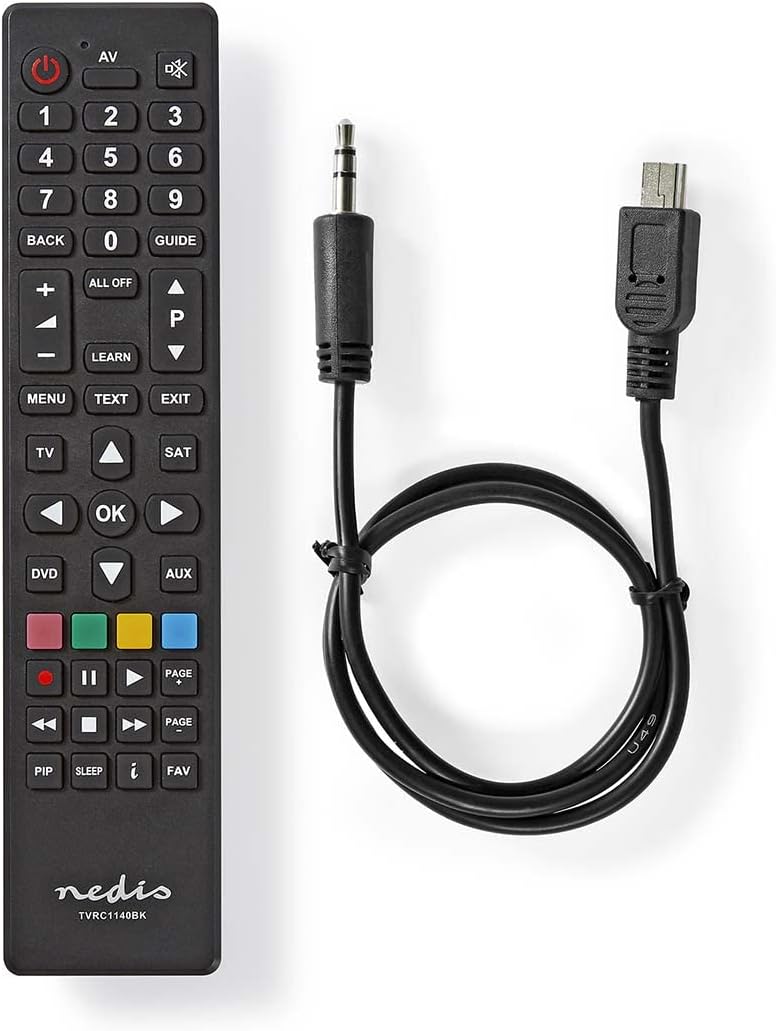
Image: The NEDIS Universal Remote Control TVRC1140BK shown alongside its USB programming cable.
Product Overview
The remote control features a clear button layout for intuitive operation. Familiarize yourself with the various buttons and their functions before use.

Image: Front view of the NEDIS Universal Remote Control TVRC1140BK, displaying all control buttons.
Key Buttons and Functions:
- Power Button (): Turns devices on or off.
- Device Selection Buttons (TV, DVD, SAT, AUX): Selects the device you wish to control.
- Numeric Keypad (0-9): For channel selection and data input.
- Volume Up/Down (+/-): Adjusts the volume.
- Channel Up/Down (P/P): Changes channels.
- Navigation Buttons (Up, Down, Left, Right, OK): For menu navigation and selection.
- Menu/Exit: Accesses or exits device menus.
- Learn Button: Used for programming functions from an original remote.
- Colored Buttons (Red, Green, Yellow, Blue): Often used for specific functions in menus or teletext.
Setup
1. Battery Installation
- Open the battery compartment cover on the back of the remote control.
- Insert two (2) AAA Alkaline batteries, ensuring the correct polarity (+ and -) as indicated inside the compartment.
- Close the battery compartment cover securely.
2. PC Programming
The NEDIS TVRC1140BK remote control is programmed using dedicated software on a PC. This method allows for comprehensive device code loading and customization.
- Software Download: Visit the official NEDIS support website to download the latest programming software for the TVRC1140BK model.
- Software Installation:
- If you have previously installed an older version of the software, uninstall it completely before proceeding.
- For new users, install the downloaded software directly by following the on-screen instructions.
- Connect the Remote: Use the provided USB programming cable to connect the remote control to an available USB port on your PC.
- Programming Process: Follow the instructions within the software to select your device types (TV, DVD, VCR, DVB-T, etc.) and load the appropriate control codes onto the remote. The software typically guides you through the process of assigning functions to buttons.
Note: For optimal performance and access to the latest device codes, always use the most current version of the programming software available from the manufacturer.
Operating the Remote Control
Once programmed, the remote control functions similarly to your original device remotes.
- Select Device: Press the corresponding device button (e.g., TV, DVD, SAT, AUX) to select the device you wish to control. The indicator light on the remote may illuminate to confirm selection.
- Point and Operate: Point the remote control directly at the device's infrared receiver.
- Use Functions: Press the desired function buttons (e.g., Power, Volume, Channel, Menu, Play, Pause) to control your selected device.
Maintenance
- Cleaning: Wipe the remote control with a soft, dry cloth. Do not use abrasive cleaners or solvents.
- Battery Replacement: Replace batteries when the remote's performance degrades or if the indicator light does not illuminate. Always replace both batteries at the same time with new AAA Alkaline batteries.
- Storage: If the remote control will not be used for an extended period, remove the batteries to prevent leakage.
Troubleshooting
- Remote not responding:
- Check if the batteries are correctly inserted and have sufficient charge. Replace if necessary.
- Ensure there is a clear line of sight between the remote control and the device's infrared receiver.
- Verify that the correct device mode (TV, DVD, etc.) is selected on the remote.
- Device functions not working correctly after programming:
- The device code may be incorrect or incomplete. Re-program the remote using the PC software, ensuring you select the correct manufacturer and model for your device.
- Some specific functions might not be available if the original remote had unique features not supported by the universal remote's code database.
- Consult the NEDIS support website for updated software or additional programming tips.
- PC programming software issues:
- Ensure you have uninstalled any previous versions of the software before installing the latest one.
- Check your PC's operating system compatibility with the software.
- Try using a different USB port or restarting your computer.
Specifications
| Brand | NEDIS |
| Model Number | TVRC1140BK |
| Connectivity Technology | Infrared |
| Maximum Supported Devices | 4 |
| Compatible Devices | TV, DVD/Blu-ray Player, Set-top Box, VCR |
| Controller Type | Button Control |
| Maximum Range | 10 Meters |
| Batteries Required | 2x AAA Alkaline (not included) |
| Color | Black |
Warranty and Support
For warranty information, please refer to the terms and conditions provided by your retailer at the time of purchase or contact NEDIS customer support directly. For technical assistance, software updates, and additional resources, please visit the official NEDIS website.


