
1. Introduction
This manual provides detailed instructions for the installation, operation, and maintenance of your ASHATA USB Front Panel Expansion Card. This device is designed to expand your computer's connectivity by providing four front-accessible USB 3.0 ports, utilizing a PCI-E interface.
Key features of this expansion card include:
- Four front USB 3.0 ports for convenient access.
- Integrated power supply module with SATA power interface.
- Low PCI-E plug design, allowing installation even if the interface is partially obstructed.
- Built-in anti-burning protection for equipment safety.

Image: The ASHATA USB Front Panel Expansion Card, showing the four USB 3.0 ports and the internal circuit board.
2. Setup and Installation
Follow these steps to properly install your ASHATA USB Front Panel Expansion Card into your computer system.
- Prepare Your System: Power off your computer and disconnect all power cables. Open the computer case to access the internal components.
- Locate a Floppy Bay: Identify an available 3.5-inch floppy drive bay at the front of your computer case.
- Insert the Front Panel: Slide the ASHATA USB Front Panel into the chosen floppy bay from the front of the case. Secure it using the provided screws.
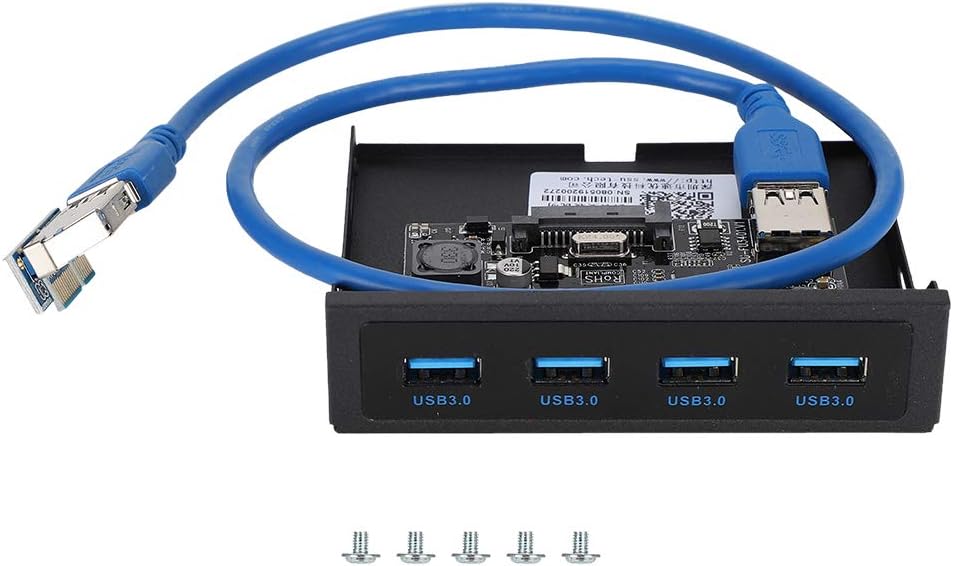
Image: The ASHATA USB Front Panel Expansion Card shown with the included screws for installation.
- Connect the USB 3.0 Cable: Connect the blue USB 3.0 cable from the front panel to an available USB 3.0 header on your motherboard. Ensure the connection is firm.

Image: An angled view of the ASHATA USB Front Panel, illustrating the blue USB 3.0 cable connected to the card.
- Connect SATA Power (Optional but Recommended): For stable operation, especially with multiple high-power USB devices, connect a SATA power cable from your power supply to the SATA power interface on the expansion card. This provides additional power to the USB ports.
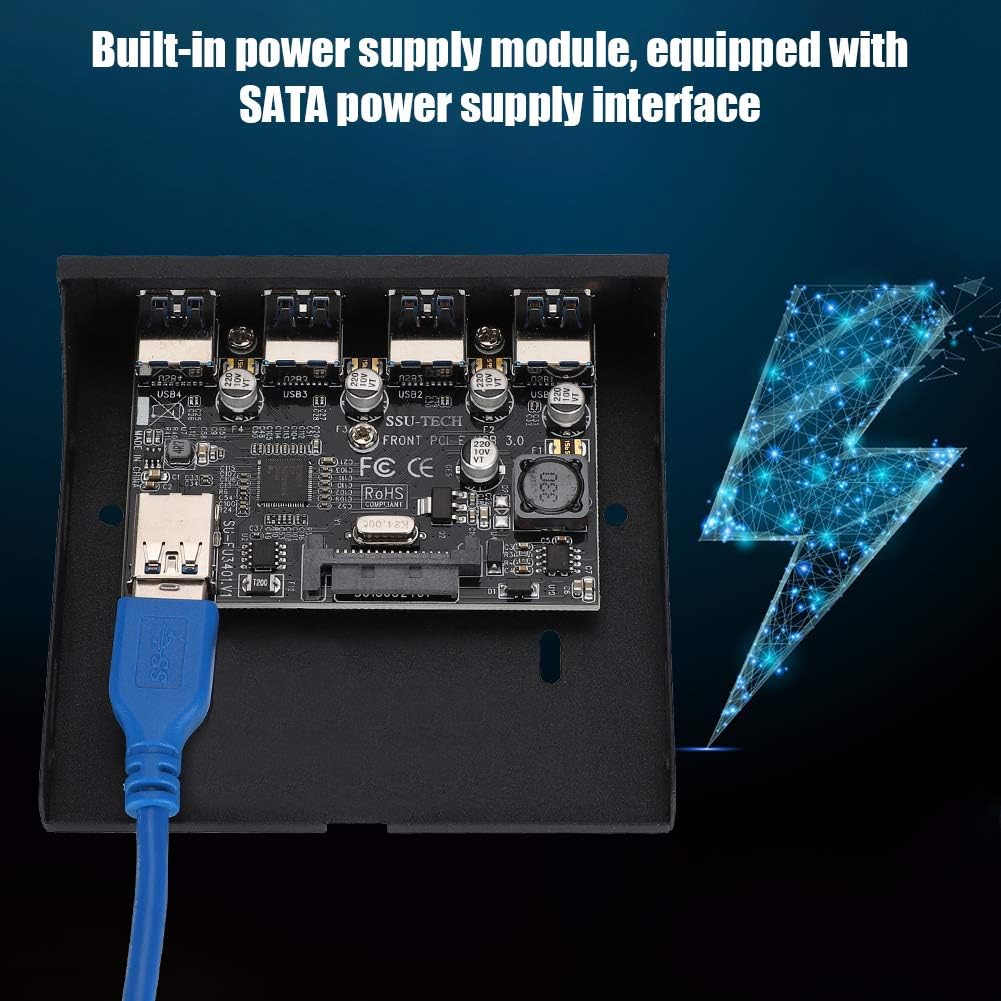
Image: The expansion card highlighting the built-in power supply module and the SATA power supply interface.
- Close Case and Power On: Once all connections are secure, close your computer case and reconnect the power cables. Power on your computer. The system should automatically detect and install the necessary drivers for the USB 3.0 ports.
The low PCI-E plug design ensures compatibility even if the motherboard's PCI-E interface is partially blocked by other components. The card is designed to function whether or not the SATA power is connected, but connecting it is recommended for optimal performance and stability.
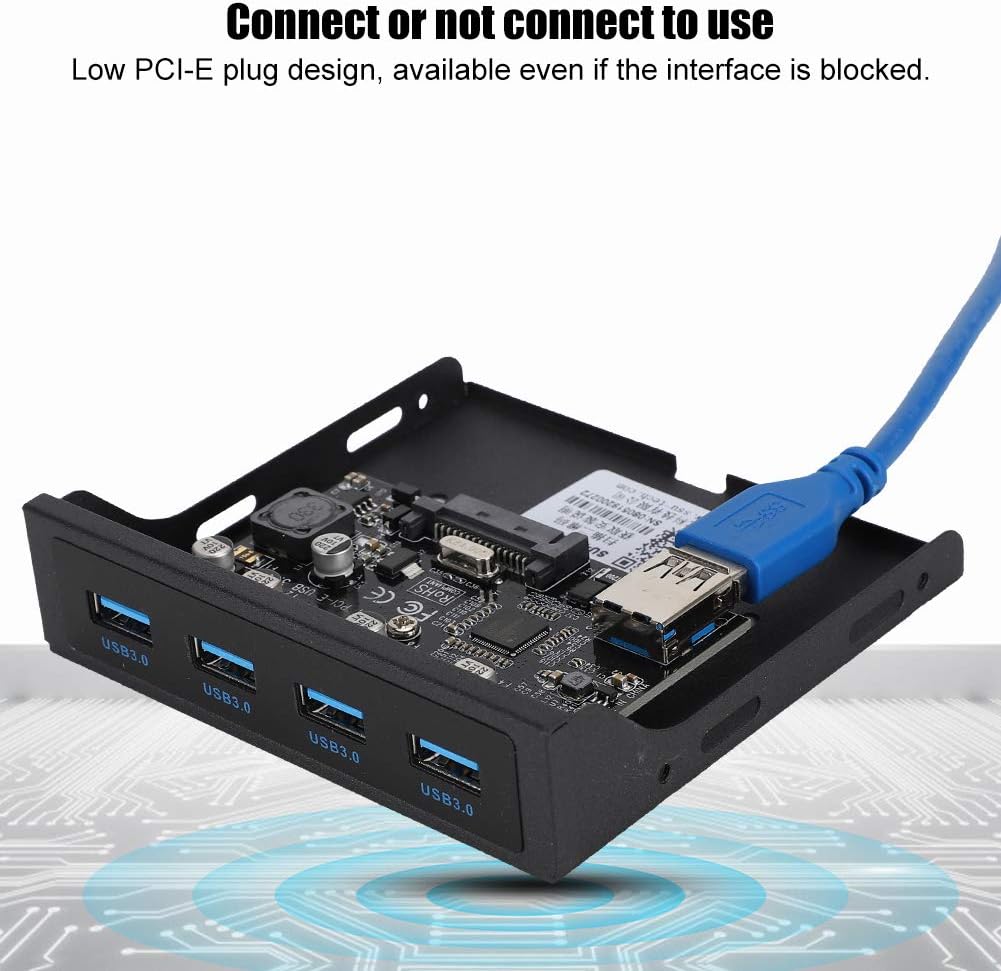
Image: This image demonstrates the low PCI-E plug design, indicating that the card can be used even if the interface is partially obstructed.
3. Operating Instructions
Once installed, the ASHATA USB Front Panel provides four fully functional USB 3.0 ports for connecting various peripherals.
- Connecting Devices: Simply plug your USB 3.0 (or USB 2.0/1.1 compatible) devices into any of the four available front USB 3.0 ports.
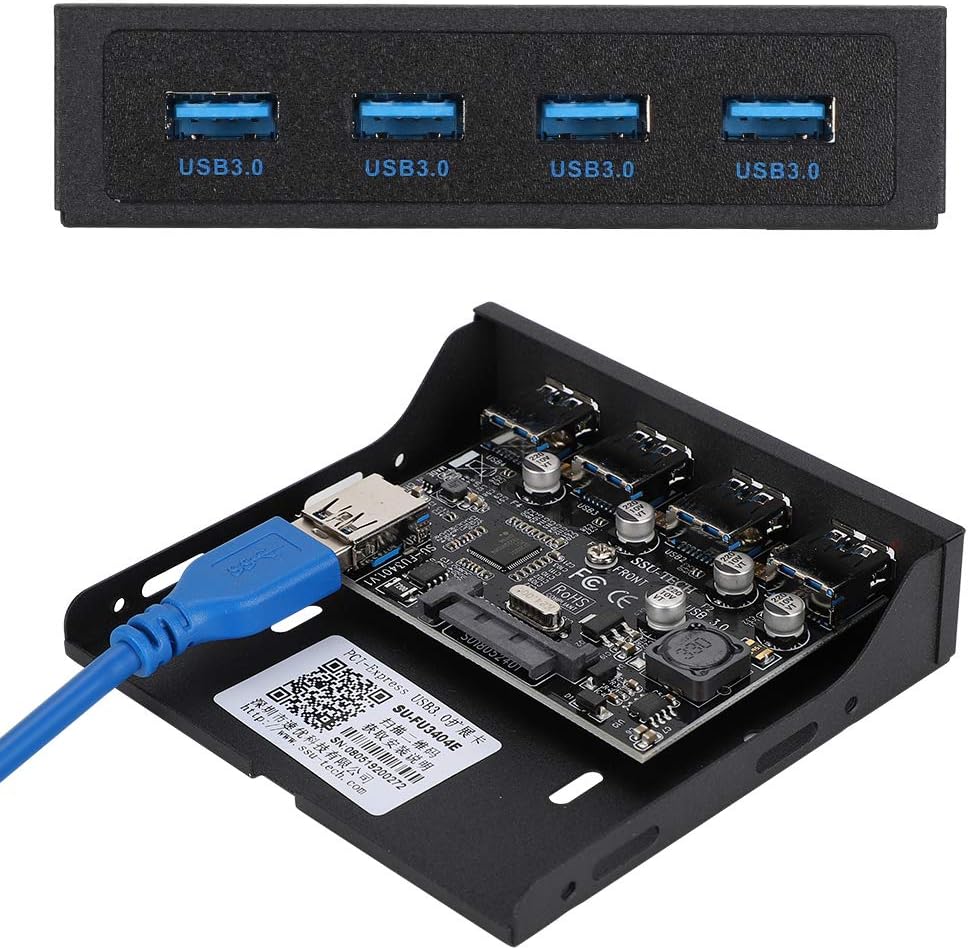
Image: A detailed view of the ASHATA USB Front Panel, clearly showing the four USB 3.0 ports available for use.
- Data Transfer: USB 3.0 offers significantly faster data transfer speeds compared to older USB standards. Ensure your connected devices and cables are USB 3.0 compatible to achieve maximum performance.
- Power Delivery: The built-in power supply module, especially when connected via SATA power, ensures stable power delivery to connected USB devices, including external hard drives or other power-hungry peripherals.
4. Maintenance
The ASHATA USB Front Panel Expansion Card is designed for long-term reliability with minimal maintenance. To ensure optimal performance and longevity:
- Keep Clean: Periodically clean the front panel and USB ports with a soft, dry cloth to prevent dust accumulation. Avoid using liquid cleaners directly on the ports.
- Proper Handling: When connecting or disconnecting USB devices, ensure a firm but gentle insertion/removal to prevent damage to the ports.
- Environmental Conditions: Operate the computer in a well-ventilated area to prevent overheating of internal components, including the expansion card.
5. Troubleshooting
If you encounter issues with your ASHATA USB Front Panel Expansion Card, consider the following troubleshooting steps:
- Ports Not Functioning:
- Verify that the USB 3.0 cable from the front panel is securely connected to the USB 3.0 header on your motherboard.
- Ensure the SATA power cable (if used) is firmly connected to both the expansion card and your power supply.
- Check your computer's Device Manager to see if the USB 3.0 controller is recognized and has no error symbols. If there are issues, try updating or reinstalling the drivers for your motherboard's USB 3.0 controller.
- Test with different USB devices to rule out a faulty peripheral.
- Slow Data Transfer Speeds:
- Confirm that both your connected device and the USB cable are USB 3.0 compatible. USB 2.0 devices will operate at USB 2.0 speeds.
- Ensure the SATA power cable is connected to the expansion card for stable power delivery, which can impact performance.
- Anti-Burning Protection: The card features built-in anti-burning protection insurance to safeguard your equipment from electrical damage. If the card stops functioning unexpectedly, this feature may have activated to protect your system.

Image: The expansion card is shown with an overlay indicating its anti-burning protection feature, designed to prevent damage to your equipment.
If problems persist after following these steps, please refer to the Warranty & Support section for further assistance.
6. Specifications
| Feature | Detail |
|---|---|
| Product Name | USB Front Panel Expansion Card |
| Brand | ASHATA |
| Model Number | ASHATAroyxw5sh30 |
| Interface | USB3.0 x 4, PCI-E x 1 |
| Color | Black |
| Process | Frosted |
| Chipset | For NEC720201 |
| Power Supply | Built-in module, SATA power interface |
| Item Weight | 6.4 ounces (approx. 0.4 lbs) |
| Compatible Devices | Personal Computer |
7. Warranty and Support
ASHATA is committed to providing high-quality products and customer satisfaction.
- Return Policy: This product is typically eligible for a 30-day refund/replacement policy from the date of purchase. Please refer to your retailer's specific return policy for details.
- Technical Support: For any questions, technical assistance, or issues not covered in this manual, please contact ASHATA customer service. We are dedicated to providing high-quality after-sales service.
- Online Resources: Additional information and support may be available on the manufacturer's website. A relevant resource for similar products can be found at: SSU-TECH Support Page.