
Introduction
The EZCast 2 Wireless Display Receiver provides a seamless solution for mirroring or extending content from your devices to a larger screen. It supports 4K output, H.265 decoding, and operates on both 2.4GHz and 5GHz Wi-Fi bands for stable and high-quality streaming. Compatible with Android, iOS, Windows, and macOS, it supports various wireless display protocols including DLNA, EZAir (Airplay), Miracast, Google Home Mirror, and Chrome Browser Mirror.

Image: The EZCast 2 device showcasing its key features: 4K Ultra HD resolution, HDR support for vivid colors, smooth streaming with low latency, and plug & play ease of use.
Video: An overview of the EZCast 2 - 5G Universal Wireless Display Receiver, demonstrating its features and capabilities.
Setup
Follow these steps to set up your EZCast 2 Wireless Display Receiver:
- Connect to HDMI: Plug the EZCast 2 into any open HDMI port on your television or display.
- Power Up: Connect the included USB power cable to your EZCast 2 and then plug the power supply into an open electrical outlet. It is recommended to use a 5V/1A adapter for stable power. Do not plug the power supply into your TV's USB port to ensure a stable power and Wi-Fi connection.
- Select Input: Use your TV remote to select the correct HDMI input source that corresponds to the port where the EZCast 2 is connected.

Image: A visual guide illustrating the three simple steps to connect the EZCast 2: plug into HDMI, connect USB power to a 5V/1A adapter, and select the correct input on your TV.
Once connected, the EZCast 2 will display instructions on your screen to guide you through connecting your device (phone, tablet, laptop) to the EZCast 2's Wi-Fi network and then to your home Wi-Fi network for internet access.

Image: The EZCast 2 device connected to a TV, showing icons for Bluetooth and wireless connections from a smartphone and tablet, indicating quick setup support.
Operating
The EZCast 2 offers versatile operating modes and broad compatibility:
Wireless Connectivity
- Dual-Band Wi-Fi: Supports both 2.4GHz and 5GHz 802.11ac Wi-Fi channels. For a smoother viewing experience, connect to a 5GHz Wi-Fi network.
- Peer-to-Peer (P2P) Connection: Enjoy direct device connections without needing an external Wi-Fi network. This feature is ideal for presentations or entertainment in environments without Wi-Fi, offering low latency and stable performance.

Image: A visual comparison demonstrating the benefits of 5GHz dual-band Wi-Fi over 2.4GHz, highlighting faster speed, more stable streaming, and wider coverage for an improved experience.

Image: A diagram showing how iOS and Android devices can connect directly to the EZCast 2 via Peer-to-Peer (P2P) without requiring a Wi-Fi router.
Compatibility and Protocols
The EZCast 2 is universally compatible with a wide range of operating systems and supports multiple wireless display protocols:
- Operating Systems: iOS, Android, macOS, Windows, ChromeOS.
- Protocols: DLNA, EZAir (Airplay), Miracast, Google Home Mirror, Chrome Browser Mirror.

Image: An illustration of the EZCast 2's wide compatibility, showing icons for iOS, Windows, Android, Miracast, AirPlay, and Google devices.
Display Modes
Choose between Mirror Mode or Extend Mode based on your needs:
- Mirror Mode: Share your phone or tablet screen directly to the larger display. Ideal for presentations, sharing photos, or watching videos.
- Extend Mode: Stream content to the big screen while using your device for other tasks. This allows for multitasking and increased productivity.
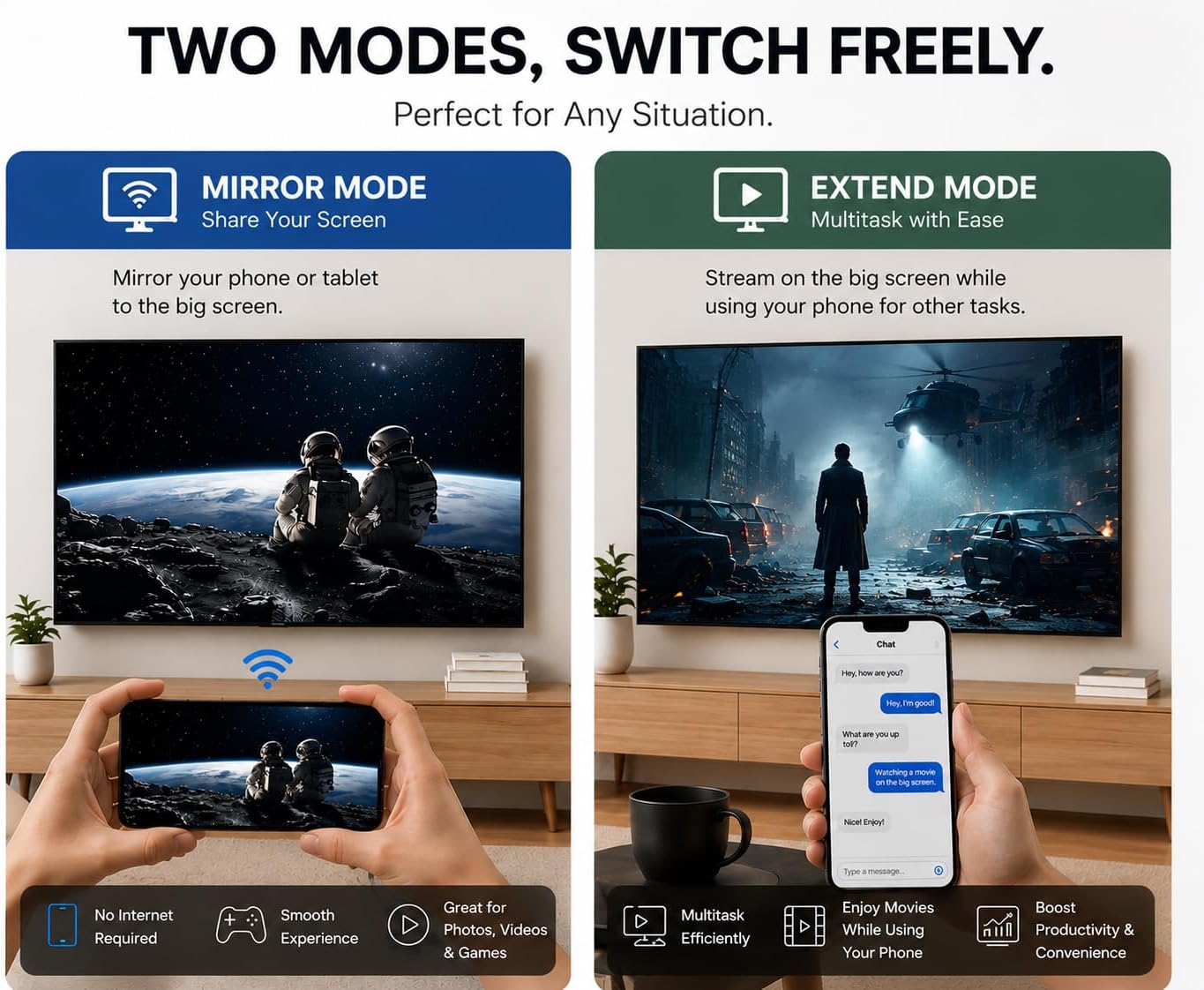
Image: A visual explanation of the two display modes: Mirror Mode, which duplicates your device screen, and Extend Mode, which allows for separate content display and multitasking.
Video: A comparison video titled "EZCast 2 vs Chromecast 3", demonstrating the capabilities and differences between the two devices.
Maintenance
The EZCast 2 Wireless Display Receiver requires minimal maintenance. Keep the device clean and free from dust. Ensure it is used in a well-ventilated area to prevent overheating. Regularly check for firmware updates through the EZCast app to ensure optimal performance and compatibility.
Troubleshooting
If you encounter connection issues or other problems, consider the following:
- Power Supply: Ensure the device is powered by a 5V/1A adapter. Insufficient power can lead to unstable performance.
- Firmware Upgrade: Many issues can be resolved by updating the device's firmware. Use the EZCast app to check for and install the latest firmware.
- Wi-Fi Connection: Verify that your device is connected to the EZCast 2's Wi-Fi network, and if applicable, that the EZCast 2 is connected to your home's 5GHz Wi-Fi for best performance.
- HDMI Input: Confirm that your display is set to the correct HDMI input source.
- Restart Devices: Try restarting both the EZCast 2 and your source device (phone, tablet, laptop).
Specifications
| Feature | Detail |
|---|---|
| Brand | EZCast |
| Model Name | EZCast 2 |
| Connectivity Technology | Miracast, Wireless |
| Connector Type | HDMI |
| Resolution | 4K |
| Video Output Resolution | 4K |
| Video Codec | H.265 |
| Supported Internet Services | Use Miracast on Android to stream Hulu, Netflix, Amazon Prime Video, YouTube |
| Controller Type | App Control |
| Form Factor | Dongle |
| Color | Black |
| Compatible Devices | Android, MacBook, Windows, iPhone |
| Item Weight | 16.5 g |
| Item Dimensions L x W x H | 3"L x 1.1"W x 0.35"H |
| Number of Items | 1 |
| Built-In Media | Quick Start Guide |
Warranty
The EZCast 2 Wireless Display Receiver comes with a 1 Year Warranty from the manufacturer. Please retain your proof of purchase for warranty claims.
Support
For further technical assistance or if you continue to experience connection issues, please contact the seller or the EZCast brand owner directly. Refer to the contact information provided with your product packaging or visit the official EZCast website for support resources.


