
Product Overview
This manual provides detailed instructions for the JOUNIVO USB Recording Microphone, model JV-603PRO. This microphone is designed for clear audio capture in various applications, including streaming, podcasting, gaming, and online meetings.

Image: JOUNIVO USB Recording Microphone JV-603PRO, showing its gooseneck design and base.
Key Features
- Cardioid Polar Pattern: Focuses on sound directly in front of the microphone, reducing pickup from the sides and rear.
- Mute Button & LED Indicator: One-click mute/unmute functionality with a built-in LED that indicates the microphone's status (e.g., green for active, red for muted).
- Volume Knob: Allows for direct adjustment of microphone input sensitivity.
- USB Plug & Play: No driver installation required; simply connect via USB for immediate use. Compatible with Windows, Mac, and PS4.
- Intelligent Noise-Canceling Technology: Helps to reduce background noise and echo for clearer voice capture.
- Durable Construction: Features a metal gooseneck pipe and a heavy-duty ABS stand for stability and longevity.
- Adjustable Gooseneck: The 360-degree flexible gooseneck allows for precise positioning of the microphone.
- RGB Breathing Light Mode: The base features a unique breathing light for aesthetic appeal.

Image: Illustration of the cardioid polar pattern and the effect of noise cancellation on audio waveforms.

Image: Close-up of the microphone base showing the RGB breathing light, mute button, and volume knob.
Setup Guide
1. Unpacking
Carefully remove all components from the packaging. Ensure you have the microphone unit with its integrated USB cable and the foam pop filter.
2. Connecting to Your Device
The JOUNIVO JV-603PRO is a plug-and-play device. No additional drivers are required for most operating systems.
- Locate an available USB port on your computer (Laptop, PC, Mac, PS4).
- Plug the USB connector of the microphone into the USB port.
- The microphone should be automatically recognized by your operating system.
- For optimal audio quality, ensure the foam pop filter is placed over the microphone head.

Image: Diagram illustrating multi-platform compatibility with Windows, Mac OS, and PlayStation 4.
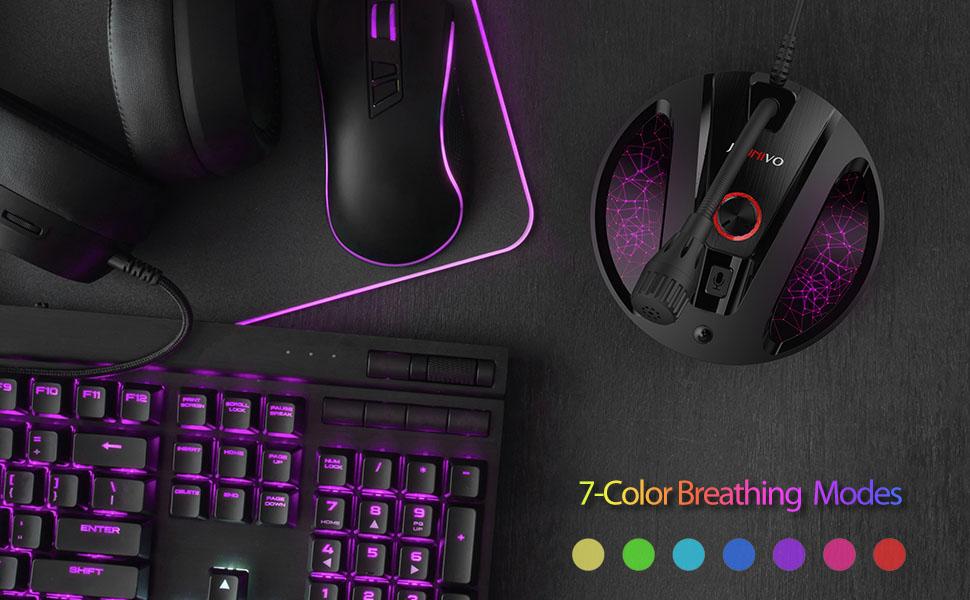
Image: The microphone's adjustable gooseneck and integrated USB cable for connection.
Operating Instructions
1. Positioning the Microphone
The microphone features a 360-degree adjustable metal gooseneck. Position the microphone directly in front of you for optimal sound capture, ensuring it is within a comfortable speaking distance. The cardioid polar pattern is designed to pick up your voice clearly while minimizing ambient noise.
2. Mute Button and LED Indicator
The microphone is equipped with a mute button and an LED indicator on its base:
- Press the mute button once to mute the microphone. The LED indicator will turn red to show it is muted.
- Press the mute button again to unmute the microphone. The LED indicator will turn green, indicating the microphone is active.
3. Volume Control (JV-603PRO specific)
The JV-603PRO model includes a volume knob on the base for convenient audio level adjustment:
- Rotate the volume knob clockwise to increase the microphone's input sensitivity.
- Rotate the volume knob counter-clockwise to decrease the microphone's input sensitivity.

Image: Close-up of the microphone base, highlighting the mute button and volume control knob.
4. RGB Breathing Light Mode
The microphone base features a unique RGB breathing light mode. This is primarily for aesthetic purposes and does not affect microphone functionality. The light can be turned on or off via a dedicated switch on the base.
Maintenance
- Keep the microphone clean by wiping it with a soft, dry cloth.
- Avoid exposing the microphone to extreme temperatures, humidity, or direct sunlight.
- Do not attempt to disassemble the microphone, as this may void the warranty.
- The microphone includes a foam pop filter. Ensure it is properly placed over the microphone head to reduce plosive sounds and protect the microphone from dust and moisture.
Troubleshooting
Common Issues and Solutions:
- Microphone not detected by computer:
- Ensure the USB cable is securely plugged into both the microphone and the computer's USB port. Try a different USB port. Restart your computer. Check your operating system's sound settings to ensure the JOUNIVO microphone is selected as the input device.
- No sound or low sound output:
- Check the mute button on the microphone base; ensure the LED is green (unmuted). Adjust the volume knob on the microphone base (if applicable) and check your computer's input volume settings. Ensure the microphone is positioned correctly and close enough to the sound source.
- Background noise or echo:
- The microphone features intelligent noise-canceling technology. Ensure you are in a quiet environment. Adjust microphone sensitivity in your computer's sound settings if necessary. Ensure the foam pop filter is correctly installed.
Specifications
| Feature | Detail |
|---|---|
| Model Name | JV-603PRO |
| Brand | JOUNIVO |
| Microphone Form Factor | Gooseneck |
| Connectivity Technology | USB |
| Compatible Devices | Laptop, Personal Computer, Mac, PS4 |
| Polar Pattern | Cardioid |
| Signal-to-Noise Ratio | 58 dB |
| Material | Acrylonitrile Butadiene Styrene, Metal |
| Item Weight | 7 ounces |
| Cable Length | 1.8m / 6ft |
Warranty and Support
JOUNIVO products typically come with a manufacturer's warranty. For specific warranty details and support, please refer to the product packaging or visit the official JOUNIVO website. Some users may be eligible for an extended 2-year warranty upon product registration.
For further assistance, please contact JOUNIVO customer support through their official channels.