
1. Introduction
Thank you for choosing the AG Neovo SC-55E CCTV Monitor. This monitor is specifically designed for continuous operation in surveillance environments, offering industry-leading reliability and enhanced image clarity. It incorporates advanced technologies to prevent image ghosting and deliver premium visual performance, even in challenging lighting conditions.
This manual provides essential information for the proper setup, operation, maintenance, and troubleshooting of your SC-55E monitor. Please read it thoroughly before using the product to ensure safe and optimal performance.
2. Safety Information
Always observe the following safety precautions to prevent damage to the monitor and ensure user safety:
- Do not expose the monitor to rain or moisture to prevent fire or shock hazards.
- Ensure proper ventilation. Do not block ventilation openings.
- Use only the power supply specified for this monitor.
- Do not open the monitor casing. Refer all servicing to qualified service personnel.
- Clean the monitor with a soft, dry cloth. Avoid using liquid or aerosol cleaners.
- Place the monitor on a stable surface or mount it securely according to installation instructions.
3. Package Contents
Please check that all items are present and in good condition upon unpacking:
- AG Neovo SC-55E CCTV Monitor
- Power Cable
- VGA Cable
- User Manual (this document)
- Warranty Card (if applicable)
4. Product Overview
Familiarize yourself with the components and connections of your AG Neovo SC-55E monitor.
4.1 Front View
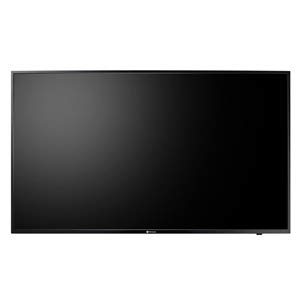
Figure 4.1: Front view of the AG Neovo SC-55E monitor, showing the full display area and the AG Neovo logo at the bottom center.
4.2 Rear View and Connections
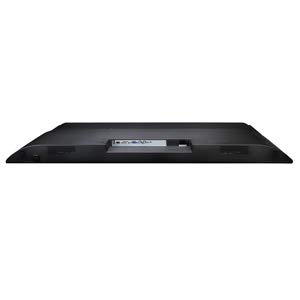
Figure 4.2: Rear view of the AG Neovo SC-55E monitor, highlighting the various input and output ports located on the back panel, including the VGA input.
The rear panel includes the power input, VGA input, and potentially other video inputs and control ports depending on the specific model configuration. Refer to the labels next to each port for identification.
5. Setup
5.1 Mounting the Monitor
The AG Neovo SC-55E monitor supports both freestanding and wall-mount installations. Ensure the mounting solution (stand or wall mount bracket) is appropriate for the monitor's size and weight and is securely installed according to its own instructions.
- Freestanding: Attach the provided stand (if included) to the monitor following the assembly instructions. Place the monitor on a stable, level surface.
- Wall Mounting: This monitor is compatible with VESA standard mounting solutions. Attach a VESA-compatible wall mount bracket to the monitor's rear mounting holes, then secure the monitor to the wall according to the wall mount manufacturer's instructions.
5.2 Connecting Cables
- Power Connection: Connect the power cable to the monitor's DC power input port, then plug the other end into a grounded electrical outlet.
- Video Connection: Connect a VGA cable from your video source (e.g., DVR, NVR, PC) to the VGA input port on the monitor's rear panel. Ensure the connection is secure.
- Other Connections (Optional): If your setup requires, connect any other relevant cables (e.g., audio, control cables) to their respective ports.
6. Operating Instructions
6.1 Powering On/Off
- To power on the monitor, press the Power button located on the monitor's frame. The Power LED will illuminate.
- To power off, press the Power button again. The Power LED will turn off.
6.2 On-Screen Display (OSD) Menu Navigation
The OSD menu allows you to adjust various display settings. Use the control buttons (usually located on the side or bottom of the monitor) to navigate the menu:
- MENU: Press to open the OSD menu or enter a sub-menu.
- UP/DOWN (or +/-): Use to navigate through menu options or adjust values.
- ENTER (or OK): Press to confirm a selection or save changes.
- EXIT (or BACK): Press to exit the current menu or go back to the previous level.
6.3 Display Settings and Features
The SC-55E offers several advanced settings for optimized image quality, especially for surveillance applications:
- Gamma Curve Selection: Adjusts the luminance response to input signals, enhancing detail in dark or bright areas.
- Black Level Adjustment: Fine-tunes the black levels to reveal more detail in shadows, crucial for surveillance footage.
- High Dynamic Contrast Ratio (20,000:1): Automatically adjusts contrast for clearer images with deeper blacks and brighter whites.
- CCTV Mode: A pre-configured mode specifically designed for surveillance control rooms. This mode optimizes settings like sharpness, color temperature, and brightness to maximize image clarity, particularly in low-light conditions.
- Aspect Ratio Selection: Choose from various aspect ratios including 16:9, 4:3, 1:1, or a custom zoom mode to fit the display to your control room conditions, regardless of the input signal.
- Blue Screen On/Off: Option to enable or disable the blue screen display when no signal is detected.
- Power LED On/Off: Option to turn the power indicator LED on or off.
7. Maintenance
7.1 Cleaning the Monitor
- Always unplug the monitor from the power outlet before cleaning.
- Use a soft, lint-free cloth slightly dampened with water or a mild, non-abrasive screen cleaner.
- Do not spray liquid directly onto the screen or casing.
- Avoid using benzene, thinner, or any volatile solvents, as they may damage the surface.
7.2 Anti-Burn-in Technology
The AG Neovo SC-55E features Anti-Burn-in technology to prevent image ghosting, which is common in monitors displaying static images for extended periods. This technology helps maintain image integrity during continuous, mission-critical operations.
8. Troubleshooting
If you encounter issues with your monitor, refer to the following common problems and solutions:
| Problem | Possible Cause | Solution |
|---|---|---|
| No power / Power LED off | Power cable not connected; Power outlet not working; Monitor off. | Ensure power cable is securely connected. Test power outlet with another device. Press the monitor's Power button. |
| No signal / "No Signal" message | Video cable not connected; Incorrect input selected; Video source off. | Check video cable connection. Ensure video source is on. Select the correct input source via the OSD menu. |
| Poor image quality (blurry, distorted) | Incorrect resolution; Cable issue; OSD settings. | Set the video source resolution to 1920x1080. Try a different VGA cable. Adjust OSD settings like sharpness, contrast, and brightness. |
| Image ghosting or retention | Static image displayed for too long. | The monitor has Anti-Burn-in technology to mitigate this. If persistent, turn off the monitor for a period. Avoid displaying static images for excessively long durations. |
If the problem persists after trying these solutions, please contact AG Neovo customer support or your local dealer for assistance.
9. Specifications
| Feature | Specification |
|---|---|
| Product Type | CCTV Monitor |
| Model | SC-55E |
| Screen Diagonal | 139.7 cm (55 inches) |
| Resolution | 1920 x 1080 Pixels (FHD 1080p) |
| Display Type | LCD with LED backlight |
| Aspect Ratio | 16:9 (selectable options: 4:3, 1:1, custom zoom) |
| Connectivity | VGA |
| Mounting Type | Freestanding / Wall Mount (VESA compatible) |
| Product Color | Black |
| Power Supply | DC |
| Dimensions (H x D) | 717 mm x 83 mm (approximate, without stand) |
Note: Specifications are subject to change without notice.
10. Warranty and Support
The AG Neovo SC-55E monitor comes with a standard manufacturer's warranty. Please refer to the warranty card included in your package for specific terms and conditions, including the warranty period and coverage details.
For technical support, service, or warranty claims, please contact your authorized AG Neovo dealer or visit the official AG Neovo website for contact information and support resources.
When contacting support, please have your monitor's model number (SC-55E) and serial number (usually found on a label on the back of the monitor) ready.


