
1. Introduction
The LG 34WN80C-B 21:9 UltraWide curved IPS monitor is designed to provide an immersive viewing experience for both work and entertainment. Featuring a WQHD (3440 x 1440) resolution, sRGB 99% color accuracy, and HDR10 compatibility, this monitor delivers vibrant and detailed visuals. Its 34-inch screen with a 21:9 aspect ratio and Screen Split 2.0 feature facilitates multitasking with multiple documents and applications. The monitor also includes USB Type-C connectivity with 60W Power Delivery, an anti-glare surface, and a tilt/height adjustable stand for ergonomic comfort.
2. Key Features
- 34-inch 21:9 WQHD (3440 x 1440) Curved IPS Display
- USB Type-C Connectivity (60W Power Delivery)
- HDR10 Compatible
- Supports sRGB 99% Color Gamut
- 3-Side Virtually Borderless Design
- Tilt/Height Adjustable Stand
- On-Screen Control for easy settings adjustment
- Anti-Glare, 3H Surface Treatment
3. What's in the Box
- 1 x Type C Upstream Port
- 1 x DisplayPort-In Port
- 2 x HDMI Ports
- 2 x USB Ports
- 1 x DC Power Port
- 1 x Headphone Jack
4. Setup
4.1. Monitor Assembly
Carefully unpack all components. Attach the stand base to the stand neck, then secure the assembled stand to the back of the monitor panel. Ensure all screws are tightened appropriately. The stand allows for height and tilt adjustments to optimize your viewing angle.

Figure 4.1: Front view of the LG 34WN80C-B UltraWide Monitor.
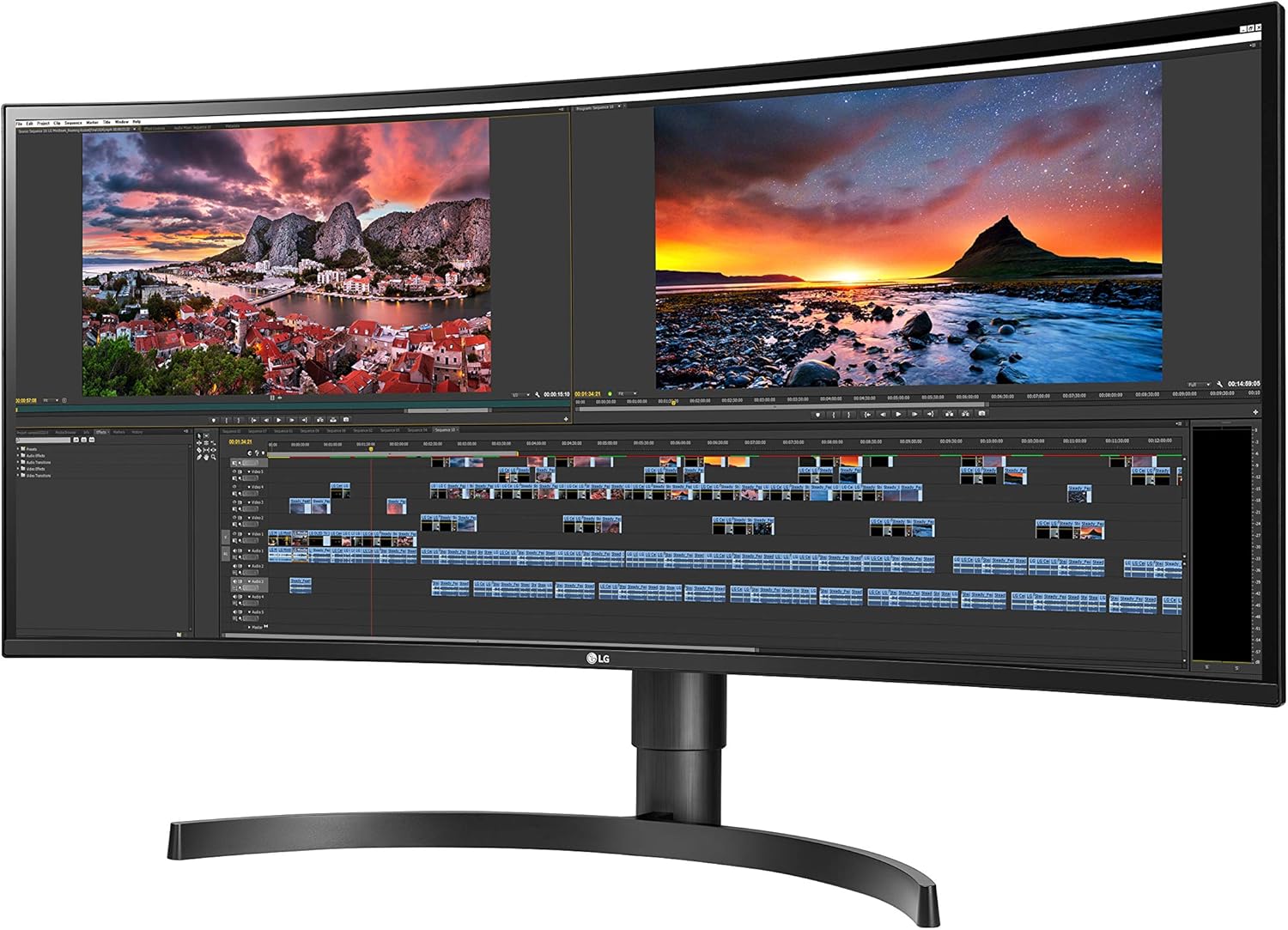
Figure 4.2: Side view illustrating the height adjustment capabilities of the monitor.

Figure 4.3: Side view illustrating the tilt adjustment capabilities of the monitor.
4.2. Connecting Your Devices
The monitor offers various connectivity options. Connect your computer or other devices using the appropriate cables.
- USB Type-C: For a single cable solution that provides video, audio, and 60W power delivery to compatible laptops.
- DisplayPort: For high-resolution video and audio connection.
- HDMI: Two HDMI ports are available for connecting various devices like gaming consoles or other computers.
- USB Downstream Ports: Use the two USB 3.0 ports for connecting peripherals like a keyboard, mouse, or external storage.
- Headphone Jack: For connecting external audio devices.

Figure 4.4: Rear view of the monitor showing available input/output ports.
Video 4.1: This video demonstrates the physical connections and ports on the LG 34WN80C-B UltraWide Monitor, including USB-C, HDMI, and DisplayPort.
5. Operating the Monitor
5.1. On-Screen Display (OSD) Control
The monitor features a joystick button located at the bottom center for easy navigation of the On-Screen Display (OSD) menu. Press the joystick to access the main menu, then move it up/down/left/right to select and adjust settings such as picture mode, brightness, contrast, input source, and more.
Video 5.1: This video demonstrates how to navigate the On-Screen Display (OSD) menu using the joystick button and adjust various monitor settings.
5.2. Screen Split Feature
Utilize the monitor's Screen Split 2.0 feature to efficiently manage multiple windows. This allows you to divide the large ultrawide screen into multiple sections, effectively creating a multi-monitor setup on a single display. Software applications like 'Magnet' (for Mac) can further enhance this functionality by allowing you to easily snap windows to specific corners or halves of the screen.
Video 5.2: This video provides an overview of the LG UltraWide monitor, highlighting its size and suitability for various tasks, including multitasking with screen splitting.
Video 5.3: This video demonstrates the screen splitting capabilities of the LG UltraWide monitor, showing how to arrange multiple windows for enhanced productivity.
6. Maintenance
6.1. Cleaning the Monitor
To clean the monitor screen, gently wipe it with a soft, lint-free cloth. For stubborn marks, lightly dampen the cloth with water or a specialized screen cleaner. Avoid using harsh chemicals, abrasive materials, or spraying liquid directly onto the screen.
6.2. General Care
Keep the monitor in a well-ventilated area, away from direct sunlight, excessive heat, or moisture. Do not block the ventilation openings. When moving the monitor, handle it carefully to avoid damage to the screen or stand.
7. Troubleshooting
7.1. Monitor Flickering or Power Issues
If the monitor experiences flickering or unexpected power cycling, ensure it is plugged directly into a wall outlet rather than a power strip. Some monitors have specific power requirements that may not be met by certain power strips, leading to instability.
7.2. No Display via HDMI
If your device does not display anything when connected via HDMI, ensure the HDMI cable is securely connected to both the monitor and your device. Also, check your device's display settings to ensure it is configured to output to the correct HDMI port and resolution. Some devices may require specific resolution settings for optimal compatibility.
7.3. USB-C Connectivity Limitations
While the USB Type-C port offers convenience for video, audio, and power delivery, it is important to note that if you need to connect multiple high-resolution computers simultaneously, the monitor only has one USB-C port. For setups requiring multiple high-resolution inputs with shared peripherals, an external KVM switch may be necessary.
8. Specifications
| Feature | Detail |
|---|---|
| Standing screen display size | 34 Inches |
| Screen Resolution | 3440x1440 |
| Max Screen Resolution | 3440 x 1440 Pixels |
| Number of USB 2.0 Ports | 3 |
| Number of USB 3.0 Ports | 1 |
| Series | 34WN80C-B |
| Item model number | 34WN80C-B |
| Item Weight | 23.4 pounds |
| Product Dimensions | 32.7 x 9.9 x 16.9 inches |
| Color | Black |
| Voltage | 240 Volts |
| Screen Size | 34 Inches |
| Resolution | QHD Ultra Wide 1440p |
| Aspect Ratio | 21:9 |
| Screen Surface Description | Anti-glare, Hard coating (3H) |
| Response Time (GTG) | 5ms (GtG at Faster) |
| Viewing Angle | 178º(R/L), 178º(U/D) |
| Power Consumption (Max.) | 140W |
| Wall Mount Size (mm) | 100 x 100 millimeter |
9. Warranty and Support
For warranty information and technical support, please refer to the documentation included with your product or visit the official LG website. Keep your purchase receipt for warranty claims.