
1. Introduction
This manual provides instructions for the SanDisk Extreme PRO Portable SSD, model SDSSDE80-1T00-A25. This device is designed for high-speed data storage and transfer, offering robust performance and durability for various computing environments.
2. Package Contents
Verify that all items are present in the product packaging:
- SanDisk Extreme PRO Portable SSD
- USB Type-C to Type-C cable
- USB Type-C to Type-A adapter
- Safety and Warranty Guide
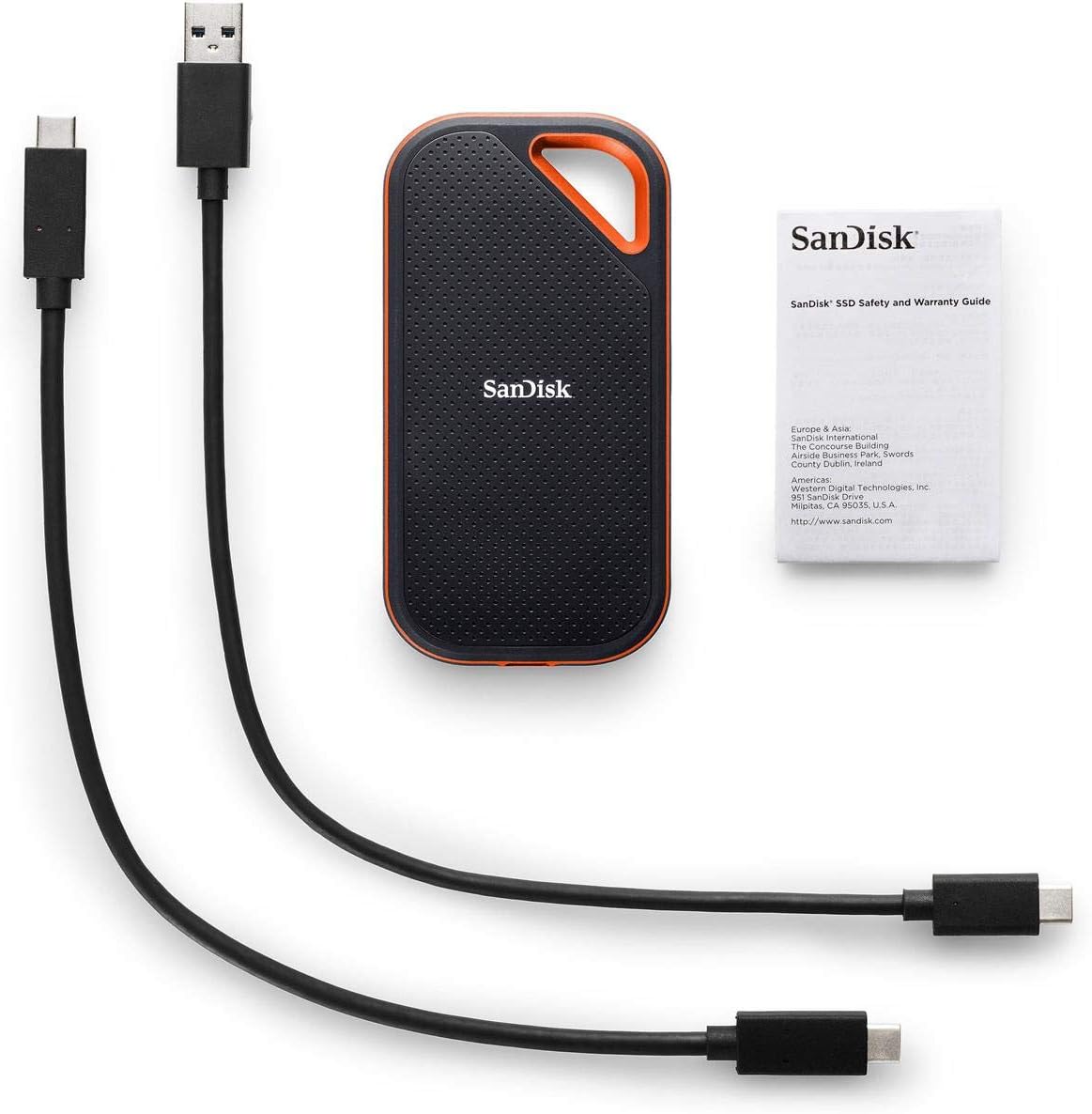
Image: Contents of the SanDisk Extreme PRO Portable SSD package, showing the SSD unit, two USB cables, and a small instruction booklet.
3. Product Overview
The SanDisk Extreme PRO Portable SSD features a compact and durable design. It is equipped with a USB-C port for connectivity and a ruggedized exterior for enhanced protection.

Image: Front view of the SanDisk Extreme PRO Portable SSD. The device has a dark gray, perforated top surface with an orange loop for attachment and an orange trim around its edges. The SanDisk logo is visible in the center.

Image: Diagram illustrating the physical dimensions of the SanDisk Extreme PRO Portable SSD. The length is approximately 4.40 inches, width 2.28 inches, and thickness 0.45 inches.
4. Setup
- Connect to your device: Use the included USB Type-C to Type-C cable to connect the SSD directly to a compatible USB-C port on your computer (PC or Mac). If your computer only has USB-A ports, use the provided USB Type-C to Type-A adapter with the USB Type-C cable.
- Initial Recognition: Upon first connection, your operating system should automatically detect the SanDisk Extreme PRO Portable SSD. It may appear as a new drive in 'My Computer' (Windows) or on the 'Desktop'/'Finder' (Mac).
- Formatting (Optional): The drive comes pre-formatted for general use. If you need to reformat the drive for specific operating system compatibility or partition requirements, refer to your operating system's disk management tools. Note: Formatting will erase all data on the drive.
5. Operating the SSD
The SanDisk Extreme PRO Portable SSD functions as a standard external storage device. Data transfer is performed by dragging and dropping files or using copy/paste functions.
- Data Transfer: Drag files and folders from your computer to the SSD icon or designated drive letter, or vice versa.
- Speed: The drive leverages NVMe technology for transfer speeds up to 1050MB/s (read speed). Actual speeds may vary based on host device, file size, and usage conditions.
- Compatibility: Compatible with PCs and Mac computers using USB Type-C and Type-A connections. No specific drivers are typically required for basic operation.
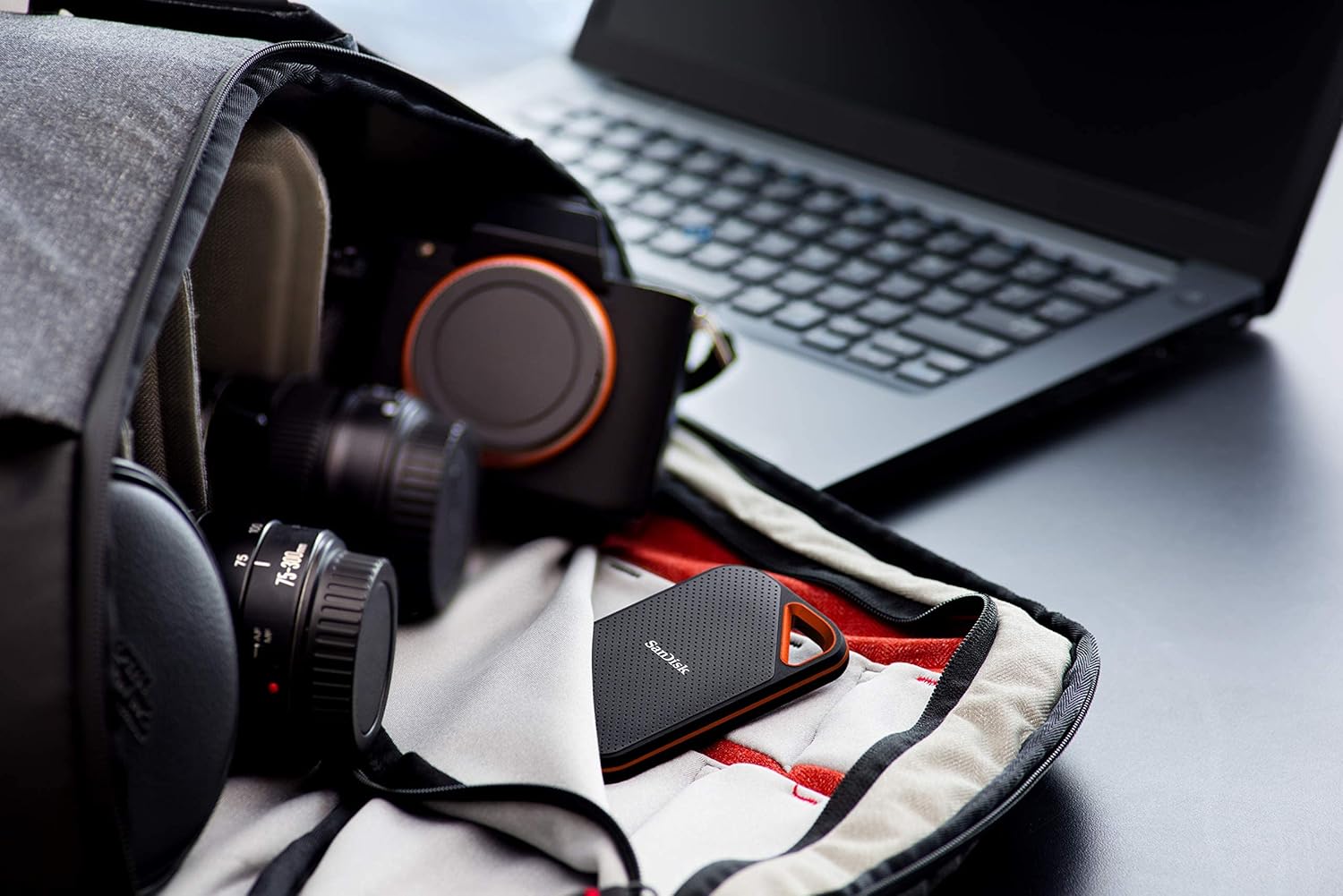
Image: The SanDisk Extreme PRO Portable SSD is shown nestled within a compartment of a camera bag, alongside a laptop and various camera lenses, illustrating its portability and suitability for creative professionals.
6. Maintenance
- Safe Removal: Always safely eject the SSD from your operating system before physically disconnecting it to prevent data corruption.
- Cleaning: Use a soft, dry cloth to clean the exterior of the SSD. Avoid liquid cleaners or abrasive materials.
- Environmental Protection: The drive is designed to be water- and dust-resistant (IP55 rated). Ensure the USB port is clean and dry before use. Avoid extreme temperatures and direct sunlight.
- Firmware Updates: Periodically check the official SanDisk website for any available firmware updates for your model to ensure optimal performance and compatibility.
7. Troubleshooting
| Problem | Possible Solution |
|---|---|
| Drive not recognized |
|
| Slow transfer speeds |
|
| Drive gets warm during use | This is normal during intensive data transfers. The forged aluminum body is designed to dissipate heat. Ensure adequate airflow around the device. |
8. Specifications
| Model Number | SDSSDE80-1T00-A25 |
| Capacity | 1TB |
| Interface | USB 3.1 (USB-C) |
| Read Speed | Up to 1050MB/s |
| Dimensions (LxWxH) | 4.34 x 2.26 x 0.4 inches (110.26 x 57.43 x 10.22 mm) |
| Weight | 1.6 ounces (45.36 grams) |
| Durability | IP55 water and dust resistance, up to 2-meter drop protection |
| Compatibility | Windows 10, Windows 8, Windows 7, Mac OS 10.9+ |
9. Warranty and Support
The SanDisk Extreme PRO Portable SSD comes with a Limited 5-Year Manufacturer Warranty. For detailed warranty terms, conditions, and to register your product, please visit the official SanDisk website.
For technical support, troubleshooting assistance, or to access additional resources, please refer to the support section of the SanDisk website or contact their customer service.
Official SanDisk Website: www.sandisk.com


