
1. Introduction and Overview
The SUNTRSI SD Card Reader is a versatile 2-in-1 device designed for seamless transfer of photos and videos from SD and Micro SD memory cards directly to your iPhone, iPad, and other compatible devices. This portable reader eliminates the need for a computer or third-party applications, offering a convenient plug-and-play solution for managing your media files on the go. It supports high-speed data transmission, ensuring quick and efficient file transfers.
2. Setup
Setting up your SUNTRSI SD Card Reader is straightforward due to its plug-and-play design. No drivers or additional software installations are required.
2.1 Inserting the Memory Card
Locate the appropriate slot on the card reader for your memory card. The reader features two distinct slots: one for standard SD cards and another for Micro SD (TF) cards. Gently insert your SD or Micro SD card into the corresponding slot until it clicks into place. Ensure the card is inserted correctly to avoid damage.

Figure 2.1: The card reader features dedicated slots for Micro SD (TF) and standard SD cards, supporting capacities up to 2TB.
2.2 Connecting to Your Device
Connect the card reader's Lightning connector to your iPhone or iPad. For USB-C compatible devices, use the integrated USB-C connector. After connecting, please allow approximately 5 seconds for your device to recognize the card reader.

Figure 2.2: The card reader connects directly to your device, enabling file transfer from various sources like digital cameras and drones.
3. Operating Instructions
The SUNTRSI SD Card Reader simplifies the process of transferring media files. Follow these steps to import your photos and videos:
3.1 Accessing Files on iOS Devices (iOS 13 and later)
- Insert the memory card into the card reader.
- Insert the card reader into your iPhone or iPad's Lightning port.
- Open the "Files" app on your iOS device.
- Navigate to "Untitled" or the recognized external storage device.
- Browse through the folders (e.g., DCIM, PRIVATE) to locate your photos and videos.
- Select the desired photos or videos you wish to import.
- Tap the "Share" icon (square with an arrow pointing up) and select "Save Items" or "Save Images/Videos" to transfer them to your device's Photos app.
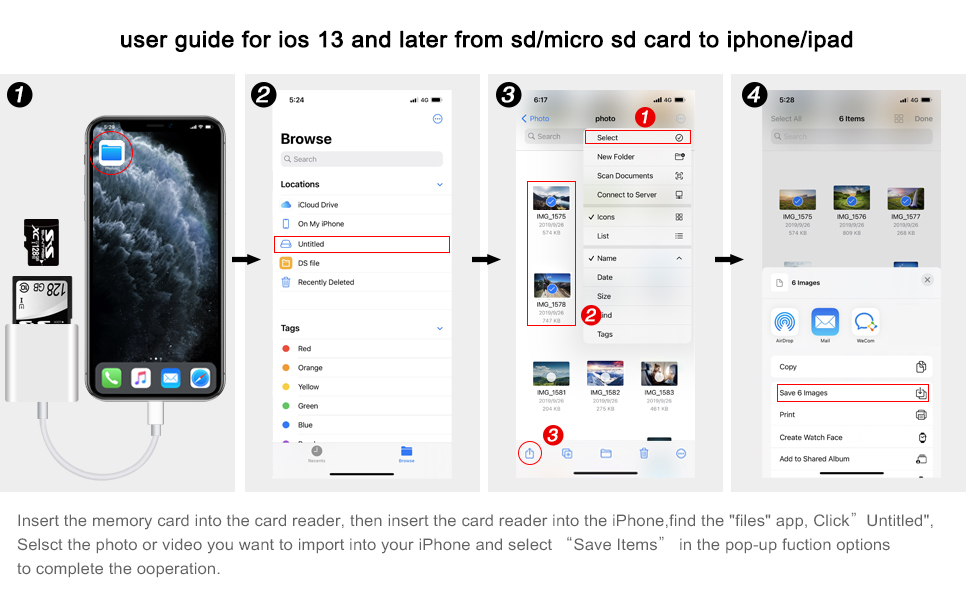
Figure 3.1: Detailed steps for importing media using the Files app on iOS 13 and later.
3.2 Data Transmission Speed
The card reader supports high-speed data transmission, with speeds ranging from 20MB/s to 30MB/s. This allows for rapid transfer of large photo and video files, significantly reducing waiting times.

Figure 3.2: Easily upload photos and videos from your camera to your iPhone for sharing and editing.
4. Key Features
- 2-in-1 Double Card Slot: Supports both standard SD and Micro SD (TF) memory cards, providing versatility for various devices.
- High-Speed Data Transmission: Achieves speeds of 20MB/s to 30MB/s, ensuring quick transfer of large files.
- Plug and Play Functionality: No external applications or computer required. Simply connect and access your files.
- Wide Capacity Support: Compatible with memory cards up to a maximum capacity of 2TB.
- Extensive Format Support: Supports standard photo formats including JPEG and RAW, and SD/HD video formats including H.264 and MPEG-4.
- Dual Connector Design: Features both a Lightning connector for iPhone 5-14 series and a USB-C connector for iPhone 15/16, iPad, MacBook, Mac computers, laptops, and Android devices.
5. Compatibility
The SUNTRSI SD Card Reader offers broad compatibility with a range of devices and operating systems:
- iOS Devices:
- All iPhone models with iOS 9.2 and up (e.g., iPhone SE, iPhone 5/5s/5c, iPhone 6/6 Plus, iPhone 6s/6s Plus, iPhone 7/7 Plus, iPhone 7s/7s Plus, iPhone 8/8 Plus, iPhone 8s/8s Plus, iPhone X/XS/XR, iPhone XS Max, iPhone 11, iPhone 11 Pro, iPhone 11 Pro Max, iPhone 12/mini/pro/max, iPhone 13/mini/pro/max, iPhone 14/Pro/Pro Max/Plus).
- All iPad models with iOS 8.0 or later (e.g., iPad mini/mini2, iPad mini 3/mini 4, iPad Air/Air 2, iPad Pro (12.9-inch), iPad Pro (9.7-inch), iPad Pro (10.5-inch), iPad (5th/6th/7th Generation)).
- USB-C iPhone 15 and 16 series.
- Other Devices:
- MacBook, Mac computers.
- Laptops.
- Android devices.

Figure 5.1: Universal compatibility with a wide range of Apple and Android devices.
6. Specifications
| Attribute | Detail |
|---|---|
| Brand | SUNTRSI |
| Model Number | reader-1RD |
| Operating System Compatibility | iOS (9.2 and up for iPhone, 8.0 or later for iPad), Android, macOS, Windows |
| Item Weight | 0.64 ounces |
| Product Dimensions (LxWxH) | 6.6 x 3.6 x 0.7 inches |
| Color | White |
| Media Type Supported | MicroSD, SD Card |
| Connectivity Technology | Secure Digital (SD), USB-C, Lightning |
| Max Capacity Support | 2TB |
| Supported Photo Formats | JPEG, RAW |
| Supported Video Formats | H.264, MPEG-4 |

Figure 6.1: Visual representation of product dimensions and iOS compatibility details.
7. Maintenance
To ensure the longevity and optimal performance of your SUNTRSI SD Card Reader, follow these simple maintenance guidelines:
- Keep Dry: Avoid exposing the device to moisture or liquids.
- Clean Gently: Use a soft, dry cloth to clean the exterior. Do not use harsh chemicals or abrasive materials.
- Protect Connectors: Keep the Lightning and USB-C connectors free from dust and debris. Use the provided caps or a small brush if necessary.
- Store Properly: When not in use, store the card reader in a cool, dry place, away from direct sunlight and extreme temperatures.
- Handle with Care: Avoid dropping the device or subjecting it to strong impacts.

Figure 7.1: The card reader is built with high-quality components for durability and reliable performance.
8. Troubleshooting
If you encounter any issues while using your SD Card Reader, refer to the following common troubleshooting tips:
- Device Not Recognized:
- Ensure the card reader is fully inserted into your device's port.
- Wait for approximately 5 seconds after connecting for the device to register.
- Try disconnecting and reconnecting the card reader.
- Restart your iPhone/iPad and try again.
- Ensure your iOS version meets the minimum requirements (iOS 9.2+ for iPhone, iOS 8.0+ for iPad).
- Files Not Appearing in Photos App (iOS 13+):
- For iOS 13 and later, photos and videos from the card reader will appear in the "Files" app, not automatically in the "Photos" app. Navigate to the "Files" app, then "On My iPhone" or "Untitled" to find your media.
- From the "Files" app, you can then manually save them to your "Photos" library.
- Slow Data Transfer:
- Ensure your memory card is not damaged or corrupted.
- Verify that the files are in supported formats (JPEG, RAW, H.264, MPEG-4).
- Large file sizes or a large number of files may naturally take longer to transfer.
- Memory Card Not Reading:
- Ensure the memory card is inserted correctly into the appropriate slot (SD or Micro SD).
- Check if the memory card is locked (some SD cards have a small lock switch on the side).
- Test the memory card with another device if possible to rule out card issues.
9. Warranty and Support
SUNTRSI is committed to providing innovative and valuable products, along with excellent customer service. We constantly refine and enhance our products to create a better user experience.
If you encounter any defects or issues with your product, please do not hesitate to contact us. We offer 24-hour after-sales service and will provide a satisfactory solution within 24 hours.
For support, please refer to the contact information provided with your purchase or visit the official SUNTRSI store online.

