
ROCCAT ROC-11-820-WE
ROCCAT Kone AIMO Remastered PC Gaming Mouse User Manual
Model: ROC-11-820-WE | Brand: ROCCAT
Introduction
The ROCCAT Kone AIMO Remastered PC Gaming Mouse is designed for precision and comfort, building upon the legacy of the Kone series. It features advanced optical sensing technology, customizable RGB lighting, and programmable buttons to enhance your gaming and productivity experience.
Product Features
- 5 Lighting Zones: Independently configurable lighting zones for customizable aesthetics and fluid transitions.
- Iconic Kone Ergonomics: Tried and tested shape with an improved thumb area for enhanced comfort and control.
- Evolutionary Performance Coating: Grippy, durable, and dirt-resistant hybrid anti-wear coating for a firm hold.
- 24 Button Functions: Versatile programming options, including Easy-Shift[+] for a total of 24 possible functions.
- ROCCAT Owl-Eye Sensor: 16,000 DPI optical sensor, adjustable in 1 DPI increments, offering sharp accuracy and tracking.
Setup Guide
1. Connecting Your Mouse
Connect the USB cable of your ROCCAT Kone AIMO Remastered mouse to an available USB port on your PC. The mouse is plug-and-play for basic functionality.

Figure 1: Top view of the ROCCAT Kone AIMO Remastered PC Gaming Mouse.
2. Software Installation (ROCCAT Swarm)
For full customization of lighting, button assignments, and DPI settings, download and install the ROCCAT Swarm software from the official ROCCAT website. The software is compatible with Windows 7 and newer operating systems.

Figure 2: The ROCCAT Kone AIMO mouse connected to a PC setup.
3. Initial Configuration
Once the software is installed, launch it to configure your mouse. You can adjust DPI sensitivity, program the 23 available button functions, and customize the AIMO intelligent RGB lighting across its 5 zones.
Video 1: Official ROCCAT video demonstrating the Kone AIMO Gaming Mouse's features and lighting.
Operating the Mouse
DPI Adjustment
The ROCCAT Owl-Eye optical sensor allows for precise DPI adjustments up to 16,000 DPI, configurable in 1 DPI increments. Use the dedicated DPI buttons located near the scroll wheel to cycle through preset DPI stages or customize them via the Swarm software.

Figure 3: Close-up of the mouse showing the scroll wheel and DPI adjustment buttons.
Programmable Buttons and Easy-Shift[+]
The Kone AIMO Remastered features 23 programmable functions. The lowermost of the three thumb buttons defaults to Easy-Shift[+], which allows you to assign a secondary function to almost every button on the mouse, effectively doubling your command power.
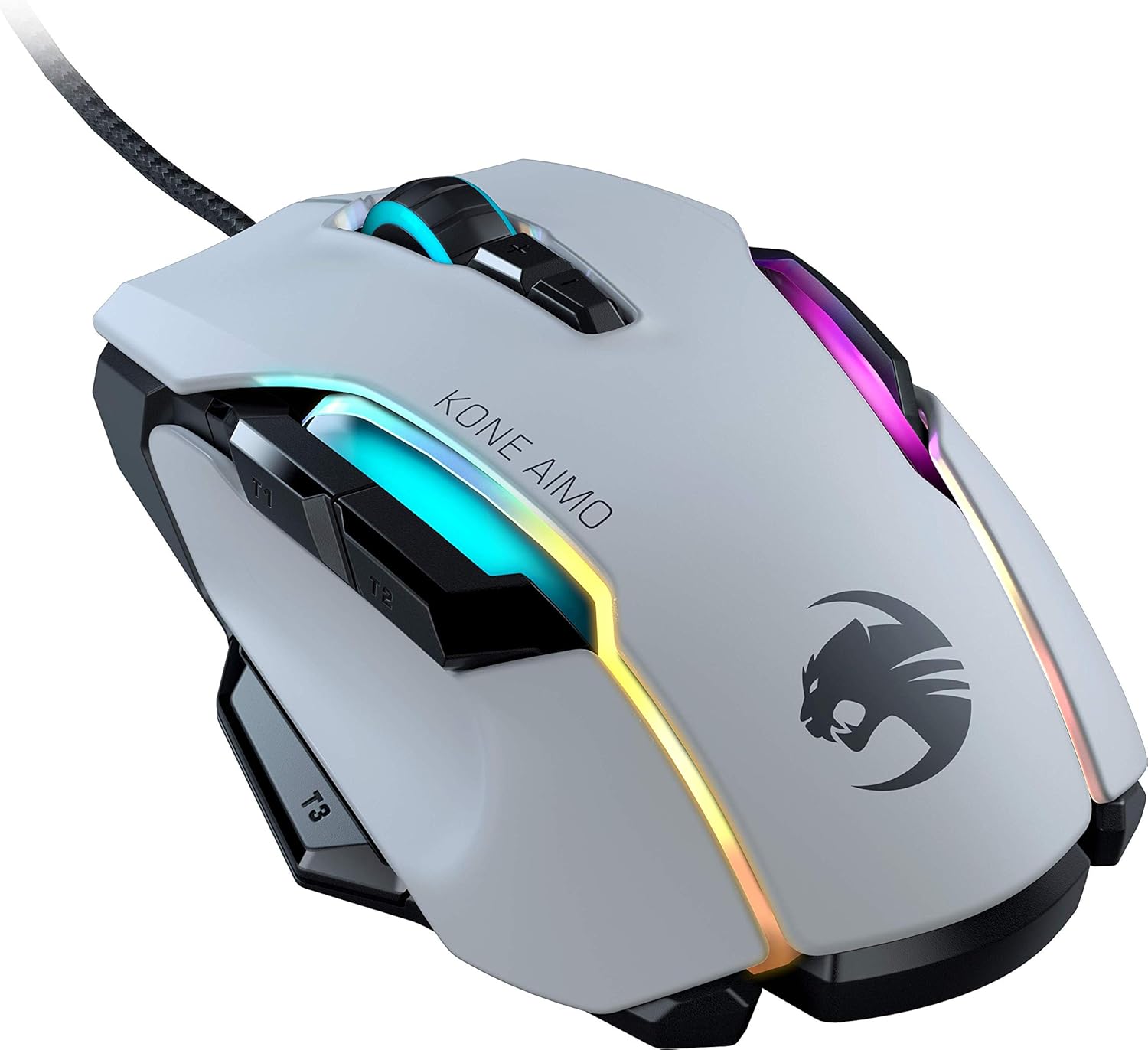
Figure 4: Side view highlighting the ergonomic thumb area and programmable buttons.
AIMO Intelligent Lighting
Experience dynamic RGB illumination with AIMO intelligent lighting. The mouse features five independently configurable lighting zones that synergize to create smooth and fluid lighting transitions, reacting to your gameplay and system.

Figure 5: The mouse showcasing its AIMO Intelligent Lighting capabilities.
Maintenance
To ensure the longevity and optimal performance of your ROCCAT Kone AIMO Remastered mouse, regular cleaning is recommended.
Cleaning
- Use a soft, dry, lint-free cloth to wipe down the surface of the mouse.
- For stubborn dirt or grime, slightly dampen the cloth with water. Avoid harsh chemicals or abrasive materials.
- The evolutionary performance coating is designed to be dirt-resistant, making cleaning easier.
Software Updates
Periodically check the ROCCAT Swarm software for firmware and software updates. Keeping your software up-to-date ensures you have the latest features and performance enhancements.
Troubleshooting
Mouse Not Responding
- Ensure the USB cable is securely connected to your PC. Try a different USB port.
- Restart your computer.
- If using a USB hub, try connecting the mouse directly to the PC.
Lighting Issues
- Verify that the ROCCAT Swarm software is running and that AIMO intelligent lighting is enabled.
- Check for any conflicting software that might be controlling RGB lighting.
- Ensure the mouse firmware is up to date.
Button or Scroll Wheel Malfunction
- Clean around the buttons and scroll wheel to remove any debris.
- Reset button assignments in the ROCCAT Swarm software to default settings to rule out configuration issues.
- Reinstall the ROCCAT Swarm software if problems persist.
Specifications
| Feature | Detail |
|---|---|
| Brand | ROCCAT |
| Model Number | ROC-11-820-WE |
| Connectivity Technology | Wired |
| Movement Detection Technology | Optical |
| Sensor | Owl-Eye Optical Sensor |
| Max DPI | 16,000 DPI |
| Programmable Buttons | 23 (with Easy-Shift[+]) |
| Lighting | AIMO Intelligent RGB (5 zones) |
| Ergonomics | Palm Grip |
| Item Weight | 4.6 ounces |
| Product Dimensions | 4.92 x 3.35 x 1.57 inches |
| Operating System | Windows 7 and newer |
Warranty and Support
For detailed warranty information and technical support, please visit the official ROCCAT website or contact their customer service. You can also find more information and resources on the ROCCAT Store on Amazon.
Related documentsROC-11-820-WE

Ask a question about this manual
Ask about setup, troubleshooting, compatibility, parts, safety, or missing instructions. Manuals+ will review the question and use this page’s manual context to help answer it.