
1. Overview
The VSN 48K Looper is a compact and durable electric guitar effect pedal designed for creating and managing audio loops. It offers up to 10 minutes of clear looping time with unlimited overdubbing capabilities. Featuring true bypass, a volume control knob, and USB connectivity for audio file transfer, this pedal is suitable for guitar, bass, ukulele, and violin.
2. Product Features
- Long Looping Time: Up to 10 minutes of clear looping with unlimited overdubbing.
- Functions: Includes Undo, Redo, and Delete functions for precise loop management.
- High-Quality Audio: 48Khz 24-bit uncompressed audio ensures fidelity.
- USB Connectivity: Easily import and export WAV audio files to and from a PC.
- Durable Construction: Made of high-quality zinc alloy for a solid, tiny, and sturdy body.
- Status Indication: An LED indicator shows the looper's current status.
- Volume Control: A dedicated knob for adjusting the output volume.
- True Bypass: Ensures your tone remains unaffected when the pedal is disengaged.
3. Product Diagram and Components

Figure 1: Top view of the VSN 48K Looper Pedal with labeled components.
- 2. LEVEL Knob: Adjusts the output volume of the loop playback.
- 3. LED Indicator: Shows the current status of the looper pedal (e.g., recording, playing, bypass).
- 6. USB Interface: Used for connecting the pedal to a computer for audio file transfer.
- 7. Power Adapter Jack: Connects to a DC 9V power supply (negative in the center).

Figure 2: Bottom view of the VSN 48K Looper Pedal with labeled components.
- 1. True Bypass Footswitch: Activates or deactivates the looper effect.
- 4. Input Jack: 1/4" mono audio jack for connecting your instrument (e.g., guitar).
- 5. Output Jack: 1/4" mono audio jack for connecting to an amplifier or other effects.
4. Setup
- Power Connection: Connect a DC 9V power adapter (negative in the center, not included) to the Power Adapter Jack (7). The LED indicator (3) will illuminate.
- Instrument Connection: Connect your instrument (e.g., guitar) to the Input Jack (4) using a 1/4" mono audio cable.
- Output Connection: Connect the Output Jack (5) to your amplifier or other effects pedals using a 1/4" mono audio cable.
- Volume Adjustment: Turn the LEVEL Knob (2) to the desired output volume.
Note: A 9V power adapter is required for operation and is not included with the pedal.
5. Operating Instructions
5.1 Basic Looping Functions
- Record: Press the footswitch once to start recording. The LED will turn red.
- Play: Press the footswitch once again to stop recording and start playing the loop. The LED will turn green.
- Overdub: While the loop is playing (green LED), press the footswitch once to start overdubbing. The LED will turn red, indicating you are recording a new layer over the existing loop. Press again to stop overdubbing and continue playing.
- Stop: Double-press the footswitch quickly to stop playback. The LED will blink green.
- Delete: While the loop is stopped (blinking green LED), press and hold the footswitch for 2 seconds to delete the current loop. The LED will flash red briefly, then turn off.
- Undo/Redo: While the loop is playing, press and hold the footswitch for 2 seconds to undo the last overdub. The LED will flash red. To redo, press and hold the footswitch for 2 seconds again.
- True Bypass: When the looper is stopped and no loop is stored, press the footswitch once to toggle between effect on (LED green) and bypass (LED off).
5.2 Adjusting Playback Volume
Use the LEVEL Knob (2) to adjust the output volume of the playing loop. Turn clockwise to increase volume and counter-clockwise to decrease it.
6. USB Connectivity (Import/Export Audio)
The VSN 48K Looper pedal allows you to transfer audio files to and from your computer via its USB port.
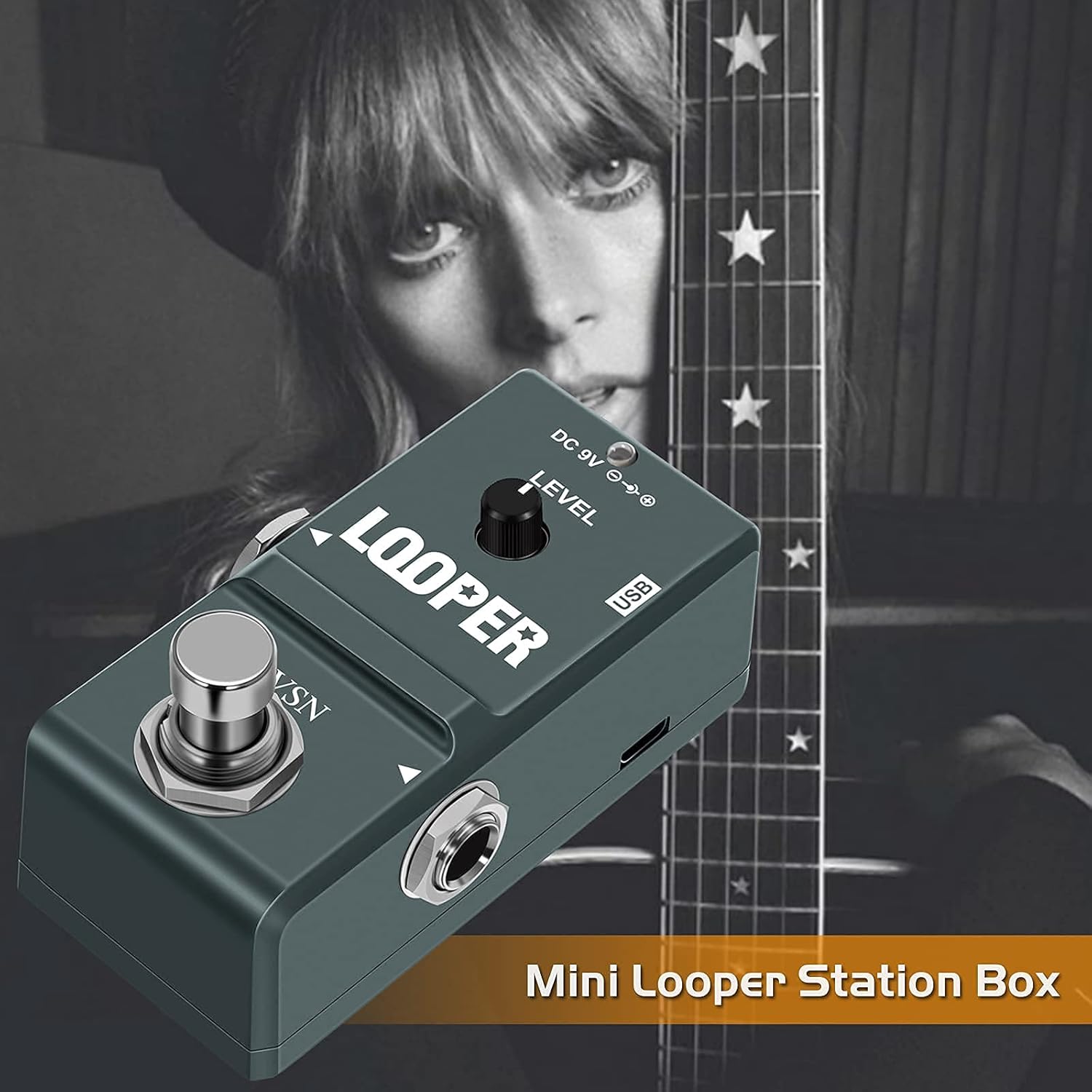
Figure 3: Connecting the looper pedal to a PC via USB.
- Power On: Ensure the looper pedal is connected to a 9V power supply.
- Save Mode: The looper must be in SAVE MODE (Green LED on, not blinking). If it's not, ensure no loop is currently playing or stopped.
- Connect to PC: Use the provided USB cable to connect the looper pedal's USB Interface (6) to your computer.
- File Transfer: The pedal will appear as a removable drive on your computer. You can then drag and drop WAV audio files to upload to the looper or download existing loops from it.
Important Note: Only WAV audio files can be uploaded to the looper from the computer.
7. Specifications
| Feature | Specification |
|---|---|
| Brand | VSN |
| Model Number | LN332 |
| Working Current | 22mA |
| Power Supply | DC 9V (negative in the center) |
| Looping Time | Up to 10 minutes |
| Overdubs | Unlimited |
| Audio Quality | 48Khz 24-bit uncompressed |
| Input Jack | 1/4" mono audio jack |
| Output Jack | 1/4" mono audio jack |
| Hardware Interface | USB |
| Item Weight | 0.2 Kilograms |
| Material | Zinc Alloy |
8. Care and Maintenance
- Cleaning: Use a soft, dry cloth to clean the pedal. Avoid using abrasive cleaners or solvents.
- Storage: Store the pedal in a cool, dry place away from direct sunlight and extreme temperatures.
- Handling: Handle the pedal with care to prevent damage to the jacks, knobs, and footswitch.
- Power: Always disconnect the power supply when the pedal is not in use for extended periods.
9. Troubleshooting
- No Power:
- Ensure the 9V DC power adapter is correctly connected and functioning.
- Verify the power outlet is active.
- No Sound:
- Check all audio cable connections (instrument to input, output to amplifier).
- Ensure the amplifier is on and its volume is up.
- Adjust the LEVEL Knob (2) on the looper pedal.
- Confirm the looper is not in bypass mode (LED off).
- Recording Issues:
- Ensure the LED turns red when you press the footswitch to record.
- Check instrument cable for proper connection.
- USB Transfer Problems:
- Ensure the looper is powered on and in SAVE MODE (green LED on, not blinking).
- Verify the USB cable is securely connected to both the pedal and the computer.
- Confirm that only WAV audio files are being transferred.
- Try a different USB port on your computer.
10. Warranty and Support
VSN products are manufactured to high-quality standards. For warranty information or technical support, please refer to the official VSN website or contact your local dealer. Keep your purchase receipt as proof of purchase may be required for warranty claims.