
Drone-Clone Xperts LIMITLESS 2
DRONE-CLONE XPERTS Drone X Pro LIMITLESS 2 User Manual
Model: LIMITLESS 2
Introduction
The DRONE-CLONE XPERTS Drone X Pro LIMITLESS 2 is a high-performance quadcopter designed for an exceptional flying and photography experience. Equipped with advanced features such as GPS Auto Return Home, 4K UHD Dual Camera, and Brushless Motors, it offers precise control and stunning aerial capabilities. This manual provides essential information for setting up, operating, and maintaining your LIMITLESS 2 drone.

Figure 1: DRONE-CLONE XPERTS Drone X Pro LIMITLESS 2 Quadcopter.
What's in the Box
Your LIMITLESS 2 package includes the following components:
- RC Quadcopter
- Remote Controller
- Remote Joystick
- Screwdriver
- Smart LED Lithium Battery
- USB Charging Cable
- Spare Propellers
- Spare Screws
- LIMITLESS Drone Instruction Manual

Figure 2: Included components of the LIMITLESS 2 drone package.
Setup
1. Drone Preparation
Unfold the Drone Arms: Carefully unfold all four arms of the quadcopter until they lock into place. Ensure they are fully extended and stable.

Figure 3: Drone with arms unfolded, ready for flight.
Battery Installation: Insert the Smart LED Lithium Battery into the designated compartment on the drone. Ensure it clicks securely into place. The battery features a drawer design for easy replacement.
Figure 4: Drawer battery with indicator for easy power check.
Gimbal Protector Removal: Before powering on the drone, gently remove the protective cover from the gimbal camera. Failure to do so may cause permanent damage to the gimbal during self-calibration.
2. Remote Controller Setup
Phone Holder: Extend the phone holder on the remote controller and securely place your smartphone. Ensure your phone is firmly seated to prevent it from falling during flight.

Figure 5: Remote Controller layout with phone holder.
3. Pairing and Calibration
Remote to Drone Pairing: Always turn on the remote controller first, then power on the drone. The remote will beep, and the drone's lights will flash as they attempt to pair. Pairing is successful when the remote display changes from "Mode 0" to "Mode 1" and the drone lights become solid.
Connect to WiFi and APP: For optimal control and access to advanced features, connect your smartphone to the drone's built-in WiFi network. Download the "HFUN Pro" app from your phone's app store. Once connected, open the app to view the live video feed and access flight controls.
Video 1: Instructions on how to connect your LIMITLESS 2 drone to WiFi and the mobile app.
Geomagnetic and Gyroscope Calibration: It is crucial to calibrate the drone before its first flight. This ensures accurate GPS positioning and stable flight. You can calibrate using the remote controller or, preferably, through the "HFUN Pro" app for a more user-friendly experience.
Important Note:
- You must first correct the geomagnetism and then the gyroscope. Otherwise, it will affect normal use.
- Do not touch the gimbal or obstacle avoidance equipment when the drone is powered on.
Video 2: Detailed instruction video for calibrating your LIMITLESS 2 drone.
Operating Instructions
1. Basic Flight Controls
Unlocking Motors: Push both joysticks down and outwards simultaneously to unlock the motors. The propellers will start spinning. Alternatively, use the unlock icon in the app.
One-Key Take-off/Landing: Press the dedicated one-key take-off button on the remote or in the app to automatically launch the drone to a safe altitude or land it gently.
Altitude and Direction Control: Use the left joystick to control altitude (up/down) and rotation (left/right). Use the right joystick to control forward/backward and left/right sideways movement.
Speed Settings: The drone has multiple speed settings. Start with low speed for beginners and switch to higher speeds as you gain experience.
2. Advanced Flight Modes
GPS Auto Return Home (RTH): The LIMITLESS 2 features a precise GPS system. With one press of a button, the drone will return to its exact take-off location. This feature also activates automatically in case of low battery or loss of signal, ensuring your quadcopter's safety.

Figure 6: GPS Auto Return Home in action, showing return paths for low battery or signal loss.
Follow Me Mode: In this intelligent flight mode, the drone will automatically follow your movements, keeping you centered in the frame and recording your activities. Ensure your smartphone's GPS is active for this feature.

Figure 7: Visual representation of Follow Me Mode and Way Point Flight.
Waypoint Flight: Plan your flight path by setting multiple waypoints on the app's map. The drone will autonomously fly along the preset route, allowing you to focus on capturing footage.
Point of Interest (POI): Set a desired subject as a point of interest, and the drone will orbit around it, keeping the subject centered in the camera frame for dynamic shots.
Gesture Control: Use simple hand gestures in front of the drone's camera to trigger photo or video recording. Refer to the app for specific gesture commands.

Figure 8: Icons representing various intelligent flight modes including Gesture Control.
Obstacle Avoidance: The drone is equipped with an obstacle avoidance sensor for added safety. This feature works best in low-speed settings. In high-speed mode, the drone may alert you but might not stop in time to avoid a collision.

Figure 9: Drone with obstacle avoidance sensor visible.
3. Camera Operation
4K UHD Dual Camera: The LIMITLESS 2 features a dual-camera system allowing you to capture photos and videos in stunning 4K Ultra-HD resolution from various angles. You can record from both cameras simultaneously with split-screen filming or switch between front and bottom cameras.
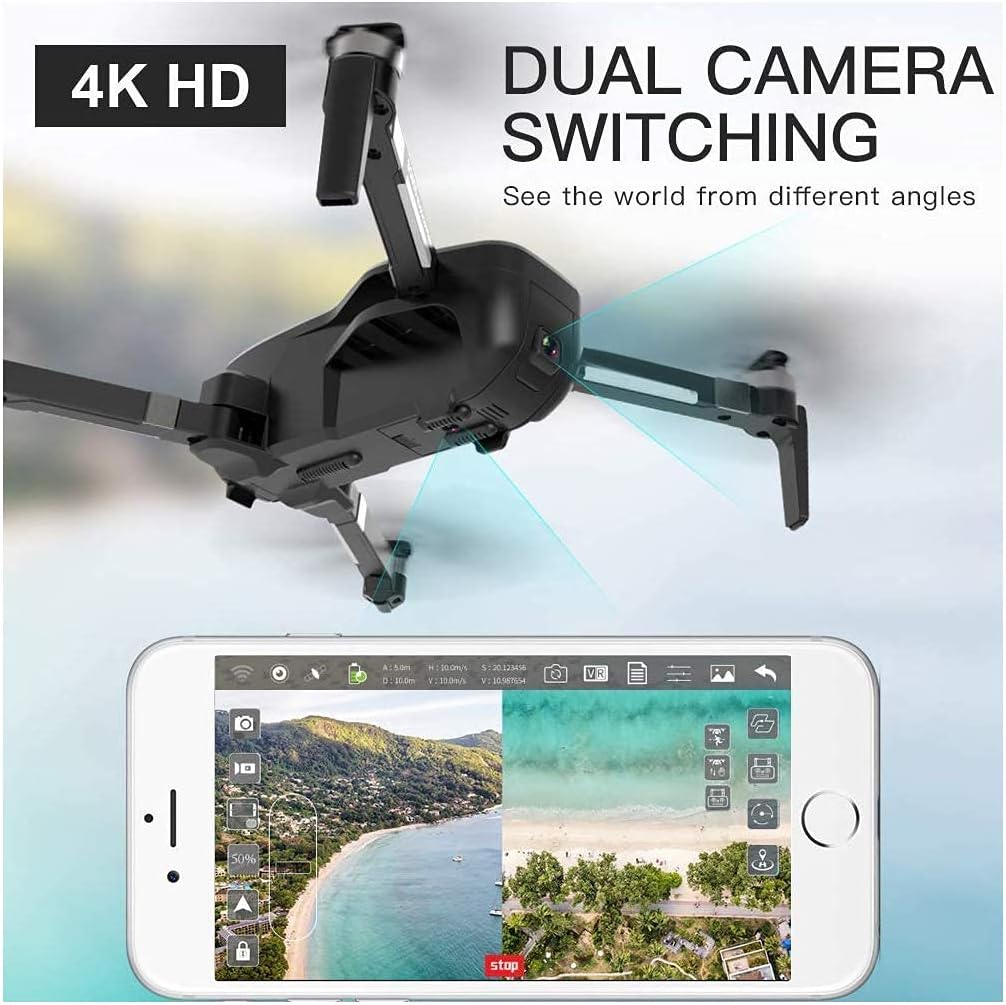
Figure 10: Dual Camera Switching interface on the app.
Gimbal Camera: The integrated gimbal keeps the camera steady at all times, regardless of drone movement, ensuring extremely smooth, professional-grade video filming and photography.
Photo/Video Storage: All pictures and videos are instantly and wirelessly transferred and stored directly on your smartphone's photo album. You can also use a MicroSD card (not included) for additional storage directly on the drone.
Maintenance
Battery Charging: Use the provided USB charging cable to charge the Smart LED Lithium Battery. The battery has LED indicators to show its charging status. Ensure the battery is fully charged before each flight for optimal performance (approx. 25 minutes flight time per charge).
Propeller Replacement: In case of damage, replace propellers using the spare propellers and screwdriver provided. Ensure you match the 'A' and 'B' labeled propellers to their corresponding arms on the drone.
General Care: Keep the drone clean and free from dust and debris. Store it in its carrying case in a cool, dry place when not in use.
Troubleshooting
Drone Not Taking Off: Ensure the drone is properly calibrated (geomagnetic and gyroscope). Verify that you have sufficient GPS satellites (8-10) if flying in GPS mode. Motors must be unlocked before attempting take-off.
Unstable Flight: Recalibrate the drone's gyroscope and gimbal. Check for any damaged propellers and replace them if necessary.
Signal Loss/Low Battery: The drone's GPS Auto Return Home feature should activate automatically. Ensure you are flying within the 1200m control range.
Camera Issues: Ensure the gimbal protector is removed. Check the app settings for dual camera switching or other camera modes.
Specifications
| Feature | Detail |
|---|---|
| Brand | Drone-Clone Xperts |
| Model Name | X Pro (LIMITLESS 2) |
| Video Capture Resolution | 4K UHD 2160p |
| Effective Still Resolution | 4000000 Pixels |
| Connectivity Technology | Wi-Fi |
| Flight Time | 25 Mins (per battery) |
| Maximum Range | 1200 Meters |
| Battery Capacity | 2800 Milliamp Hours |
| Item Weight | 0.16 Kilograms (5.6 ounces) |
| Skill Level | Intermediate |
FAA Registration Information
For safe and legal operation, it is important to understand FAA regulations regarding drone registration. The LIMITLESS 2 drone may require registration depending on its weight and intended use.
Video 3: Quick and easy instructions for FAA drone registration.
For more detailed information, please visit the official FAA DroneZone website or consult the provided FAA documentation.
Support
For any questions, technical support, or warranty inquiries regarding your DRONE-CLONE XPERTS Drone X Pro LIMITLESS 2, please visit the official Drone-Clone Xperts website or contact their customer service directly.
You can also visit the Drone-Clone Xperts Store on Amazon for additional product information and accessories.
Related documentsLIMITLESS 2


Ask a question about this manual
Ask about setup, troubleshooting, compatibility, parts, safety, or missing instructions. Manuals+ will review the question and use this page’s manual context to help answer it.