
Introduction
This manual provides essential instructions for the safe and efficient use of your MoKo Smart LED Light Bulb. This smart bulb offers customizable lighting with 16 million colors, adjustable brightness and color temperature, and convenient control via app or voice assistants like Alexa and Google Home. It operates on a 2.4GHz Wi-Fi network and does not require a separate hub.
Safety Information
- Ensure the power is off before installing or removing the bulb.
- Do not use in fully enclosed fixtures as this may shorten bulb life.
- Not suitable for dimmers other than those controlled by the app or voice assistant.
- Avoid exposing the bulb to water or high humidity.
- This device is for indoor use only.
Package Contents
- MoKo Smart LED Light Bulb (BR30, E26 Base) x 1
- User Manual x 1
Specifications
| Product Dimensions | 14.48 x 10.16 x 10.16 cm |
| Item Weight | 153.09 g (5.4 Ounces) |
| Bulb Shape Size | BR30 |
| Bulb Base | E26 |
| Wattage | 9 Watts |
| Light Type | LED |
| Light Color | Multicolor (RGB), Warm White, Cool White |
| Special Feature | Dimmable |
| Connectivity Technology | Wi-Fi (2.4GHz only) |
| Control Method | App, Voice (Alexa, Google Home, SmartThings) |
Setup
- Install the Bulb: Screw the MoKo Smart LED Light Bulb into a standard E26 light socket. Ensure the power to the fixture is turned off before installation.
- Download the App: Download the "Smart Life" app from the App Store (iOS) or Google Play Store (Android).
- Register/Log In: Open the "Smart Life" app and register for a new account or log in if you already have one.
- Prepare for Pairing: Turn the light switch ON. The bulb should begin to blink rapidly. If it does not blink, manually turn the light switch OFF and ON repeatedly (typically 3-5 times) until the bulb starts blinking rapidly. This indicates it is in pairing mode.
- Add Device in App: In the "Smart Life" app, tap the "+" icon in the top right corner to add a device. Select "Lighting" > "Light Source (Wi-Fi)".
- Connect to Wi-Fi: Confirm the bulb is blinking rapidly. Enter your 2.4GHz Wi-Fi network password. Note: The bulb only supports 2.4GHz Wi-Fi networks; 5GHz networks are not compatible.
- Pairing: The app will begin connecting to the bulb. Once connected, you can rename the bulb for easier control.
- Integrate with Voice Assistants (Optional):
- For Amazon Alexa: Open the Alexa app, go to "Skills & Games," search for "Smart Life," enable the skill, and link your Smart Life account. Then, discover devices.
- For Google Home: Open the Google Home app, tap "+" > "Set up device" > "Works with Google," search for "Smart Life," link your account, and assign the bulb to a room.
- For SmartThings: Open the SmartThings app, tap "+" > "Device," search for "Smart Life," and follow the on-screen instructions to connect.

Image: Overview of MoKo Smart LED Light Bulb features, including color options, connectivity, and control methods.
Operating Instructions
1. App Control
- Turn On/Off: Tap the bulb icon in the Smart Life app to toggle power.
- Dimming: Adjust the brightness slider within the app to set the desired light intensity.
- Color Change: Select from 16 million colors using the color wheel or preset scenes.
- Color Temperature: Adjust the white light from warm (2000K) to cool (6500K).
- Scheduling: Set schedules for the bulb to automatically turn on/off at specific times, or to change modes.
- Group Control: Create groups of multiple MoKo smart bulbs to control them simultaneously.
- Device Sharing: Share control of the bulb with family members through the app.
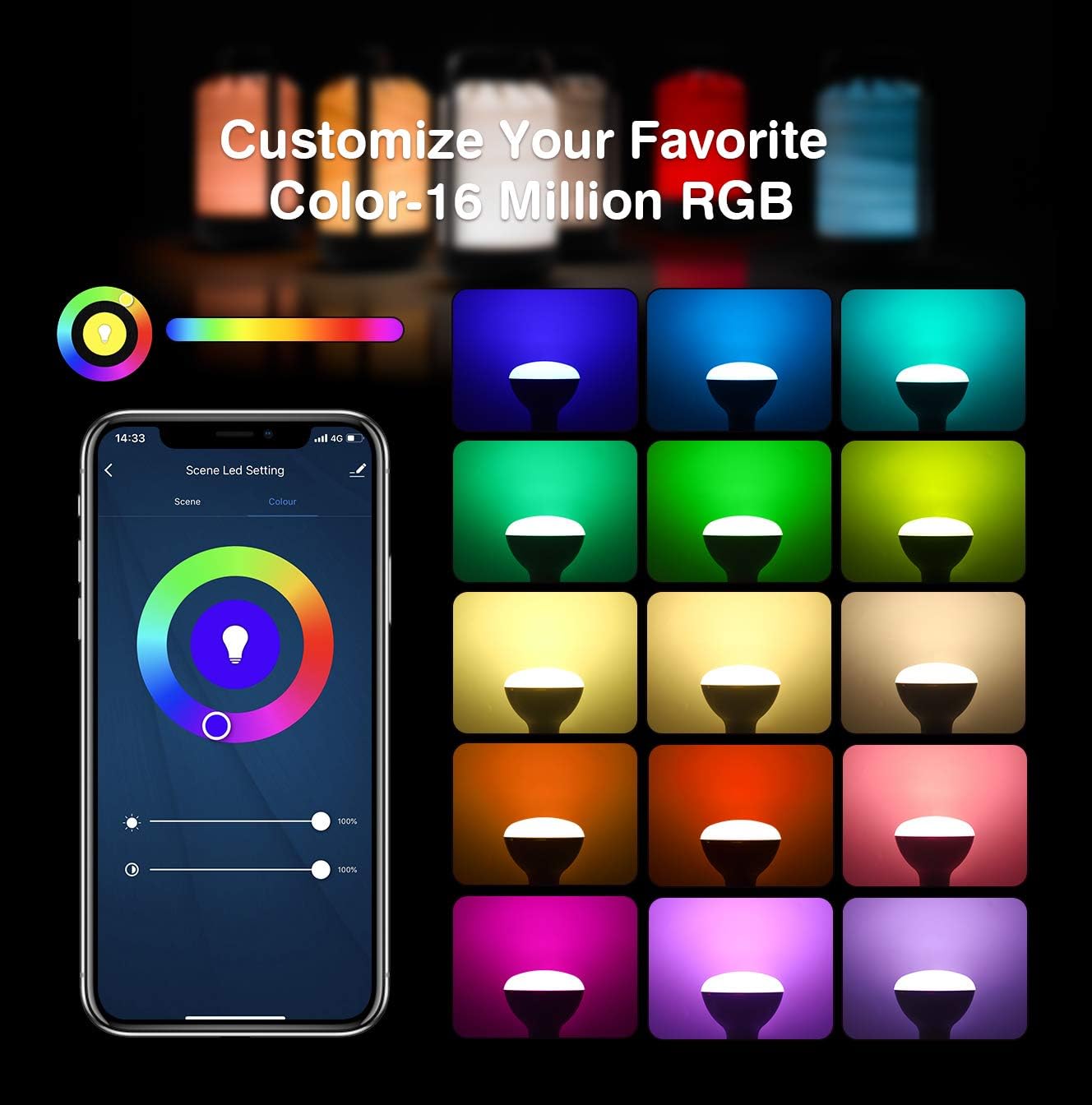
Image: App interface for customizing light color and brightness.

Image: App interface for adjusting color temperature and stepless dimming.
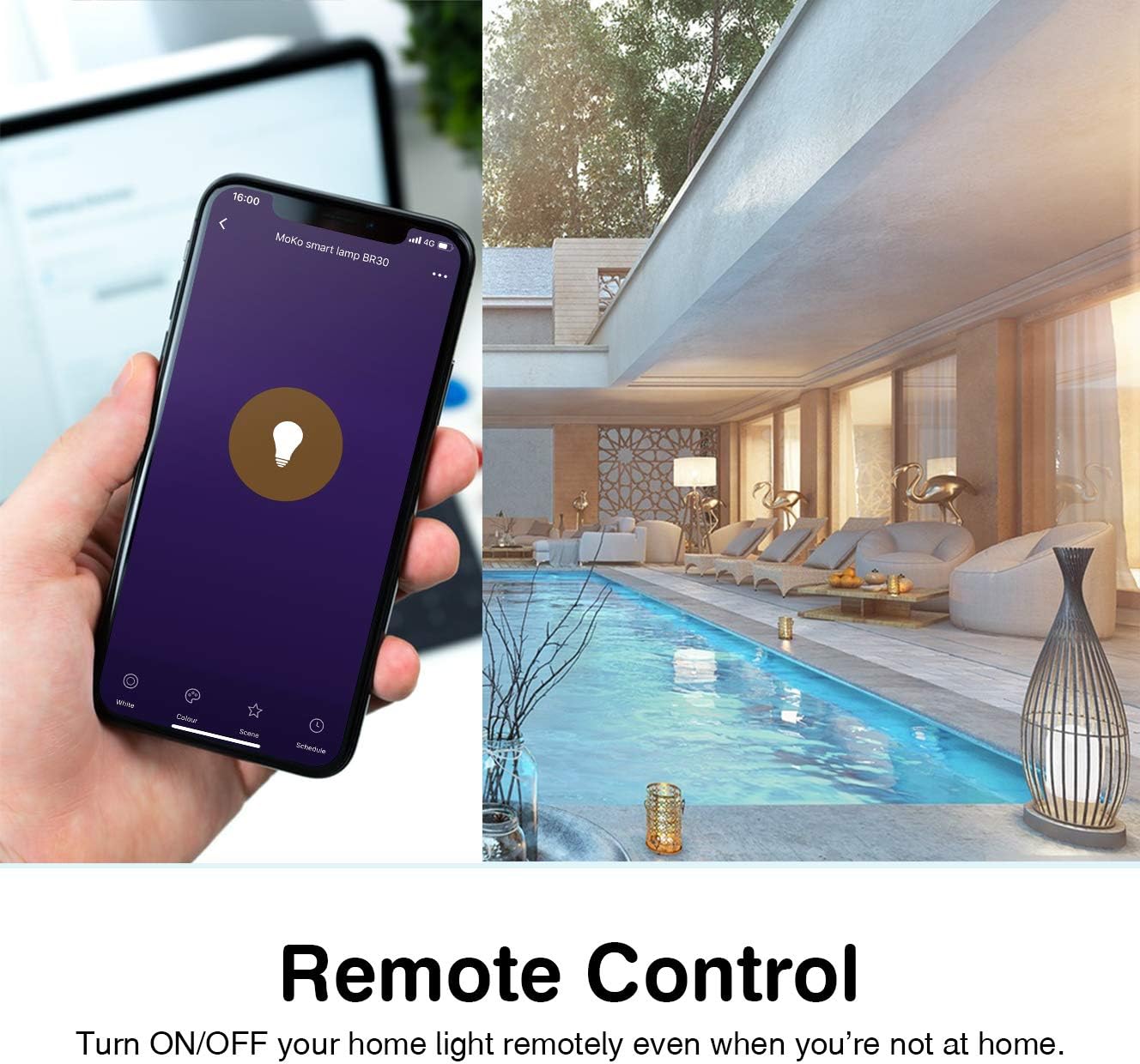
Image: Remote control functionality via the Smart Life app.

Image: Timing management and scheduling features.
2. Voice Control
Once integrated with Amazon Alexa or Google Assistant, you can control your bulb using voice commands. Ensure your voice assistant device is connected to the same Wi-Fi network as your smart bulb.
- "Alexa, turn on the [Bulb Name]."
- "Hey Google, dim the [Bulb Name] to 50%."
- "Alexa, set [Bulb Name] to blue."
- "Hey Google, change [Bulb Name] to warm white."

Image: Voice control integration with Amazon Alexa and Google Assistant.
3. Group Control and Device Sharing
The Smart Life app allows you to group multiple bulbs for simultaneous control and share access with other users.
- Group Control: In the app, select multiple bulbs and create a group. You can then control the entire group with a single command or tap.
- Device Sharing: Navigate to the device settings in the app and select "Share Device" to invite family members to control the bulb.
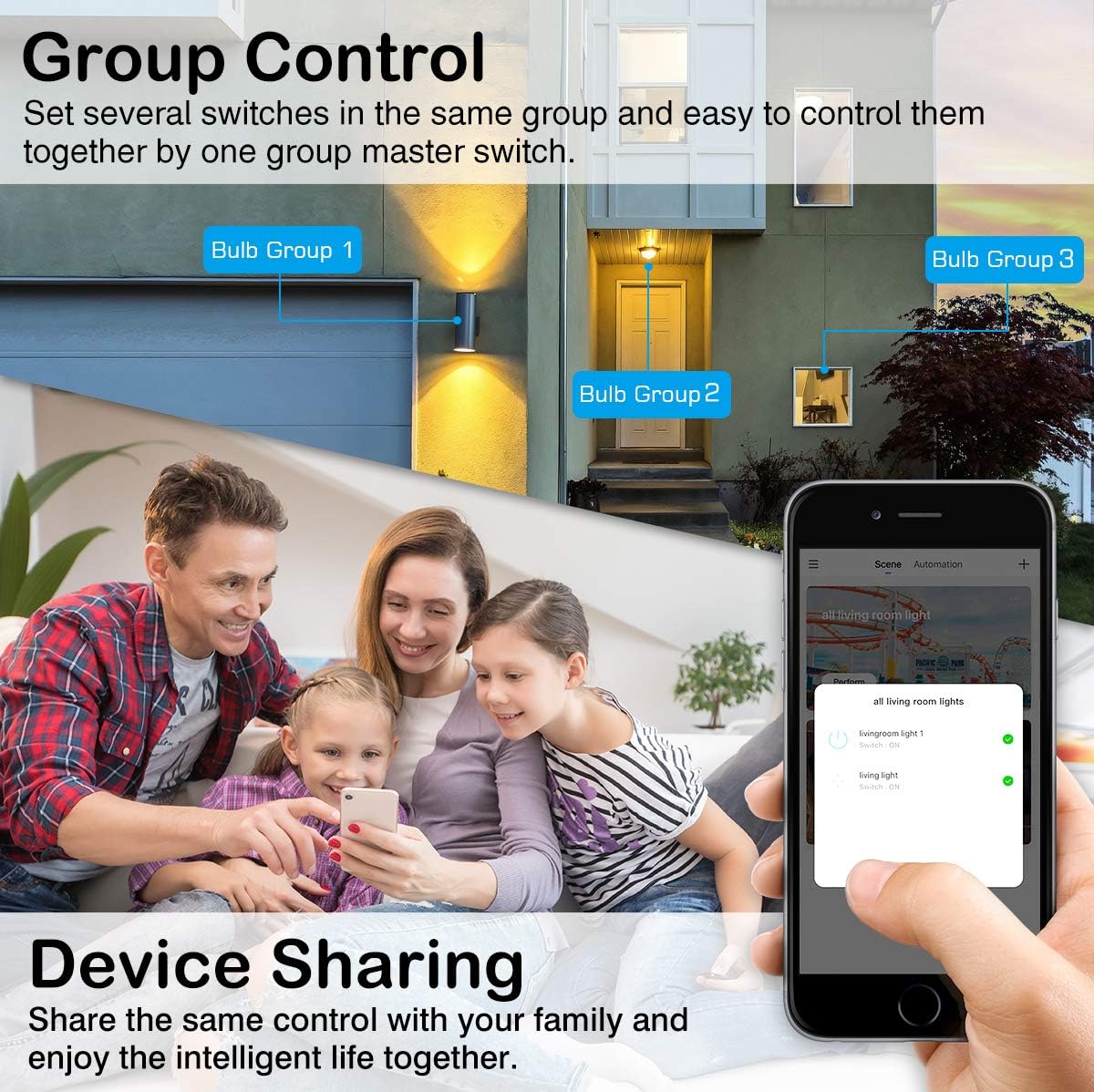
Image: Group control and device sharing features.
Maintenance
- Cleaning: Ensure the bulb is off and cool before cleaning. Wipe with a soft, dry cloth. Do not use liquid cleaners.
- Firmware Updates: Periodically check the Smart Life app for available firmware updates to ensure optimal performance and security.
- Storage: If storing the bulb for an extended period, keep it in a cool, dry place away from direct sunlight.
Troubleshooting
- Bulb not blinking for setup: Manually turn the light switch OFF and ON 3-5 times until the bulb starts blinking rapidly. This puts it into pairing mode.
- Cannot connect to Wi-Fi:
- Ensure your Wi-Fi network is 2.4GHz. The bulb does not support 5GHz networks.
- Check your Wi-Fi password for accuracy.
- Move the bulb closer to your Wi-Fi router during setup.
- Restart your router and try the pairing process again.
- Bulb loses connection:
- Verify your 2.4GHz Wi-Fi network is stable and active.
- Ensure the bulb is within range of your Wi-Fi router.
- Check for any obstructions or interference that might affect the Wi-Fi signal.
- Try resetting the bulb (turn OFF/ON 3-5 times) and re-pairing it with the app.
- Voice control not working:
- Ensure the Smart Life skill/service is enabled and linked correctly in your Alexa or Google Home app.
- Verify the bulb's name in the Smart Life app matches the name you are using for voice commands.
- Ensure your voice assistant device is online and connected to the same network.
- Colors or brightness not responding:
- Check the app for any error messages or connection issues.
- Ensure the bulb is powered on and connected to Wi-Fi.
- Try closing and reopening the Smart Life app.
Warranty and Support
For warranty information or technical support, please refer to the contact details provided on the product packaging or the official MoKo website. Keep your purchase receipt as proof of purchase.