1. Introduction
The Dragonwar G22 Lancer is a high-performance optical gaming mouse designed for precision and customization. It features an ergonomic design, 7 programmable buttons, and a 7000 DPI optical sensor, providing gamers with enhanced control and accuracy. This manual provides detailed instructions for setting up, operating, and maintaining your Dragonwar G22 Lancer gaming mouse.

Figure 1.1: Dragonwar G22 Lancer Gaming Mouse
2. Key Features
- Ergonomic Design: Engineered for comfort during extended gaming sessions.
- 7 Control Buttons: Optimize your gameplay with customizable button assignments.
- 7000 DPI Precision Mode: High-resolution optical sensor for accurate tracking and movement.
- Adjustable Weight System: Customize the mouse's weight for personalized feel and control.
- Wired Connectivity: Reliable and responsive connection with a nearly two-meter cable.
- RGB Lighting: Customizable lighting effects for aesthetic appeal.
3. Package Contents
- Dragonwar G22 Lancer Gaming Mouse
- Adjustable Weight Set (pre-installed or separate)
- User Manual (this document)
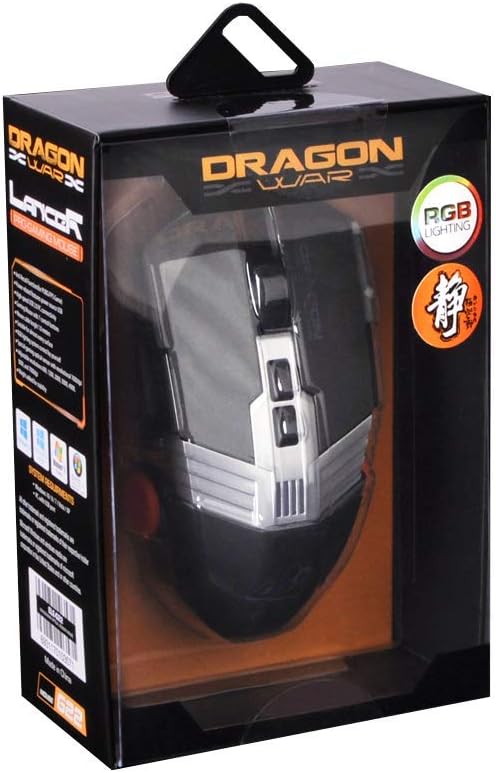
Figure 3.1: Top view of the Dragonwar G22 Lancer Gaming Mouse
4. Setup
- Connect the Mouse: Plug the USB connector of the Dragonwar G22 Lancer mouse into an available USB port on your computer. The mouse is plug-and-play compatible with most operating systems (Windows XP, Linux).
- Driver Installation (Optional): While the mouse functions as a standard HID device, for full customization of buttons, DPI settings, and RGB lighting, it is recommended to download and install the official Dragonwar software from the manufacturer's website. Follow the on-screen instructions during installation.
- Initial Test: Once connected, move the mouse to ensure the cursor responds on your screen. The RGB lighting should illuminate.
5. Operating Instructions
5.1 Button Functions
The Dragonwar G22 Lancer features 7 control buttons. Their default functions are as follows, but can be customized via the Dragonwar software:
- Left Click: Primary action.
- Right Click: Secondary action/context menu.
- Scroll Wheel (Click): Middle click, often used for opening links in new tabs or specific game functions.
- Scroll Wheel (Up/Down): Scrolling content.
- DPI Cycle Button (behind scroll wheel): Cycles through preset DPI levels.
- Side Buttons (Forward/Backward): Typically used for navigation in web browsers or assigned to in-game actions.

Figure 5.1: Detail of Scroll Wheel and Side Buttons
5.2 DPI Adjustment
The mouse supports up to 7000 DPI. Use the dedicated DPI cycle button located behind the scroll wheel to switch between different sensitivity levels. Each press will cycle to the next preset DPI, allowing you to quickly adjust cursor speed for different tasks or game scenarios.
5.3 RGB Lighting
The Dragonwar G22 Lancer features customizable RGB lighting. Lighting modes and colors can be configured through the Dragonwar software, allowing you to personalize the mouse's appearance to match your setup or mood.
6. Customization: Adjustable Weight System
The Lancer mouse includes an adjustable weight system to fine-tune its feel and balance. This allows you to add or remove small weights to achieve your preferred mouse weight for optimal control and comfort.
- Locate Weight Compartment: The weight compartment is typically located on the underside of the mouse. Refer to Figure 6.1 for its approximate location.
- Open Compartment: Gently open the cover of the weight compartment.
- Add/Remove Weights: Insert or remove the small metal weights as desired. Experiment with different configurations to find the balance that suits your grip and play style.
- Close Compartment: Securely close the weight compartment cover after making adjustments.

Figure 6.1: Adjustable Weight System Components
7. Maintenance
- Cleaning: Use a soft, dry cloth to wipe the surface of the mouse. For stubborn dirt, slightly dampen the cloth with water. Avoid using harsh chemicals or abrasive materials.
- Sensor Care: Keep the optical sensor on the underside of the mouse clean and free from dust or debris to ensure accurate tracking.
- Cable Management: Avoid sharp bends or excessive pulling on the mouse cable to prevent damage.
8. Troubleshooting
- Mouse Not Responding:
- Ensure the USB cable is securely plugged into a working USB port.
- Try a different USB port on your computer.
- Restart your computer. - Cursor Movement is Erratic:
- Clean the optical sensor on the underside of the mouse.
- Ensure you are using the mouse on a suitable surface (e.g., a mouse pad, not highly reflective surfaces).
- Check DPI settings; a very high DPI might feel erratic if you are not used to it. - Buttons Not Working:
- Ensure the Dragonwar software is installed correctly if you have customized button functions.
- Try resetting the mouse to factory defaults via the software, if available. - RGB Lighting Not Working:
- Check the lighting settings within the Dragonwar software.
9. Specifications
| Feature | Specification |
|---|---|
| Brand | Dragonwar |
| Model Series | G22 LANCER |
| Item Model Number | 6931170103571 |
| Movement Detection Technology | Optical |
| DPI | Up to 7000 DPI |
| Number of Buttons | 7 |
| Connectivity Technology | Wired |
| Cable Length | Approx. 2 meters |
| Operating System Compatibility | Linux, Windows XP (and newer versions) |
| Color | Black |
| Product Dimensions (L x W x H) | 19.4 x 7.7 x 36 cm |
| Item Weight | 248 g |
10. Warranty and Support
For warranty information and technical support, please refer to the official Dragonwar website or contact their customer service. Keep your purchase receipt as proof of purchase for warranty claims.
Online Support: Visit the official Dragonwar website for FAQs, driver downloads, and contact information.
