
AULA SI-9008
AULA SI-9008 Gaming Mouse User Manual
Model: SI-9008
1. Introduction
Thank you for choosing the AULA SI-9008 7 Buttons USB Wired Optical Gaming Mouse. This manual will guide you through the features, setup, and operation of your new gaming mouse, designed for enhanced gaming performance and comfort. Its ergonomic design and customizable features provide a superior user experience.

Figure 1.1: The AULA SI-9008 Gaming Mouse, showcasing its ergonomic design and illuminated logo and lines.
2. Package Contents
- AULA SI-9008 Gaming Mouse
- User Manual (this document)
3. Setup
The AULA SI-9008 mouse is a plug-and-play device, requiring no additional drivers for basic functionality on most operating systems.
3.1 Connecting the Mouse
- Locate an available USB port on your computer.
- Insert the USB connector of the AULA SI-9008 mouse firmly into the USB port.
- The mouse will be automatically detected by your operating system. Allow a few moments for the system to install necessary generic drivers.
3.2 Initial Use
Once connected, the mouse's illuminated logo and lines will light up, indicating it is powered on and ready for use. You can immediately begin using the mouse for navigation and basic functions.

Figure 3.1: Top-down view of the AULA SI-9008 Gaming Mouse, showing the scroll wheel and DPI button.
4. Operating Instructions
The AULA SI-9008 features 7 programmable buttons and adjustable DPI settings for a customized gaming experience.
4.1 Button Functions
The mouse features 7 buttons, including the standard left/right click, scroll wheel click, and additional side buttons. These buttons are fully programmable, allowing users to assign different functions and macros to enhance gameplay. Specific programming instructions may require dedicated software, typically available from the manufacturer's website.
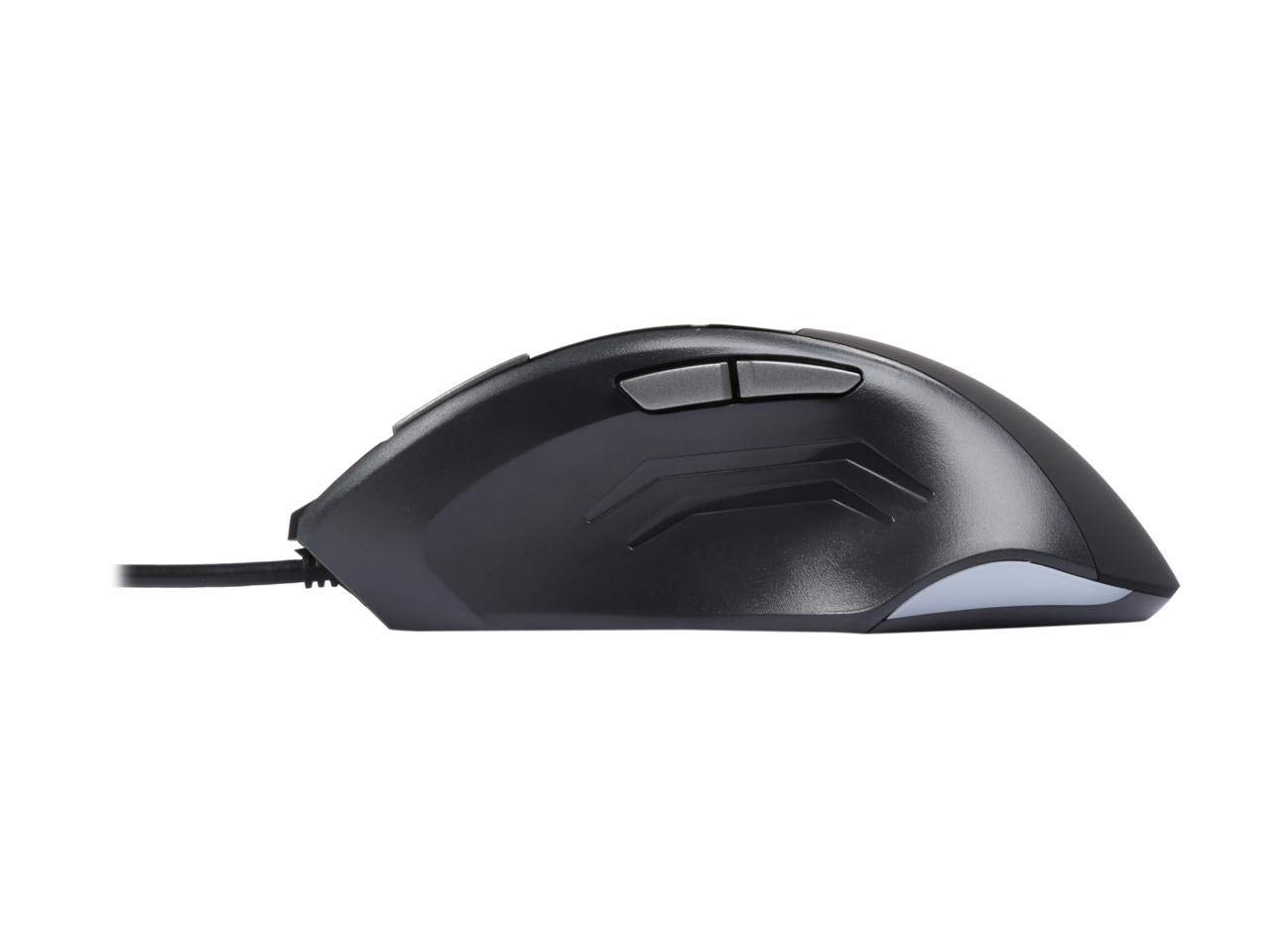
Figure 4.1: Side view of the AULA SI-9008 Gaming Mouse, highlighting the two programmable thumb buttons.
4.2 DPI Adjustment
The mouse offers 6 adjustable DPI (Dots Per Inch) settings, allowing you to change cursor sensitivity on the fly. Each DPI setting is indicated by a different color LED light.
- DPI Levels: 500, 1500 (default), 2000, 2500, 3000, 4000.
- To cycle through DPI settings, press the dedicated DPI button, usually located behind the scroll wheel.
- The LED indicator light will change color to reflect the current DPI setting.
4.3 Illuminated Logo and Lighting Effects
The AULA SI-9008 features an illuminated logo and accent lines that can display seven different lighting colors. The lighting can be set to a single static color or a breathing (pulsating) effect. Control over these lighting effects is typically managed through the mouse's software, if available.

Figure 4.2: Angled view of the AULA SI-9008 Gaming Mouse, showing the overall shape and subtle lighting elements.
5. Maintenance
Proper maintenance ensures the longevity and optimal performance of your AULA SI-9008 gaming mouse.
5.1 Cleaning
- Disconnect the mouse from your computer before cleaning.
- Use a soft, dry, lint-free cloth to wipe the surface of the mouse.
- For stubborn dirt, slightly dampen the cloth with water or a mild, non-abrasive cleaning solution. Avoid excessive moisture.
- Use a cotton swab or compressed air to clean around the scroll wheel and button crevices.
- Do not use harsh chemicals, abrasive cleaners, or immerse the mouse in water.
5.2 Storage
When not in use, store the mouse in a clean, dry environment away from direct sunlight and extreme temperatures.
6. Troubleshooting
If you encounter issues with your AULA SI-9008 mouse, refer to the following common problems and solutions.
6.1 Mouse Not Responding
- Check USB Connection: Ensure the USB cable is securely plugged into a working USB port on your computer. Try a different USB port.
- Restart Computer: Sometimes a simple restart can resolve connectivity issues.
- Test on Another Computer: If possible, test the mouse on another computer to determine if the issue is with the mouse or your computer's setup.
6.2 DPI Not Changing / LED Not Lighting Up
- Press DPI Button Firmly: Ensure you are pressing the DPI button correctly.
- Check Software (if applicable): If you have installed custom software for the mouse, ensure it is running correctly and not interfering with DPI changes.
6.3 Cursor Movement is Erratic or Jumpy
- Clean Optical Sensor: Ensure the optical sensor on the bottom of the mouse is clean and free of dust or debris.
- Use a Proper Mouse Pad: Ensure you are using the mouse on a suitable surface. Highly reflective or uneven surfaces can affect tracking.
7. Specifications
| Feature | Description |
|---|---|
| Model | SI-9008 |
| Connectivity | USB Wired |
| Sensor Type | Optical |
| DPI Levels | 500, 1500, 2000, 2500, 3000, 4000 |
| Buttons | 7 (Programmable) |
| Lighting | Illuminated Logo, 7 colors (single or breathing) |
| Ergonomics | Ergonomic design with non-slip materials |
| Manufacturer | CABLEHAUS |
| First Available Date | September 20, 2019 |
8. Warranty and Support
For information regarding warranty coverage and technical support for your AULA SI-9008 Gaming Mouse, please refer to the documentation provided at the time of purchase or visit the official AULA website. Specific warranty terms may vary by region and retailer.
You can also visit the AULA Store on Amazon for more product information and support resources.
Ask a question about this manual
Ask about setup, troubleshooting, compatibility, parts, safety, or missing instructions. Manuals+ will review the question and use this page’s manual context to help answer it.