
1. Introduction
The Lenovo ThinkPad T470 is a 14-inch business laptop designed for productivity and reliability. It features a 6th generation Intel Core i5-6200U processor, 8GB DDR4 RAM, and a 256GB PCIe SSD, providing efficient performance for various tasks. This laptop includes an HD webcam, dual array microphones, and a fingerprint reader for enhanced security and communication.
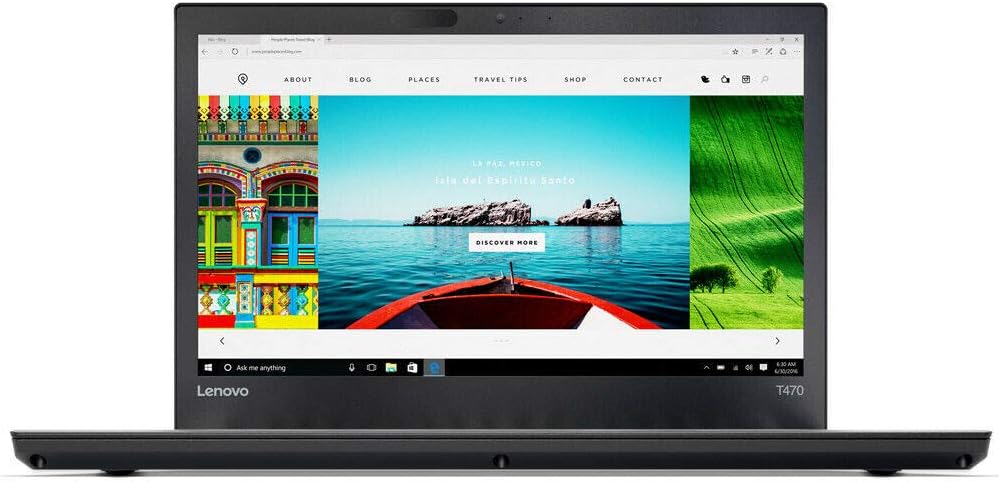
Figure 1.1: Front view of the Lenovo ThinkPad T470 laptop.
2. Setup
2.1 Initial Power On
- Unpack your ThinkPad T470 and the included AC adapter.
- Connect the AC adapter to the laptop's power port and then to a power outlet.
- Open the laptop lid and press the power button, typically located above the keyboard or on the side.
- Follow the on-screen instructions to complete the initial setup of Windows 10 Professional. This includes setting up your user account, network connection, and basic preferences.
2.2 Connecting Peripherals
The ThinkPad T470 offers various ports for connecting external devices:
- USB 3.0 Ports: Connect USB devices such as external hard drives, mice, or keyboards.
- Thunderbolt 3 (USB Type-C) Port: For high-speed data transfer, video output, and charging compatible devices.
- HDMI Port: Connect to external displays or projectors.
- RJ45 Gigabit LAN Port: For wired network connections.
- 3.5 mm Combo Audio Jack: For headphones or headsets with a microphone.
- Media Card Reader (SD 3.0, UHS-I): Insert SD cards for data transfer.

Figure 2.1: Right side view of the ThinkPad T470 with ports.
3. Operating
3.1 Keyboard and Pointing Devices
The ThinkPad T470 features an ergonomic keyboard, a TrackPad, and a TrackPoint for navigation.
- Keyboard: Utilize the full-sized keyboard for typing. Function keys (F1-F12) provide quick access to system controls when pressed with the Fn key.
- TrackPad: The multi-touch TrackPad allows for precise cursor control and gestures.
- TrackPoint: The red TrackPoint located in the center of the keyboard provides an alternative method for cursor control, often preferred for its precision.

Figure 3.1: Keyboard and pointing devices.
3.2 Webcam and Audio
The T470 is equipped with a 720p HD camera and dual array microphones for video conferencing and communication. Dolby Advanced Audio and stereo speakers provide clear sound output.
3.3 Fingerprint Reader
For enhanced security, the ThinkPad T470 includes a fingerprint reader. Set up your fingerprint in Windows Hello settings to log in securely and quickly.
3.4 Wireless Connectivity
The laptop supports Intel Dual Band Wireless AC (2x2) for Wi-Fi connectivity and Bluetooth 4.1 for connecting wireless peripherals. LTE-A (4G) connectivity may also be available depending on the specific model configuration, allowing internet access without Wi-Fi.
4. Maintenance
4.1 General Care
- Keep the laptop clean by gently wiping surfaces with a soft, dry cloth.
- Avoid exposing the laptop to extreme temperatures, direct sunlight, or liquids.
- Ensure proper ventilation by not blocking the air vents.
4.2 Battery Management
The T470 uses a 3-cell lithium-ion battery. To maximize battery life:
- Adjust power settings in Windows to optimize for battery life.
- Avoid fully discharging the battery frequently.
- Store the laptop in a cool, dry place if not used for extended periods.
4.3 Solid-State Drive (SSD)
The 256GB PCIe SSD in your ThinkPad T470 offers faster performance and increased durability compared to traditional hard drives. As it has no moving parts, it is more resistant to physical shock, quieter, and contributes to faster boot times and application loading.
5. Troubleshooting
This section addresses common issues you might encounter with your ThinkPad T470.
5.1 Power Issues
- Laptop not turning on: Ensure the AC adapter is securely connected to both the laptop and a working power outlet. Check if the power indicator light is on.
- Battery not charging: Verify the AC adapter is functioning correctly. Try a different power outlet.
5.2 Display Problems
- No image on screen: Connect an external monitor via the HDMI port to check if the issue is with the laptop's display or the graphics output.
- Dim or flickering screen: Adjust brightness settings using the function keys (Fn + F5/F6). Update display drivers if necessary.
5.3 Connectivity Issues
- Wi-Fi not connecting: Ensure Wi-Fi is enabled (Fn + F8). Check network settings in Windows. Restart your router and laptop.
- Bluetooth device not pairing: Ensure Bluetooth is enabled. Check that the device is in pairing mode and within range.
5.4 System Performance
- Slow performance: Close unnecessary applications. Check for background processes consuming high resources in Task Manager. Ensure Windows and drivers are up to date.
- System freezes: Perform a hard shutdown by holding the power button for several seconds. Restart the laptop. If persistent, consider running system diagnostics.
6. Specifications
Below are the technical specifications for the Lenovo ThinkPad T470:
| Feature | Specification |
|---|---|
| Processor | Intel Core i5-6200U (2.3GHz up to 2.8GHz, 3MB Cache) |
| Operating System | Windows 10 Professional |
| Display | 14-inch HD (1366 x 768) Anti-glare Display |
| Graphics | Intel UHD Graphics 520 (Integrated) |
| RAM | 8GB DDR4 2133 MHz |
| Storage | 256GB PCIe SSD |
| Wireless | Intel Dual Band Wireless AC (2x2), Bluetooth 4.1 |
| Ports | 3x USB 3.0, 1x Thunderbolt 3 (USB Type-C), 1x HDMI, 1x RJ45 Gigabit LAN, 3.5mm Combo Audio Jack, Media Card Reader |
| Webcam | 720p HD Camera with microphone |
| Audio | Dolby Advanced Audio, Stereo Speakers |
| Security | Fingerprint Reader |
| Battery | 3-cell Lithium-Ion |
| Dimensions (LxWxH) | 13.8 x 8.9 x 0.82 inches |
| Weight | 4.5 lbs |

Figure 6.1: Side profile of the ThinkPad T470.
7. Warranty and Support
For detailed warranty information and technical support, please refer to the documentation included with your product or visit the official Lenovo support website. Warranty terms and conditions may vary by region and purchase location.
Lenovo Support Website: https://support.lenovo.com/