
WisFox GKCE0147_09
WisFox 2.4G Wireless Mouse Instruction Manual
Model: GKCE0147_09
Brand: WisFox
1. Introduction
Thank you for choosing the WisFox 2.4G Wireless Mouse. This ergonomic computer mouse is designed for comfort and efficiency, featuring adjustable DPI levels and a stable wireless connection. This manual provides detailed instructions for setup, operation, maintenance, and troubleshooting to ensure optimal performance.
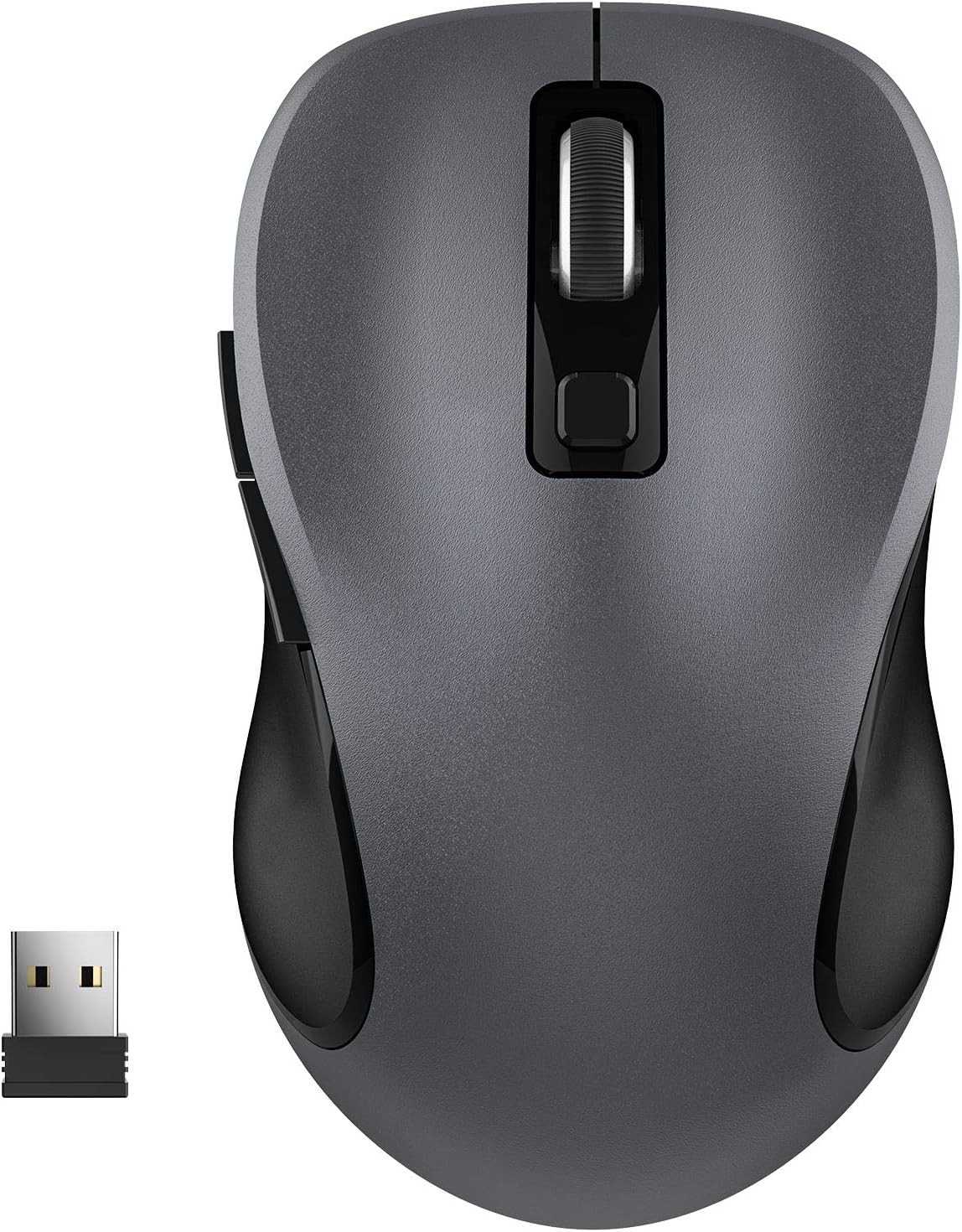
Figure 1: WisFox 2.4G Wireless Mouse (Grey)
The WisFox 2.4G Wireless Mouse in grey, showcasing its sleek design and compact form factor.
2. What's in the Box
Please check the package contents:
- WisFox 2.4G Wireless Mouse
- USB Receiver
- Type-C Adapter
3. Setup Guide
3.1 Battery Installation
The mouse requires one AA battery (not included). To install:
- Open the battery compartment cover located on the bottom of the mouse.
- Insert one AA battery, ensuring the correct polarity (+/-).
- Close the battery compartment cover securely.

Figure 2: Mouse bottom view with battery slot and USB receiver storage
This image illustrates the underside of the mouse, highlighting the battery compartment and the dedicated slot for storing the USB receiver when not in use.
3.2 Connecting the USB Receiver
The USB receiver is stored inside the battery compartment for convenience. To connect:
- Remove the USB receiver from its storage slot.
- If your computer has a standard USB-A port, plug the USB receiver directly into an available port.
- If your computer uses a Type-C port, attach the provided Type-C adapter to the USB receiver, then plug the adapter into your computer's Type-C port.

Figure 3: Wireless connection setup
The image shows the WisFox mouse wirelessly connected to a laptop, demonstrating the 2.4G wireless technology and its effective range of up to 33 feet.
3.3 Powering On/Off
Locate the ON/OFF switch on the bottom of the mouse. Slide the switch to 'ON' to activate the mouse. Slide it to 'OFF' when not in use to conserve battery life.
Video 1: WisFox Wireless Mouse Introduction
This video provides a brief introduction to the WisFox Wireless Mouse, demonstrating its key features and simple setup process, including battery installation and powering on.
4. Operating Instructions
4.1 Button Functions
The WisFox mouse features 6 buttons for enhanced productivity:
- Left Button: Standard click function.
- Right Button: Context menu function.
- Scroll Wheel: Scroll up/down, middle click.
- DPI Switch Button: Adjusts cursor sensitivity.
- Page Up Button (Side): Navigates forward in web browsers or documents.
- Page Down Button (Side): Navigates backward in web browsers or documents.

Figure 4: Six Button Design Overview
This diagram labels all six buttons on the WisFox mouse, including the scroll wheel, DPI switch, left/right click, and side Page Up/Down buttons.
4.2 DPI Adjustment
The mouse offers 3 adjustable DPI levels (800, 1200, 1600) to suit your preference for cursor speed and precision. Press the DPI switch button (located below the scroll wheel) to cycle through the settings. The default DPI is 1200.

Figure 5: Adjust the Speed Freely
This image illustrates the three adjustable DPI levels (800, 1200, 1600) of the mouse, allowing users to freely change the moving speed for optimal control.
4.3 Ergonomic Design & Auto Sleep Mode
The contoured shape of the mouse is designed for maximum hand comfort and stress-free use, suitable for both right- and left-handed users. To conserve power, the mouse will enter auto power-saving mode after 1 minute of idling and sleep mode after 8 minutes of idling. Double-click any button to wake the mouse up.

Figure 6: Comfortable and Durable Design
A hand comfortably resting on the WisFox mouse, emphasizing its ergonomic design for maximum hand-feeling and stress-free use, tested for 5 million keystrokes.
Video 2: Wireless Business Mouse
This video highlights the features of the WisFox Wireless Business Mouse, including its ergonomic design, stable connection, and portability, making it suitable for daily work.
4.4 Wide Compatibility
This wireless mouse is highly compatible with various operating systems and devices, ensuring seamless integration into your workflow.
- Operating Systems: Windows 7/8/10/XP, Vista 7/8, Linux, Mac OS (V10.4 or higher).
- Devices: Laptop, desktop, PC, MacBook, and other devices with a compatible USB port.

Figure 7: Widely Compatible
This image displays the broad compatibility of the WisFox mouse with Windows, Mac OS, and Linux operating systems, suitable for laptops, PCs, MacBooks, and other devices.
5. Maintenance
5.1 Battery Replacement
When the mouse performance degrades or the red light on the bottom no longer illuminates, it's time to replace the AA battery. Follow the battery installation steps in Section 3.1.
5.2 Cleaning
To maintain optimal performance and hygiene, regularly clean your mouse:
- Use a soft, lint-free cloth slightly dampened with water or a mild cleaning solution.
- Avoid excessive moisture and do not spray cleaners directly onto the mouse.
- Clean the optical sensor area on the bottom of the mouse to ensure accurate tracking.
6. Troubleshooting
6.1 Mouse Not Responding
- Ensure the mouse is powered on (ON/OFF switch on the bottom).
- Check the battery. Replace if necessary.
- Ensure the USB receiver is securely plugged into a working USB port on your computer. Try a different USB port.
- If using the Type-C adapter, ensure it is correctly attached to the USB receiver and securely plugged into the Type-C port.
- Restart your computer.
6.2 Cursor Lag or Jumps
- Ensure there are no obstructions between the mouse and the USB receiver. The effective range is up to 33 feet.
- Avoid using the mouse on highly reflective, transparent, or uneven surfaces. A mouse pad is recommended.
- Clean the optical sensor on the bottom of the mouse.
- Check for interference from other wireless devices.
7. Specifications
| Feature | Description |
|---|---|
| Model Number | GKCE0147_09 |
| Connectivity Technology | 2.4GHz Wireless, Radio Frequency |
| Movement Detection | Optical |
| DPI Levels | 800, 1200, 1600 (Adjustable) |
| Buttons | 6 (Left, Right, Scroll Wheel, DPI Switch, Page Up, Page Down) |
| Power Source | 1 x AA Battery (not included) |
| Product Dimensions | 4.09 x 2.4 x 1.57 inches |
| Item Weight | 2.4 ounces |
| Compatibility | Windows 7/8/10/XP, Vista 7/8, Linux, Mac OS (V10.4 or higher) |
8. Warranty and Support
WisFox is proud to offer a 12-month warranty for this product. If you have any questions or require assistance, please feel free to contact our customer support team. We are committed to providing professional after-sales service to all our customers.
For support, please refer to the contact information provided with your product packaging or visit the official WisFox website.
Ask a question about this manual
Ask about setup, troubleshooting, compatibility, parts, safety, or missing instructions. Manuals+ will review the question and use this page’s manual context to help answer it.