
1. Product Overview
The GuliKit Route Air Bluetooth Adapter (Model: NS07) is a compact wireless audio transmitter designed to provide seamless audio connectivity for various gaming consoles and PCs. It supports dual stream audio, allowing two Bluetooth headphones or speakers to connect simultaneously, and features aptX Low Latency technology for real-time audio synchronization.
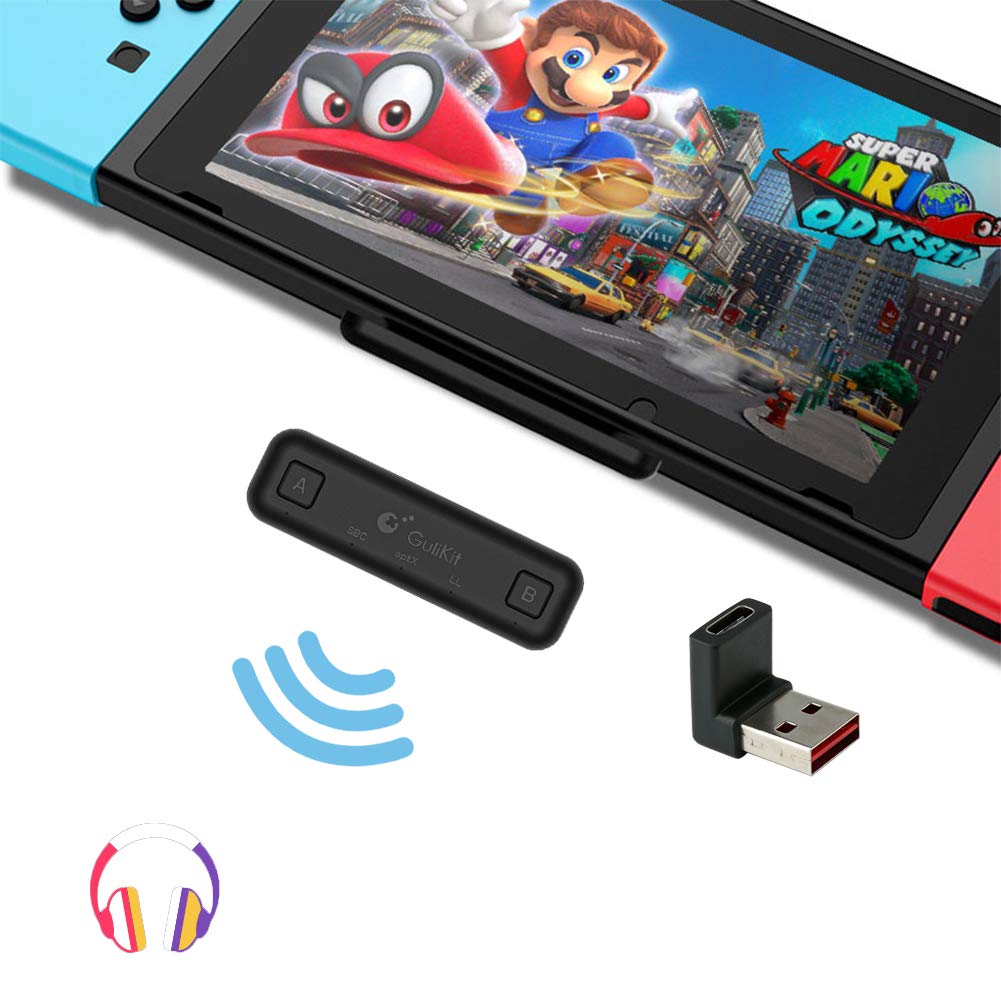
Image 1: GuliKit Route Air Bluetooth Adapter connected to a Nintendo Switch, showing wireless audio transmission.
2. Compatibility
The Route Air is compatible with a range of devices, including:
- Nintendo Switch
- Nintendo Switch Lite
- Nintendo Switch OLED
- PS4/PS5 consoles
- PC with Windows 8 or above
It supports Bluetooth speakers and all wireless earphones with Bluetooth 5.0, 4.0, 3.0, or 2.1. Please note: It is not compatible with AirPods Pro 2.

Image 2: Supported devices for the GuliKit Route Air, including various Nintendo Switch models, PlayStation consoles, and PCs.
3. Setup and Pairing
The GuliKit Route Air is designed for easy, one-step pairing. No drivers are needed for Switch, PS4, or PC with Windows 8 or above.
- Set your Bluetooth earphones or speaker to pairing status. Refer to your audio device's manual for specific instructions on entering pairing mode.
- Insert the GuliKit Route Air adapter into the USB-C port of your Nintendo Switch (or use the included USB-A adapter for Switch Dock, PS4/PS5, or PC).
- Hold down either pairing button A or B on the Route Air for 4 seconds until the white LED indicator begins blinking. This indicates the adapter is in pairing mode.
- Pairing will be successful once the LED turns to a constant white light. The adapter will automatically reconnect to the last paired device next time it's used.
Troubleshooting Pairing: If pairing is not successful, reset the Bluetooth adapter by pressing both A and B buttons simultaneously for 4 seconds, then attempt the pairing process again.

Image 3: The GuliKit Route Air connected to a Nintendo Switch, illustrating its plug-and-play and quick pairing capabilities.

Image 4: The GuliKit Route Air connected to a Nintendo Switch Dock using the included USB-C to USB-A adapter, enabling TV mode audio.
4. Operating Instructions
4.1 Dual Connection
The Route Air supports dual connections, allowing two Bluetooth audio devices (e.g., two pairs of headphones) to be connected simultaneously. This is ideal for multiplayer gaming where both players require private audio.

Image 5: Illustration of two Bluetooth headsets connected simultaneously to a Nintendo Switch via the GuliKit Route Air for multiplayer audio.
4.2 Audio Synchronization and Quality
The GuliKit Route Air utilizes aptX Low Latency codec technology to minimize audio delay, providing real-time audio synchronization for an enhanced gaming experience. It delivers lossless CD sound quality.
Note: If your audio device only supports SBC codec, double-pressing for mode switch might cause no audio output. Ensure your device supports aptX or aptX LL for optimal performance.

Image 6: Key features of the GuliKit Route Air+, including real-time audio sync with aptX Low Latency and lossless CD sound quality.
4.3 Work Mode Indicator
The adapter features an LED indicator in the middle that shows the current working codec mode (SBC, aptX, or LL). This provides a clear indication of the active audio protocol.

Image 7: Close-up of the GuliKit Route Air showing the LED indicators for SBC, aptX, and LL audio codecs.
4.4 Transmission Range
The Route Air features an advanced ceramic antenna, providing up to 10 meters (approximately 33 feet) of barrier-free transmission without any loss in audio quality. This allows for flexible positioning and movement during use.

Image 8: Diagram illustrating the 10-meter barrier-free transmission range of the GuliKit Route Air adapter.
5. Maintenance
To ensure the longevity and optimal performance of your GuliKit Route Air Bluetooth Adapter, follow these simple maintenance guidelines:
- Keep the adapter dry. Avoid exposure to moisture, rain, or liquids, as these can damage internal components.
- Clean the adapter gently with a soft, dry cloth. Do not use harsh chemicals, cleaning solvents, or strong detergents.
- Store the adapter in a cool, dry place when not in use, away from extreme temperatures.
- Avoid dropping or subjecting the adapter to strong impacts, as this can cause physical damage.
- When transporting, utilize the protective cover for the USB-C port to prevent damage.
6. Troubleshooting
If you encounter issues with your GuliKit Route Air, refer to the following common troubleshooting steps:
- Device Not Pairing:
- Ensure your Bluetooth audio device is in pairing mode.
- Confirm the Route Air's LED is blinking white, indicating it's in pairing mode.
- Reset the Route Air by pressing both A and B buttons for 4 seconds, then re-attempt pairing.
- Ensure the adapter is fully inserted into the console/PC's USB-C port or the USB-A adapter.
- No Audio Output (especially with SBC codec):
- If your earphone only supports SBC, double-pressing for mode switch might cause no audio output. Try re-pairing or ensuring your device supports aptX/aptX LL for better compatibility.
- Check the volume levels on both your console/PC and your audio device.
- Intermittent Connection or Poor Audio Quality:
- Ensure you are within the 10-meter transmission range.
- Minimize physical obstructions between the adapter and your audio device.
- Avoid strong electromagnetic interference from other electronic devices.
- For TWS earphones, note that they may have weaker signal strength and anti-interference ability compared to ordinary Bluetooth earphones due to size limitations.
7. Specifications
| Model Number | NS07 |
| Product Dimensions | 1.89 x 0.55 x 0.52 inches |
| Item Weight | 0.705 ounces |
| Connectivity | Bluetooth 5.0, 4.0, 3.0, 2.1 |
| Supported Codecs | SBC, aptX, aptX Low Latency (LL) |
| Transmission Range | Up to 10 meters (barrier-free) |
| Compatibility | Nintendo Switch, Switch Lite, Switch OLED, PS4/PS5, PC (Win8+) |
8. Warranty and Support
Information regarding product warranty and customer support contact details is not provided within this manual. Please refer to the product packaging or the official GuliKit website for the most current warranty terms and support information.