
1. Introduction
This manual provides essential information for the safe and efficient use of your HUAWEI MediaPad T3 10 tablet. Please read this manual thoroughly before using the device to ensure proper operation and to prevent damage.

Image 1.1: Front view of the HUAWEI MediaPad T3 10 tablet, showcasing its 9.6-inch display.
The HUAWEI MediaPad T3 10 is a versatile tablet featuring a 9.6-inch IPS LCD display, powered by a 1.4 GHz Quad-core Qualcomm Snapdragon 425 processor. It comes with 32GB of internal storage and 3GB of RAM, running on Android 7.0 (Nougat) with EMUI 5.1. This device is designed for everyday use, including browsing, media consumption, and light productivity tasks.
2. Setup
2.1 Package Contents
Upon opening the package, ensure all items are present:
- HUAWEI MediaPad T3 10 Tablet
- USB Charging Cable
- Power Adapter
- Quick Start Guide
- Warranty Card
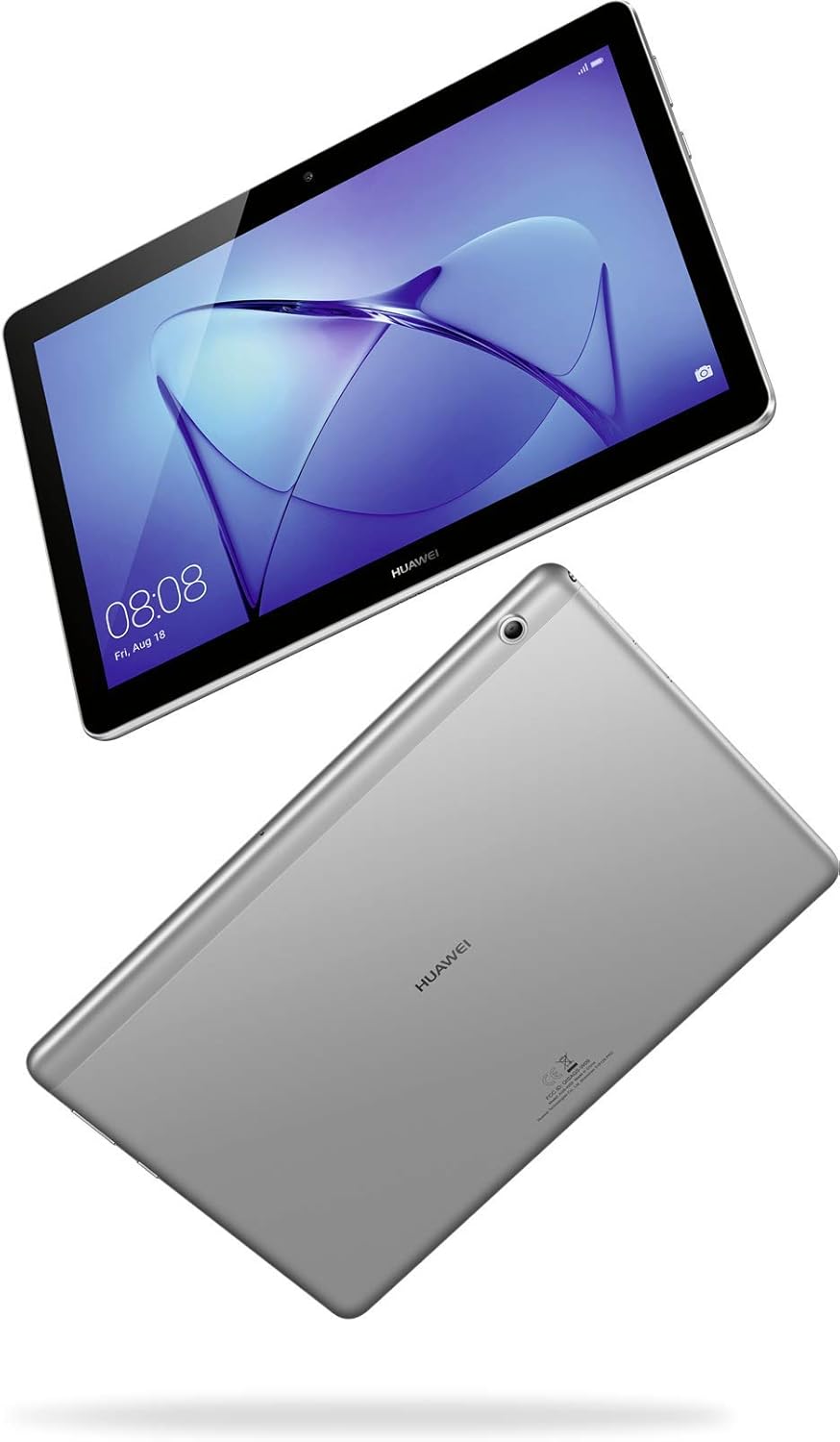
Image 2.1: The tablet shown alongside its charging cable and power adapter, essential for initial setup.
2.2 Initial Charging
Before first use, fully charge the tablet. Connect the USB charging cable to the tablet's charging port and the power adapter, then plug the adapter into a power outlet. The battery indicator on the screen will show charging progress. A full charge typically takes approximately 3-4 hours.
2.3 Powering On/Off
- To Power On: Press and hold the Power button (located on the side) until the HUAWEI logo appears.
- To Power Off: Press and hold the Power button until the power options menu appears. Select "Power off" and confirm.
- To Restart: From the power options menu, select "Restart" and confirm.

Image 2.2: Rear view of the tablet, showing the camera and the general layout of the device's back panel.
2.4 Initial Configuration
Upon first power-on, the tablet will guide you through the initial setup process. This includes:
- Selecting your language.
- Connecting to a Wi-Fi network.
- Accepting terms and conditions.
- Signing in with your Google account (or creating a new one).
- Setting up screen lock (PIN, pattern, or password).
3. Operating Instructions
3.1 Basic Navigation
The MediaPad T3 10 uses a touch-based interface. Common gestures include:
- Tap: To select an item or open an app.
- Touch and Hold: To access contextual menus or move icons.
- Swipe: To scroll through screens or lists.
- Pinch: To zoom in or out on images or web pages.
3.2 Wi-Fi Connectivity
To connect to a Wi-Fi network:
- Go to Settings > Wi-Fi.
- Toggle Wi-Fi On.
- Select your desired network from the list.
- Enter the password if prompted, then tap Connect.
3.3 Using the Cameras
The tablet is equipped with a 5 MP rear camera with autofocus and a 2 MP front camera.
- Open the Camera app from the home screen or app drawer.
- Tap the shutter button to take a photo.
- Switch between front and rear cameras using the camera switch icon.

Image 3.1: An angled view of the tablet, highlighting its sleek design and the placement of the front camera.
3.4 Storage Management
The tablet has 32GB of internal storage. You can expand storage using a microSDXC card (dedicated slot).
- Inserting a microSD card: Locate the card slot on the side of the tablet. Gently insert the microSD card with the gold contacts facing down until it clicks into place.
- Managing storage: Go to Settings > Storage to view storage usage and manage files.

Image 3.2: Side profile of the tablet, illustrating its slim design and the location of the card slot.
3.5 Battery Life and Charging
The MediaPad T3 10 is powered by a 4800mAh non-removable battery, providing an average battery life of up to 10 hours under typical usage conditions. To optimize battery life:
- Reduce screen brightness.
- Disable Wi-Fi when not in use.
- Close unused applications.
- Use power-saving modes available in Settings > Battery.
4. Maintenance
4.1 Cleaning the Device
To clean your tablet:
- Use a soft, lint-free cloth.
- For stubborn smudges, slightly dampen the cloth with water or a screen cleaner designed for electronics.
- Avoid using harsh chemicals, abrasive materials, or excessive moisture.
4.2 Software Updates
Regularly check for software updates to ensure optimal performance and security:
- Go to Settings > System > Software update.
- Follow the on-screen instructions to download and install any available updates.
4.3 Storage Optimization
To maintain smooth operation, periodically optimize your tablet's storage:
- Delete unnecessary files, photos, and videos.
- Uninstall unused applications.
- Clear cached data for apps in Settings > Apps & notifications > App info > select app > Storage > Clear cache.
5. Troubleshooting
| Problem | Possible Solution |
|---|---|
| Device does not turn on. | Ensure the battery is charged. Connect to the charger and wait a few minutes before attempting to power on again. If unresponsive, press and hold the Power button for 10-15 seconds to force a restart. |
| Wi-Fi connection issues. | Restart the tablet and the Wi-Fi router. Forget the network in Wi-Fi settings and reconnect. Ensure you are within range of the Wi-Fi signal. |
| Tablet is slow or unresponsive. | Close unused apps. Clear app caches. Restart the device. Check for system updates. If issues persist, consider a factory reset (back up data first). |
| Apps are crashing. | Clear the cache and data for the specific app (Settings > Apps & notifications > App info). Reinstall the app. Ensure the app is updated to its latest version. |
For persistent issues, contact HUAWEI customer support or visit an authorized service center.
6. Specifications
Key technical specifications for the HUAWEI MediaPad T3 10:
| Feature | Detail |
|---|---|
| Display | 9.6 inches IPS LCD, 800 x 1280 pixels |
| Processor | Qualcomm MSM8917 Snapdragon 425 (28 nm), Quad-core 1.4 GHz Cortex-A53 |
| RAM | 3GB |
| Internal Storage | 32GB (expandable via microSDXC dedicated slot) |
| Operating System | Android 7.0 (Nougat), EMUI 5.1 |
| Rear Camera | 5 MP, AF |
| Front Camera | 2 MP |
| Battery | 4800mAh non-removable Lithium Polymer |
| Wireless Connectivity | Wi-Fi 802.11bgn |
| Dimensions (LxWxH) | 6.29 x 0.31 x 9.05 inches |
| Weight | 1.01 pounds |
| Color | Space Gray |
7. Warranty and Support
Your HUAWEI MediaPad T3 10 comes with a limited manufacturer's warranty. Please refer to the warranty card included in your package for specific terms and conditions, including warranty period and coverage details.
For technical support, service, or further inquiries, please visit the official HUAWEI support website or contact their customer service. Keep your proof of purchase handy when seeking support.
Online Support: consumer.huawei.com/en/support/


