
Introduction
Thank you for choosing the Zelotes F-35 2.4GHz Vertical Wireless Rechargeable Gaming Mouse. This ergonomic mouse is designed to provide a comfortable and efficient user experience, reducing wrist strain during extended use. Featuring multiple connectivity options and customizable buttons, it is ideal for both productivity and gaming on various devices.
Product Features
- Ergonomic Vertical Design: Positions the hand in a natural handshake posture to minimize wrist and forearm strain.
- Multi-Mode Connectivity: Supports 2.4GHz wireless via USB dongle, Bluetooth 1, and Bluetooth 2 for versatile device pairing.
- Rechargeable Battery: Built-in rechargeable battery for convenience.
- Adjustable DPI: Up to 2400 DPI for precise cursor control, suitable for various tasks and gaming.
- 6 Programmable Buttons: Includes left/right click, scroll wheel, DPI button, and forward/backward buttons for enhanced functionality.
- Optical Sensor: Reliable and accurate tracking on most surfaces.
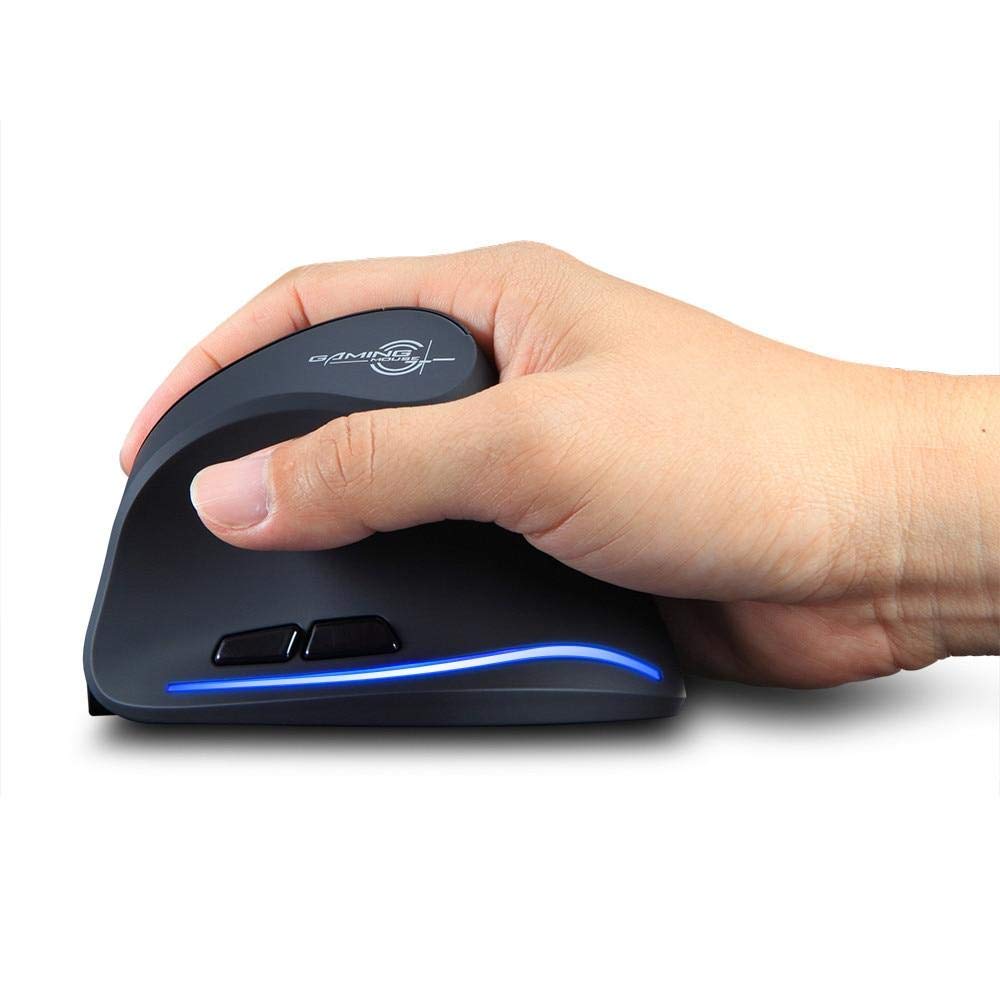
Image: The Zelotes F-35 Vertical Wireless Gaming Mouse, showcasing its unique ergonomic shape and illuminated accents.

Image: A visual comparison illustrating the natural hand position with a vertical mouse versus the twisted wrist position with a traditional horizontal mouse, highlighting the ergonomic benefits.
Setup Instructions
- Power On: Locate the ON/OFF switch on the bottom of the mouse and slide it to the 'ON' position.
- Select Connection Mode: The mouse supports three connection modes: 2.4GHz wireless (via USB dongle), Bluetooth 1, and Bluetooth 2. Use the 'Mode Switch' button on the bottom of the mouse to cycle through these options. The corresponding indicator light will illuminate.
- 2.4GHz Wireless Connection:
- Remove the USB receiver dongle from its storage slot on the bottom of the mouse.
- Plug the USB receiver into an available USB port on your computer or laptop.
- The mouse should connect automatically.
- Bluetooth Connection (BT1/BT2):
- Switch the mouse to either Bluetooth 1 or Bluetooth 2 mode using the 'Mode Switch'.
- On your computer or laptop, go to Bluetooth settings and search for new devices.
- Select 'Zelotes F-35' from the list of available devices to pair.

Image: The underside of the Zelotes F-35 mouse, highlighting the ON/OFF switch, mode switch, and the integrated storage slot for the 2.4GHz USB receiver dongle.
Operating Instructions
The Zelotes F-35 mouse features 6 buttons designed for intuitive control and enhanced productivity:
- Left Click Button: Standard primary click function.
- Right Click Button: Standard secondary click function.
- Scroll Wheel: Scroll up or down for navigation. Can also be pressed for a middle-click function.
- DPI Adjustment Button: Located near the scroll wheel, press to cycle through different DPI settings (e.g., 800/1200/1600/2400) to adjust cursor sensitivity.
- Forward Button: Located on the thumb rest, typically navigates forward in web browsers or file explorers.
- Backward Button: Located on the thumb rest, typically navigates backward in web browsers or file explorers.
Charging and Battery
The Zelotes F-35 mouse is equipped with a rechargeable battery for continuous use.
- Charging Port: The mouse features a USB-C charging port, typically located at the front base of the mouse.
- Charging: Connect the provided USB-C cable to the mouse and the other end to a USB power source (e.g., computer USB port, wall adapter).
- Battery Indicator: The mouse may have an indicator light to show charging status or low battery. Refer to the product packaging for specific indicator behavior.
- Battery Life: The average battery life is approximately 12 months, depending on usage.
Maintenance
- Cleaning: Use a soft, dry cloth to clean the mouse surface. For stubborn dirt, a slightly damp cloth can be used, ensuring no moisture enters the internal components.
- Sensor Care: Keep the optical sensor on the bottom of the mouse clean and free from dust or debris to ensure accurate tracking.
- Storage: When not in use for extended periods, turn off the mouse to conserve battery life. Store the USB receiver in its designated slot to prevent loss.
Troubleshooting
- Mouse Not Responding:
- Ensure the mouse is turned ON.
- Check battery level and charge if necessary.
- For 2.4GHz connection, ensure the USB receiver is securely plugged into the computer.
- For Bluetooth connection, ensure Bluetooth is enabled on your device and the mouse is correctly paired. Try re-pairing if issues persist.
- Inaccurate Tracking:
- Clean the optical sensor on the bottom of the mouse.
- Ensure you are using the mouse on a suitable surface (non-reflective, non-glass).
- Adjust the DPI setting to a comfortable level.
- Connectivity Drops:
- Ensure the mouse is within the effective range of your device (typically up to 10 meters for wireless).
- Minimize interference from other wireless devices.
Specifications
| Feature | Detail |
|---|---|
| Brand | Zelotes |
| Model | F-35 |
| Type | 2.4GHz Wireless, Bluetooth |
| Operation Mode | Opto-electronic |
| Number of Buttons | 6 |
| Number of Rollers | 1 |
| Hand Orientation | Right |
| Interface Type | USB |
| DPI | 2400 |
| Special Feature | Rechargeable, Wireless |
| Movement Detection | Optical |
| Compatible Devices | Laptop, Personal Computer |
| Operating System | Linux, Windows 7 (and newer) |
| Battery Average Life | 12 months |
| Power Source | Battery Powered |
| Color | Black |
| Country of Origin | China |
Warranty and Support
For warranty information and technical support, please refer to the documentation included with your product or visit the official Zelotes website. You may also contact the retailer where you purchased the product for assistance.


