
PIX-LINK LV-WR08
PIX-LINK LV-WR08 Wireless Router User Manual
Model: LV-WR08 | Brand: PIX-LINK
1. Product Overview
The PIX-LINK LV-WR08 is a high-performance wireless router designed to provide reliable internet connectivity for home and small office environments. Featuring 300Mbps data transmission speed and four external antennas, it ensures broad coverage and stable connections. This router also includes a dedicated game mode for optimized online gaming experiences.
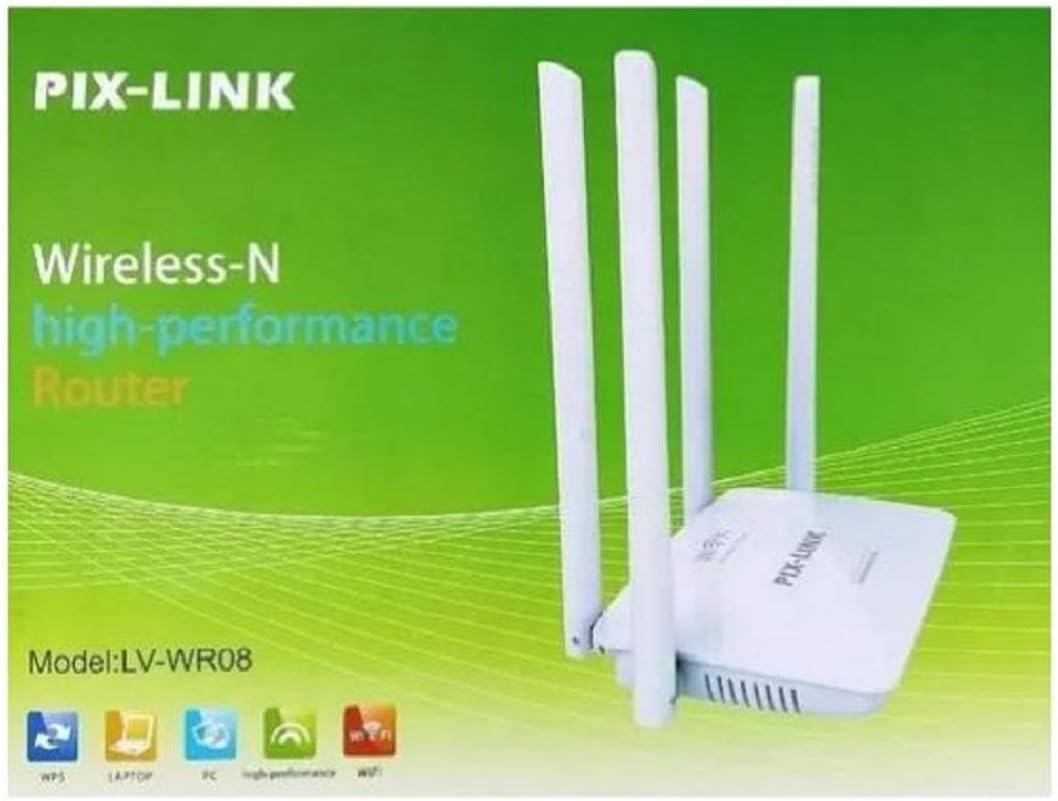
Image 1.1: Front view of the PIX-LINK LV-WR08 Wireless Router and its packaging. The router is white with four tall, white antennas. The packaging highlights its 'Wireless-N high-performance Router' capabilities and displays the model 'LV-WR08'.
2. Package Contents
- 1 x PIX-LINK LV-WR08 Wireless Router
- 1 x Power Adapter
- 1 x Ethernet Cable
- 1 x Quick Installation Guide (This Manual)
3. Setup Instructions
3.1. Hardware Connection
- Positioning the Router: Place the router in a central location in your home or office, away from obstructions and devices that may cause interference (e.g., cordless phones, microwave ovens). Ensure the antennas are oriented vertically for optimal signal strength.
- Connect the Power Adapter: Plug one end of the power adapter into the router's power port and the other end into a standard electrical outlet. The power LED indicator on the router should light up.
- Connect to the Internet:
- If you have a DSL/Cable Modem: Connect an Ethernet cable from your modem's LAN port to the WAN port on the LV-WR08 router.
- If you have an Ethernet cable directly from your ISP: Connect this Ethernet cable to the WAN port on the LV-WR08 router.
- Connect Devices (Optional): For wired connections, connect an Ethernet cable from your computer or other network device to any of the LAN ports on the router.
3.2. Initial Configuration (Wireless)
- Connect to the Default Wi-Fi Network: On your computer or mobile device, search for available Wi-Fi networks. The default Wi-Fi network name (SSID) and password are usually printed on a label on the bottom of the router. Connect to this network.
- Access the Router's Web Interface: Open a web browser (e.g., Chrome, Firefox, Edge) and type the default IP address of the router into the address bar. This IP address is typically
192.168.1.1or192.168.0.1, and can also be found on the router's label. Press Enter. - Log In: Enter the default username and password. These are commonly
adminfor both, or specified on the router's label. - Run Quick Setup Wizard: Once logged in, follow the on-screen instructions of the Quick Setup Wizard to configure your internet connection type (e.g., PPPoE, Dynamic IP, Static IP) and set up your new Wi-Fi network name (SSID) and a strong password.
- Save Settings: After completing the wizard, save your settings. The router may restart.
4. Operating the Router
4.1. Basic Wireless Operation
- Connecting Devices: Search for your newly configured Wi-Fi network on your devices and enter the password you set during setup.
- Checking Status: The router's web interface provides a status page where you can view connection information, connected devices, and network statistics.
4.2. Game Mode
The LV-WR08 router features a dedicated "Game Mode" designed to prioritize gaming traffic, reducing latency and improving the overall online gaming experience. To enable Game Mode:
- Log in to the router's web interface (refer to Section 3.2).
- Navigate to the "Advanced Settings" or "Gaming" section.
- Locate the "Game Mode" option and enable it.
- Save the changes. The router may restart to apply the settings.
Note: Game Mode may allocate more bandwidth to gaming applications, potentially affecting performance of other network activities during active gaming sessions.
4.3. Advanced Settings
The router's web interface offers various advanced settings for network customization:
- Network Settings: Configure LAN IP, DHCP server, and static routes.
- Wireless Settings: Adjust Wi-Fi channel, mode (802.11n/g/b), and security protocols (WPA2-PSK recommended).
- Firewall: Set up security rules, port forwarding, and parental controls.
- System Tools: Update firmware, backup/restore configuration, and reboot the router.
5. Maintenance
- Regular Reboot: Periodically reboot your router (e.g., once a month) by unplugging the power adapter for 10 seconds and then plugging it back in. This can resolve minor performance issues.
- Firmware Updates: Check the PIX-LINK official website for firmware updates. Keeping your router's firmware up-to-date ensures optimal performance, security, and access to new features.
- Physical Cleaning: Keep the router clean and free from dust. Use a soft, dry cloth to wipe the exterior. Ensure ventilation holes are not blocked.
- Secure Your Network: Regularly change your Wi-Fi password to a strong, unique combination of letters, numbers, and symbols. Use WPA2-PSK or WPA3 security protocols.
6. Troubleshooting
6.1. No Internet Access
- Check Cable Connections: Ensure all Ethernet cables are securely plugged into the correct ports (WAN, LAN).
- Modem Status: Verify that your modem is working correctly and has an active internet connection.
- Reboot Devices: Power cycle your modem, then the router, and then your connected devices.
- Router Configuration: Log into the router's web interface and check your WAN settings. Ensure the connection type (e.g., PPPoE, Dynamic IP) matches your ISP's requirements.
6.2. Slow Wi-Fi Speed or Weak Signal
- Router Placement: Move the router to a more central location, away from obstacles and interference sources.
- Antenna Orientation: Adjust the antennas for optimal signal.
- Channel Interference: In the router's wireless settings, try changing the Wi-Fi channel to a less congested one (e.g., 1, 6, or 11).
- Too Many Devices: Disconnect unused devices from the network.
- Firmware Update: Ensure your router's firmware is up to date.
6.3. Cannot Access Router's Web Interface
- IP Address: Ensure you are typing the correct default IP address (e.g.,
192.168.1.1) into your browser. - Wired Connection: Try connecting your computer directly to one of the router's LAN ports with an Ethernet cable.
- Firewall/Antivirus: Temporarily disable any firewall or antivirus software on your computer that might be blocking access.
- Reset Router: If all else fails, perform a factory reset by pressing and holding the reset button on the router for 5-10 seconds. Note: This will erase all your custom settings.
7. Specifications
| Feature | Detail |
|---|---|
| Brand | PIX-LINK |
| Model | LV-WR08 |
| Data Transmission Speed | 300 Megabits Per Second |
| Connection Technology | Wi-Fi |
| Frequency Band Class | Single-Band |
| Antennas | 4 External Antennas |
| Special Features | Game Mode |
| Compatible Devices | Game console, Smart TV, Tablet |
| Suitability | Home, Small Office |
8. Warranty and Support
This PIX-LINK LV-WR08 Wireless Router comes with a manufacturer's warranty. Please refer to the warranty card included in your product packaging for specific terms and conditions, including warranty period and coverage details. For technical support, troubleshooting assistance, or warranty claims, please contact PIX-LINK customer support through their official website or the contact information provided with your product.
For the most up-to-date support information, visit the official PIX-LINK website: www.pix-link.com (Note: This is a placeholder URL, please refer to your product's documentation for the actual support website.)
Related documentsLV-WR08

Ask a question about this manual
Ask about setup, troubleshooting, compatibility, parts, safety, or missing instructions. Manuals+ will review the question and use this page’s manual context to help answer it.