
1. Introduction
This manual provides comprehensive instructions for the installation, operation, and maintenance of your ZOTAC GeForce GTX 1660 6GB GDDR5 192-bit Gaming Graphics Card. This product is designed to deliver robust gaming performance and visual fidelity. Please read this manual thoroughly before installation and use to ensure optimal performance and longevity of your graphics card.
The ZOTAC GeForce GTX 1660 is built on the NVIDIA Turing architecture, offering advanced features and efficient performance for modern gaming and multimedia applications.
2. Product Overview
The ZOTAC GeForce GTX 1660 is a super compact gaming graphics card featuring dual fans for efficient cooling. It is designed to fit into 99% of systems, making it a versatile choice for various PC builds.
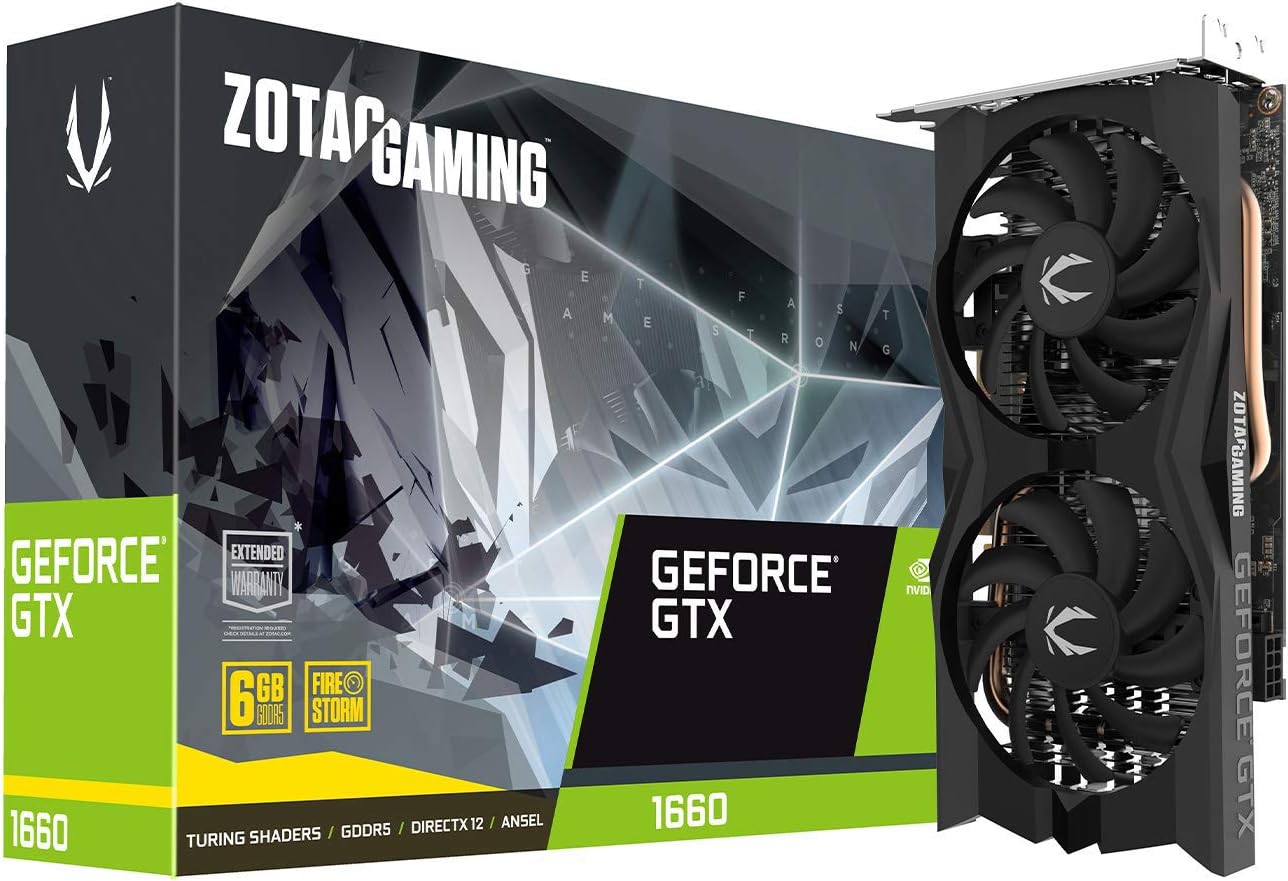
Image: ZOTAC GeForce GTX 1660 Graphics Card and its retail packaging, highlighting its compact design and key features.
Key Features:
- New Turing Architecture: Provides enhanced performance and efficiency.
- Super Compact Design: Measures 215.9mm (8.5 inches) in length, ensuring compatibility with a wide range of PC cases.
- Dual Fan Cooling: Equipped with two fans for effective heat dissipation, maintaining optimal operating temperatures.
- 4K, VR, and HDR Ready: Supports high-resolution displays, virtual reality experiences, and High Dynamic Range content.
- NVIDIA Ansel: Allows for in-game photography with professional-grade tools.
- NVIDIA G-SYNC Compatible: Synchronizes display refresh rates to the GPU for smooth, tear-free gaming.
- Multiple Display Outputs: Includes 3 x DisplayPort 1.4 and 1 x HDMI 2.0b for versatile connectivity.

Image: Detailed dimensions of the ZOTAC GeForce GTX 1660 graphics card, showing its length (215.9mm / 8.5in), height (111.15mm / 4.38in), and width (dual slot, 35.3mm / 1.39in).

Image: Close-up view of the dual fan cooling system on the ZOTAC GeForce GTX 1660 graphics card, designed for efficient heat dissipation.

Image: The ZOTAC GeForce GTX 1660 graphics card installed within a PC case, demonstrating its super compact size and how it fits into typical system configurations.
3. Setup and Installation
Before installing your new graphics card, ensure your system meets the minimum power supply requirements and has an available PCI Express 3.0 x16 slot. A 450-watt power supply is recommended.
Package Contents:
- ZOTAC GAMING GeForce GTX 1660 graphics card
- User Manual (this document)
Installation Steps:
- Prepare Your System: Power off your computer and unplug all cables. Open your computer case.
- Locate PCIe Slot: Identify an available PCI Express 3.0 x16 slot on your motherboard.
- Remove Slot Covers: Remove the necessary expansion slot covers from your PC case corresponding to the graphics card's dual-slot design.
- Install Graphics Card: Carefully align the graphics card with the PCIe slot and press down firmly until it is securely seated. Ensure the retention clip on the motherboard clicks into place.
- Connect Power: Connect the 8-pin PCIe power connector from your power supply to the graphics card.
- Secure Card: Secure the graphics card to the PC case with screws.
- Close Case and Connect Peripherals: Close your computer case, reconnect all cables, and connect your display to one of the graphics card's output ports.
- Install Drivers: Power on your computer. Once the operating system loads, download and install the latest NVIDIA drivers for the GeForce GTX 1660 from the official NVIDIA website (www.nvidia.com/drivers).

Image: Diagram illustrating the display output ports on the ZOTAC GeForce GTX 1660, including three DisplayPort 1.4 and one HDMI 2.0b.
For a detailed installation guide, you may refer to the official PDF document: ZOTAC Quick Installation Guide (PDF).
4. Operating the Graphics Card
Once installed and drivers are updated, your ZOTAC GeForce GTX 1660 graphics card will automatically handle graphics processing for your system. For optimal performance in games and applications, ensure your display is connected to the graphics card's output ports, not the motherboard's integrated graphics ports.
Display Configuration:
The card supports up to four simultaneous displays. You can configure your display settings through your operating system's display settings or the NVIDIA Control Panel, which is installed with the drivers.
- Windows Display Settings: Right-click on your desktop and select "Display settings" to arrange and extend your displays.
- NVIDIA Control Panel: Right-click on your desktop and select "NVIDIA Control Panel" for advanced display, 3D settings, and performance optimizations.
Gaming and Applications:
For gaming, ensure your game settings are configured to utilize the dedicated graphics card. Most modern games automatically detect and use the most powerful GPU available. You can adjust in-game graphics settings to balance visual quality and frame rate according to your preference.
Software Compatibility:
The graphics card is compatible with:
- Microsoft DirectX 12 API
- Vulkan API
- OpenGL 4.5
- Operating Systems: Windows 10 / 7 (64-bit), Linux (64-bit)
5. Maintenance
Proper maintenance ensures the longevity and optimal performance of your graphics card.
Dust Management:
Dust accumulation can impede cooling performance. Regularly clean your computer case and the graphics card fans using compressed air. Ensure the system is powered off and unplugged before cleaning.
Driver Updates:
Keep your graphics drivers updated. NVIDIA frequently releases new drivers that include performance optimizations, bug fixes, and support for new games and applications. You can check for updates via the NVIDIA GeForce Experience application or the NVIDIA website.
Temperature Monitoring:
Monitor your graphics card's temperature, especially during heavy loads (e.g., gaming). Tools like ZOTAC FireStorm or MSI Afterburner can provide real-time temperature readings. Ensure adequate airflow within your PC case to prevent overheating.
6. Troubleshooting
This section addresses common issues you might encounter with your graphics card.
No Display Output:
- Ensure the monitor cable is securely connected to the graphics card's output port.
- Verify the 8-pin PCIe power connector is properly seated on the graphics card.
- Check if your monitor is set to the correct input source (HDMI, DisplayPort).
- Reseat the graphics card in its PCIe slot.
- Test with a different display cable or monitor if possible.
Driver Installation Issues:
- Download the latest drivers directly from the official NVIDIA website.
- Use Display Driver Uninstaller (DDU) in Safe Mode to completely remove old drivers before installing new ones.
- Temporarily disable antivirus software during driver installation.
Performance Issues (Low FPS, Stuttering):
- Ensure your graphics drivers are up to date.
- Check in-game graphics settings; reduce settings like anti-aliasing, shadow quality, or texture quality if necessary.
- Monitor GPU temperature to ensure it's not overheating, which can lead to thermal throttling.
- Verify your power supply unit (PSU) meets the recommended wattage (450W).
- Close unnecessary background applications.
Fan Noise:
- High fan noise is often normal under heavy load as the fans work to cool the GPU.
- Ensure no cables or obstructions are interfering with the fan blades.
- Clean dust from the fans and heatsink.
- Consider adjusting fan curves using ZOTAC FireStorm or similar utility if noise is excessive at idle.
7. Specifications
Detailed technical specifications for the ZOTAC GeForce GTX 1660 graphics card (Model: ZT-T16600K-10M).
| Feature | Specification |
|---|---|
| GPU | NVIDIA GeForce GTX 1660 |
| CUDA Cores | 1408 |
| Video Memory | 6GB GDDR5 |
| Memory Bus | 192-bit |
| Engine Boost Clock | 1785 MHz |
| Memory Clock | 8.0 Gbps |
| PCI Express | 3.0 |
| Display Outputs | 3 x DisplayPort 1.4 (up to 7680x4320@60Hz), 1 x HDMI 2.0b (up to 3840x2160@60Hz) |
| Multi Display Support | Quad simultaneous display capable |
| Recommended Power Supply | 450-watt |
| Power Consumption | 120-watt Max |
| Dimensions (Length) | 215.9mm (8.5 inches) |
| Dimensions (Height) | 111.15mm (4.38 inches) |
| Dimensions (Width) | 2 slots (35.3mm / 1.39 inches) |
| Operating System Support | Windows 10 / 7 (64-bit), Linux (64-bit) |

Image: Technical drawing showing the precise measurements of the ZOTAC GeForce GTX 1660 graphics card, including length, height, and slot width.
8. Warranty and Support
ZOTAC products are designed for reliability and performance. For warranty information and support, please refer to the official ZOTAC website or the Quick Installation Guide included with your product.

Image: Cover of the ZOTAC Quick Installation Guide, indicating the availability of an extended warranty. The document reference number is 291-CN001-21ZTF.
It is recommended to register your product on the ZOTAC website to activate your warranty and receive product updates.
For technical support, driver downloads, and frequently asked questions, visit the official ZOTAC support page: www.zotac.com/support
You can also find the digital version of the Quick Installation Guide here: ZOTAC Quick Installation Guide (PDF)