
ASUS VG278QR
Contents
ASUS VG278QR 27-inch Full HD 165Hz Gaming Monitor Instruction Manual
Model: VG278QR
1. Introduction
This manual provides essential information for the safe and efficient operation of your ASUS VG278QR 27-inch Full HD Gaming Monitor. This monitor features a 165Hz refresh rate, 0.5ms response time, G-SYNC compatibility, and ASUS Eye Care Technology for an optimized viewing experience.
Please read this manual thoroughly before using the product and retain it for future reference.
2. Safety Information
- Always place the monitor on a stable, flat surface to prevent it from falling.
- Ensure adequate ventilation around the monitor. Do not block ventilation openings.
- Use only the power adapter and cables supplied with the monitor.
- Do not expose the monitor to rain or moisture to avoid electric shock or fire.
- Unplug the power cord from the outlet before cleaning. Use a soft, dry cloth for cleaning.
- Do not attempt to service the monitor yourself. Refer all servicing to qualified service personnel.
3. Package Contents
Verify that your package contains the following items:
- ASUS VG278QR Monitor
- Monitor Stand Base and Neck
- Power Adapter and Power Cord
- DisplayPort Cable
- HDMI Cable
- Dual-link DVI-D Cable
- Audio Cable
- Quick Start Guide / User Manual (this document)
- Warranty Card
Note: The included accessories may vary depending on your region and model.
4. Setup
4.1 Assembling the Monitor Stand
- Place the monitor panel face down on a soft, clean surface to prevent scratches.
- Attach the stand neck to the monitor panel.
- Secure the base to the stand neck using the provided screw.
4.2 Connecting the Monitor
- Connect the power adapter to the monitor's power input, then plug the power cord into a power outlet.
- Connect one end of the DisplayPort, HDMI, or DVI cable to the corresponding port on your computer's graphics card.
- Connect the other end of the cable to the corresponding input port on the ASUS VG278QR monitor.
- If desired, connect an audio cable from your computer's audio output to the monitor's Audio In port, or connect headphones to the Earphone Jack.

5. Operating Instructions
5.1 Power On/Off
Press the Power button located on the rear of the monitor to turn it on or off. The power indicator LED will illuminate when the monitor is on.
5.2 On-Screen Display (OSD) Menu Navigation
The monitor features a 5-way OSD navigation joystick and dedicated hotkeys on the rear for easy menu access and adjustments.

- Joystick: Push the joystick up, down, left, or right to navigate through menu options. Press the joystick in to confirm selections.
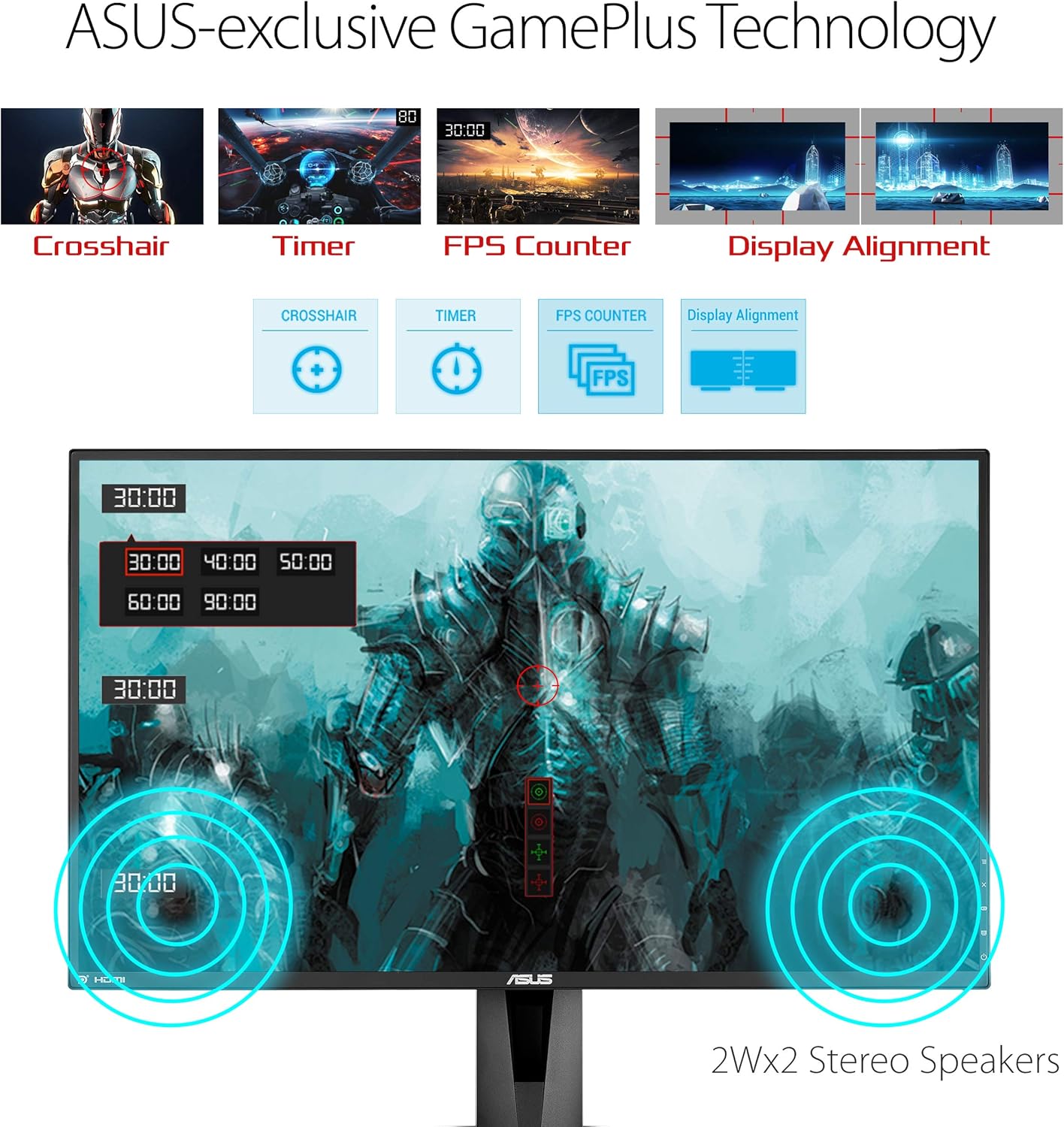
- GamePlus Hotkey: Provides in-game enhancements like crosshair, timer, and FPS counter.
- GameVisual Hotkey: Offers various display modes optimized for different content types (e.g., Scenery, Racing, Cinema).
5.3 Key Features
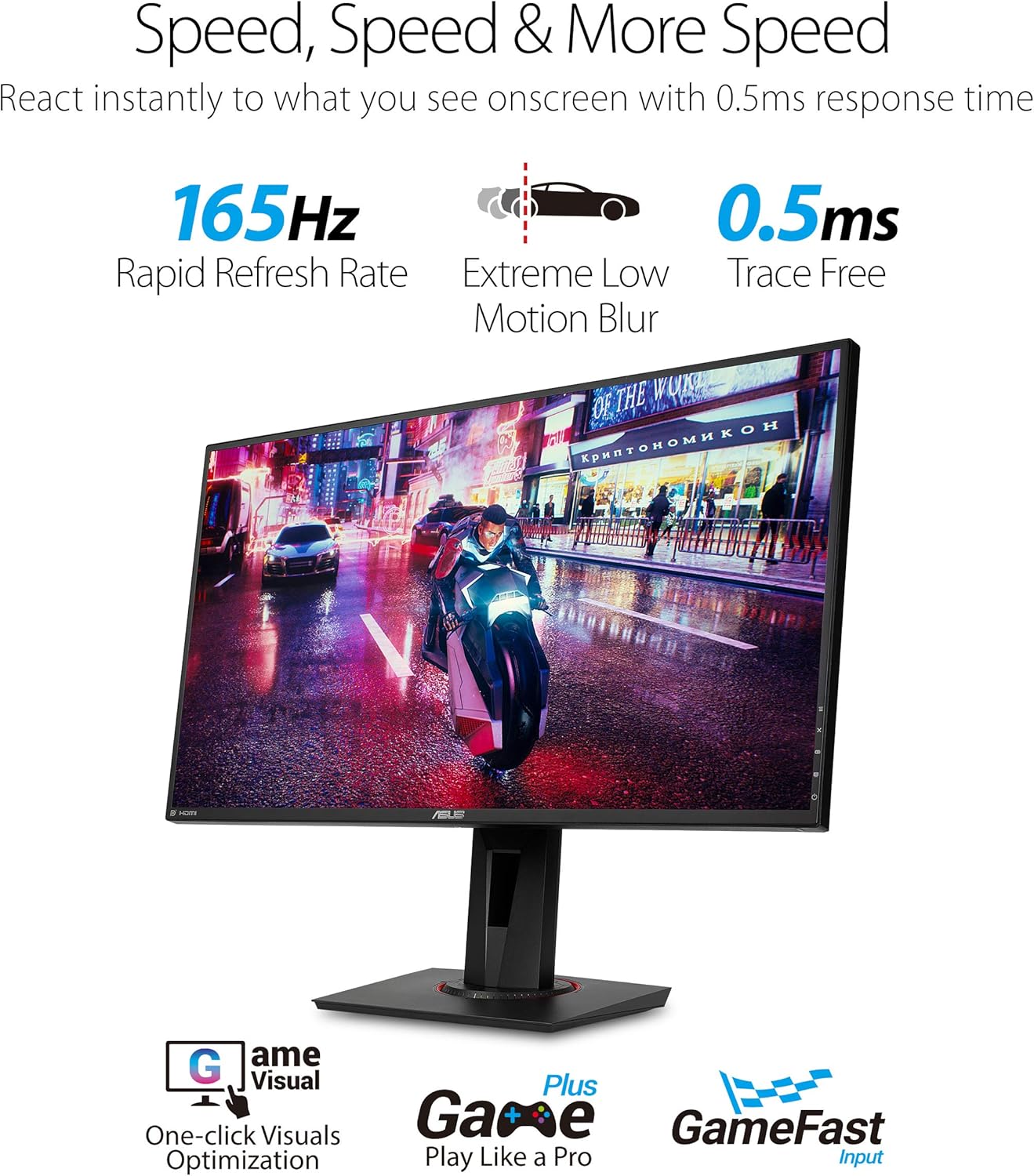
- 165Hz Refresh Rate & 0.5ms Response Time: Delivers smooth visuals and minimizes motion blur, crucial for fast-paced content.
- G-SYNC Compatibility: Synchronizes the monitor's refresh rate with your GPU's frame rate to eliminate screen tearing and stuttering.
- Extreme Low Motion Blur (ELMB) Technology: Reduces ghosting and motion blur for a clearer visual experience.
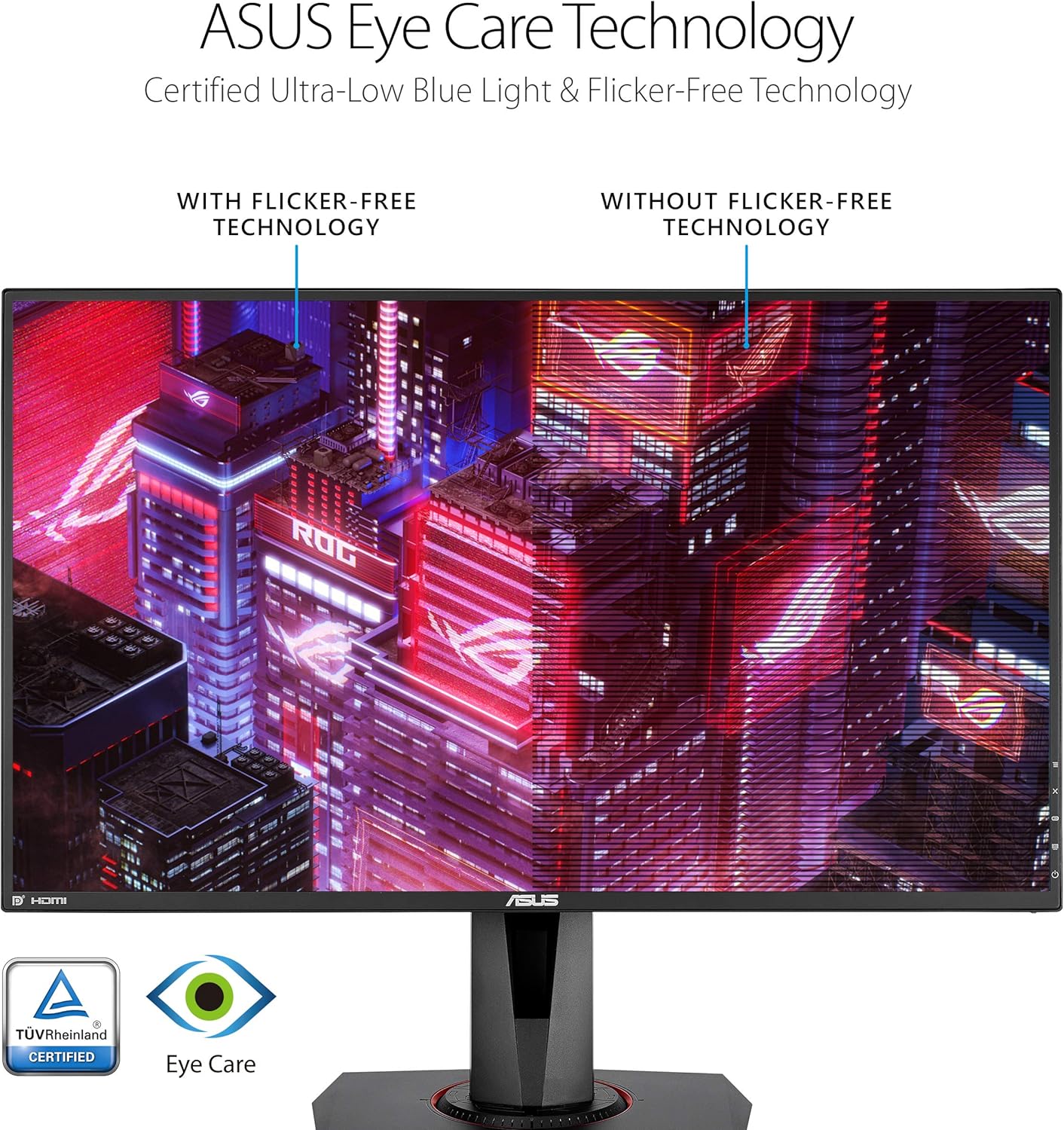
- ASUS Eye Care Technology: Features Flicker-Free and Ultra-Low Blue Light technologies to minimize eye strain during extended use.
5.4 Audio
The monitor includes integrated stereo 2W speakers, providing audio output without the need for external speakers. Audio can also be routed through the Earphone Jack.
6. Ergonomics
The ergonomic stand allows for various adjustments to optimize your viewing comfort:
- Height Adjustment: Adjust the monitor's height by gently pushing or pulling the display panel up or down.
- Tilt: Tilt the screen forward or backward to find your preferred viewing angle.
- Swivel: Rotate the monitor left or right on its base.
- Pivot: Rotate the screen 90 degrees to switch between landscape and portrait orientation.

7. Connectivity
The ASUS VG278QR offers versatile connectivity options:
- DisplayPort 1.2: Supports 1920x1080 resolution at 165Hz with G-SYNC compatibility.
- HDMI 1.4: Supports 1920x1080 resolution at up to 144Hz.
- Dual-link DVI-D: Supports 1920x1080 resolution at up to 144Hz.
- Earphone Jack: For connecting headphones or external speakers.
- Audio In: For connecting an audio source from your computer.
8. Maintenance
8.1 Cleaning the Monitor
- Always unplug the monitor from the power outlet before cleaning.
- Use a soft, lint-free cloth to gently wipe the screen and exterior surfaces.
- Do not use liquid cleaners, aerosol cleaners, or harsh chemicals, as they may damage the monitor.
9. Troubleshooting
- No Power: Ensure the power cord is securely connected to both the monitor and a working power outlet. Check the power adapter connection.
- No Image: Verify that the video cable (DisplayPort, HDMI, or DVI) is securely connected to both the monitor and your computer. Ensure the correct input source is selected in the OSD menu.
- Flickering Screen: Check the video cable connection. Ensure your graphics card drivers are up to date. Adjust the refresh rate in your computer's display settings.
- No Audio: Confirm that the audio cable is connected correctly (if using Audio In). Check the volume settings on both the monitor and your computer. Ensure the correct audio output device is selected on your computer.
10. Specifications
| Feature | Specification |
|---|---|
| Screen Size | 27 Inches |
| Panel Type | TN |
| Resolution | Full HD (1920 x 1080) |
| Refresh Rate | 165Hz |
| Response Time | 0.5ms (GTG) |
| Adaptive Sync Technology | G-SYNC Compatible |
| Brightness | 400 cd/m² (Typical) |
| Contrast Ratio | 1000:1 (Typical) |
| Viewing Angle | 170°(H)/160°(V) |
| Connectivity | 1x DisplayPort 1.2, 1x HDMI 1.4, 1x Dual-link DVI-D, Earphone Jack, Audio In |
| Speakers | 2W x 2 Stereo RMS |
| Ergonomics | Tilt, Swivel, Pivot, Height Adjustment |
| Dimensions (WxHxD) | 24.37 x 14.29 x 1.96 inches (without stand) |
| Weight | 12.35 pounds (without stand) |
11. Warranty and Support
For detailed warranty information, please refer to the warranty card included in your product package or visit the official ASUS support website. You can find drivers, FAQs, and contact information for technical support there.
ASUS Support Website: www.asus.com/support/
Ask a question about this manual
Ask about setup, troubleshooting, compatibility, parts, safety, or missing instructions. Manuals+ will review the question and use this page’s manual context to help answer it.