Introduction
This manual provides essential instructions for setting up, operating, maintaining, and troubleshooting your Canon ImageCLASS LBP226DW single function laser monochrome printer. Please read this manual thoroughly before using the printer to ensure correct and safe operation. This printer is designed for office use, offering reliable monochrome printing with a monthly duty cycle of up to 80,000 pages.
Setup
1. Unpacking the Printer
Carefully remove the printer from its packaging. Ensure all protective materials and tapes are removed. Verify that the following components are included:
- Canon ImageCLASS LBP226DW Printer
- Power cord
- USB cable
- User Manual (this document)
- Installation CD
- 1 unit of starter toner cartridge
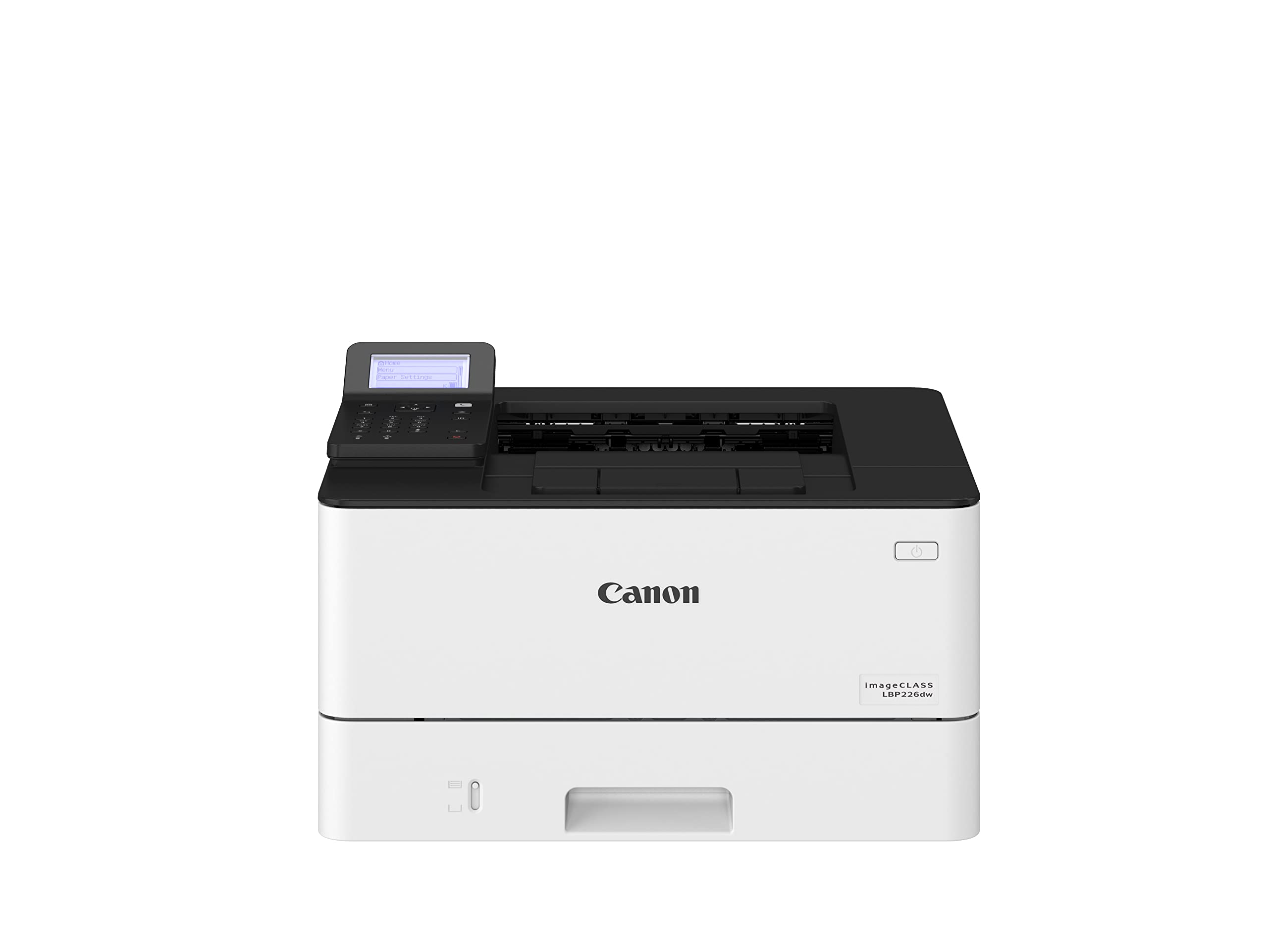
Image: The Canon ImageCLASS LBP226DW printer, showing its compact design and control panel.
2. Installing the Toner Cartridge
Open the front cover of the printer. Gently insert the provided starter toner cartridge into the designated slot until it clicks into place. Close the front cover securely.
3. Loading Paper
Pull out the paper cassette tray. Adjust the paper guides to match the size of your paper. Load paper (up to 250 sheets) into the tray, ensuring it is flat and not exceeding the maximum fill line. Push the tray back into the printer.
4. Connecting the Printer
Connect the power cord to the printer and then to a power outlet. For wired connection, use the USB cable to connect the printer to your computer. For wireless setup, refer to the software installation section.
5. Software Installation
Insert the Installation CD into your computer's CD-ROM drive and follow the on-screen instructions. Alternatively, download the latest drivers and software from the official Canon website. The printer supports Windows (10, 8.1, 7, Server 2019, 2016, 2012 R2, 2012, 2008 R2, 2008), Mac OS X 10.9.5 & up, and Linux operating systems.
Operating the Printer
1. Powering On/Off
Press the power button located on the printer's control panel to turn the printer on or off.
2. Basic Printing
From your computer, open the document or image you wish to print. Select 'Print' from the application's menu. Choose the Canon LBP226DW printer from the list of available printers. Adjust print settings as needed (e.g., number of copies, paper size) and click 'Print'.
3. Duplex Printing
The LBP226DW supports automatic dual-sided printing. To use this feature, select the duplex printing option in your printer driver settings before sending the print job.
4. Connectivity Options
The printer offers multiple connectivity options:
- USB 2.0: For direct connection to a computer.
- Wi-Fi: For wireless connection to your network. Follow the instructions in the installation software or the printer's control panel for Wi-Fi setup.
- Wi-Fi Direct: Allows direct connection from mobile devices without a router.
5. Using the Control Panel
The printer features a touch control panel for navigating menus, checking printer status, and configuring settings. Use the touch interface to access network settings, maintenance options, and other printer functions.
Maintenance
1. Replacing the Toner Cartridge
When the toner level is low, a message will appear on the control panel. To replace the cartridge, open the front cover, remove the old cartridge, and insert a new genuine Canon toner cartridge. Close the cover firmly.
2. Cleaning the Printer
Periodically wipe the exterior of the printer with a soft, dry, lint-free cloth. Do not use abrasive cleaners or solvents. For internal cleaning, refer to the detailed instructions in the electronic user manual provided on the Installation CD or Canon's support website.
3. Clearing Paper Jams
If a paper jam occurs, the printer's control panel will display an error message. Carefully open the printer covers as indicated by the error message and gently remove any jammed paper. Ensure no torn pieces remain inside. Close all covers to resume printing.
Troubleshooting
This section addresses common issues you might encounter. For more detailed troubleshooting, consult the full electronic manual or Canon's online support resources.
- Printer Not Responding: Check power connections, USB/network cable connections, and ensure the printer is powered on. Restart both the printer and your computer.
- Print Quality Issues: Ensure the toner cartridge is properly installed and has sufficient toner. Perform a print head cleaning or calibration from the printer's control panel or driver settings.
- Connectivity Problems: For Wi-Fi, verify the printer is connected to the correct network and that your computer is on the same network. Check router settings. For USB, try a different USB port or cable.
- Paper Jams: Follow the instructions in the Maintenance section to clear any jammed paper. Ensure paper is loaded correctly and not creased or damaged.
Specifications
| Feature | Specification |
|---|---|
| Printer Type | Laser, Single Function |
| Printer Output | Monochrome (Black) |
| Connectivity | USB 2.0, Wi-Fi, Wi-Fi Direct |
| Print Speed (Monochrome) | 38 ppm (A4) |
| First Print Out Time (FPOT) | 5.5 seconds |
| Duplex Printing | Automatic |
| Max Print Resolution | 1200 x 1200 dpi |
| Max Input Sheet Capacity | 250 sheets |
| Supported Media Sizes | A4, B5, A5, A6, Letter, Legal, Statement, Executive, Government Letter, Government Legal, Foolscap, Indian Legal, Custom (105.0 x 148.0mm to 216.0 x 355.6mm) |
| Control Method | Touch |
| Operating System Compatibility | Windows 10, 8.1, 7, Server 2019, 2016, 2012 R2, 2012, 2008 R2, 2008; Mac OS X 10.9.5 & up; Linux |
| Product Dimensions (LxWxH) | 40.1 x 37.3 x 25 cm |
| Item Weight | 8.8 kg |
| Monthly Duty Cycle | 80,000 pages |
Warranty Information
The Canon ImageCLASS LBP226DW printer comes with a 1 Year Warranty from the date of purchase. This warranty covers manufacturing defects under normal use. Please retain your purchase receipt as proof of purchase. For specific terms and conditions, refer to the warranty card included with your product or visit the official Canon India website.
Support
For further assistance, technical support, or to download the latest drivers and software, please visit the official Canon support website. You can also contact Canon customer service for direct support regarding your ImageCLASS LBP226DW printer.
Canon India Website: https://www.canon.co.in/


