
1. Introduction
The TELLUR Basic Wireless Mini Mouse (Model TLL491001) is a compact and lightweight peripheral designed for convenience and portability. Featuring a reliable 2.4GHz wireless connection with a 10-meter range and adjustable DPI settings, this mouse offers a comfortable and efficient user experience for various computing tasks. Its plug-and-play functionality ensures easy setup and immediate use.
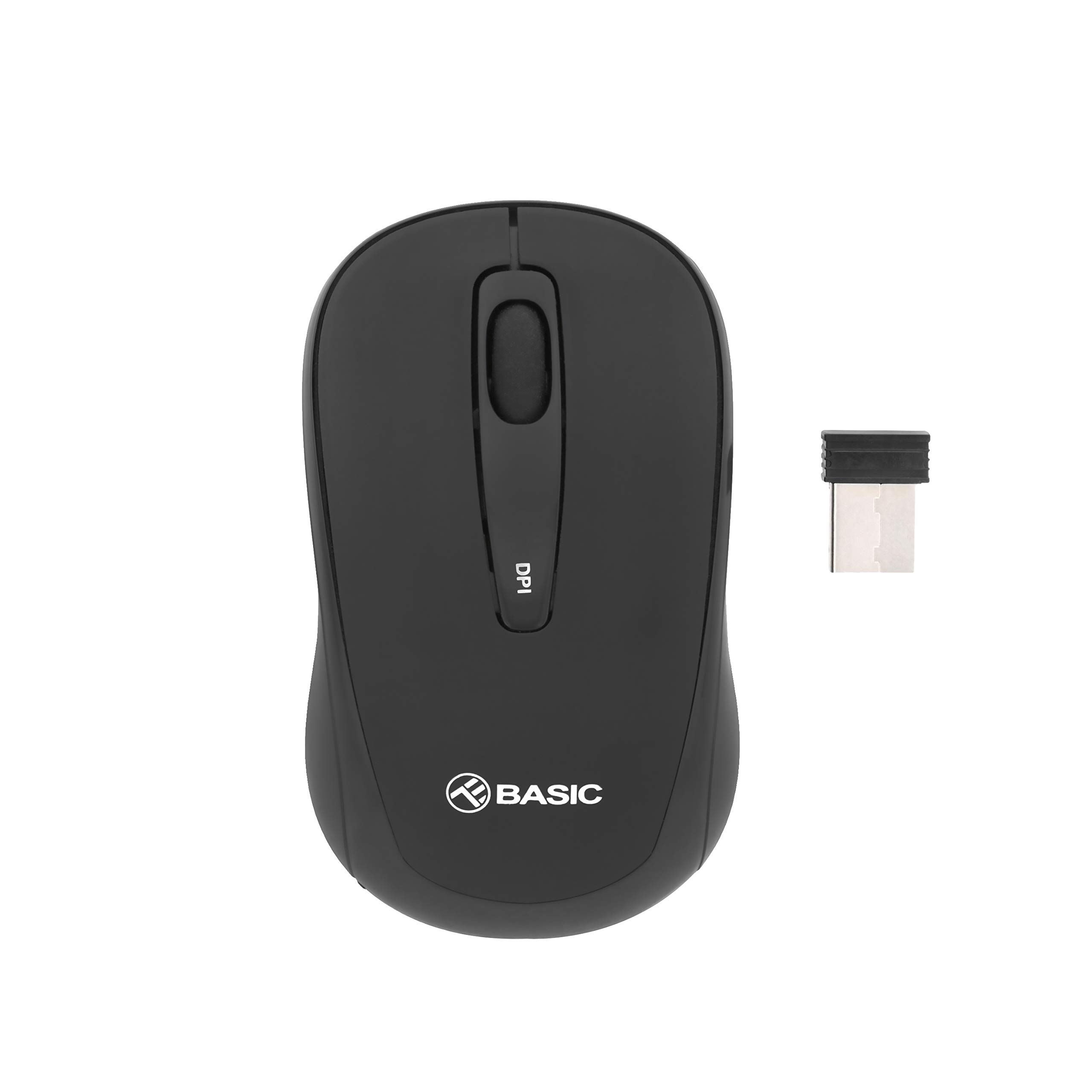
Image 1.1: Top view of the TELLUR Basic Wireless Mini Mouse.
2. Package Contents
Please verify that all items are present in your package:
- TELLUR Basic Wireless Mini Mouse
- USB Receiver (typically stored inside the mouse's battery compartment)
3. Setup Instructions
Follow these steps to set up your TELLUR Basic Wireless Mini Mouse:
- Insert Batteries: Open the battery compartment cover, usually located on the underside of the mouse. Insert two (2) AAA batteries, ensuring correct polarity (+/-). Close the battery compartment cover.
- Locate USB Receiver: The small USB receiver is typically stored within the battery compartment or a dedicated slot on the mouse for safekeeping during transport. Remove it carefully.
- Connect USB Receiver: Plug the USB receiver into an available USB port on your computer. Your operating system should automatically detect and install the necessary drivers.
- Power On Mouse: Locate the power switch on the underside of the mouse and slide it to the 'ON' position. The mouse should now be ready for use.

Image 3.1: Angled view of the mouse, showing its compact design.
4. Operating Instructions
The TELLUR Basic Wireless Mini Mouse offers standard mouse functionalities and an adjustable DPI setting:
- Left Button: Primary click function.
- Right Button: Secondary click function, typically for context menus.
- Scroll Wheel: Scroll up or down through documents and web pages. Can also be pressed for a middle-click function.
- DPI Adjustment Button: Located on the top of the mouse, this button allows you to cycle through different sensitivity levels (800, 1200, and 1600 DPI). Press the button to change the cursor speed to suit your preference or task.

Image 4.1: Top view highlighting the DPI adjustment button.
5. Maintenance
To ensure the longevity and optimal performance of your mouse, follow these maintenance guidelines:
- Cleaning: Use a soft, dry cloth to clean the mouse's surface. For stubborn dirt, slightly dampen the cloth with water or a mild cleaning solution. Avoid using harsh chemicals or abrasive materials.
- Sensor Cleaning: Occasionally, gently wipe the optical sensor on the underside of the mouse with a cotton swab to remove dust or debris that may affect tracking performance.
- Battery Replacement: When the mouse's performance becomes erratic or stops responding, it is likely time to replace the AAA batteries. Always replace both batteries at the same time.
- Storage: When not in use for extended periods, turn off the mouse to conserve battery life. Store the USB receiver inside the mouse to prevent loss.
6. Troubleshooting
If you encounter issues with your TELLUR Basic Wireless Mini Mouse, refer to the following table for common problems and solutions:
| Problem | Solution |
|---|---|
| Mouse is not responding. |
|
| Cursor movement is erratic or jumpy. |
|
| Wireless connection is unstable or has limited range. |
|
7. Specifications
| Feature | Detail |
|---|---|
| Brand | TELLUR |
| Model Name | Tellur Basic Wireless Mini Mouse |
| Item Model Number | TLL491001 |
| Color | Black |
| Connectivity Technology | Wireless (USB Receiver) |
| Movement Detection Technology | Optical |
| DPI Resolution | 800 / 1200 / 1600 (Adjustable) |
| Number of Buttons | 3 |
| Hand Orientation | Ambidextrous |
| Wireless Range | Up to 10 meters |
| Batteries Required | 2 x AAA batteries |
| Item Weight | 30 Grams |
| Special Feature | USB receiver included (inside or with mouse) |
8. Warranty and Support
For warranty information or technical support, please refer to the documentation provided with your purchase or visit the official TELLUR website. Keep your proof of purchase for warranty claims.


