
1. Introduction
This manual provides essential information for the safe and efficient operation of your Prixton Goya P20 Mini Portable Projector. Please read it thoroughly before using the device and retain it for future reference.
2. Safety Information
- Do not look directly into the projector lens when the lamp is on. The intense light can cause eye damage.
- Ensure proper ventilation around the projector. Do not block ventilation openings.
- Keep the projector away from water, moisture, and extreme temperatures.
- Use only the power adapter supplied with the projector.
- Do not attempt to disassemble or repair the projector yourself. Contact qualified service personnel.
- Place the projector on a stable, level surface to prevent it from falling.
3. Package Contents
Verify that all items are present in the package:
- Prixton Goya P20 Mini Portable Projector
- Remote Control
- Power Adapter
- User Manual (this document)

Image: The Prixton Goya P20 projector shown alongside its included remote control.
4. Product Overview
4.1. Front View

Image: Front view of the projector, highlighting the projection lens.
4.2. Rear and Side Views (Ports)

Image: Rear panel of the projector, showing the VGA input and IR receiver.
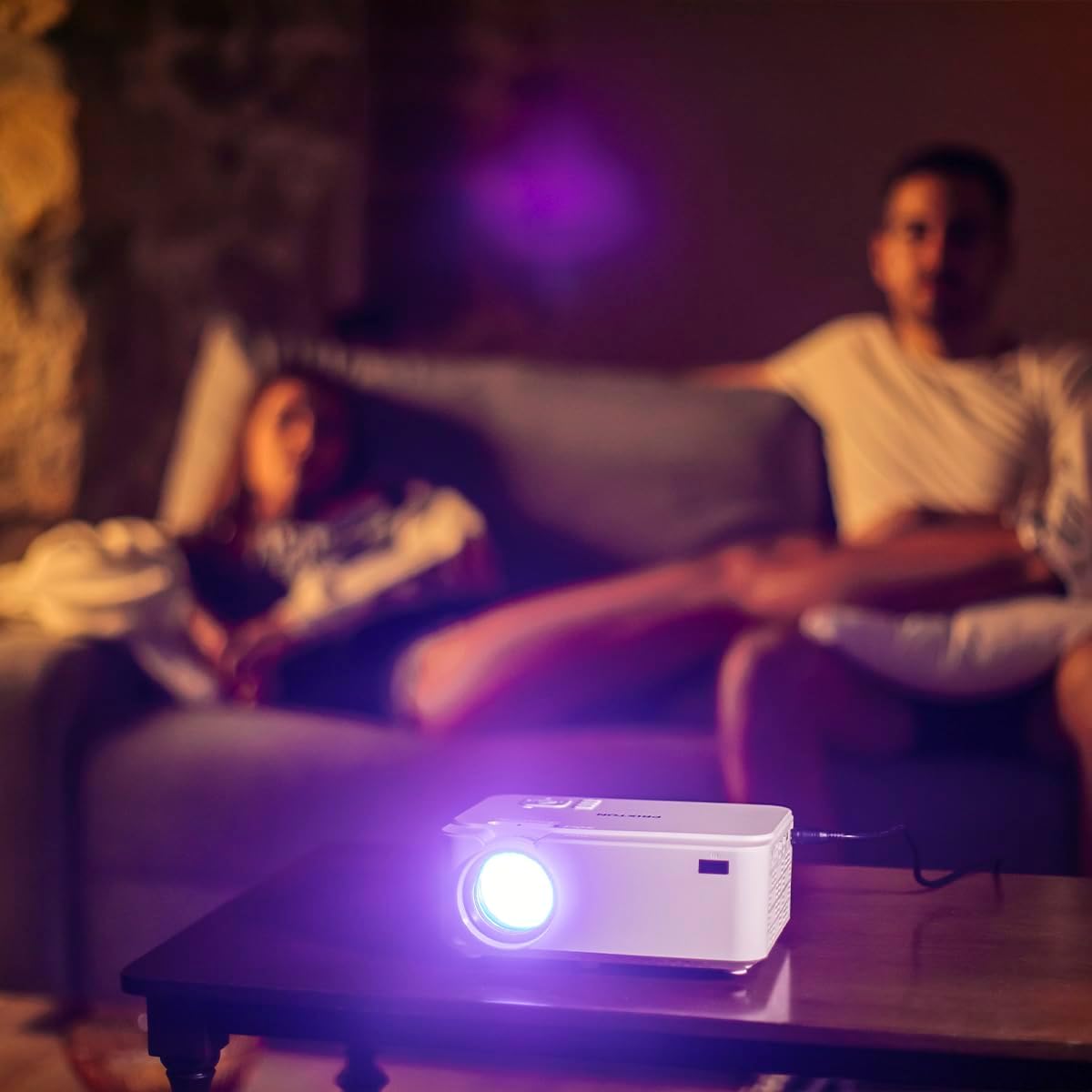
Image: Side panel of the projector, displaying the AV, MicroSD, HDMI (x2), and USB (x2) ports.
4.3. Top Panel Controls

Image: Top panel of the projector, illustrating the control buttons for navigation and power.
The projector features various input ports for connectivity and intuitive controls on the top panel, in addition to the remote control.
5. Setup
5.1. Placement
Place the projector on a flat, stable surface. For optimal viewing, position the projector between 1 to 5 meters from the projection surface. This distance allows for a screen size ranging from 30 to 150 inches.

Image: A visual representation of recommended projection distances (1 to 5 meters) and corresponding screen sizes (30 to 150 inches).
5.2. Power Connection
- Connect the power adapter to the projector's power input port.
- Plug the power adapter into a suitable electrical outlet.
5.3. Connecting Devices
The projector supports multiple input sources:
- HDMI: Connect Blu-ray players, laptops, game consoles, or media players using an HDMI cable.
- USB: Insert a USB flash drive for direct media playback.
- VGA: Connect older computers or laptops using a VGA cable.
- MicroSD: Insert a MicroSD card for direct media playback.
- AV: Use the AV port for connecting devices with composite video and stereo audio outputs.

Image: A hand connecting a USB drive to the projector's USB port.
5.4. Focus and Keystone Adjustment
Use the focus ring near the lens to sharpen the image. If the image appears trapezoidal, adjust the keystone correction to achieve a rectangular projection.
6. Operating Instructions
6.1. Powering On/Off
Press the power button on the projector or the remote control to turn the device on or off.
6.2. Source Selection
After powering on, use the 'Source' button on the remote or projector to select the desired input source (HDMI1, HDMI2, USB, VGA, AV, MicroSD).
6.3. Media Playback
When a USB drive or MicroSD card is inserted, the projector's interface will allow you to browse and play video, audio, photo, and text files directly.
6.4. Bluetooth Connectivity
The projector supports Bluetooth for audio output. Navigate to the Bluetooth settings in the projector's menu to pair with compatible Bluetooth speakers or headphones.

Image: The projector in operation, casting an image onto a wall in a dimly lit room, demonstrating its home cinema capability.
7. Maintenance
7.1. Cleaning
- Use a soft, dry cloth to clean the projector's exterior.
- For the lens, use a specialized lens cleaning cloth and solution to avoid scratches.
- Regularly clear dust from the ventilation openings using a soft brush or compressed air.
7.2. Lamp Life
The LED light source in your projector has an estimated lifespan of up to 50,000 hours, providing long-term use without frequent lamp replacement.
8. Troubleshooting
| Problem | Possible Cause | Solution |
|---|---|---|
| No image displayed | Power not connected, incorrect input source, device not connected properly. | Check power cable, select correct input source, ensure source device is on and connected securely. |
| Image is blurry | Focus not adjusted, projection distance too far/close. | Adjust the focus ring. Ensure projector is within the recommended 1-5 meter projection distance. |
| No sound | Volume too low, external audio device not connected, incorrect audio settings. | Increase projector volume. Check if external speakers are connected and functioning. Verify audio output settings. |
| Remote control not working | Batteries depleted, obstruction between remote and projector. | Replace batteries. Ensure no objects are blocking the IR sensor on the projector. |
| Fan noise is loud | Normal operation, restricted airflow. | Some fan noise is normal for projectors. Ensure ventilation ports are clear and not obstructed. |
9. Specifications
| Feature | Detail |
|---|---|
| Brand | Prixton |
| Model Number | Goya P20 |
| Display Technology | LED |
| Native Resolution | 800 x 480 |
| Max Display Resolution | 1920 x 1080 (Full HD compatible) |
| Brightness | Up to 2800 lumens (40 LED lumens) |
| Contrast Ratio | 500:1 |
| Light Source Life | 50,000 hours |
| Connectivity Technology | Bluetooth, HDMI (x2), USB (x2), VGA, MicroSD, AV |
| Special Features | Integrated speaker, Portable, Remote control included |
| Recommended Use | Home Cinema |
| Compatible Devices | Game console, Blu-ray player, Media player, Laptop, Smartphone |
| Form Factor | Portable |
| Mounting Type | Table Mount |
10. Warranty and Support
For warranty information and technical support, please refer to the documentation provided at the time of purchase or contact Prixton customer service. Information regarding spare parts availability and software updates is not available in this manual.
