
Introduction
This manual provides essential information for the safe and efficient operation of your FidgetGear KT107 10.1 Inch 4G-LTE Tablet. Please read this manual thoroughly before using the device to ensure proper functionality and to prevent damage.

Image: Front and rear view of the FidgetGear KT107 Tablet. The front displays a colorful home screen with app icons, while the rear shows the camera module and a textured white casing.
Setup and First Use
Package Contents
Verify that all items are present in the package:
- 1 x FidgetGear KT107 Tablet
- 1 x Power Supply (EU Plug)
- 1 x User Manual (this document)
- 1 x OTG Cable
- 1 x USB Cable
Device Overview and Ports

Image: Diagram showing the FidgetGear KT107 Tablet with labels for its various ports and buttons. These include the front camera, headphone hole, volume up/down buttons, turn on/off button, rear camera/flash, and stereo surround sound speakers.
Familiarize yourself with the tablet's physical features:
- Front Camera: Located at the top center when held in landscape orientation.
- Headphone Hole: Standard 3.5mm audio jack.
- Volume Buttons: Control audio output level.
- Power Button: Used to turn the device on/off or put it to sleep.
- Rear Camera/Flash: Located on the back of the tablet.
- Stereo Surround Sound: Speakers for audio output.
Charging the Tablet
Before first use, fully charge the tablet. Connect the provided USB cable to the tablet's Micro-USB port and the power supply. Plug the power supply into a wall outlet. The battery indicator on the screen will show charging status.
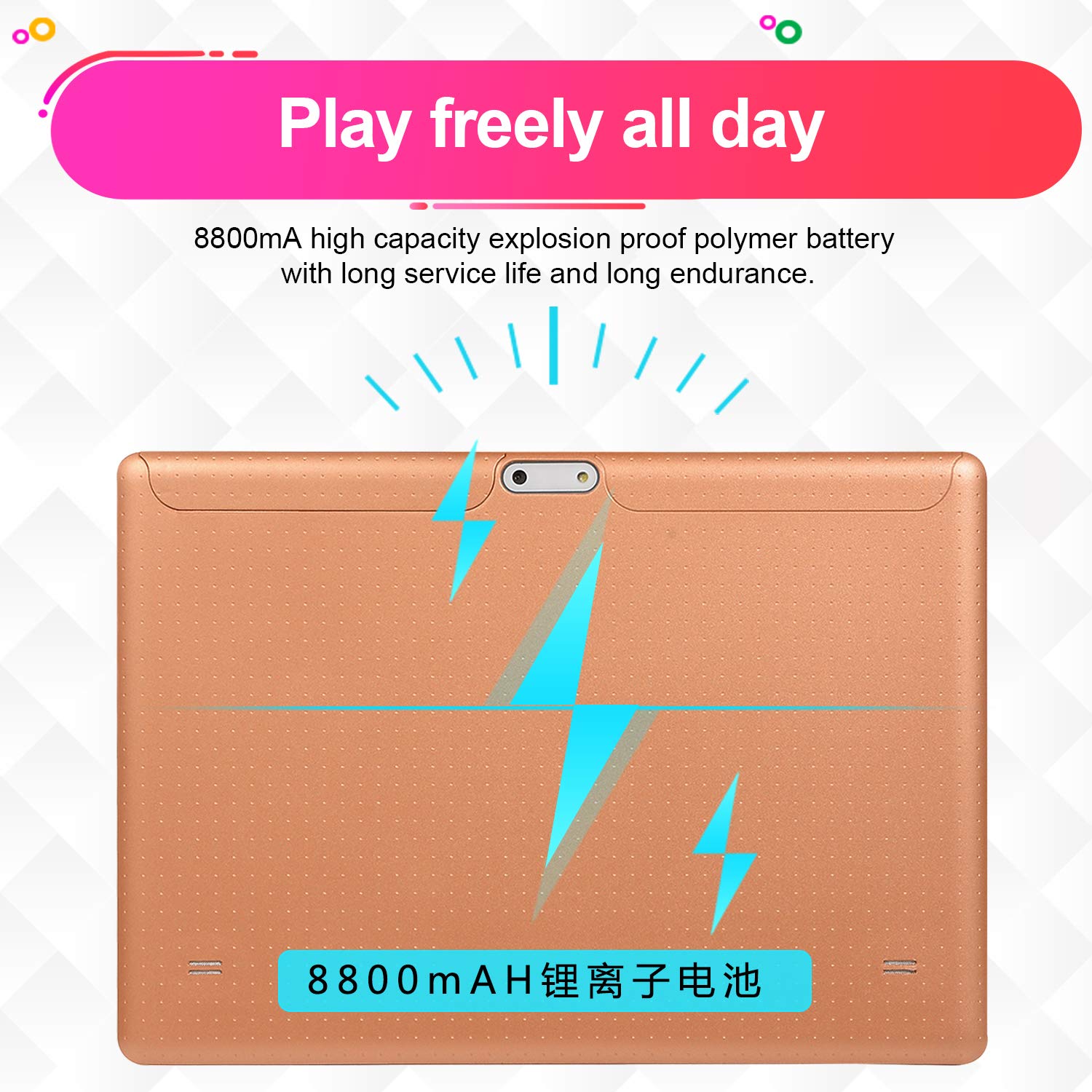
Image: The FidgetGear KT107 Tablet shown from the back, with an overlay indicating its 8800mAh high-capacity battery and long endurance.
The tablet is equipped with an 8800 mAh battery (theoretical capacity) for extended use.
Powering On/Off
- To Power On: Press and hold the Power button until the FidgetGear logo appears.
- To Power Off: Press and hold the Power button until a power-off menu appears. Select "Power off".
- Sleep Mode: Briefly press the Power button to put the tablet into sleep mode or wake it up.
Inserting SIM and Micro SD/TF Cards
The KT107 supports Dual SIM functionality and memory expansion via Micro SD/TF card up to 64 GB. Locate the SIM/SD card tray on the side of the tablet. Use the provided SIM ejector tool (if included, otherwise a small paperclip) to open the tray. Insert the cards as indicated on the tray, ensuring correct orientation. Close the tray securely.
Note: Some users have reported issues with Indian SIM card compatibility. Ensure your SIM card is compatible with the tablet's specifications (4G-LTE).
Operating Instructions
Basic Navigation
The tablet operates on Android 8.0. Use touch gestures for navigation:
- Tap: Select an item or open an app.
- Tap and Hold: Access contextual menus or move icons.
- Swipe: Scroll through screens or lists.
- Pinch: Zoom in or out on images and web pages.
Connecting to Networks
Wi-Fi Connection
To connect to a Wi-Fi network:
- Go to Settings > Network & Internet > Wi-Fi.
- Turn Wi-Fi on.
- Select your desired network from the list.
- Enter the password if prompted and tap Connect.

Image: The FidgetGear KT107 Tablet displaying its home screen with a Wi-Fi icon, indicating high-speed Wi-Fi connectivity for better experience.
Bluetooth Connection
To pair with a Bluetooth device:
- Go to Settings > Connected devices > Bluetooth.
- Turn Bluetooth on.
- Ensure your Bluetooth device is in pairing mode.
- Select the device from the list and follow on-screen prompts to complete pairing.
4G-LTE Connectivity
If a compatible SIM card is inserted, the tablet will automatically connect to available 4G-LTE networks for mobile data and calls (if supported by your SIM plan). Ensure mobile data is enabled in Settings > Network & Internet > Mobile network.
Camera Usage
The tablet features a 13.0MP rear camera and an 8.0MP front camera.

Image: The FidgetGear KT107 Tablet displaying a scene captured by its front camera, emphasizing its 8-megapixel capability.
To use the camera:
- Tap the Camera icon on the home screen or app drawer.
- Switch between front and rear cameras using the camera switch icon.
- Tap the shutter button to take a photo.
- Explore various modes like video recording, panorama, etc., if available in the camera app.
Display and Screen Features
The tablet features a 10.1-inch capacitive touch screen with a resolution of 1960 x 1080 pixels.

Image: The FidgetGear KT107 Tablet screen showcasing vibrant, high-definition content, highlighting its 10.1-inch size and 1960x1080 resolution.
Adjust display settings such as brightness, wallpaper, and sleep timeout in Settings > Display.
Other Features
- GPS: Built-in GPS for navigation and location services.
- OTG Function: Supports On-The-Go (OTG) functionality, allowing connection of USB peripherals like flash drives or keyboards using the provided OTG cable.
- Pre-installed Apps: Includes standard Android applications such as web browser, email client, calculator, calendar, and media players.
- Multi-language Support: Supports German, English, Chinese, Simplified Chinese, Japanese, Korean, French, Russian, Italian, and more.
Maintenance and Care
- Cleaning: Use a soft, lint-free cloth to clean the screen and body of the tablet. Avoid using harsh chemicals or abrasive materials.
- Battery Care: To prolong battery life, avoid extreme temperatures. Do not let the battery completely drain frequently.
- Software Updates: Periodically check for system updates in Settings > System > System update to ensure optimal performance and security.
- Storage Management: Regularly clear unnecessary files and apps to maintain sufficient storage space and performance.
- Environmental Conditions: Avoid exposing the tablet to direct sunlight, high humidity, dust, or extreme temperatures.
Troubleshooting
| Problem | Possible Cause / Solution |
|---|---|
| Tablet does not power on. | Battery might be drained. Connect to charger and wait a few minutes before attempting to power on again. Ensure power supply and cable are working. |
| Cannot connect to Wi-Fi. | Ensure Wi-Fi is enabled in settings. Check if the Wi-Fi router is working. Re-enter password if necessary. Try restarting the tablet and router. |
| SIM card not detected / No mobile data. | Ensure the SIM card is correctly inserted and fully seated in the tray. Verify that mobile data is enabled in settings. Check with your service provider for network issues or SIM compatibility (some users reported issues with Indian SIM cards). |
| Low audio volume. | Increase volume using the volume buttons. Check media volume settings in Settings > Sound. Ensure no headphones are partially plugged in. |
| Tablet is slow or unresponsive. | Close unused applications. Clear cache and data for problematic apps. Restart the tablet. Ensure sufficient storage space is available. |
Specifications
| Feature | Detail |
|---|---|
| Operating System | Android 8.0 |
| Processor | Top Ten Cores (MTK6797 CPU) |
| GPU | Mali 400 GPU |
| RAM | 8GB |
| ROM | 128GB |
| Memory Expansion | Up to 64 GB Micro SD / TF |
| Internet Connection | Wi-Fi + 3G + 4GLTE |
| Connectivity | Bluetooth 4.1, Micro-USB, Wi-Fi (IEEE 802.11 b / g / n) |
| Screen Size | 10.1 inches |
| Resolution | 1960 x 1080 pixels |
| Screen Type | Capacitive touch screen |
| G Sensor | Support |
| Rear Camera | 13.0MP |
| Front Camera | 8.0MP |
| Battery | 8800 mAh (theoretical capacity) |
| OTG Function | Support |
| Color | White EU plug (as per product listing) |
Warranty and Support
For warranty information and technical support, please refer to the documentation provided with your purchase or contact FidgetGear customer service. Keep your purchase receipt as proof of purchase for warranty claims.
For further assistance, please visit the official FidgetGear website or contact their support channels.