
1. Introduction
Thank you for choosing the DEPSTECH 5.0MP WiFi Endoscope. This device is a high-definition inspection camera designed for various applications, including mechanical parts inspection, appliance maintenance, pipeline inspection, and more. Featuring a 5.0MP camera, WiFi connectivity, and a semi-rigid cable, it provides clear visuals in hard-to-reach areas. This manual provides essential information for setting up, operating, maintaining, and troubleshooting your endoscope.

The DEPSTECH WiFi Endoscope is versatile, suitable for car/auto maintenance, air-conditioning inspection, pipeline inspection, and home appliance repairs.
2. Product Overview and Features
The DEPSTECH 5.0MP WiFi Endoscope is engineered for detailed visual inspection. Its robust design and advanced features ensure reliable performance in diverse environments.
Key Features:
- 5.0MP HD Camera: Equipped with an 8.5mm 5.0MP camera, it captures super clear 2952*1944 resolution pictures and videos, allowing for detailed inspection.
- WiFi Connectivity: Utilizes double antennas for fast and stable real-time transmission to your smart device.
- Wide Compatibility: Works with Android 4.2+ and iOS 6.0+ devices (note: iOS 8.0 lower devices cannot record videos).
- Extended Focal Range & Zoom: Offers a large focal range from 1.57 inches to 15.7 inches (4cm to 40cm) and a 1-3X digital zoom function for examining both small articles and larger scenes.
- Adjustable LED Lighting: Features 6 adjustable LED lights on the camera head to illuminate dark areas and reduce overexposure, plus a built-in torchlight on the control unit.
- IP67 Waterproof Probe: The camera probe is IP67 rated, allowing for inspection in wet or underwater environments.
- Semi-Rigid Cable: The 32ft (9.75m) long semi-rigid cable maintains its shape, enabling precise navigation into various hard-to-reach spaces.

The endoscope features a 5.0MP camera lens with Bluart 2.0 sensor technology for clear imaging in various lighting conditions.

The endoscope offers an optimal observation distance of 2.76 to 15.7 inches (7cm to 40cm) for clear viewing.

Utilize the 3X digital zoom function to magnify details for more precise inspection.

The camera head is IP67 waterproof and features 6 adjustable LED lights to provide optimal illumination in dark environments.
3. Package Contents
Upon opening your DEPSTECH 5.0MP WiFi Endoscope package, please verify that all the following items are included:
- DEPSTECH 5.0MP WiFi Endoscope Unit (with integrated cable and control box)
- USB Charging Cable
- User Manual
- Accessory Kit (includes hook, magnet, and side mirror attachments)
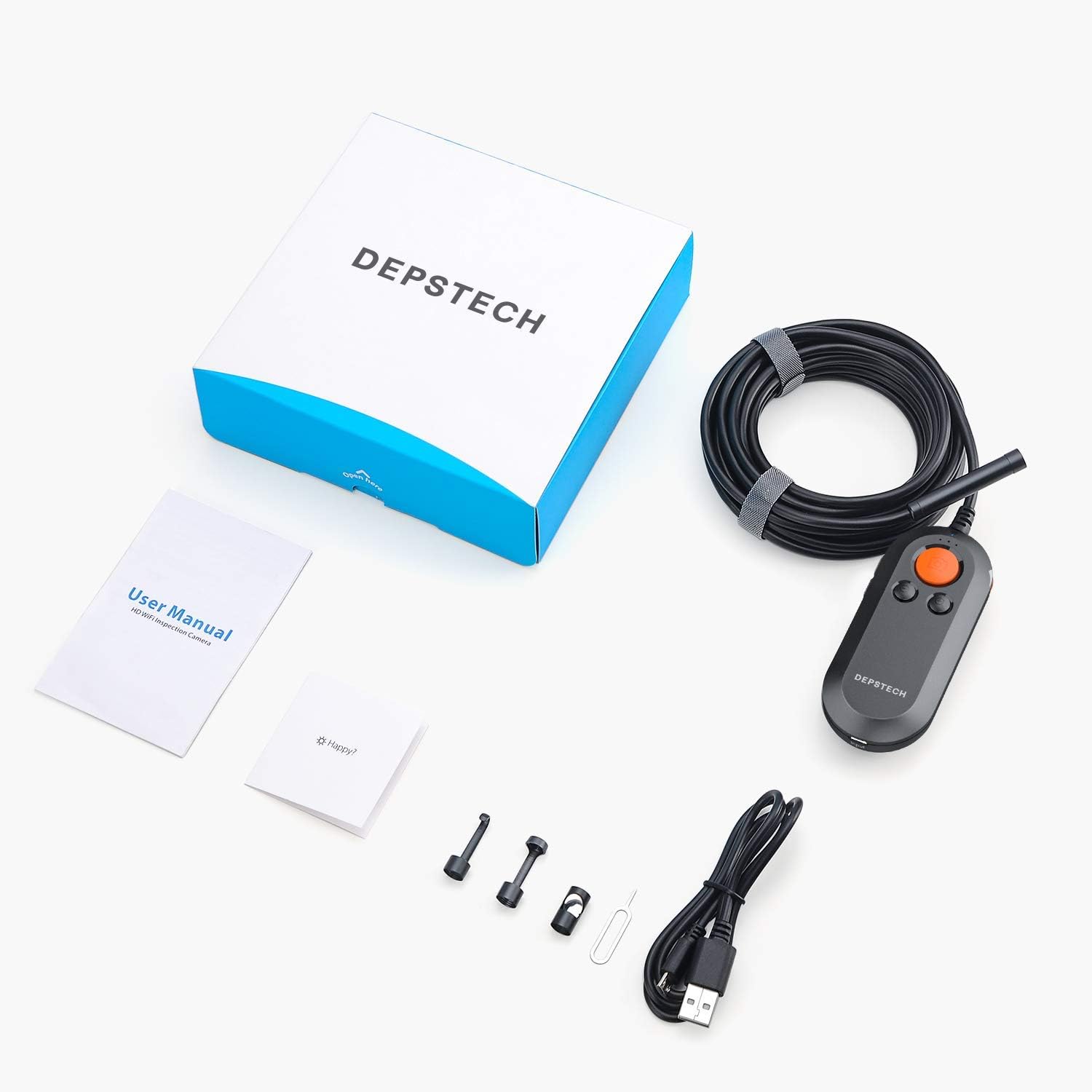
The complete package includes the endoscope, user manual, charging cable, and various attachments.
4. Setup Guide
4.1 Charging the Endoscope
Before first use, fully charge the endoscope's built-in battery. Connect the provided USB charging cable to the Micro USB input port on the control unit and plug the other end into a standard USB power adapter (not included) or a computer's USB port. The power indicator light will show charging status.
4.2 Downloading the Companion App
Search for and download the official DEPSTECH companion app (e.g., "DEPSTECH-View" or similar as indicated in the quick start guide) from your device's app store (Google Play Store for Android, Apple App Store for iOS).
4.3 Connecting to Your Device via WiFi
- Power on the endoscope by pressing and holding the power button on the control unit. The WiFi indicator light will begin to flash.
- On your smartphone or tablet, go to your WiFi settings.
- Locate and select the WiFi network named "DEPSTECH_XXXX" (where XXXX is a unique identifier).
- Enter the default password (usually provided in the quick start guide or on the device itself, often "12345678").
- Once connected, open the DEPSTECH companion app. The live video feed from the endoscope camera should appear on your screen.
5. Operating Instructions
Familiarize yourself with the control unit's buttons for optimal operation.

The control unit features clearly labeled buttons for power, camera, zoom, and LED brightness control.
5.1 Power On/Off
- Power On: Press and hold the Power button until the indicator lights illuminate.
- Power Off: Press and hold the Power button again until the indicator lights turn off.
5.2 Adjusting LED Brightness
Use the LED brightness control wheel or buttons on the control unit to adjust the intensity of the 6 LED lights around the camera lens. Rotate or press to increase or decrease brightness as needed for clear visibility.
5.3 Capturing Images and Videos
- Take a Photo: Press the Camera button on the control unit or the corresponding button within the app to capture a still image.
- Record Video: Press the Video Record button within the app to start recording. Press it again to stop recording. All captured media will be saved directly to your connected smart device.
5.4 Using Zoom Function
Use the 'Zoom In' and 'Zoom Out' buttons on the control unit to digitally magnify or reduce the view on your screen. This allows for closer inspection of details.
5.5 Navigating with the Semi-Rigid Cable
The semi-rigid cable can be bent and will hold its shape, allowing you to guide the camera into specific positions. Gently maneuver the cable to navigate through pipes, ducts, or other confined spaces. For very long or complex paths, consider attaching the camera to a fish rod or similar tool for better control.
6. Maintenance
Proper maintenance ensures the longevity and optimal performance of your DEPSTECH Endoscope.
- Cleaning the Lens and Cable: After each use, especially in dirty or wet environments, gently wipe the camera lens and the semi-rigid cable with a soft, damp cloth. For stubborn dirt, a mild cleaning solution can be used, but ensure no liquid enters the control unit.
- Storage: Store the endoscope in a cool, dry place, away from direct sunlight and extreme temperatures. Coil the cable loosely to prevent kinks or damage.
- Battery Care: To prolong battery life, avoid fully discharging the battery frequently. If storing for an extended period, charge the battery to approximately 50% every few months.
- Avoid Harsh Chemicals: Do not use strong solvents, abrasive cleaners, or corrosive liquids on any part of the endoscope.
7. Troubleshooting
If you encounter issues with your endoscope, refer to the following common problems and solutions:
- No Image on Screen / WiFi Connection Failure:
- Ensure the endoscope is powered on and its WiFi indicator light is active.
- Verify that your smart device is connected to the endoscope's WiFi network (e.g., "DEPSTECH_XXXX").
- Restart both the endoscope and your smart device.
- Ensure the DEPSTECH app has necessary permissions (e.g., local network access, storage).
- Poor Image Quality / Blurry Image:
- Adjust the LED brightness using the control wheel/buttons.
- Ensure the camera lens is clean and free of debris.
- Adjust the distance between the camera and the object being inspected to be within the optimal focal range (1.57-15.7 inches / 4-40cm).
- Battery Not Charging:
- Check if the USB cable is securely connected to both the endoscope and the power source.
- Try a different USB port or power adapter.
- Ensure the charging cable is not damaged.
- App Crashing / Lagging:
- Close other background applications on your smart device.
- Ensure your device's operating system and the DEPSTECH app are updated to the latest versions.
- Clear the app's cache (via your device's app settings).
If these steps do not resolve your issue, please contact DEPSTECH customer support for further assistance.
8. Specifications
| Specification | Value |
|---|---|
| Product Dimensions | 6.3 x 6.3 x 1.97 inches |
| Item Weight | 1.25 pounds |
| ASIN | B07XM7S7VQ |
| Batteries | 1 Lithium Ion batteries required (included) |
| Date First Available | September 16, 2019 |
| Manufacturer | DEPSTECH |
| Macro Focus Range | 7cm - 40cm (2.76 - 15.7 inches) |
| Shooting Modes | Underwater |
| Exposure Control Type | Automatic |
| Color | Black |
| Video Capture Resolution | 5.0 MP |
9. Warranty and Support
For information regarding warranty coverage, technical support, or service inquiries, please refer to the warranty card included in your product packaging or visit the official DEPSTECH website. Contact details for customer support are typically available on the manufacturer's website.


