
1. Introduction
This manual provides detailed instructions for the installation, operation, and maintenance of your Ubit WiFi Card 6E AX200. This high-performance PCIe network card offers tri-band connectivity (6GHz, 5GHz, 2.4GHz) with speeds up to 5400Mbps, Bluetooth 5.2, OFDMA, and ultra-low latency, designed for Windows 10/11 (64-bit) systems.
Please read this manual thoroughly before installation to ensure proper setup and optimal performance.

Image: The Ubit WiFi Card 6E AX200 with its two external antennas.
2. Key Features
- Tri-Band Connectivity: Supports 6GHz, 5GHz, and 2.4GHz bands with a total speed of up to 5400Mbps.
- WiFi 6E Technology: Utilizes the 6GHz band to address Wi-Fi spectrum shortage, providing 14 additional 80 MHz channels and 7 additional 160 MHz channels for high-bandwidth applications.
- Ultra-Low Latency: Revolutionary OFDMA technology minimizes lag for responsive real-time gaming and immersive VR experiences.
- Bluetooth 5.2: Equipped with the latest Bluetooth 5.2 technology, offering 2x faster speeds and 4x broader coverage than BT 4.2 for connecting game controllers, headphones, and keyboards.
- Intel AX210 Chipset: Powered by the Intel AX210 chipset for reliable and high-performance wireless connectivity.

Image: Visual representation of the tri-band speeds: 2400Mbps on 6GHz, 2400Mbps on 5GHz, and 600Mbps on 2.4GHz.
3. Package Contents
Verify that all items are present in your package:
- Ubit WiFi Card 6E AX200
- Two High-Gain Antennas
- Bluetooth USB Cable
- Screwdriver
- Mounting Screw
- Low-Profile Bracket (for small form factor PCs)
- Driver CD (for initial driver installation)
- Quick Installation Guide

Image: Contents of the Ubit WiFi Card 6E AX200 package, including the card, antennas, cables, and documentation.
4. Setup and Installation
4.1. Pre-Installation Steps
- Download Latest Drivers: Before opening your PC, download the latest Wi-Fi and Bluetooth drivers for the Intel AX210 chipset from the official Intel website (intel.com/downloads). Search for "Intel Wi-Fi 6E AX210" and download the drivers for your operating system (Windows 10/11 64-bit). Save them to a USB drive or accessible location. This ensures you have the most up-to-date software for optimal performance.
- Power Off PC: Completely shut down your computer and unplug the power cable from the wall outlet.
- Ground Yourself: Touch a grounded metal object (like your PC's metal chassis) to discharge any static electricity before handling internal components.
Video: "If no CD player, get online driver on Intel Website." by Ubit team. This video highlights the importance of downloading drivers from the Intel website if a CD drive is unavailable.
4.2. Physical Installation
- Open PC Case: Remove the side panel of your computer case.
- Locate PCIe Slot: Find an available PCIe x1 slot on your motherboard. The Ubit WiFi Card is a PCIe x1 card, but it can also fit into larger PCIe slots (x4, x8, x16).
- Remove Slot Cover: Remove the metal slot cover from the back of your PC case corresponding to the chosen PCIe slot.
- Connect Bluetooth USB Cable: Connect the small end of the provided Bluetooth USB cable to the Ubit WiFi Card. Then, locate an available USB 2.0 header (usually labeled "USB" or "JUSB") on your motherboard and connect the other end of the cable. Ensure the pins are aligned correctly. Consult your motherboard manual if unsure.
- Insert WiFi Card: Carefully align the Ubit WiFi Card with the chosen PCIe slot and gently push it down until it is firmly seated. It should click into place. Do not force it.
- Secure Card: Use the provided screw to secure the WiFi card to the PC case bracket. If needed, replace the standard bracket with the low-profile bracket for smaller cases.
- Attach Antennas: Screw the two high-gain antennas onto the connectors at the back of the WiFi card. Adjust their position for optimal signal reception.
- Close PC Case: Replace the side panel of your PC case and reconnect the power cable.
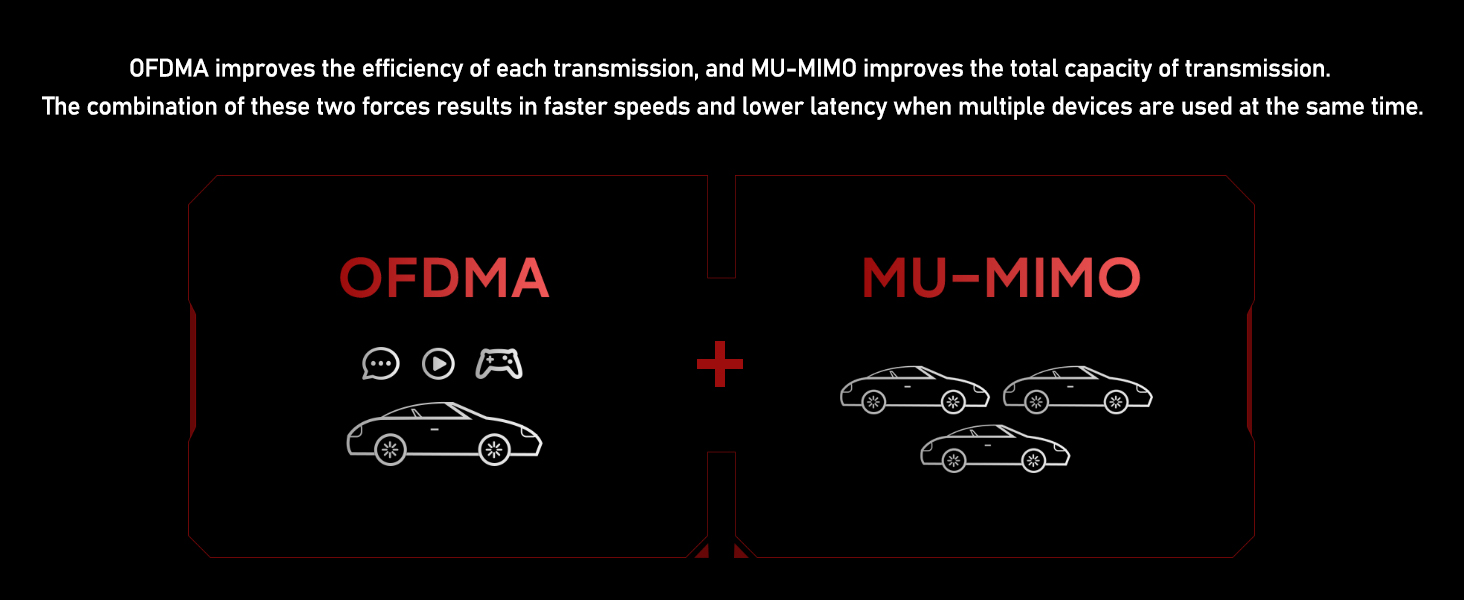
Image: Diagram showing the installation of the Ubit WiFi Card into a PCIe slot and connecting the Bluetooth USB cable to the motherboard.
4.3. Driver Installation
- Power On PC: Turn on your computer.
- Install Drivers:
- If you have a CD drive, insert the driver CD and follow the on-screen instructions to install both Wi-Fi and Bluetooth drivers.
- If you downloaded the drivers previously, navigate to the saved files and run the installer for both Wi-Fi and Bluetooth. Follow the prompts to complete the installation.
- Restart PC: After driver installation, restart your computer to ensure all changes take effect.

Image: Screenshot of the Intel website showing available Wi-Fi and Bluetooth drivers for Windows 10 and 11.
5. Operating Instructions
5.1. Connecting to Wi-Fi
- Click the Wi-Fi icon in the system tray (bottom-right corner of your screen).
- Select your desired Wi-Fi network from the list of available networks.
- Click "Connect" and enter the network security key (password) if prompted.
- Once connected, you should have internet access. The Ubit WiFi Card supports 2.4GHz, 5GHz, and 6GHz bands. For optimal performance, connect to a 5GHz or 6GHz network if your router supports it. Note that 6GHz Wi-Fi only works in Windows 11 and requires a compatible 802.11ax (Wi-Fi 6E) router with 160MHz channel support.
5.2. Connecting Bluetooth Devices
- Go to Windows Settings > Devices > Bluetooth & other devices.
- Ensure Bluetooth is turned "On".
- Click "Add Bluetooth or other device" and select "Bluetooth".
- Put your Bluetooth device into pairing mode.
- Select your device from the list and follow any on-screen prompts to complete the pairing process.

Image: Diagram illustrating various Bluetooth devices (headphones, mouse, keyboard, gamepad, speaker) connecting to the Ubit WiFi Card via Bluetooth 5.2.
6. Maintenance
- Keep Drivers Updated: Regularly check the Intel website for the latest Wi-Fi and Bluetooth drivers to ensure optimal performance, security, and compatibility.
- Clean PC Internals: Periodically clean the inside of your PC case, including the WiFi card and its heatsink, to prevent dust buildup which can affect performance and longevity.
- Antenna Placement: Ensure antennas are positioned optimally for the best signal. Avoid placing them near large metal objects or other signal-interfering devices.
7. Troubleshooting
If you encounter issues with your Ubit WiFi Card, try the following steps:
- No Wi-Fi Connection:
- Ensure the card is properly seated in the PCIe slot.
- Verify that the antennas are securely attached.
- Check Device Manager (right-click Start > Device Manager) to see if the Wi-Fi adapter is recognized and has no error symbols. Reinstall drivers if necessary.
- Restart your router and modem.
- Ensure your operating system (Windows 10/11 64-bit) is supported.
- No Bluetooth Functionality:
- Confirm the Bluetooth USB cable is correctly connected to both the WiFi card and an available USB 2.0 header on the motherboard.
- Check Device Manager for the Bluetooth adapter and reinstall drivers if needed.
- Ensure Bluetooth is enabled in Windows Settings.
- Slow Speeds or Intermittent Connection:
- Ensure you are connected to the 5GHz or 6GHz band for higher speeds, if available.
- Check for physical obstructions between your PC and the router.
- Update your router's firmware.
- Adjust antenna orientation.
8. Specifications
| Feature | Detail |
|---|---|
| Brand | Ubit |
| Model Number | AX200 |
| Hardware Interface | Bluetooth, PCI Express |
| Data Link Protocol | Bluetooth, Wi-Fi (802.11ax) |
| Data Transfer Rate | Up to 5400 Mbps (2400 Mbps on 6GHz/5GHz, 574 Mbps on 2.4GHz) |
| Bluetooth Version | 5.2 |
| Compatible Devices | Desktop PCs, Keyboards, Mice, Headphones, Game Controllers |
| Supported Operating Systems | Windows 10 (64-bit), Windows 11 (64-bit), Linux (5.1+) |
| Item Weight | 1.55 ounces |
| Package Dimensions | 7.4 x 4.96 x 1.18 inches |
9. Warranty and Support
For warranty information, technical support, or further assistance, please visit the official Ubit website or contact their customer service directly. Keep your purchase receipt as proof of purchase.
Ubit is dedicated to providing high-quality products and customer satisfaction. For the latest information and support resources, please refer to the manufacturer's official channels.