
1. Introduction
This manual provides essential instructions for the safe and efficient use of your Modecom Freeway SX 7.2 IPS Car Navigation System. Please read this manual thoroughly before operating the device and keep it for future reference.
The Modecom Freeway SX 7.2 IPS is a reliable car navigation system designed to guide you through Europe with its pre-installed MAPFACTOR maps. It features a 7-inch IPS touchscreen for clear visibility and easy interaction.
2. Product Overview
The Modecom Freeway SX 7.2 IPS navigation system typically includes the main navigation unit, a car charger, and a mounting bracket.
Key Features:
- 7-inch IPS Touchscreen Display
- Pre-loaded MAPFACTOR Full Europe Maps
- Intuitive User Interface
- External DC Supply: 5V === 2A

The retail packaging for the Modecom Freeway SX 7.2 IPS navigation system, displaying the device and key features.

The navigation device shown from the front, mounted on its bracket, with the 7-inch IPS screen displaying a typical navigation view.
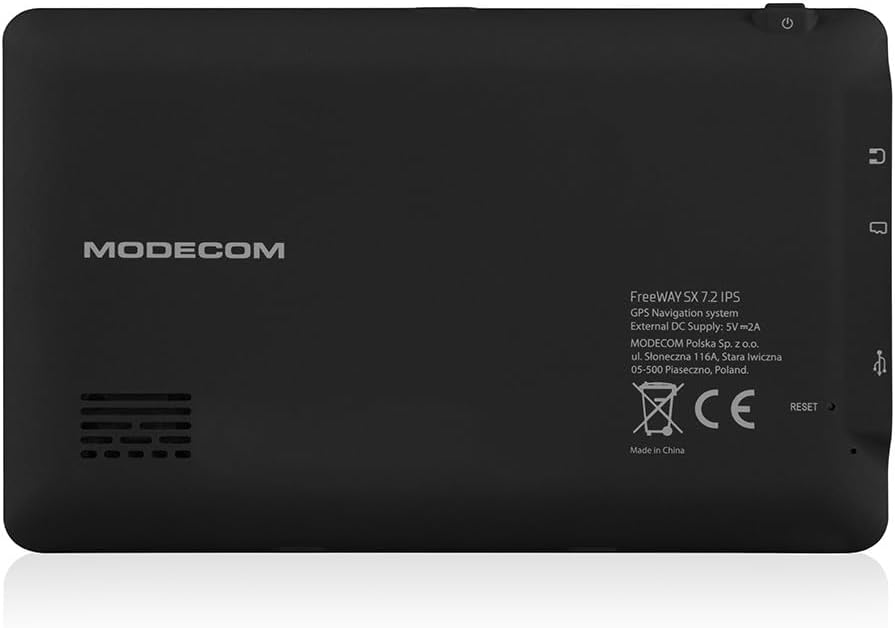
The back of the navigation unit, featuring the "MODECOM" logo, model details (FreeWay SX 7.2 IPS, GPS Navigation system, External DC Supply: 5V === 2A), manufacturer information, CE mark, and a reset button.

A side profile of the navigation unit, highlighting the input/output ports such as a memory card slot, audio jack, and USB port.
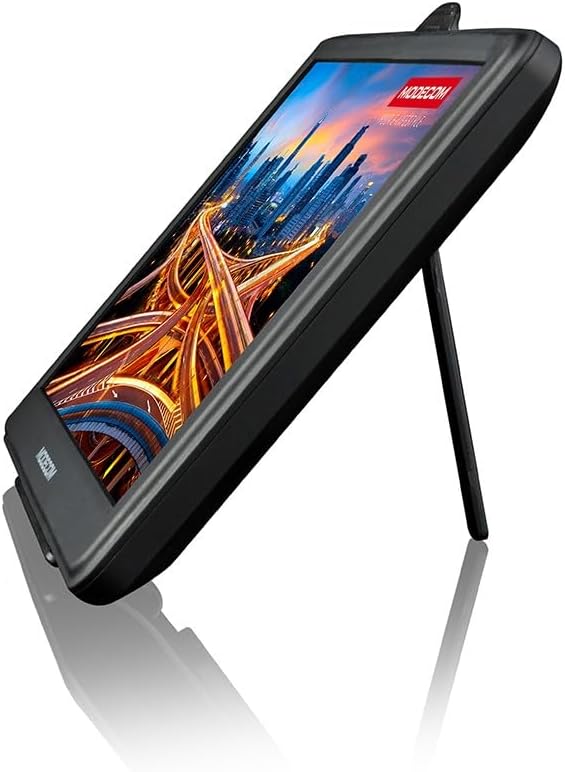
The navigation unit shown with its integrated kickstand extended, allowing for freestanding use outside of a vehicle.
3. Setup
3.1. Mounting the Device
- Attach the suction cup mount to a clean, smooth surface on your windshield or dashboard. Ensure it does not obstruct your view of the road.
- Securely attach the navigation unit to the mounting bracket.
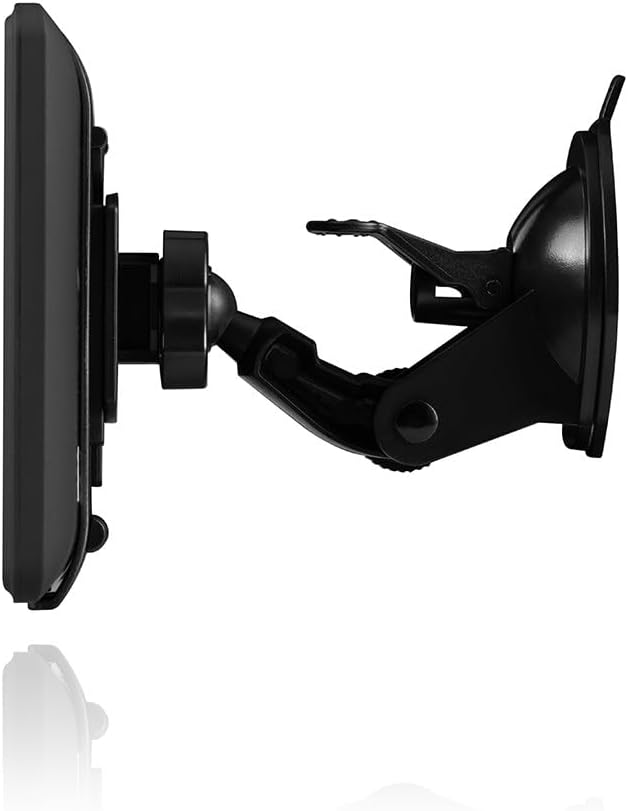
The navigation unit connected to its adjustable suction cup mounting bracket, ready for installation in a vehicle.
3.2. Powering the Device
- Connect the car charger to the navigation unit's power input port.
- Insert the other end of the car charger into your vehicle's 12V power outlet (cigarette lighter socket).
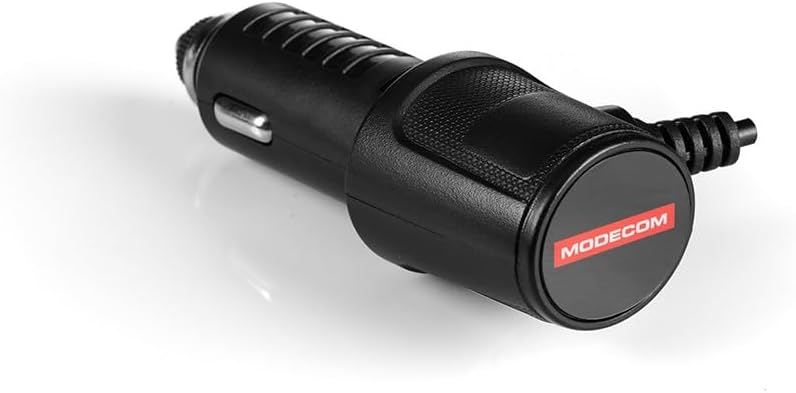
The included car charger, designed to power the navigation unit from a vehicle's 12V power outlet.
3.3. Initial Power On
- Press and hold the power button located on the device until the screen illuminates.
- Follow the on-screen prompts to select your preferred language (English is supported) and initial settings.
4. Operating Instructions
4.1. Basic Navigation
- From the main menu, select 'Navigation' to access the map interface.
- Enter your destination using the on-screen keyboard. You can search by address, point of interest, or coordinates.
- Confirm your destination, and the device will calculate the optimal route.
- Follow the voice prompts and on-screen directions to reach your destination.
4.2. Map Updates
Your device comes with MAPFACTOR Full Europe maps. For information on map updates, please refer to the manufacturer's website or contact support.
4.3. Language Settings
To change the device language, navigate to 'Settings' and select 'Language'. Choose from the available options, including English.
5. Maintenance
5.1. Cleaning the Screen
Use a soft, lint-free cloth to gently wipe the touchscreen. Do not use abrasive cleaners or solvents.
5.2. Software Updates
Periodically check the manufacturer's website for available software updates to ensure optimal performance and access to new features.
5.3. Storage
When not in use, store the device in a cool, dry place, away from direct sunlight and extreme temperatures.
6. Troubleshooting
Device Not Turning On:
- Ensure the car charger is properly connected to both the device and the vehicle's power outlet.
- Check if the vehicle's power outlet is functioning.
- If the device has a reset button (located on the back, see Product Overview), gently press it with a thin object (e.g., a paperclip) to restart the device.
No GPS Signal:
- Ensure the device has a clear view of the sky. Obstructions like tall buildings or tunnels can interfere with GPS reception.
- Move the vehicle to an open area.
- Allow a few minutes for the device to acquire a signal after powering on.
Touchscreen Unresponsive:
- Restart the device using the power button or the reset button.
- Ensure the screen is clean and free from debris.
7. Specifications
| Brand | Modecom |
| Model Name | Freeway SX 7.2 IPS |
| Item Model Number | IN-ACT-GPSMODGPN0038 |
| Screen Size | 7 Inches |
| Color | Multicolor |
| Map Type | Europe |
| Human Interface Input | Touchscreen |
| Included Components | Main Unit |
| Item Weight | 2 Kilograms |
| Batteries Included? | No |
| Language | English |
| Manufacturer | MODECOM |
| Date First Available | 21 April 2022 |
| Spare Parts Availability | Information unavailable |
| Guaranteed Software Updates Until | Information unavailable |
8. Warranty and Support
For warranty information and technical support, please refer to the documentation included with your product or visit the official Modecom website.
You can also contact Modecom customer service for assistance with any issues not covered in this manual.


