
Noma LTS-8K-4U
Contents
Noma Power Bar with Surge Protection User Manual
Model: LTS-8K-4U
Introduction
This manual provides essential information for the safe and effective use of your Noma Power Bar with Surge Protection. This device is designed to provide multiple AC outlets and USB charging ports, along with surge protection, for various electronic devices.
The Noma Power Bar is fast-charge enabled for phones and tablets and can charge multiple devices simultaneously. Its convenient on/off switch helps protect your electronics from power surges.
Safety Information
Please read and understand all safety instructions before using this product. Failure to follow these instructions may result in electric shock, fire, or serious injury.
- Do not exceed the maximum electrical rating of 125 Volts and 1875 Watts.
- This product is intended for indoor use only. Do not expose to moisture or wet conditions.
- Do not plug into another relocatable power tap or extension cord.
- Do not use in conjunction with aquariums or other water-related products.
- Keep children away from the power bar and connected devices.
- Ensure the power cord is fully inserted into a grounded wall outlet.
- Do not disassemble or modify the power bar. There are no user-serviceable parts inside.
- If the surge protector indicator light is off, the surge protection feature may no longer be active. Replace the unit.
Product Overview
Familiarize yourself with the components of your Noma Power Bar.
- 8 AC Outlets: For connecting various electronic devices.
- 4 USB Charging Ports: For charging phones, tablets, and other USB-powered devices.
- On/Off Switch: Controls power to all connected outlets and USB ports.
- Surge Protection Indicator Light: Illuminates when surge protection is active.
- Power Cord: Connects the power bar to a wall outlet.

Image: Top view of the Noma Power Bar, highlighting the 8 AC outlets, 4 USB charging ports, and the main power switch.

Image: Bottom view of the Noma Power Bar, illustrating the keyhole mounting slots for wall or desk attachment.
Setup
- Unpack: Carefully remove the power bar from its packaging.
- Placement: Place the power bar on a flat, stable surface, or mount it using the keyhole slots on the back. Ensure it is away from water sources and heat.
- Connect to Power: Plug the power bar's cord directly into a standard 3-prong grounded 125V AC wall outlet. Do not use extension cords or other power strips.
- Verify Surge Protection: Once plugged in, the surge protection indicator light (usually red or green) should illuminate, indicating that the surge protection feature is active.

Image: The Noma Power Bar as it appears in its retail packaging, showing product features.
Operating Instructions
- Power On/Off: Press the red on/off switch to turn the power bar on or off. When on, the switch will typically illuminate.
- Connecting AC Devices: Plug your electronic devices (e.g., laptops, monitors, printers) into any of the 8 AC outlets. Ensure the total wattage of all connected devices does not exceed 1875 Watts.
- Connecting USB Devices: Plug your USB charging cables into any of the 4 USB ports to charge compatible devices like smartphones and tablets.
- Surge Protection: The power bar provides surge protection for all connected devices. In the event of a power surge, the surge protection circuit will absorb the excess voltage to protect your electronics.
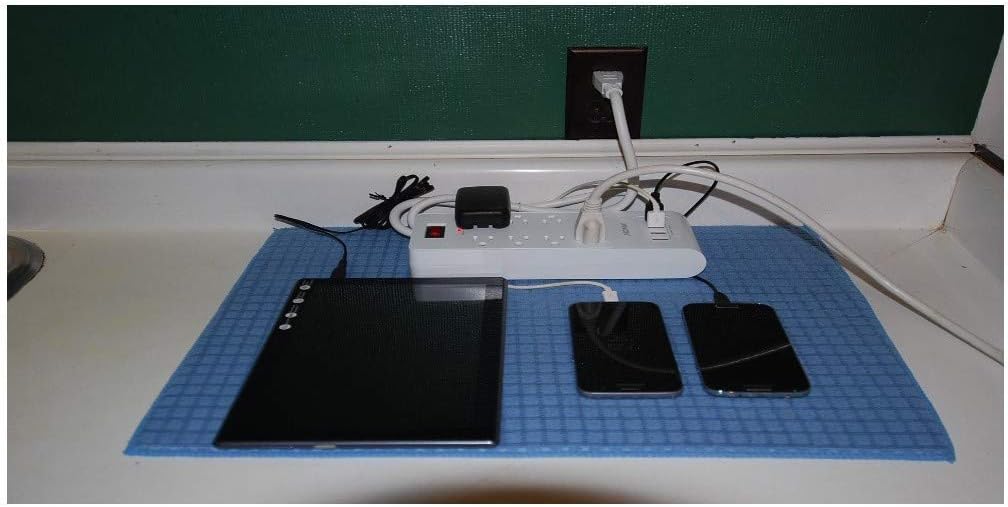
Image: The Noma Power Bar actively charging a tablet and two smartphones, demonstrating its multi-device charging capability.

Image: Close-up of the Noma Power Bar with two smartphones connected to its USB ports, illustrating the charging function.
Maintenance
- Cleaning: Disconnect the power bar from the wall outlet before cleaning. Use a soft, dry cloth to wipe the exterior. Do not use liquid cleaners or aerosols.
- Inspection: Periodically inspect the power cord and the power bar for any signs of damage, such as frayed wires or cracked casing. If damage is found, discontinue use and replace the unit.
- Storage: When not in use for extended periods, store the power bar in a cool, dry place away from direct sunlight and moisture.
Troubleshooting
| Problem | Possible Cause | Solution |
|---|---|---|
| Power bar is not turning on. | Not plugged in correctly; Wall outlet has no power; On/Off switch is off. | Ensure the power bar is fully plugged into a live wall outlet. Check the wall outlet with another device. Press the On/Off switch to the 'On' position. |
| Surge protection indicator light is off. | Surge protection circuit has been compromised by a power surge. | The surge protection feature is no longer active. The power bar will still function as a multi-outlet strip, but without surge protection. It is recommended to replace the unit for continued surge protection. |
| Devices are not charging via USB ports. | USB cable is faulty; Device is not compatible; Power bar is off. | Try a different USB cable. Ensure the device is compatible with USB charging. Verify the power bar is turned on. |
| Overload protection tripped. | Too many high-wattage devices connected. | Unplug some devices. Reduce the total load to below 1875 Watts. Reset the power bar by turning it off and then on again. |
Specifications
| Feature | Detail |
|---|---|
| Brand | Noma |
| Model Number | LTS-8K-4U |
| AC Outlets | 8 |
| USB Ports | 4 |
| Voltage | 125 Volts |
| Wattage | 1875 Watts (Max) |
| Special Features | Surge Protection, Portable |
| Product Dimensions | 26.5 x 12 x 0.1 cm |
| Weight | 560 g |
| Compatible Devices | Phone, Tablet, Laptop, Desktop Computer, Printer, Scanner, Router, Modem, Television, Gaming Console, Set Top Box, Small Appliances |
Warranty and Support
Specific warranty details for this Noma product are not provided in this manual. For warranty information, product registration, or technical support, please refer to the manufacturer's official website or contact their customer service directly.
Please retain your proof of purchase for warranty claims.
Ask a question about this manual
Ask about setup, troubleshooting, compatibility, parts, safety, or missing instructions. Manuals+ will review the question and use this page’s manual context to help answer it.