
1. Introduction
Welcome to the user manual for your new BORSSO Pixel Power Projector. This projector is designed to deliver a superior home cinema experience with its advanced features and high-quality display. It boasts a true native 1080P resolution, 550 ANSI lumens brightness, and a dynamic contrast ratio of 22000:1, capable of projecting up to a 300-inch screen.
Key features include fully automatic focus, auto keystone, and auto tilt correction for effortless setup. Running on Certified Android 13 TV, it provides access to over 500 certified apps like Netflix, Prime Video, and Hotstar. Enjoy smooth streaming with Wi-Fi 6 (5G & 2.4G) and versatile audio connectivity with Bluetooth 5.2 and Dolby Digital support.
2. What's in the Box
Please check the contents of your package to ensure all items are present:
- Projector PIXEL (POWER)
- Remote Control
- Power Cord
- Dust Cleaning Kit
- Warranty Instruction Card
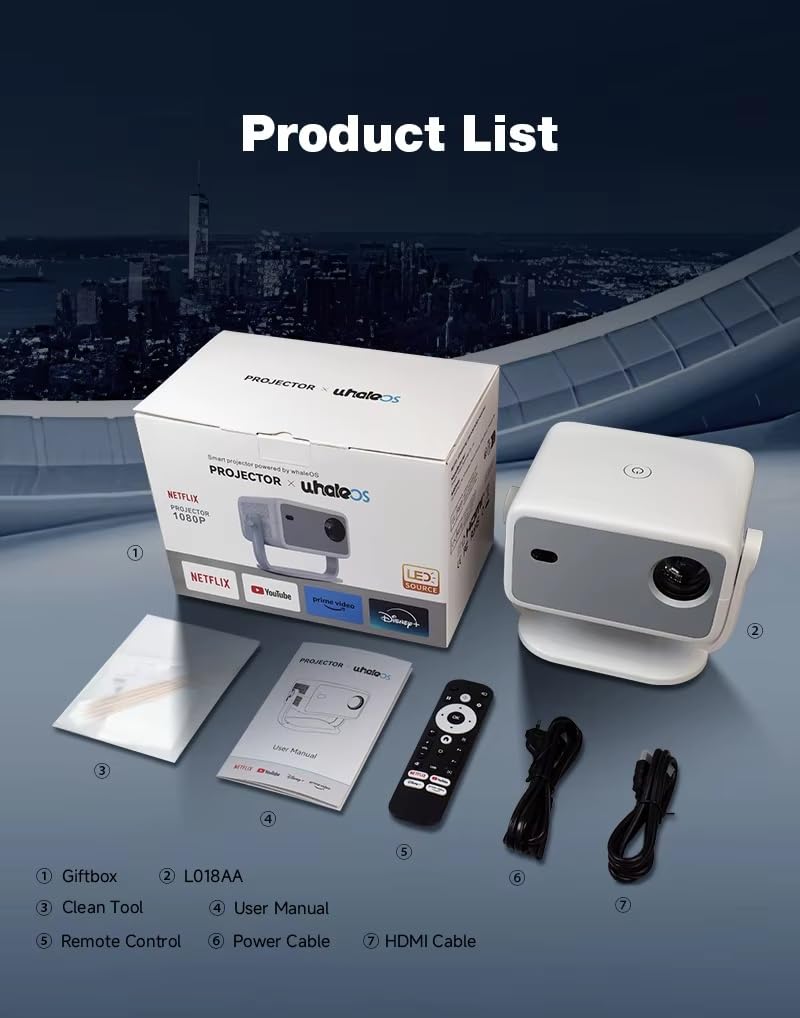
Figure 2.1: Package Contents
3. Product Overview
Familiarize yourself with the various parts of your BORSSO Pixel Power Projector.

Figure 3.1: Front View

Figure 3.2: Rear View with Ports
The front features the projection lens and various sensors for automatic adjustments. The rear panel includes essential connectivity ports such as HDMI (with ARC), USB, and AUX audio out. The top panel typically houses the power button and indicators.
4. Setup
Follow these steps for initial setup of your projector:
- Placement: Place the projector on a stable, flat surface or mount it on a ceiling or tripod. Ensure there are no obstructions in front of the lens.
- Power Connection: Connect the power cord to the projector's power input and then to a power outlet.
- Power On: Press the power button on the projector or the remote control to turn on the device.
- Automatic Adjustments: The projector features fully automatic focus, auto keystone correction, and auto tilt correction. It will automatically adjust the image for optimal clarity and shape.
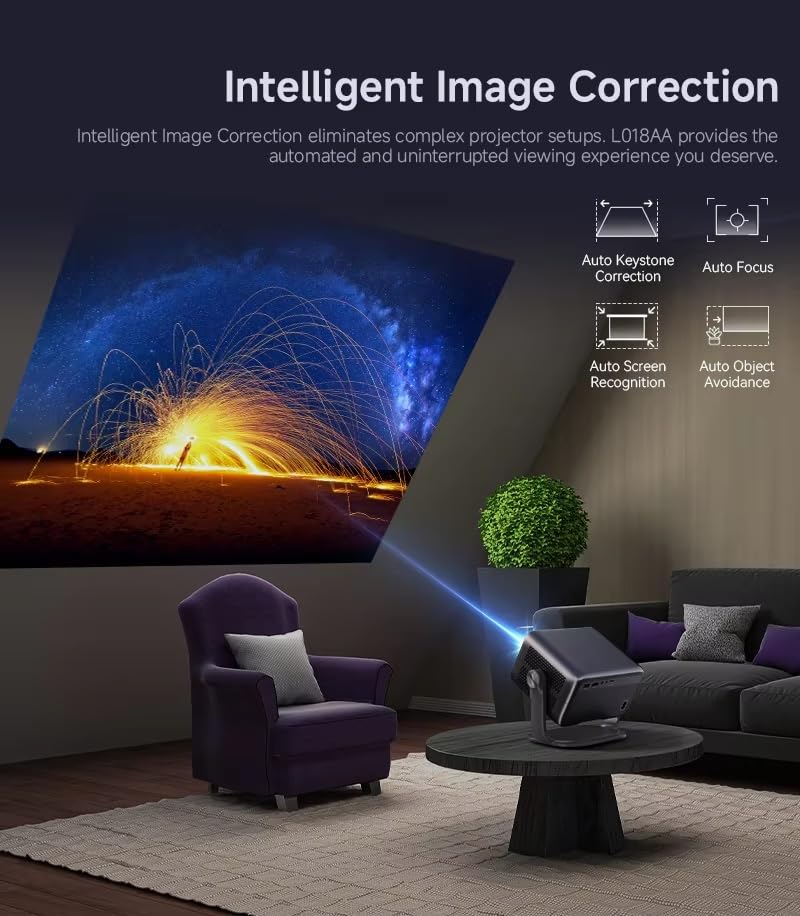
Figure 4.1: Intelligent Image Correction
Connectivity
- Wi-Fi: Connect to your home network using the built-in 2.4G & 5G Wi-Fi. Navigate to the settings menu to select your network and enter the password.
- Bluetooth: Pair Bluetooth devices like external speakers or headphones via Bluetooth 5.2 for enhanced audio.
- HDMI: Connect external devices such as laptops, gaming consoles, or media players using an HDMI cable. The HDMI ARC feature allows for audio return channel functionality.
- USB: Insert USB drives for media playback. Note that only pen drives are supported, not hard disks.
5. Operating Instructions
Navigation and Apps
The projector runs on Certified Android 13 TV, providing a smart TV experience. Use the remote control to navigate through the interface.
- Home Screen: Access pre-installed apps and settings from the home screen.
- Certified Apps: Enjoy direct access to popular streaming services like Netflix, Prime Video, Hotstar, YouTube, and Disney+ without needing external devices.

Figure 5.1: Certified Streaming Applications
Audio Output
The projector features a 5-watt Hi-Fi speaker and supports Dolby Digital for immersive sound. For external audio:
- Bluetooth Speakers: Connect your Bluetooth 5.2 compatible speakers wirelessly for a more powerful audio experience.
- AUX Audio Out: Use the 3.5mm AUX port to connect wired headphones or external speaker systems.

Figure 5.2: Bluetooth Audio Connectivity
Wireless Screen Mirroring
Mirror content from your Android or iOS devices wirelessly to the projector. Ensure both devices are connected to the same Wi-Fi network.
Note: Mobile mirroring with Samsung, Moto, or Google phones may not be supported due to root lock restrictions on these devices.
6. Maintenance
Proper maintenance ensures the longevity and optimal performance of your projector.
- Cleaning the Lens: Use the provided dust cleaning kit or a soft, lint-free cloth specifically designed for optical lenses. Do not use abrasive cleaners or cloths.
- Ventilation: Ensure the projector's ventilation openings are not blocked to prevent overheating. Operate the projector in a cool, dust-free environment.
- Storage: When not in use for extended periods, store the projector in a dry, cool place, protected from dust and direct sunlight.
Safety Information
Please adhere to the following safety guidelines:
- Use the projector in a dark, cool, and dust-free place for better results and extended life.
- Do not look directly into the projector lens when the lamp is on, as it can cause eye damage.
- Avoid placing the projector near water or in excessively humid environments.
- Do not attempt to disassemble or repair the projector yourself. Refer to qualified service personnel.
7. Troubleshooting
If you encounter issues with your projector, refer to the common problems and solutions below:
| Problem | Possible Cause | Solution |
|---|---|---|
| No image projected | Power issue, input source not selected, lens cap on | Check power connection, ensure correct input source is selected (HDMI/USB), remove lens cap. |
| Blurry image | Out of focus, incorrect keystone | Allow auto-focus to complete. If manual adjustment is needed, refer to settings. Ensure projector is perpendicular to screen. |
| No sound | Volume too low, incorrect audio output, external device issue | Increase volume. Check audio output settings (internal speaker, Bluetooth, AUX). Ensure external device audio is working. |
| Remote control not responding | Low batteries, IR sensor blocked | Replace remote batteries. Ensure no obstructions between remote and projector's IR sensor. |
| White spots on screen | Internal dust or damage | This may indicate internal damage. Contact customer support for assistance. |
For further assistance, please contact BORSSO customer support.
8. Specifications
Detailed technical specifications for the BORSSO Pixel Power Projector:
| Feature | Specification |
|---|---|
| Model | PIXEL (POWER) |
| Resolution | Native Full HD 1080p (1920 x 1080 Pixels) |
| Brightness | 550 ANSI Lumens (15000 lm) |
| Contrast Ratio | 22000:1 Dynamic |
| Display Technology | LED, LTPS Display |
| Operating System | Certified Android 13 (Whale TV) |
| RAM / Storage | 1GB RAM, 8GB Storage |
| Wi-Fi | Dual WiFi 5G & 2.4G (Wi-Fi 6 Generation) |
| Bluetooth | Bluetooth 5.2 |
| Audio | Dolby Digital Support, 5 watt HI-Fi speaker |
| Connectivity | HDMI (HDMI ARC), USB (2 ports), AUX Audio Out |
| Special Features | Auto Focus, Auto Keystone, Auto Tilt Correct, Digital Zoom In & Out, Wireless Screen Mirroring |
| Lamp Life | 50,000+ hours |
| Product Dimensions | 26 x 23 x 11 cm; 1.5 kg |
| Power Source | Corded Electric (120 Watts) |
9. Warranty and Support
BORSSO provides a 1-year comprehensive off-site warranty for its projectors from the date of purchase. It is mandatory to register the warranty of your product to avail warranty benefits.
For warranty claims, technical support, or any other queries, please contact BORSSO directly:
- Phone: 8955589977
- Email: myrakhmshop@gmail.com
- Website: www.borsso.in
Please have your product model number (PIXEL (POWER)) and purchase details ready when contacting support.