
1. Introduction
The EPYC QUANTUM Uninterruptible Power Supply (UPS) is a Line Interactive device designed to provide reliable power protection for your computer and other sensitive electronic equipment. It safeguards against power outages, voltage fluctuations, surges, and spikes, ensuring continuous operation and preventing data loss. This manual provides essential information for the safe and efficient use of your UPS.
2. Safety Information
Please read and follow all safety instructions carefully before installing or operating the UPS. Failure to do so may result in electric shock, fire, or serious injury.
- Electrical Safety: The UPS contains hazardous voltages. Do not attempt to disassemble the unit. Servicing should only be performed by qualified personnel.
- Battery Safety: The UPS contains lead-acid batteries. Do not dispose of batteries in a fire as they may explode. Do not open or mutilate batteries. Released electrolyte is harmful to the skin and eyes.
- Placement: Install the UPS indoors in a well-ventilated area, away from direct sunlight, heat sources, and moisture. Ensure adequate airflow around the unit.
- Connection: Connect the UPS to a grounded AC power outlet. Do not use extension cords or power strips with the UPS input.
- Overload: Do not overload the UPS. The total power consumption of connected equipment must not exceed the UPS's rated capacity (1500VA/900W).
3. Product Overview
3.1 Front Panel

Description: Front view of the EPYC QUANTUM UPS, showing the power button and the LCD screen displaying input/output voltage and battery status.
- Power Button: Used to turn the UPS on or off.
- LCD Display: Provides real-time information about the UPS status, including input/output voltage, battery charge level, load percentage, and operational modes.
3.2 Rear Panel
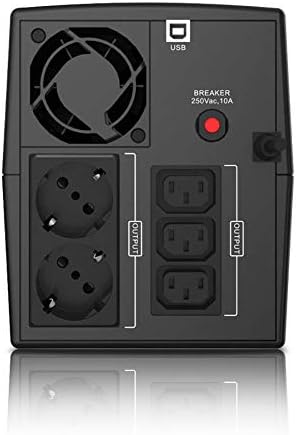
Description: Rear panel of the EPYC QUANTUM UPS, featuring two Schuko outlets, three IEC outlets, a USB communication port, and a resettable circuit breaker.
- Schuko Outlets (x2): Battery-backed and surge-protected outlets, compatible with Italian plugs.
- IEC Outlets (x3): Standard IEC outlets, battery-backed and surge-protected.
- USB Port: For connecting the UPS to a computer to enable monitoring and auto-shutdown features via software.
- Circuit Breaker (250Vac, 10A): Provides overload protection. Resettable after an overload event.
- Integrated Power Cable: The UPS comes with an integrated power cable featuring a Schuko plug for connection to the main power supply.
4. Setup
4.1 Unpacking and Initial Placement
- Carefully unpack the UPS and inspect it for any shipping damage.
- Place the UPS on a flat, stable surface in a clean, dry, and well-ventilated area. Ensure there is sufficient space around the unit for proper heat dissipation.
- Avoid placing the UPS near water, excessive humidity, or direct sunlight.

Description: The EPYC QUANTUM UPS alongside its retail packaging, user manual, and included power cables.
4.2 Connecting to Power and Devices
- Connect the integrated power cable of the UPS to a grounded wall outlet.
- Allow the UPS to charge for at least 8 hours before initial use to ensure optimal battery performance. The UPS will charge whether it is turned on or off, as long as it is connected to AC power.
- Connect your computer, monitor, and other critical devices to the battery-backed and surge-protected outlets on the rear panel. Ensure the total load does not exceed the UPS's capacity.

Description: The EPYC QUANTUM UPS positioned next to a desktop computer and monitor, demonstrating a typical setup.
4.3 Software Installation
- Connect the UPS to your computer using the provided USB cable.
- Download the dedicated monitoring software from the EPYC website (refer to the included documentation for the specific URL).
- Install the software on your computer. It is compatible with Windows, Mac OS, and Linux operating systems.
- The software allows you to monitor the UPS status, configure settings, and set up automatic shutdown procedures for your computer in case of extended power outages.

Description: The EPYC QUANTUM UPS shown with a laptop displaying its dedicated monitoring software, which allows users to track UPS status and configure settings.
5. Operating Instructions
5.1 Powering On/Off
- To Power On: Press and hold the power button on the front panel for approximately 2 seconds until you hear a beep and the LCD display illuminates.
- To Power Off: Press and hold the power button for approximately 2 seconds until you hear a beep and the LCD display turns off.
5.2 Understanding the LCD Display
The backlit LCD display provides real-time operational parameters. You can view:
- Input Voltage (AC IN)
- Output Voltage (OUTPUT)
- Battery Charge Percentage (BATT)
- Load Level (LOAD)
- Operating Mode (e.g., AC Mode, Battery Mode, AVR Mode)
5.3 Automatic Voltage Regulation (AVR)
The EPYC QUANTUM UPS features Line Interactive technology with Automatic Voltage Regulation (AVR). This function automatically stabilizes the output voltage, protecting connected devices from voltage fluctuations (sags and surges) without switching to battery power. This extends battery life and ensures a stable power supply to your equipment.
6. Maintenance
6.1 Battery Care
- Initial Charge: Ensure the UPS is fully charged for at least 8 hours before first use.
- Regular Use: To maintain battery health, it is recommended to allow the UPS to discharge and recharge periodically (e.g., once every 3 months).
- Battery Replacement: The internal lead-acid batteries have a limited lifespan. When the battery runtime significantly decreases, contact EPYC support for replacement options. Battery replacement should only be performed by qualified personnel.
6.2 Cleaning
- Always turn off the UPS and disconnect it from the AC power outlet before cleaning.
- Use a soft, dry cloth to wipe the exterior of the UPS. Do not use liquid or aerosol cleaners.
- Keep ventilation openings clear of dust and debris to ensure proper airflow.
7. Troubleshooting
If the UPS is not operating correctly, refer to the following table for common issues and solutions. If the problem persists, contact EPYC customer support.
| Problem | Possible Cause | Solution |
|---|---|---|
| UPS does not turn on | No AC input power; Low battery; Power button not pressed correctly. | Check AC power connection; Allow UPS to charge for several hours; Press and hold power button for 2 seconds. |
| UPS beeps continuously in AC mode | Overload condition. | Reduce the load by disconnecting non-essential equipment. Check the circuit breaker on the rear panel and reset if tripped. |
| Short backup time | Battery not fully charged; Battery nearing end of life. | Allow UPS to charge for 8 hours; Consider battery replacement if the issue persists after full charge. |
| LCD display is off | UPS is off; Display sleep mode. | Press the power button briefly to wake the display or turn on the UPS. |
8. Specifications
| Feature | Specification |
|---|---|
| Model | QUANTUM 1500VA/900W |
| Capacity | 1500VA / 900 Watt |
| Input Voltage | 230 Volt |
| Output Outlets | 2x Schuko, 3x IEC (all battery-backed and surge-protected) |
| Battery Type | Lead-acid |
| Technology | Line Interactive with AVR |
| Dimensions (D x W x H) | 29.8P x 14.8l x 17.8H cm |
| Color | Black |
9. Warranty and Support
EPYC products are manufactured to high-quality standards and are warranted against defects in materials and workmanship. For specific warranty terms and conditions, please refer to the warranty card included with your product or visit the official EPYC website.
For technical support, troubleshooting assistance, or inquiries regarding parts and service, please contact EPYC customer support through the contact information provided on the official EPYC website or your purchase documentation. Please have your product model and serial number ready when contacting support.