
1. Introduction
The EPYC Quantum 2200VA Line Interactive Uninterruptible Power Supply (UPS) is designed to provide reliable power backup and protection for your electronic devices, including personal computers, workstations, and other sensitive equipment. This UPS features Automatic Voltage Regulation (AVR) to stabilize incoming power, safeguarding against power fluctuations, surges, and outages. This manual provides essential information for the safe installation, operation, and maintenance of your EPYC Quantum 2200VA UPS.
2. Safety Instructions
Please read and follow all safety instructions carefully before installing or operating the UPS. Failure to comply with these instructions may result in electric shock, fire, or serious injury.
- Electrical Safety: Connect the UPS only to a grounded AC power outlet. Do not remove the grounding prong. Do not open the UPS casing; there are no user-serviceable parts inside. High voltage is present internally.
- Battery Safety: The UPS contains sealed lead-acid batteries. Do not dispose of batteries in a fire, as they may explode. Do not open or mutilate batteries. Battery replacement should only be performed by qualified service personnel.
- Environment: Install the UPS in a well-ventilated area, away from direct sunlight, heat sources, and excessive moisture. Ensure adequate clearance around the unit for proper airflow.
- Overload Protection: Do not overload the UPS. The total power consumption of connected equipment must not exceed the UPS's rated capacity (1320 Watts for the 2200VA model).
- Liquid Contact: Do not allow liquids to enter the UPS. Do not operate the UPS near water or in excessively humid environments.
3. Package Contents
Verify that all items are present in the package:
- EPYC Quantum 2200VA UPS Unit
- Power Cable (integrated Schuko plug)
- USB Cable for Monitoring Software
- User Manual (this document)

Image: EPYC Quantum 2200VA UPS unit, its retail packaging, included power cable, USB cable, and user manual.
4. Product Overview
4.1 Front Panel

Image: Front view of the EPYC Quantum 2200VA UPS, highlighting the LCD display and the power button.
- Power Button: Used to turn the UPS on or off.
- LCD Display: Shows real-time operational parameters such as input voltage, output voltage, battery charge percentage, and load level.
4.2 Rear Panel
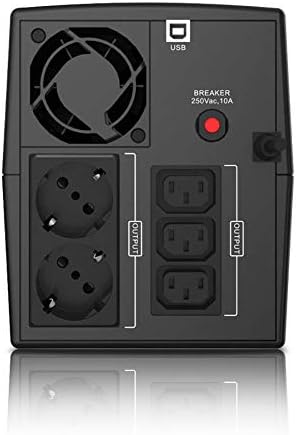
Image: Rear view of the EPYC Quantum 2200VA UPS, detailing the two Schuko outlets, three IEC outlets, USB communication port, and the circuit breaker.
- Schuko Outlets (x2): Battery-protected outlets for connecting devices with Type F (Schuko) plugs. Also compatible with Italian plugs.
- IEC Outlets (x3): Battery-protected outlets for connecting devices with IEC C13 plugs.
- USB Port: For connecting the UPS to a computer to use the monitoring software.
- Circuit Breaker: Provides overload protection for the UPS. Resets automatically or manually after an overload event.
5. Setup
Follow these steps to set up your EPYC Quantum 2200VA UPS:

Image: Visual guide for UPS setup, illustrating power connection, device connection, and power-on sequence.
- Connect the Power Cable: Plug the integrated power cable of the UPS into a grounded wall outlet. Allow the UPS to charge for at least 8 hours before initial use to ensure maximum battery life and full capacity.
- Connect Devices: Plug the devices you wish to protect into the battery-protected outlets on the rear panel (Schuko or IEC). Ensure the total power consumption of all connected devices does not exceed 1320 Watts.
- Power On the UPS: Press and hold the front power button for approximately 2 seconds. Release the button when you hear an audible 'click' sound. A white light around the button will illuminate, confirming the UPS is on. If not, repeat the operation.
6. Operating Instructions
6.1 Normal Operation
Once powered on and connected to a wall outlet, the UPS will continuously monitor the incoming utility power. During normal operation, the UPS provides stable power to connected devices and charges its internal batteries. The LCD display will show the input and output voltage, battery charge level, and load percentage.
6.2 Battery Backup Mode
In the event of a power outage or significant voltage fluctuation, the UPS will automatically switch to battery backup mode, providing power to connected devices. An audible alarm will sound, and the LCD display will indicate battery operation. The duration of battery backup depends on the load connected. To conserve battery power, save your work and shut down your computer gracefully during extended outages.
6.3 Automatic Voltage Regulation (AVR)
The EPYC Quantum UPS features AVR technology, which automatically corrects minor voltage fluctuations (sags and surges) without switching to battery power. This protects your equipment from harmful voltage variations and extends battery life.
6.4 Monitoring Software
The UPS includes free monitoring software compatible with Windows, macOS, and Linux operating systems. This software allows you to:
- Monitor real-time UPS status and parameters.
- Configure automatic shutdown of your computer during power outages.
- View power event logs.
Connect the UPS to your computer using the provided USB cable and download the software from the official EPYC website (refer to the support section for details).

Image: EPYC Quantum UPS connected to a laptop, demonstrating the monitoring software interface.
7. Maintenance
7.1 Battery Care
To maximize battery life:
- Keep the UPS connected to a power outlet to ensure batteries remain charged.
- Avoid frequent deep discharges.
- Store the UPS in a cool, dry place if not in use for extended periods, and recharge every 3-6 months.
- Battery replacement should only be performed by qualified personnel. Contact EPYC support for assistance.
7.2 Cleaning
Clean the exterior of the UPS with a soft, dry cloth. Do not use liquid or aerosol cleaners. Ensure the ventilation openings are free from dust and obstructions.
8. Troubleshooting
If you encounter issues with your UPS, refer to the following table for common problems and solutions:
| Problem | Possible Cause | Solution |
|---|---|---|
| UPS does not turn on. | No input power; low battery; UPS fault. | Check power cable connection and wall outlet. Ensure UPS is charged. Contact support if issue persists. |
| UPS does not provide backup power. | Overload; discharged battery; UPS fault. | Reduce connected load. Allow UPS to recharge. Check circuit breaker on rear panel. |
| Constant beeping sound. | UPS is on battery mode (power outage). | This is normal during a power outage. Save work and shut down devices if outage is prolonged. |
| Fan noise is noticeable. | Normal operation; high load; high ambient temperature. | The fan operates to cool internal components. Ensure adequate ventilation. Noise level may increase with higher load or temperature. |
| LCD display is off. | UPS is off; display sleep mode. | Press the power button briefly to activate the display. Ensure the UPS is powered on. |
If the problem persists after attempting these solutions, please contact EPYC customer support.
9. Specifications
| Feature | Specification |
|---|---|
| Model Number | QUANTUM 2200VA |
| Capacity | 2200VA / 1320 Watts |
| Input Voltage | 230 Volts |
| Output Voltage | 230 Volts (AC) |
| Output Current | 5.74 Amperes |
| Number of Outputs | 5 (2 x Schuko, 3 x IEC) |
| Battery Type | Sealed Lead-Acid (2 x 12V) |
| Charging Time | 8 Hours |
| Dimensions (D x W x H) | 29.8 x 14.8 x 17.8 cm |
| Weight | 10 kg |
| Material | Polycarbonate (PC) |
| Form Factor | Tower |
| Country of Origin | China |
10. Warranty and Support
10.1 Warranty Information
EPYC products are manufactured to high-quality standards. This product is covered by a limited warranty against defects in materials and workmanship. For detailed warranty terms and conditions, please refer to the official warranty document provided with your purchase or visit the EPYC website. Keep your proof of purchase for warranty claims.
A PDF version of the warranty document can be found here.
10.2 Customer Support
For technical assistance, troubleshooting, or product inquiries, please contact EPYC customer support. Our team is available to help you with any questions or issues you may have.
- Online Support: Visit the official EPYC website for FAQs, software downloads, and support resources.
- Contact Information: Refer to the EPYC website or your product packaging for specific contact details (phone, email).