
ORICO 20-Port
ORICO Industrial 20-Port USB 2.0 Hub Instruction Manual
Model: 20-Port
Brand: ORICO
1. Introduction
This manual provides detailed instructions for the setup, operation, and maintenance of your ORICO Industrial 20-Port USB 2.0 Hub. Please read this document thoroughly before using the device to ensure proper functionality and safety.
2. Product Overview
The ORICO Industrial 20-Port USB 2.0 Hub is engineered for robust performance in demanding environments, offering extensive connectivity for simultaneous data transfer and charging of multiple USB devices.

Figure 1: Front view of the ORICO Industrial 20-Port USB 2.0 Hub.
2.1 Key Features
- Dual Operating Modes: Supports both data transmission and power supply modes.
- Individual Port Protection: Each port features current limiting protection, automatically cutting off power in case of connection failure or overcurrent.
- 20-Port USB Expansion: Designed for industrial environments, allowing simultaneous syncing and charging of up to 20 USB 2.0 devices. Ideal for bulk data distribution and device flashing.
- Integrated 150W Power Supply: Provides a stable 150W independent power supply to efficiently manage 20 devices concurrently.
- Mountable Design: Features an all-metal enclosure with positioning installation support for mounting on walls, under desks, or in racks.
2.2 Component Identification

Figure 2: Diagram illustrating the main components and ports of the hub.
| Component | Description |
|---|---|
| USB 2.0 Ports (x20) | For connecting USB devices for data transfer and charging. |
| USB IN Port | Connects the hub to your computer for data transfer. |
| Power Input | Connects to the included power cord for external power supply. |
| ON/OFF Switch | Controls the main power to the hub. |
| DATA Indicator | Indicates data activity. |
| CHARGE Indicator | Indicates charging status. |
3. Package Contents
Verify that all items are present in the package:
- ORICO Industrial 20-Port USB 2.0 Hub
- Fixed Plate (for mounting)
- Screw Package (for mounting)
- USB Cable (for data connection to host computer)
- Power Cord
- User Manual
4. Setup
4.1 Power Connection
- Connect the provided power cord to the Power Input port on the hub.
- Plug the other end of the power cord into a standard electrical outlet.
- Flip the ON/OFF switch to the 'ON' position. The Power LED should illuminate.
4.2 Data Connection
- Connect one end of the provided USB cable to the USB IN port on the hub.
- Connect the other end of the USB cable to an available USB port on your computer.
- Your computer should automatically detect the hub (Plug and Play functionality).

Figure 3: The hub with its 150W integrated power supply connected, ready for use.
5. Operating Instructions
5.1 Data Transfer
Connect your USB 2.0 compatible devices (e.g., USB flash drives, external hard drives, keyboards, mice) to any of the 20 available USB ports on the hub. The hub supports high-speed data transfer for efficient file management.
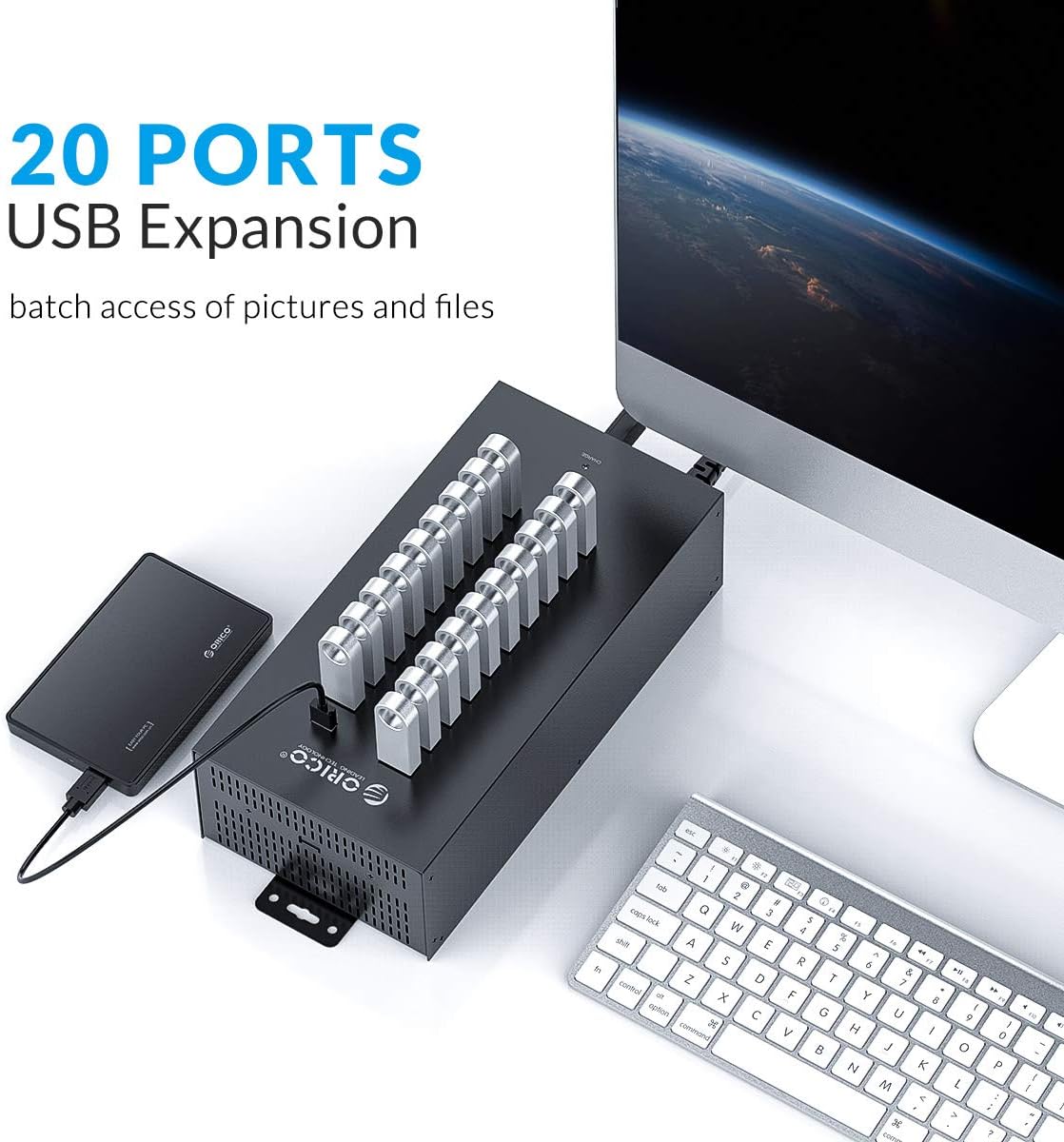
Figure 4: Multiple USB devices connected to the hub for data expansion.
5.2 Device Charging
The hub provides power to all connected devices. Each port is equipped with current limiting protection to safeguard your devices from overcurrent situations. If a port experiences overcurrent or connection failure, it will automatically cut off power to that specific port.
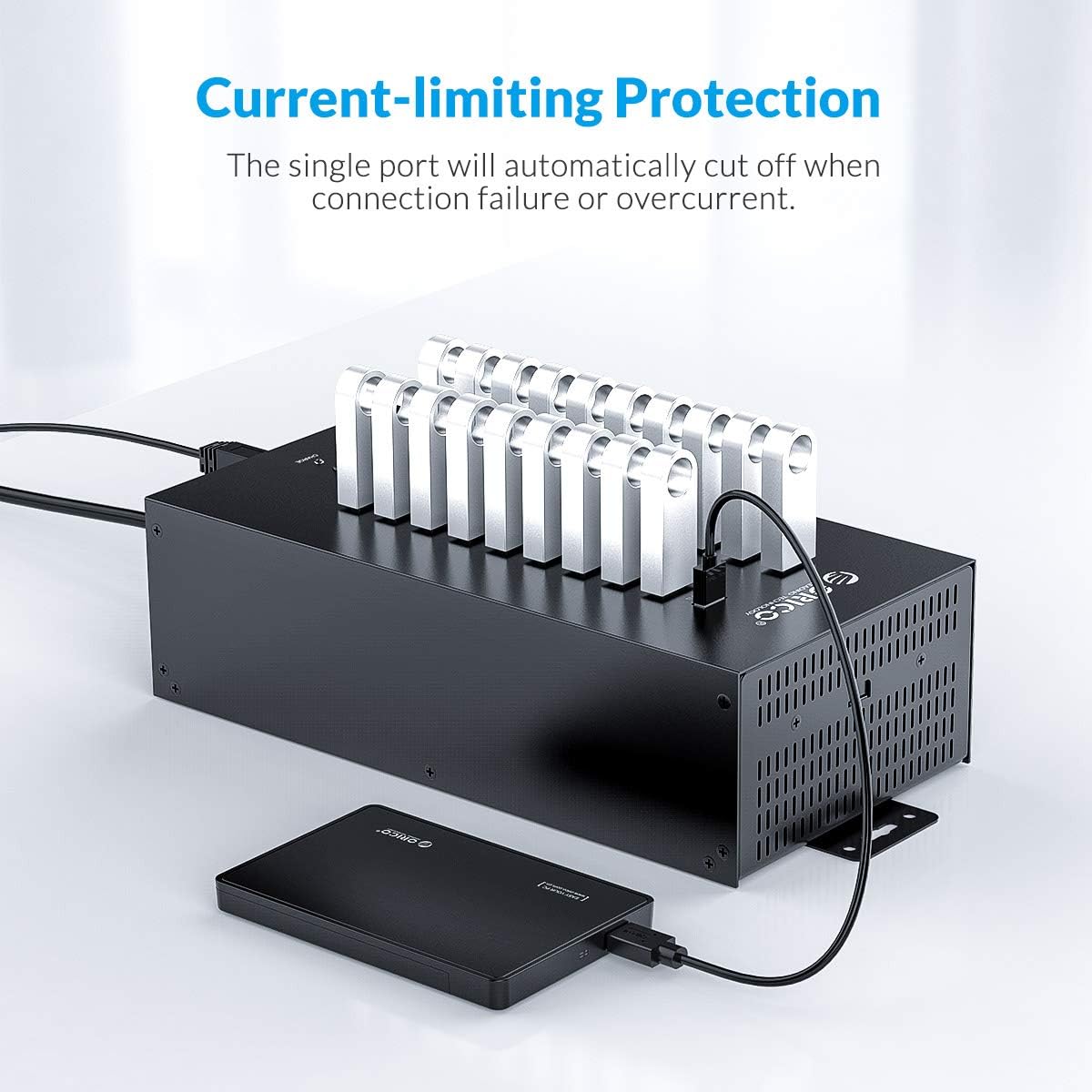
Figure 5: Illustration of the current-limiting protection feature, showing a port automatically shutting off.
6. Mounting Instructions
The ORICO Industrial USB Hub features an all-metal enclosure with integrated mounting brackets for flexible installation in various environments.
- Identify a suitable mounting location (e.g., wall, underside of a desk, rack).
- Align the fixed plates on the hub with the desired mounting position.
- Use the provided screws from the Screw Package to securely fasten the hub in place. Ensure the mounting surface is sturdy enough to support the hub's weight and connected devices.
7. Compatibility
The ORICO Industrial 20-Port USB 2.0 Hub is designed for broad compatibility with various devices and operating systems.

Figure 6: The hub supports a wide range of devices including keyboards, mice, hard drives, and printers.
7.1 Compatible Devices
- Scanners, Hard Disk Drives, Projectors, Modems
- USB Flash Drives, MP3 Players, Televisions
- Keyboards, Gaming Consoles, DVD Players, Mouse
- Routers, Desktops, Monitors, Speakers, Printers
- Tablets, Headphones, Digital Cameras, Dashcams
- Smartphones, Card Readers, Laptops
7.2 Operating System Compatibility
- Windows
- Mac OS
- Linux
8. Specifications
| Attribute | Value |
|---|---|
| Product Dimensions | 9.37 x 5.43 x 2.99 inches |
| Item Weight | 5.39 pounds |
| Hardware Interface | USB 2.0 |
| Power Supply | 150W Integrated Independent Power |
| Material | Full Metal Case |
| Color | Black |
| Special Feature | Plug and Play, Current Limiting Protection |
| Manufacturer | ORICO Technologies Co.,Ltd |
9. Maintenance
- Cleaning: Use a soft, dry cloth to clean the hub. Avoid liquid cleaners or aerosols.
- Storage: Store the hub in a cool, dry place away from direct sunlight and extreme temperatures.
- Safety: Do not attempt to disassemble or repair the hub yourself. Refer to qualified personnel for service. Avoid exposing the hub to water or excessive moisture.
10. Troubleshooting
- Device not recognized: Ensure the hub is properly powered on and connected to your computer. Try connecting the device to a different port on the hub or directly to your computer to rule out device-specific issues.
- Slow data transfer: Verify that your connected devices are USB 2.0 compatible. Ensure the USB cable connecting the hub to your computer is securely attached.
- No power to devices: Check if the hub's power switch is in the 'ON' position and the power cord is securely connected to both the hub and the electrical outlet.
- Intermittent connection: Ensure all cables are securely connected. Avoid placing the hub near strong electromagnetic interference sources.
11. Warranty and Support
The ORICO Industrial 20-Port USB 2.0 Hub comes with an 18-month warranty. For professional customer service, please refer to the contact information provided in the original product packaging or visit the official ORICO website for further assistance.
Related documents20-Port

Ask a question about this manual
Ask about setup, troubleshooting, compatibility, parts, safety, or missing instructions. Manuals+ will review the question and use this page’s manual context to help answer it.