
MYPIN HA0284
Contents
MYPIN 4K Mini HD Media Player
Model: HA0284 User Manual
1. Introduction
Thank you for choosing the MYPIN 4K Mini HD Media Player. This device is designed to provide a versatile and high-quality multimedia experience, allowing you to play various media files directly on your television or display. With support for 4K resolution, H.265 decoding, and multiple input/output options, it is an ideal solution for home entertainment systems and professional presentations.
This manual provides detailed instructions on setting up, operating, and maintaining your media player to ensure optimal performance and longevity.
2. Package Contents
Please verify that all items listed below are included in your package. If any items are missing or damaged, please contact customer support.
- MYPIN 4K Mini HD Media Player Unit
- Remote Control
- IR Extension Cable
- AV Cable (RCA)
- DC 5V Power Adapter
- User Manual (this document)
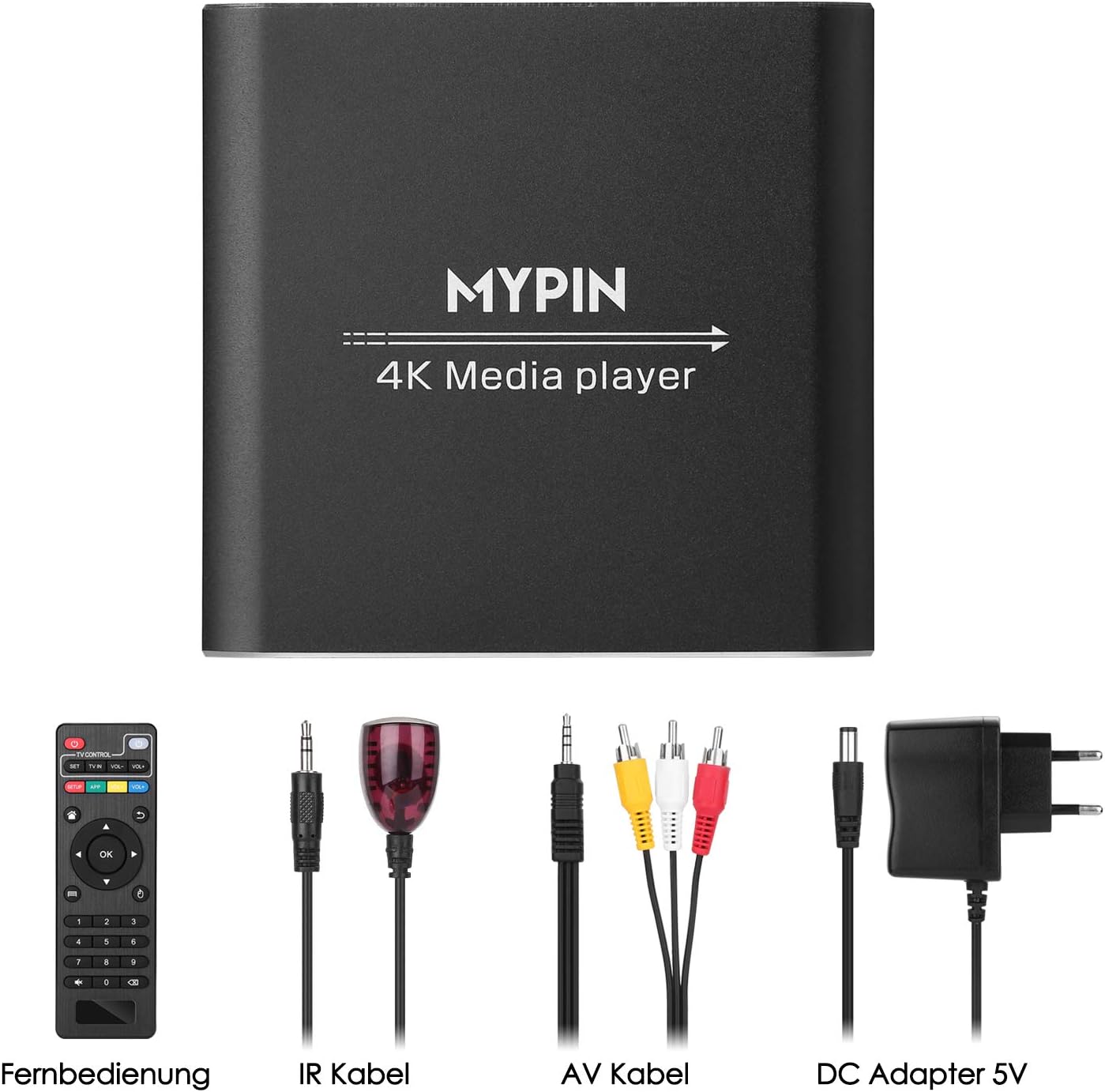
Image: MYPIN 4K Mini HD Media Player with all included accessories.
3. Product Overview
3.1. Device Layout
The MYPIN 4K Mini HD Media Player features a compact design with clearly labeled ports for easy connectivity.

Image: Rear panel of the media player showing HDMI, AV, Optical, IR, and DC 5V power input ports.
- HDMI Output: Connects to your TV or display for 4K video and audio.
- AV Output: Connects to older TVs or audio systems using the included RCA cable.
- Optical Output: For digital audio connection to soundbars or home theater systems.
- IR Port: For connecting the external IR extension cable.
- DC 5V Input: Power input for the device.

Image: Front panel of the media player showing USB 1, USB 2, IR receiver, and TF card slot.
- USB 1 & USB 2 Ports: For connecting USB flash drives, external hard drives (up to 8TB), USB mice, or keyboards. Note: Only one USB device can be read at a time.
- TF Card Slot: For inserting TF (MicroSD) cards (up to 128GB).
- IR Receiver: Built-in receiver for the remote control.
3.2. Remote Control
The included remote control allows for easy navigation and control of the media player's functions.

Image: The media player unit alongside its remote control, highlighting the various buttons for TV control, navigation, and numeric input.
Familiarize yourself with the buttons for power, volume, navigation (directional pad and OK button), menu, home, return, and media playback controls.
4. Setup
4.1. Connecting to Your TV
- HDMI Connection (Recommended for 4K):
Connect one end of an HDMI cable (not included) to the HDMI port on the media player and the other end to an HDMI input on your TV or display. Ensure your TV supports 4K resolution for optimal performance.
- AV Connection (for older TVs):
If your TV does not have an HDMI input, use the included AV cable. Connect the yellow plug to the video input, and the red and white plugs to the corresponding audio inputs on your TV. Connect the single 3.5mm jack end to the AV port on the media player.
Note: Some older TVs may not display a 16:9 aspect ratio correctly via AV. HDMI is recommended for best compatibility and quality.
4.2. Power Connection
Connect the DC 5V power adapter to the DC 5V input port on the media player, then plug the adapter into a wall outlet.
4.3. Connecting Storage Devices
- USB Devices: Insert your USB flash drive or external hard drive into either USB 1 or USB 2 port. The player supports up to 8TB external HDDs and 128GB USB drives.
- TF Card: Insert your TF (MicroSD) card into the TF card slot until it clicks into place.
4.4. Connecting External Audio (Optional)

Image: The media player connected to external audio systems, demonstrating optical and AV audio output options.
- Optical Output: For high-quality digital audio, connect an optical cable (not included) from the Optical port on the media player to your soundbar or home theater system.
- AV Output: The AV port can also be used for stereo audio output to speakers or an amplifier using the red and white RCA connectors.
4.5. IR Extension Cable (Optional)

Image: The media player with the IR extension cable plugged into its dedicated port, allowing for remote control operation even when the unit is out of sight.
If the media player is placed out of direct line of sight of the remote control, connect the IR extension cable to the IR port on the player and position the IR receiver end in a location where it can receive signals from the remote.
5. Operating Instructions
5.1. Basic Navigation
Once powered on, the media player will display its main interface on your TV. Use the directional buttons (Up, Down, Left, Right) on the remote control to navigate through menus and select options. Press the "OK" button to confirm a selection.
5.2. Media Playback
The player supports a wide range of media formats, including 4K video (up to 30Hz), H.265 decoding, various audio formats, images, and PPT documents.
Image: Visual comparison illustrating the efficiency of H.265 decoding for smoother playback with less buffering compared to H.264.
Image: The media player's interface displaying support for various media types including images, music, videos, and PowerPoint presentations.
- Video Playback: Navigate to the video section, select your desired file. Supports MKV, AVI, TS/TP, MP4/M4V, MOV, VOB, M2TS, WMV, PMP, PG, M2TS, and H.265 decoding.
- Music Playback: Select audio files. Supports MP3, WAV, and other popular formats.

Image: Interface showing various music playback modes including shuffle, loop, sequential, and repeat one.
- Photo Slideshow: View your images in a slideshow format.
- PPT Document Playback: The player can display PowerPoint presentations, supporting automatic full-screen playback.

Image: The media player displaying a PowerPoint presentation, demonstrating its capability to handle business and educational content.
5.3. Advanced Features
- USB Mouse/Keyboard Support: Connect a USB mouse or keyboard to the USB ports for easier navigation and input, enhancing the smart TV experience.
- Vertical Display Support: The player supports both horizontal and vertical screen orientations, making it compatible with various display setups.
- Subtitle Support: Reads embedded and external subtitle files (SRT, SMI, SUB, SSA).
6. Maintenance
To ensure the longevity and optimal performance of your MYPIN 4K Mini HD Media Player, follow these maintenance guidelines:
- Cleaning: Use a soft, dry cloth to clean the exterior of the device. Do not use liquid cleaners or aerosols.
- Ventilation: Ensure the device is placed in a well-ventilated area to prevent overheating. Do not block any ventilation openings.
- Storage: When not in use for extended periods, disconnect the power adapter and store the device in a cool, dry place.
- Firmware Updates: Periodically check the MYPIN official website for any available firmware updates. Updates can improve performance, add features, and fix bugs.
7. Troubleshooting
If you encounter any issues with your media player, please refer to the following common problems and solutions:
| Problem | Possible Cause / Solution |
|---|---|
| No picture/signal on TV. |
|
| No sound. |
|
| Remote control not working. |
|
| Playback is choppy or freezes. |
|
| Color changes to reddish hue. |
|
8. Specifications
| Feature | Detail |
|---|---|
| Brand | MYPIN |
| Model Number | HA0284 |
| Color | Black |
| Resolution | 4K @ 30HZ (3840x2160) |
| Connectivity Technology | USB, HDMI |
| Connector Type | USB 1.0, USB 2.0 |
| Special Features | Multiple playback modes, Vertical display |
| Compatible Devices | Android TV, Phone, Laptop (for media source) |
| Supported Internet Services | Netflix, Hulu, Amazon Prime Video, Facebook, Google TV, YouTube (Note: Player itself does not have internet connectivity; this refers to content it can play from connected devices or local files) |
| Max USB HDD Support | Up to 8TB |
| Max TF Card Support | Up to 128GB |
| Video Decoding | H.265, H.264 |
| Supported Video Formats | MKV, AVI, TS/TP, MP4/M4V, MOV, VOB, M2TS, WMV, PMP, PG, M2TS |
| Audio Output | HDMI (up to 7.1 Surround), AV, Optical |
| Country of Origin | China |
9. Warranty and Support
MYPIN products are designed and manufactured to the highest quality standards. For information regarding warranty coverage, technical support, or service, please refer to the warranty card included with your product or visit the official MYPIN website. Please retain your proof of purchase for warranty claims.
For further assistance, you may also contact the retailer where you purchased the product.
Ask a question about this manual
Ask about setup, troubleshooting, compatibility, parts, safety, or missing instructions. Manuals+ will review the question and use this page’s manual context to help answer it.