
Upvivi New-MT10
Upvivi New-MT10 2.4GHz Wireless Mini Keyboard with Touchpad User Manual
Model: New-MT10
1. Introduction
This manual provides detailed instructions for the Upvivi New-MT10 2.4GHz Wireless Mini Keyboard with Touchpad. This device combines a keyboard, touchpad, and mouse functions into a compact, handheld unit, designed for convenient control of various compatible devices.
2. Package Contents
Please verify that all items listed below are included in your package:
- 1 x Backlit Mini Keyboard
- 1 x USB Wireless Receiver
- 1 x USB Charging Cable
- 1 x User Manual

Image: Contents of the Upvivi New-MT10 package.
3. Setup
3.1 Charging the Keyboard
Before first use, fully charge the keyboard. Connect the supplied USB charging cable to the keyboard's charging port and to a standard USB power source (e.g., computer USB port, USB wall adapter). The charging indicator light will illuminate during charging and turn off when fully charged.

Image: Charging port and indicator lights.
3.2 Connecting the USB Receiver
- Locate the USB wireless receiver. It is typically stored in the battery compartment of the keyboard.
- Insert the USB receiver into an available USB-A port on your compatible device (e.g., PC, Smart TV, Android TV Box).
- Turn on the keyboard using the power switch. The device should automatically connect.

Image: USB receiver location in the battery compartment.
3.3 Compatibility
The Upvivi New-MT10 is compatible with a wide range of devices, including:
- Android TV Boxes
- Smart TVs
- PCs (desktops and laptops)
- Tablets (with OTG cable if no USB-A port)
- Raspberry Pi
- PS3, X-BOX (limited functionality)
- HTPC/IPTV systems

Image: Device compatibility overview.
4. Operating Instructions
4.1 Basic Keyboard and Touchpad Functions
The keyboard features a full QWERTY layout and a multi-finger touchpad for navigation.
- Typing: Use the QWERTY keys for text input.
- Touchpad: The central area functions as a mouse touchpad.
- Single-finger tap: Left mouse click.
- Two-finger tap: Right mouse click.
- Two-finger drag (vertical): Scroll function.
4.2 Hotkey Combinations
The keyboard includes several hotkeys for quick access to common functions. These are typically activated by holding the Fn key and pressing the corresponding function key.

Image: Hotkey functions and combinations.
| Combination | Function |
|---|---|
| Fn + F1 | Adjust mouse sensitivity |
| Fn + Enter | Task Manager shortcut |
| Fn + PrtSc | Print Screen shortcut |
| Fn + F8 | Turn off / on touchpad |
| Fn + F9 | Maximize current page |
| Fn + F10 | Open development tools |
| Fn + Home/PgUp | Jump to start of a text |
| Fn + End/PgDn | Jump to end of a text |
| Win key | Opens Start / Menu bar |
4.3 Backlight Control
The keyboard features a multi-color backlight. To control the backlight:
- Press Fn + F2 to cycle through backlight colors or turn the backlight off.
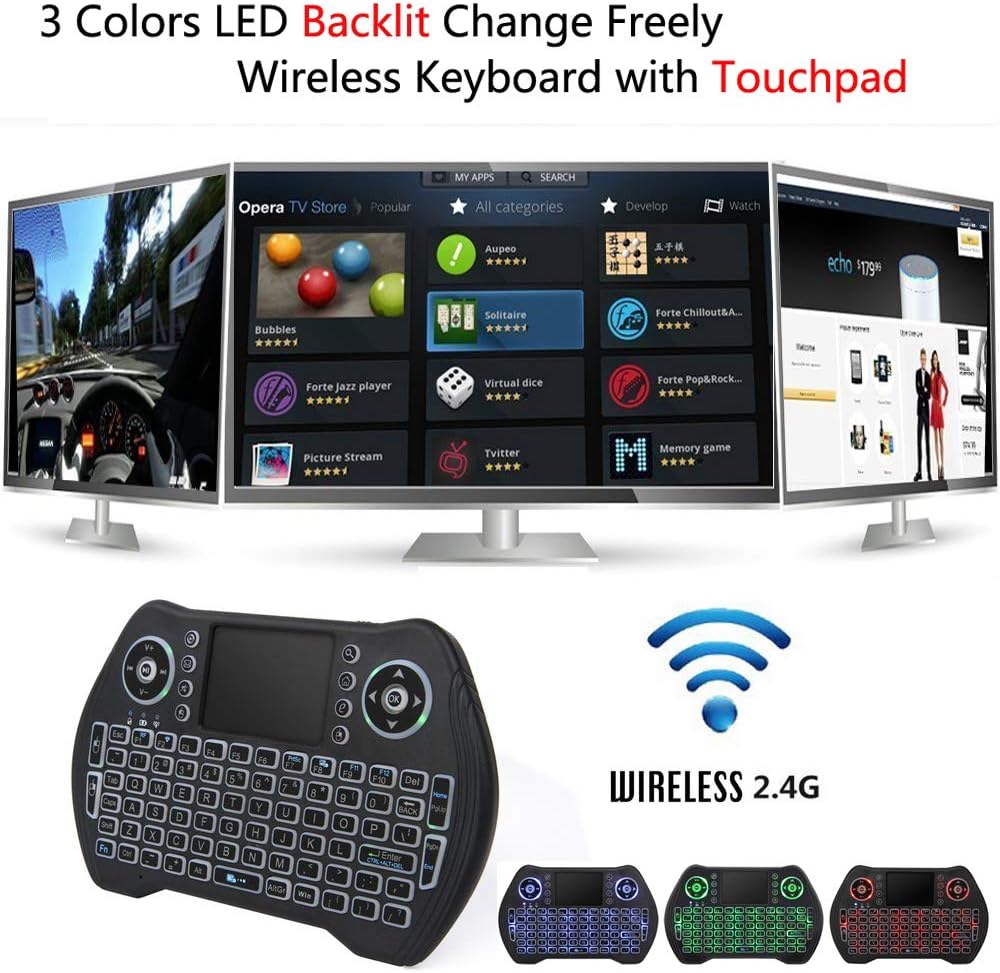
Image: Examples of multi-color backlighting.

Image: Backlight in a low-light environment.
5. Maintenance
5.1 Battery Care
The keyboard is equipped with a rechargeable Li-ion battery. To prolong battery life:
- Charge the keyboard when the battery low indicator appears.
- Avoid fully discharging the battery frequently.
- If storing the keyboard for an extended period, charge it to approximately 50% and recharge every few months.
5.2 Cleaning
To clean the keyboard:
- Ensure the keyboard is powered off.
- Use a soft, dry cloth to wipe the surface.
- For stubborn dirt, slightly dampen the cloth with water or a mild cleaning solution, then wipe dry immediately.
- Avoid using harsh chemicals or abrasive materials.
6. Troubleshooting
6.1 Keyboard Not Responding
- Check Power: Ensure the keyboard is powered on and has sufficient battery charge. Recharge if necessary.
- Check USB Receiver: Ensure the USB receiver is securely plugged into the device's USB port. Try a different USB port.
- Re-pair: If connection is lost, try unplugging and re-plugging the USB receiver, then power cycle the keyboard.
- Range: Ensure the keyboard is within the 10-meter operating range of the USB receiver.
6.2 Touchpad Not Working
- Check Activation: Ensure the touchpad has not been accidentally disabled. Press Fn + F8 to toggle the touchpad on/off.
- Clean Surface: Ensure the touchpad surface is clean and free from obstructions.
6.3 Backlight Not Working
- Toggle Backlight: Press Fn + F2 to cycle through backlight modes and ensure it's not turned off.
- Battery Level: Low battery might affect backlight functionality. Charge the keyboard.
7. Specifications
| Feature | Detail |
|---|---|
| Model Number | New-MT10 |
| Connectivity Technology | 2.4GHz Wireless (USB-A Receiver) |
| Operating Range | Up to 10 meters |
| Battery Type | Rechargeable Lithium Ion |
| Backlight | Multi-color RGB |
| Dimensions | 7.32 x 4.13 x 1.14 inches (approx.) |
| Item Weight | 4.8 ounces |
| Material | Plastic, Silicone |
| Compatible Devices | Android TV Box, Laptop, PC, Tablet, Television |

Image: Keyboard dimensions.

Image: 10-meter wireless range illustration.
Ask a question about this manual
Ask about setup, troubleshooting, compatibility, parts, safety, or missing instructions. Manuals+ will review the question and use this page’s manual context to help answer it.