1. Introduction
Thank you for choosing the Omars Portable Charger 10000mAh. This compact and powerful device is designed to keep your electronic devices charged on the go. Please read this manual carefully before using the product to ensure safe and optimal performance.

Image: The Omars Portable Charger, a sleek black device, is shown next to a credit card, highlighting its compact and portable design.
2. Product Features
- High Capacity: 10000mAh battery provides multiple charges for smartphones and other devices.
- Compact & Lightweight Design: Easily fits into pockets or bags, ideal for travel.
- Multiple Output Ports: Equipped with USB-A (x2) and USB-C ports for versatile charging.
- Dual Input Options: Recharge the power bank via USB-C or Micro USB.
- LED Power Indicator: Four LED lights clearly show the remaining battery capacity.
- Universal Compatibility: Charges a wide range of USB-powered devices including smartphones, tablets, and more.
- Advanced Safety Protection: Built-in safeguards against overcurrent, short circuit, over-temperature, and over-discharge.

Image: The Omars Portable Charger is depicted on a balance scale, counterbalanced by three eggs, emphasizing its ultra-compact size and lightweight nature, making it airline compliant.

Image: The Omars Portable Charger is shown alongside a variety of smartphones, tablets, and an e-reader, demonstrating its universal compatibility with different USB-powered devices.
3. Package Contents
- Omars Portable Charger 10000mAh
- USB Charging Cable (USB-A to USB-C/Micro USB)
- User Manual
4. Setup
4.1 Initial Charge
Before first use, it is recommended to fully charge your Omars Portable Charger. Connect the provided USB charging cable to the power bank's USB-C or Micro USB input port and plug the other end into a USB wall charger (not included) or a computer's USB port.
4.2 Understanding LED Indicators
The power bank features four LED indicator lights that display the remaining battery capacity:
- 1 LED: 0% - 25% capacity
- 2 LEDs: 26% - 50% capacity
- 3 LEDs: 51% - 75% capacity
- 4 LEDs: 76% - 100% capacity
When charging the power bank, the LEDs will blink to indicate charging progress and remain solid when fully charged.

Image: A detailed diagram of the Omars Portable Charger highlights its three output ports (USB-A1, USB-A2, USB-C) and two recharge options (USB-C, Micro USB). The LED indicator system for battery capacity is also clearly explained.
5. Operating Instructions
5.1 Charging the Power Bank
- Connect the charging cable to either the USB-C input port or the Micro USB input port on the power bank.
- Plug the other end of the cable into a USB power source (e.g., wall adapter, computer USB port).
- The LED indicators will light up and blink to show charging status. All four LEDs will remain solid when fully charged.
5.2 Charging Your Devices
- Connect your device's charging cable to one of the output ports on the power bank (USB-A1, USB-A2, or USB-C).
- Connect the other end of the cable to your device.
- The power bank will automatically begin charging your device. If not, press the power button once to initiate charging.
- The LED indicators will show the remaining power bank battery level during discharge.
5.3 Charging Multiple Devices
The Omars Portable Charger can charge up to three devices simultaneously using its multiple output ports.
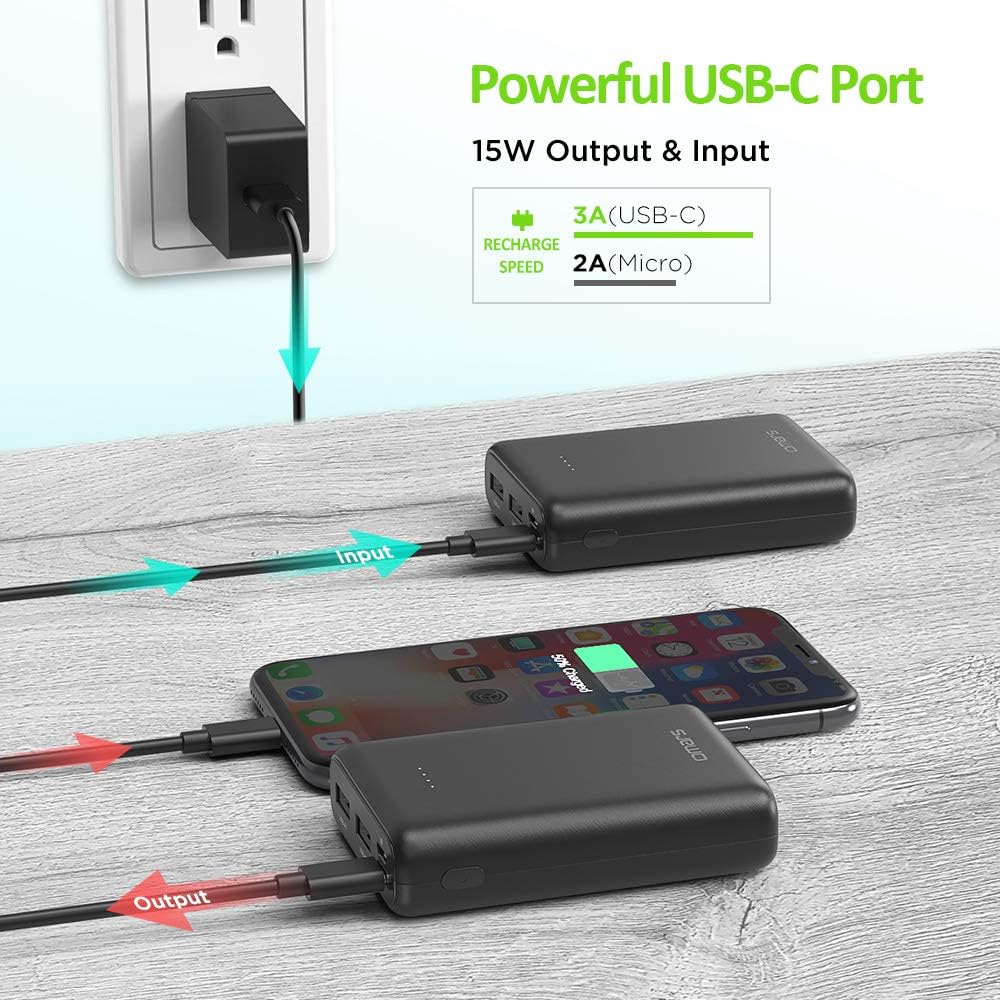
Image: The Omars Portable Charger is shown connected to a wall outlet via its USB-C input for recharging, while simultaneously providing power to a smartphone through its output port.

Image: The Omars Portable Charger is actively charging three different devices—two smartphones and a tablet—demonstrating its capability to power multiple gadgets at once.
6. Maintenance
- Keep the power bank dry and away from moisture and corrosive materials.
- Do not expose the power bank to extreme temperatures (hot or cold).
- Clean the power bank with a soft, dry cloth. Do not use harsh chemicals or abrasive materials.
- Store the power bank in a cool, dry place when not in use. For long-term storage, charge it to about 50% every three months to preserve battery life.
7. Troubleshooting
7.1 Power Bank Not Charging
- Ensure the charging cable is securely connected to both the power bank's input port and the power source.
- Try a different charging cable or wall adapter.
- Verify the power source is active.
7.2 Device Not Charging from Power Bank
- Ensure the power bank has sufficient charge (check LED indicators).
- Press the power button on the power bank to activate charging.
- Try a different output port on the power bank.
- Try a different charging cable for your device.
- Ensure your device is compatible with the power bank's output specifications.
8. Specifications
| Feature | Detail |
|---|---|
| Model Number | OMPBPW1810BKWTB |
| Battery Capacity | 10000 Milliamp Hours (mAh) |
| Product Dimensions | 5.51 x 2.83 x 0.61 inches |
| Item Weight | 6.7 ounces |
| Input (USB-C) | DC 5V 3A |
| Input (Micro USB) | DC 5V 2.0A |
| Output (USB-A1, USB-A2) | DC 5V 2.4A |
| Output (USB-C) | DC 5V 3A |
| Voltage | 5 Volts |
9. Safety Information
To ensure safe operation and prevent damage, please observe the following safety precautions:
- Do not disassemble, open, or shred the battery pack.
- Do not expose the power bank to heat or fire. Avoid storage in direct sunlight.
- Do not short-circuit the power bank.
- Do not drop or subject the power bank to strong mechanical shock.
- Keep out of reach of children.
- Do not use the power bank if it has been damaged or modified.
- Dispose of the power bank according to local regulations. Do not dispose of it with household waste.

Image: An internal view of the Omars Portable Charger highlights its multiple safety protection features, including safeguards against overcurrent, short circuit, temperature fluctuations, and over-discharge.
10. Warranty and Support
Omars products typically come with a manufacturer's warranty. Please refer to the product packaging or the official Omars website for specific warranty terms and conditions. For technical support or customer service inquiries, please contact Omars customer support through their official channels.
