Introduction
Welcome to your new Sanpyl WiFi Smart Touch Panel Light Switch. This manual provides detailed instructions for the safe installation, configuration, and operation of your smart light switch. Please read this guide thoroughly before installation and retain it for future reference.
Product Features
- WiFi Connectivity: Seamless integration with your home Wi-Fi network for remote control.
- Multiple Control Methods: Supports touch control, mobile APP control, and voice control.
- Voice Assistant Compatibility: Works with popular voice assistants like Amazon Alexa and Google Assistant.
- Timing Function: Schedule lights to turn on/off automatically at specified times.
- Tempered Glass Panel: Durable, ultra-thin, and easy-to-clean tempered glass design.
- Overload Protection: Built-in safety features to protect your electrical circuit.
- Lightning Protection: Enhanced circuit protection against power surges.
- Remote Access & Sharing: Control your lights from anywhere and share access with family members.
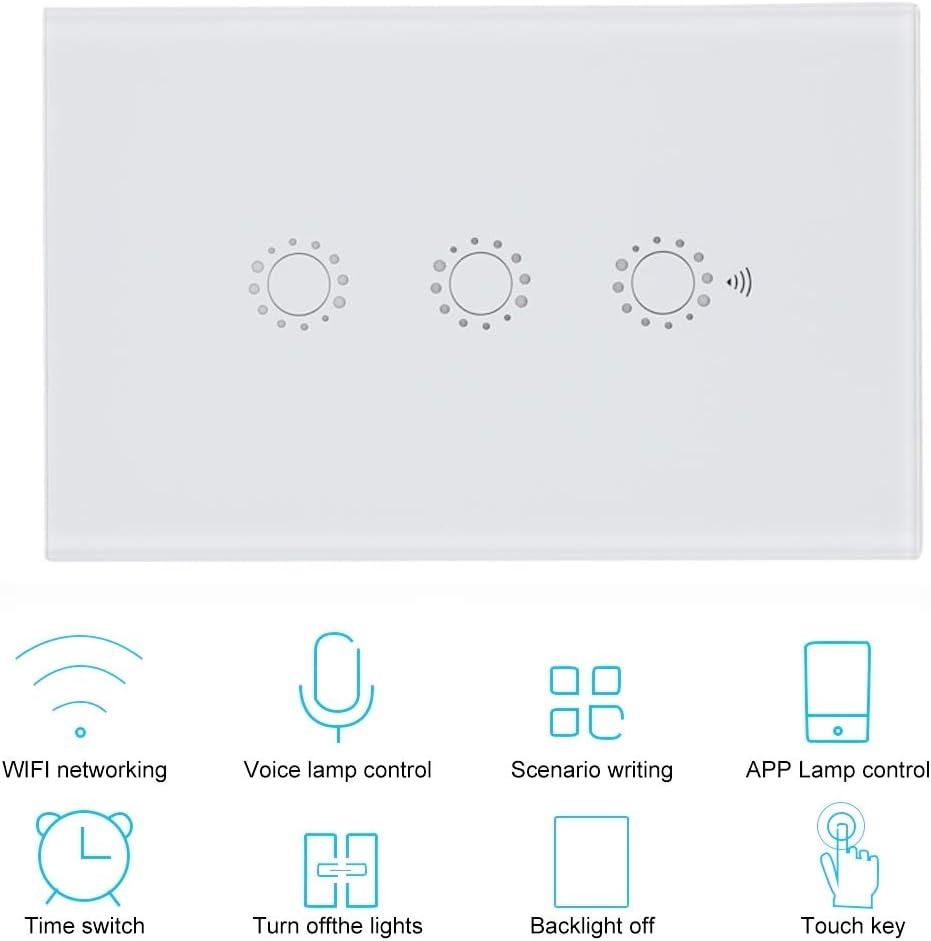
Image: Front view of the Sanpyl Smart Touch Panel Light Switch highlighting its key features such as WiFi networking, voice control, app control, and timing functions.
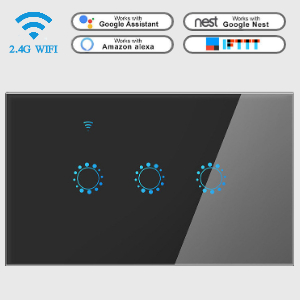
Image: Icons indicating compatibility with Google Assistant, Amazon Alexa, Google Nest, and IFTTT for integrated smart home control.
Important Safety Information
Please observe the following safety precautions to prevent damage to the device or personal injury:
- WARNING: Risk of Electric Shock. Always turn off power at the circuit breaker before installing or servicing the switch.
- Installation should be performed by a qualified electrician or a person with a thorough understanding of electrical wiring.
- Do not install with wet hands or when standing on wet or damp surfaces.
- Ensure the switch is rated for the load it will control. This switch is rated for 10 Amps at 240 Volts.
- For indoor use only.
- Keep out of reach of children.
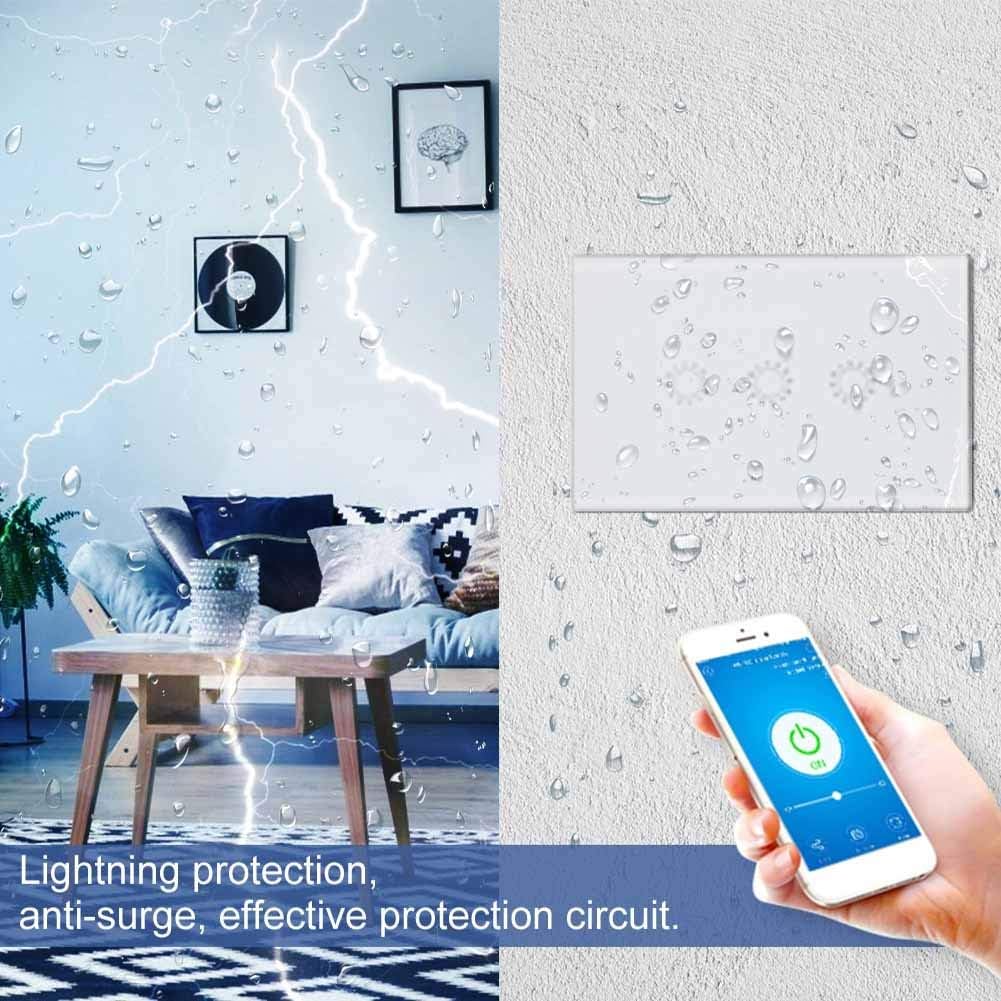
Image: Illustration depicting lightning protection and anti-surge capabilities of the smart switch, ensuring circuit safety.
Package Contents
Verify that all items are present in your package:
- Sanpyl WiFi Smart Touch Panel Light Switch (1 unit)
- Mounting Screws (2 pieces)
- User Manual (this document)

Image: The smart touch panel light switch shown alongside two mounting screws, representing the typical package contents.
Setup
1. Wiring Instructions
- Turn off Power: Locate the circuit breaker controlling the light switch you are replacing and turn it OFF. Verify power is off using a voltage tester.
- Remove Old Switch: Carefully remove the existing wall plate and unscrew the old switch from the wall box. Disconnect the wires.
- Identify Wires: Identify the Line (hot), Load, Neutral, and Ground wires. This switch requires a Neutral wire for operation.
- Connect New Switch: Connect the wires from the wall box to the corresponding terminals on the Sanpyl Smart Switch. Refer to the wiring diagram provided with the product packaging for specific connections. Ensure all connections are secure. This is a 3-way switch, so ensure proper wiring for multi-location control if applicable.
- Mount Switch: Gently push the wired switch into the wall box and secure it with the provided screws. Attach the new wall plate.
- Restore Power: Turn the power back ON at the circuit breaker.
2. App Installation
Download a compatible smart home application (e.g., 'Smart Life' or 'Tuya Smart' app) from your smartphone's app store (iOS App Store or Google Play Store). Register or log in to your account.
3. Device Pairing
- Ensure your smartphone is connected to a 2.4GHz Wi-Fi network.
- Open the smart home app and tap 'Add Device' or the '+' icon.
- Select 'Electrical' > 'Switch (Wi-Fi)' or similar category.
- Follow the on-screen instructions to put the switch into pairing mode (usually by pressing and holding a button on the switch until an indicator light flashes rapidly).
- Enter your Wi-Fi network password in the app.
- The app will search for and connect to the switch. Once connected, you can rename the device and assign it to a room.
Operating the Switch
1. Touch Control
The touch panel allows for direct control of your lights. Simply tap the corresponding touch area on the glass panel to turn the light ON or OFF. The backlight indicates the switch status.

Image: A hand interacting with the touch-sensitive surface of the smart light switch for manual control.
2. App Control
Once paired, you can control your lights from anywhere using the smart home app on your smartphone or tablet.
- Remote ON/OFF: Tap the switch icon in the app to turn lights on or off.
- Status Feedback: The app provides real-time status of your lights.
- Scene Creation: Create custom scenes to control multiple smart devices simultaneously.

Image: Screenshot of a mobile application interface showing ON/OFF control and real-time status feedback for the smart light switch.
3. Voice Control
Integrate your smart switch with Amazon Alexa or Google Assistant for hands-free control.
- Link Account: In your Alexa or Google Home app, enable the skill for your smart home app (e.g., 'Smart Life' or 'Tuya Smart').
- Discover Devices: Allow the voice assistant to discover your new smart switch.
- Voice Commands: Use commands such as:
- "Alexa, turn on the living room light."
- "Hey Google, turn off the bedroom light."
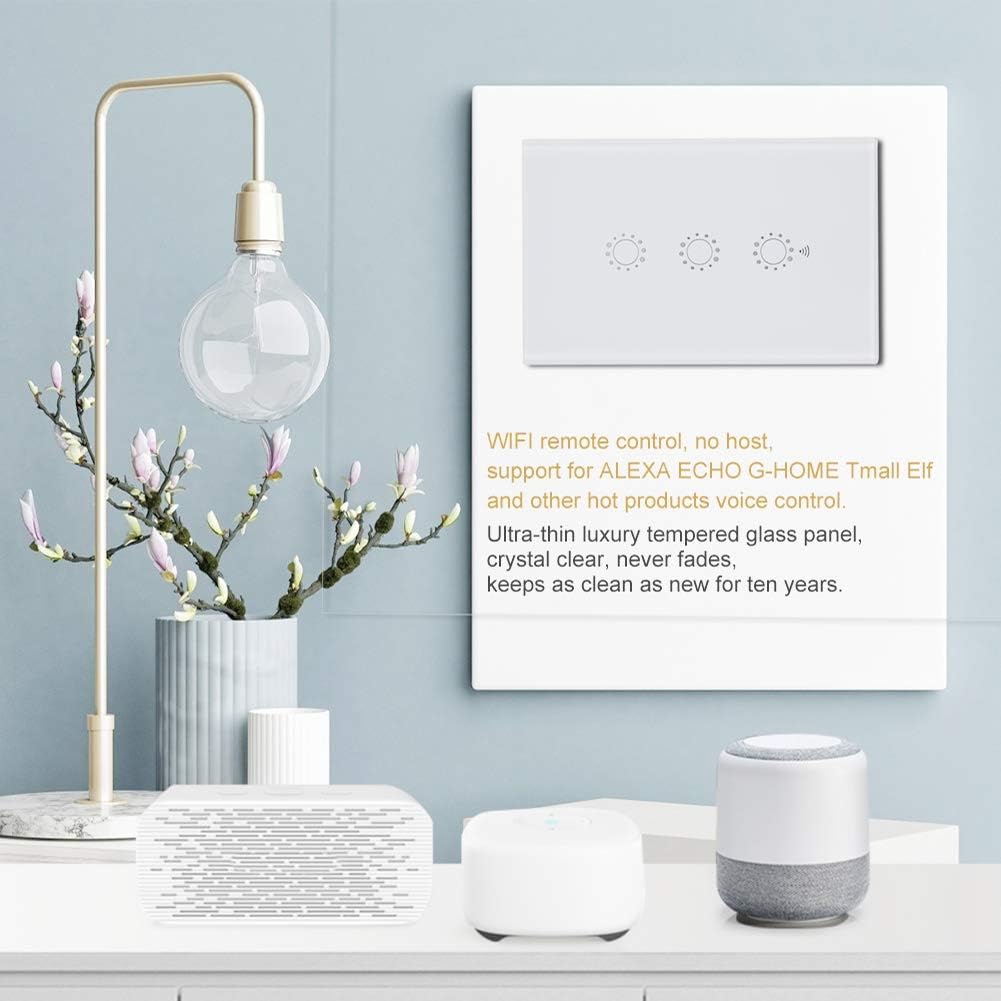
Image: A smart light switch on a wall, with smart speakers nearby, illustrating its compatibility with voice control systems.
4. Timing Function
Set schedules and timers for your lights directly through the smart home app.
- Schedule: Create daily or weekly schedules for lights to turn on or off at specific times.
- Timer: Set a countdown timer for lights to automatically switch off after a set duration.

Image: Screenshots of the mobile app showing options for setting timers and creating schedules for automated light control.
Care and Maintenance
- Cleaning: Wipe the glass panel with a soft, damp cloth. Avoid abrasive cleaners or solvents that may damage the surface.
- Dusting: Regularly dust the switch to prevent accumulation that could affect touch sensitivity.
- Avoid Liquids: Do not spray liquids directly onto the switch.
Troubleshooting Common Issues
| Problem | Possible Cause | Solution |
|---|---|---|
| Switch has no power/lights are off. | Circuit breaker is off; incorrect wiring; loose connection. | Check circuit breaker and turn it ON. Verify wiring connections are secure and correct. Ensure a neutral wire is connected. |
| Cannot connect to Wi-Fi. | Incorrect Wi-Fi password; 5GHz Wi-Fi network; switch too far from router; pairing mode not active. | Ensure correct 2.4GHz Wi-Fi network and password. Move switch closer to router. Re-enter pairing mode. |
| Touch panel is unresponsive. | Power issue; software glitch. | Turn off power at the circuit breaker for 10 seconds, then turn it back on. If issue persists, check wiring. |
| Voice control not working. | Account not linked; device not discovered; incorrect commands. | Ensure smart home app account is linked to Alexa/Google Home. Ask voice assistant to discover devices. Use correct voice commands. |
Product Specifications
| Specification | Detail |
|---|---|
| Brand | Sanpyl |
| Model Number | Sanpyl69ig8wkypq-01 |
| Operation Mode | Smart Switch |
| Current Rating | 10 Amps |
| Operating Voltage | 240 Volts |
| Contact Type | Three-way |
| Connector Type | Screws |
| Circuit Type | 3-way |
| Actuator Type | Smart Touch |
| International Protection Rating | IP65 |
| Controller Type | Android, Google Assistant, iOS |
| Control Method | Remote |
| Connectivity Protocol | Wi-Fi |
| Material | ABS, Glass, Plastic |
| Product Dimensions (L x W x H) | 0.39 x 0.39 x 0.39 inches (approx. 10 x 10 x 10 mm) |
| Item Weight | 6.4 ounces |
| UPC | 713135737290 |

Image: Diagram showing the dimensions of the smart touch panel light switch: 120mm (4.7in) width, 73mm (2.9in) height, and 33.5mm (1.3in) depth.
Warranty and Customer Support
Sanpyl products are designed for reliability and performance. For specific warranty details, please refer to the warranty card included with your product or visit the official Sanpyl website.
If you encounter any issues or have questions regarding your Sanpyl WiFi Smart Touch Panel Light Switch, please contact our customer support team. Contact information can typically be found on the product packaging or the brand's official website.


