
1. Introduction
This user manual provides detailed instructions for the setup, operation, maintenance, and troubleshooting of your Metz M43U2 4K Ultra HD Certified Android Smart LED TV. Please read this manual thoroughly before operating your television and retain it for future reference.
The Metz M43U2 offers a stunning 4K Ultra HD resolution, powered by Android 8.0, providing access to a vast array of applications and smart features. Its sleek design and advanced connectivity options ensure a premium viewing experience.
2. Safety Information
To ensure safe operation and prevent damage, please observe the following safety precautions:
- Do not expose the TV to rain or moisture.
- Do not block ventilation openings. Ensure adequate space around the TV for proper airflow.
- Protect the power cord from being walked on or pinched.
- Only use attachments/accessories specified by the manufacturer.
- Unplug the TV during lightning storms or when unused for long periods.
- Refer all servicing to qualified service personnel.
3. What's in the Box
Upon unpacking, please verify that all items listed below are present and undamaged:
- 1 x Metz M43U2 LED TV
- 1 x Table Top Stand
- 1 x Wall Mount Bracket
- 1 x User Manual (this document)
- 1 x Warranty Card
- 1 x Remote Control
- 2 x AAA Batteries (for remote control)
4. Setup
4.1 Physical Installation
Your Metz M43U2 TV can be installed using either the included table-top stand or a wall mount bracket. Ensure the installation surface is stable and can support the TV's weight (approximately 9.1 kg).

Figure 4.1: Metz M43U2 TV with dimensions (97.5 cm width, 57.5 cm height, 9.6 cm depth).
4.2 Connecting Peripherals
The TV features multiple connectivity options for external devices.

Figure 4.2: Side view of the Metz M43U2 TV, illustrating the slim profile and location of connectivity ports.
- HDMI Ports: Connect up to three HDMI devices such as set-top boxes, gaming consoles, or Blu-ray players.
- USB Ports: Two USB ports are available for connecting USB devices to access personal content like photos, videos, and music.
- Wi-Fi: Connect to your home wireless network for internet access and smart TV features.
- Bluetooth: Pair Bluetooth-enabled devices like headphones or speakers.
4.3 Initial Power On
After connecting all necessary cables, plug the TV into a power outlet. Press the power button on the remote control or on the TV itself to turn it on. Follow the on-screen instructions for initial setup, including language selection, network configuration, and Google account login.
5. Operating the TV
5.1 Remote Control
The included remote control features Artificial Intelligence with Voice Command and a dedicated Netflix button for quick access.
- Power Button: Turns the TV on or off.
- Navigation Buttons: Use the directional pad and OK button to navigate menus and select options.
- Voice Command Button: Press and hold to activate voice control for searching content or controlling the TV.
- Netflix Button: Direct access to the Netflix application.
- Home Button: Returns to the Android TV home screen.
- Input Button: Switches between different input sources (HDMI, USB, TV).
5.2 Android TV Interface
The Metz M43U2 runs on Google certified Android 8.0, offering a user-friendly interface for accessing apps, content, and settings.
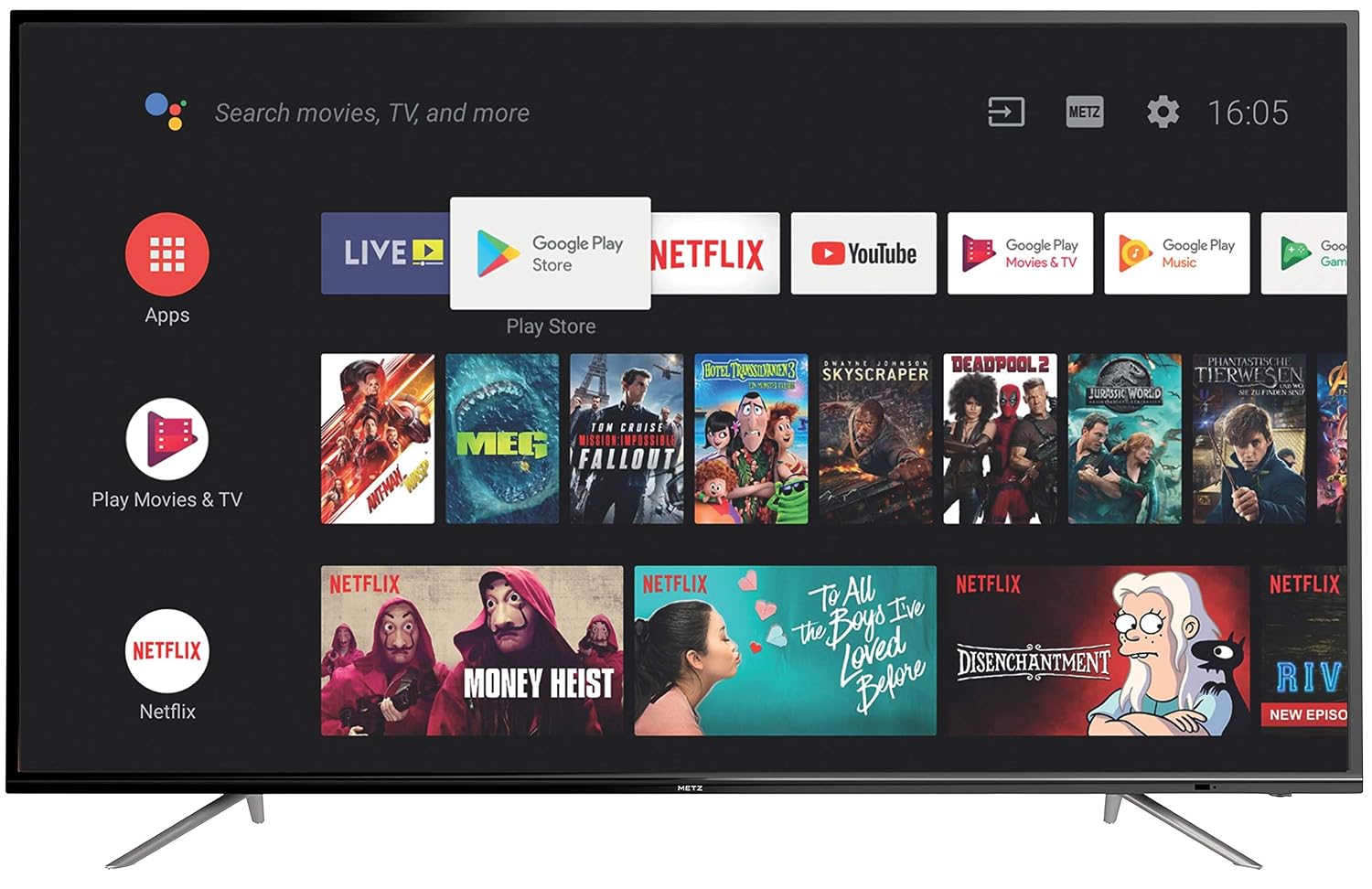
Figure 5.1: The Android TV home screen, showing various applications and content recommendations.
- Apps Row: Displays your installed applications.
- Play Store: Access millions of apps from the Google Play Store.
- Content Rows: Personalized recommendations from your installed streaming services.
6. Smart TV Features
The Metz M43U2 is equipped with a range of smart features to enhance your entertainment experience:
- Google Certified Android 8.0 TV: Provides a stable and feature-rich smart TV platform.
- Built-in Chromecast: Seamlessly cast content from your mobile devices to the TV.
- Pre-loaded Applications: Includes popular streaming services such as Netflix, YouTube, Hotstar, Zee5, Sun NXT, and Play Movies.
- Dual Voice Control: Utilize voice commands for navigation, search, and control.
7. Connectivity
The TV offers comprehensive connectivity options:
| Port Type | Quantity | Function |
|---|---|---|
| HDMI | 3 | Connect set-top box, gaming console, Blu-ray player |
| USB | 2 | Connect USB devices for media playback |
| Wi-Fi | Built-in | Wireless network connectivity |
| Bluetooth | Built-in | Wireless audio and peripheral connection |
8. Maintenance
8.1 Cleaning the TV
Always unplug the TV before cleaning. Use a soft, dry cloth to wipe the screen and cabinet. For stubborn marks, lightly dampen the cloth with water or a mild, non-abrasive cleaner specifically designed for electronics. Do not use alcohol, benzene, thinners, or other volatile substances, as they may damage the TV's surface.
8.2 Software Updates
Your Android Smart TV may receive periodic software updates to improve performance and add new features. Ensure your TV is connected to the internet to receive these updates. You can usually check for updates in the TV's settings menu under 'About' or 'System Update'.
9. Troubleshooting
If you encounter issues with your TV, please refer to the following common problems and solutions before contacting customer support.
| Problem | Possible Cause / Solution |
|---|---|
| No Power | Ensure the power cord is securely plugged into the TV and the wall outlet. Check if the power outlet is working. |
| No Picture / No Sound | Verify the correct input source is selected. Check cable connections to external devices. Try restarting the TV. |
| Remote Control Not Working | Check and replace batteries. Ensure no obstructions between the remote and the TV's IR sensor. |
| Cannot Connect to Wi-Fi | Ensure your Wi-Fi router is on and working. Re-enter the Wi-Fi password. Try restarting both the TV and the router. |
| Apps Not Loading / Slow Performance | Check internet connection speed. Clear app cache or data in TV settings. Restart the TV. |
If the problem persists after attempting these solutions, please contact Metz customer support.
10. Specifications
Detailed technical specifications for the Metz M43U2 TV:

Figure 10.1: Overview of key TV features and specifications.
| Feature | Specification |
|---|---|
| Brand | Metz |
| Model | M43U2 |
| Screen Size | 43 Inches (108 cm) |
| Resolution | 4K Ultra HD (3840x2160 pixels) |
| Refresh Rate | 60 Hertz |
| Display Technology | IPS LED Panel |
| Operating System | Google Certified Android 8.0 |
| RAM Memory | 2.5 GB |
| Internal Storage | 16 GB |
| HDMI Ports | 3 |
| USB Ports | 2 |
| Sound Output | 20 Watts |
| Audio Technology | DTS Trusurround Sound |
| Wireless Connectivity | Wi-Fi, Bluetooth |
| Product Dimensions (LxWxH) | 97.5 x 9.6 x 57.5 cm |
| Item Weight | 9.1 kg |
| Power Consumption (On-mode) | 100 watts |
| Manufacturer | SKYWORTH |
11. Warranty and Support
11.1 Warranty Information
The Metz M43U2 TV comes with a 2 Year Comprehensive Warranty provided by METZ from the date of purchase. Please retain your purchase receipt as proof of warranty.
11.2 Returns Policy
This product is eligible for replacement/refund within 10 days of delivery in case of any product defects, damage, or features not matching the description provided. Please refer to the retailer's return policy for detailed terms and conditions.
11.3 Customer Support
For technical assistance, service requests, or any inquiries regarding your Metz M43U2 TV, please contact the manufacturer:
- Manufacturer: SKYWORTH
- Customer Service Helpline: 1800123338888