
Mackie ProFX22v3
Contents
Mackie ProFX22v3 22-Channel Professional Analog Mixer with USB Instruction Manual
Model: ProFX22v3
Introduction
The Mackie ProFX22v3 is a 22-channel professional effects mixer designed for live sound, home recording, and content creation applications. It features Onyx microphone preamps, a GigFX effects engine, and a 2x4 USB audio interface for high-quality recording and playback.
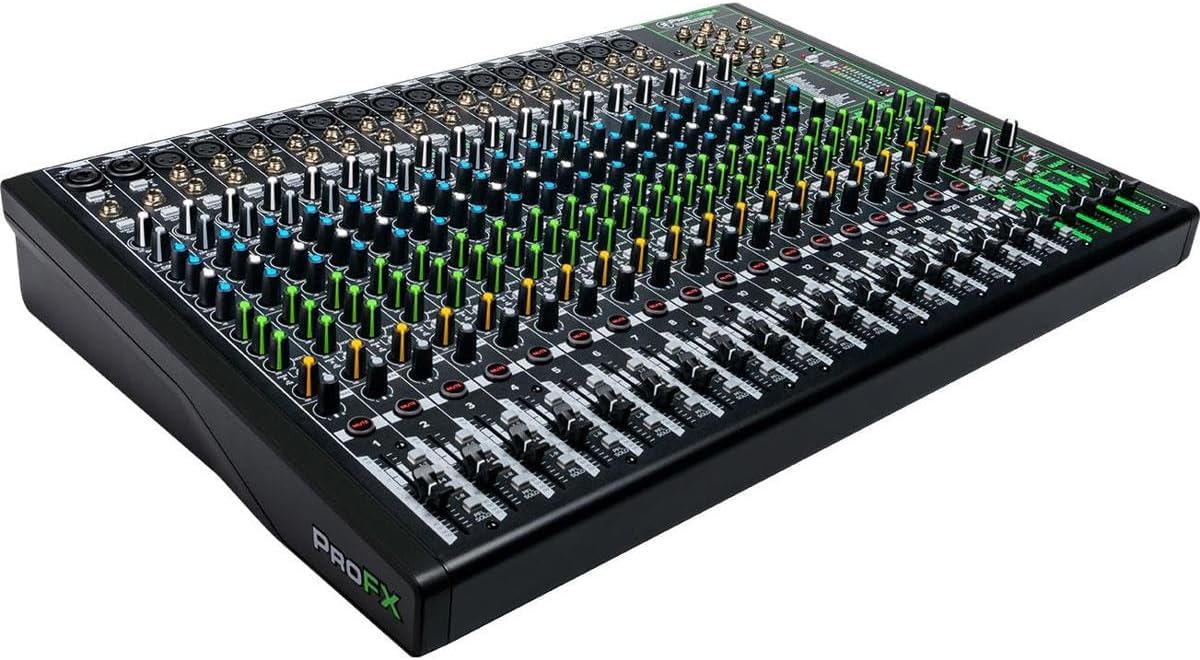
Image: Angled view of the Mackie ProFX22v3 mixer, showcasing its numerous channels and controls.
What's in the Box
Verify that all items are present in the packaging:
- ProFXv3 Series, 22-Channel Professional Effects Mixer
- Power Cord
- USB Cord
- Quick Start Guide
Key Features
- Versatile Application: Suitable for live sound, home recording, content creation, and live streaming environments.
- Onyx Mic Preamps: Equipped with 17 Onyx microphone preamps, providing up to 60dB of gain and ultra-low noise performance for various microphone types.
- High-Resolution USB Interface: Features a 24-bit/192kHz 2x4 USB I/O for clean recordings and custom mix monitoring.
- GigFX Effects Engine: Includes 24 different effects options, such as reverbs and delays, for audio enhancement.
- Zero-Latency Monitoring: A single knob allows blending between computer output and a direct feed from the mixer, facilitating easy overdubs.
Setup
Proper setup ensures optimal performance and longevity of your mixer. Follow these steps for initial configuration:
- Power Connection: Connect the provided power cord to the mixer's AC input and then to a suitable power outlet. Ensure the mixer's power switch is in the OFF position before connecting.
- USB Driver Installation: For computer connectivity, download and install the latest USB drivers from the official Mackie website. This is crucial for the 2x4 USB I/O functionality with your Digital Audio Workstation (DAW).
- Connect Inputs: Connect microphones to the XLR inputs and instruments or line-level devices to the 1/4-inch or RCA inputs as needed.
- Connect Outputs: Connect your main speakers to the Main Outputs (XLR or 1/4-inch). Connect headphones to the dedicated headphone jack for monitoring.
- Power On: Once all connections are secure, switch the mixer's power to the ON position.

Image: Rear panel connections of the ProFX22v3, highlighting power input, USB port, and main audio outputs.
Operating Instructions
This section provides an overview of the mixer's controls and basic operation.
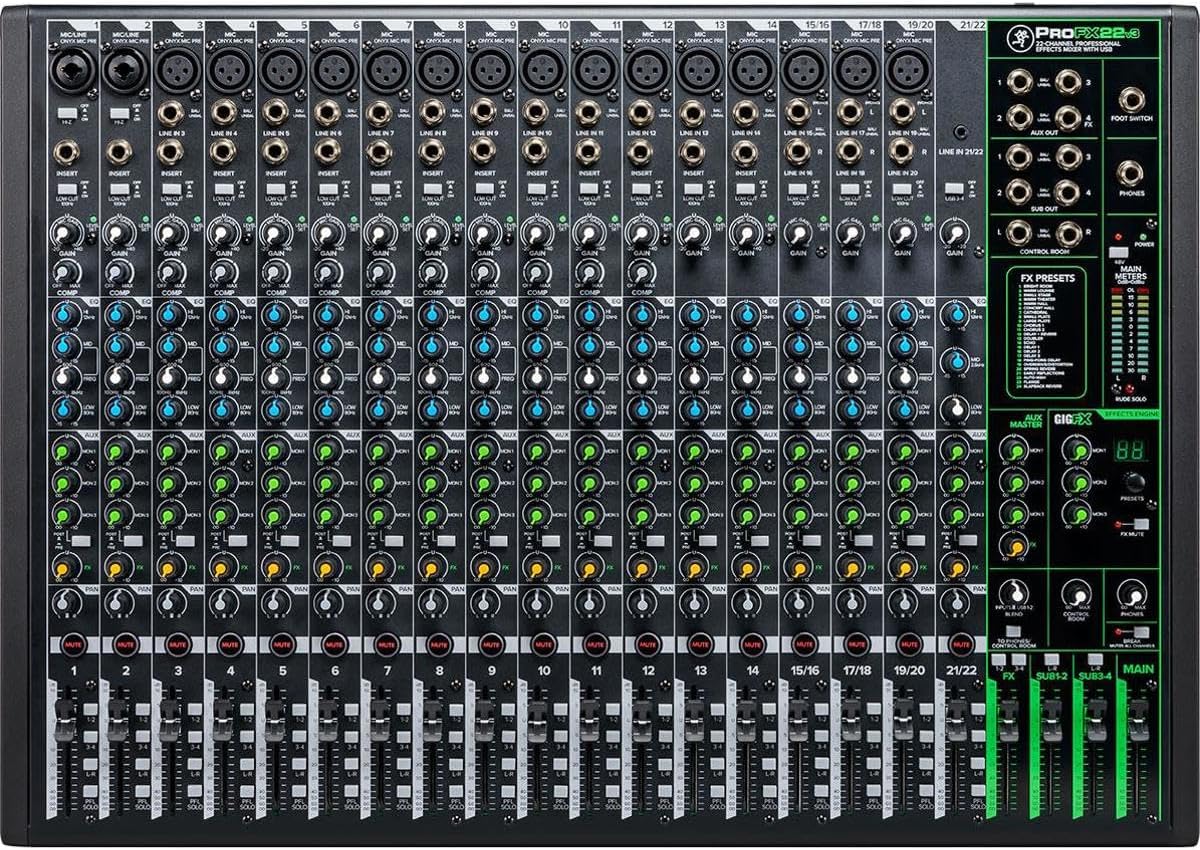
Image: Detailed top-down view of the ProFX22v3 control surface, illustrating channel strips, master section, and effects engine.
Channel Strip Controls
- Gain Knob: Adjusts the input sensitivity for each channel. Set this to achieve a healthy signal level without clipping.
- EQ Section: Provides control over high, mid, and low frequencies for tone shaping.
- Aux Sends: Used to send a portion of the channel signal to external effects processors or monitor mixes.
- Pan Knob: Positions the channel's signal within the stereo field (left to right).
- Mute Button: Silences the channel's output.
- Fader: Controls the overall volume level of the channel in the main mix.
- Compression (Select Channels): Single-knob compression for dynamic control on specific input channels.
Master Section
- Main Faders: Control the overall output level of the stereo main mix.
- Headphone Level: Adjusts the volume for the headphone output.
- Control Room Level: Adjusts the volume for the control room outputs.
- USB Return Level: Controls the playback level of audio returning from the USB connection.
USB Audio Interface
The integrated 2x4 USB audio interface allows for recording and playback with a computer. It supports 24-bit/192kHz audio quality. The 2x4 configuration enables sending two custom mixes from your computer back to the mixer, useful for monitoring specific tracks during overdubs.
GigFX Effects Engine
The GigFX engine provides 24 different digital effects to enhance your audio. To use the effects:
- Select an Effect: Use the dedicated knob or buttons in the GigFX section to cycle through the available effects presets.
- Adjust Effect Level: Use the FX Send controls on individual channels to send audio to the effects engine.
- Mix Effect Return: Use the FX Return fader or knob in the master section to blend the processed effect signal into the main mix.
Specifications
| Feature | Specification |
|---|---|
| Brand | Mackie |
| Model | ProFX22v3 |
| Number of Channels | 22 |
| Microphone Preamps | 17 Onyx Preamps |
| USB Interface | 2x4, 24-bit/192kHz |
| Effects Engine | GigFX (24 effects) |
| Connectivity Technology | USB |
| Hardware Interface | 1/4-inch Audio, 3.5mm Audio, Headphone, USB |
| Material Type | Steel |
| Power Source | Corded Electric |
| Voltage | 22 Volts |
| Item Weight | 24.65 Pounds |
| Product Dimensions | 21.8"D x 27.9"W x 8.5"H |
Troubleshooting
- No Power: Ensure the power cord is securely connected to both the mixer and a working power outlet. Check the power switch position.
- No Sound Output: Verify that main faders are up, channel faders are up, and mute buttons are disengaged. Check all cable connections to speakers and ensure speakers are powered on.
- No Input Signal: Check gain knobs on individual channels. Ensure microphones or instruments are properly connected and functioning. Verify phantom power is engaged for condenser microphones.
- USB Audio Issues: Confirm that the correct USB drivers are installed on your computer. Check your DAW's audio settings to ensure the Mackie ProFX22v3 is selected as the input/output device.
- Distorted Audio: Reduce input gain levels to prevent clipping. Check for damaged cables. Ensure output levels are not overdriving connected devices.
Care and Maintenance
- Cleaning: Use a soft, dry cloth to clean the mixer's surface. Avoid abrasive cleaners or solvents.
- Storage: Store the mixer in a cool, dry environment away from direct sunlight and extreme temperatures.
- Protection: When not in use, cover the mixer to protect it from dust and spills.
- Transportation: Use appropriate cases or packaging when transporting the mixer to prevent damage.
Warranty and Support
For warranty information, technical support, or service inquiries, please refer to the official Mackie website or contact Mackie customer service directly. Keep your purchase receipt as proof of purchase for warranty claims.
Online Resources: Visit the Mackie Store for additional product information and support.
Documents and downloads
Ask a question about this manual
Ask about setup, troubleshooting, compatibility, parts, safety, or missing instructions. Manuals+ will review the question and use this page’s manual context to help answer it.